
How to fix Windows 10 update error code 0x80070002?

Prefer to fix it yourself? The manual steps follow.
7 methods in this guide
0x80070002 error pop-ups when I try to update Windows 10 via Windows updates. Could you please help me find a way to fix this issue? Thank you.
0x80070002 is yet another error you might encounter when trying to update your Windows 10 to the new version. Update errors are relatively common and are marked with different code names - they represent different peculiarities about the issue. Nonetheless, there are several ways to fix this error once and for all.
Many users reported that they were unable to update their operating systems to the latest version. As soon as they accessed Windows Update via settings, it initially began to run, but then froze and returned the 0x80070002 error. Others also claimed that received the 0x80070003 error code instead.
In most of the cases, the error code is seen while upgrading from Windows 7 or 8 to Windows 10, although it can also be related to updating apps. Even though Microsoft has officially confirmed this bug and provided fixes, it’s not clear nevertheless what issues are a fault for stimulating it. Previous Windows 10 update bugs were often triggered by the incomplete installation of previous updates, registry errors, incorrect date/time settings, antivirus, and so on.
In this case, however, error code indicates initialization problems, which means that downloaded files were extracting on the computer, but a part of them was left out for one reason or another.
There are several versions of the 0x80070002 error that you may encounter. Despite all these versions, the point of the issue remains the same - users are unable to update their Windows computers. As a result, multiple issues can arise during the PC operation. You can find the following messages related to this issue:
Windows could not search for new updates
An error occurred while checking for new updates for your computer
Error(s) found: Code 80070002
Error encountered
There were some problems installing updates, but we'll try again later. If you keep seeing this and want to search the web or contact support for information, this may help: (0x80070002)
Try again later
Something happened to this app. We're working to fix the problem.
The error code is 0x80070002, in case you need it.
An error has occurred in the program during initialization. If this problem continues, please contact your system administrator.
Error code: 0x80070002
The same triggers may be applied for 0x80070002 (or 0x80070003) errors too. Luckily, you can do something to fix this issue and successfully run Windows 10 update. Look through the following methods and figure out what you have to do in order to get rid of the error code.
Windows updates are critical not only for the system stability and bug fixes, but also for online safety. Cybercriminals might intercept the the connection and install malware due to software vulnerabilities present on the machine. Therefore, if you cannot fix download error - 0x80070002 on time, you might suffer a cyber attack, and you will not even know about it.
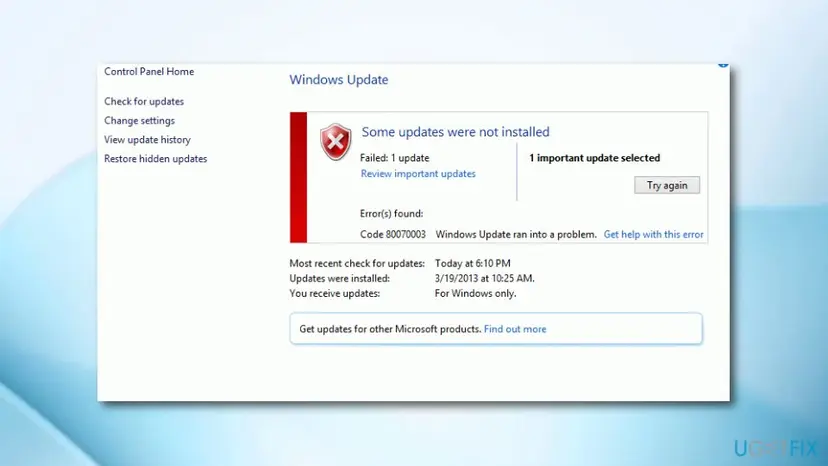
Method 1. Restart Windows Update Service
- Type in Services in Windows search and press Enter.
- If you receive a confirmation window, type in your administrator password to proceed.
- After that, click the Name column to sort names in reverse order.
- Find Windows Update, right-click on it, and select Restart.
Method 2. Navigate to SoftwareDistribution folder and remove temporary update files
- Click on Win key and type File Explorer.
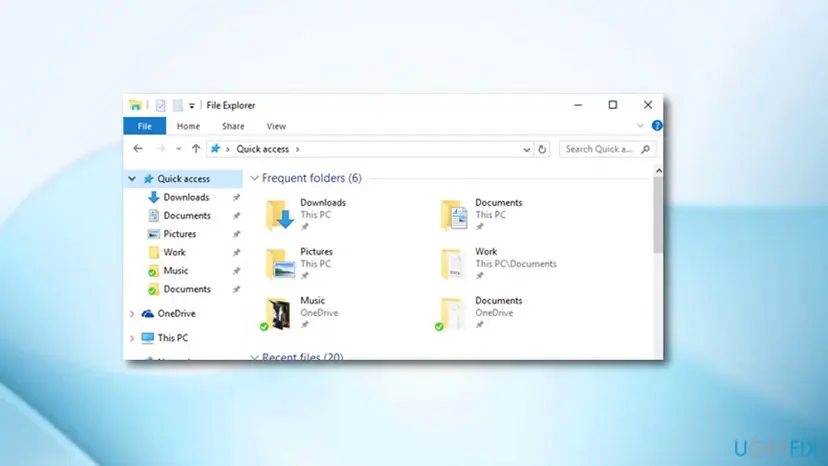
Method nr - Click on it to open. Double-click the hard disk (e.g. C:\\Windows) which contains Windows installation data.
- Go to Windows and then select SoftwareDistribution folder.
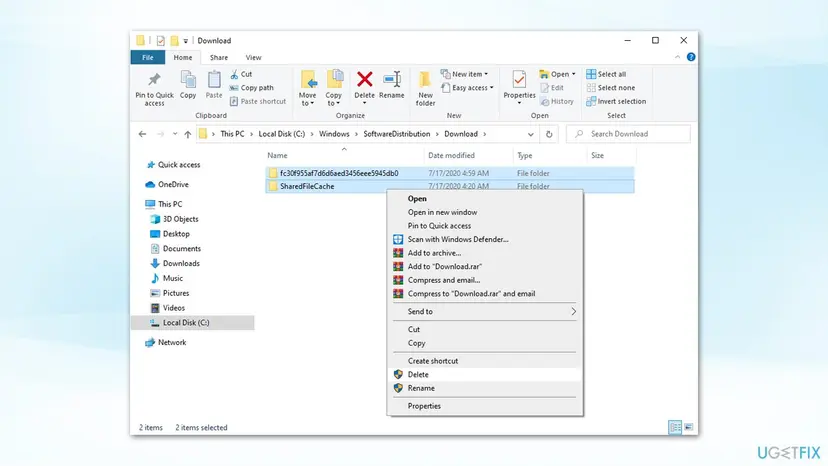
Fix 0x80070002 error on windows 10 delete software distribution folder contents - Pick Download sub-folder and then delete all the contents inside.
Method 3. Run Windows updates troubleshooter
- Right-click on Start and select Settings.
- Select Update & Security.
- On the left side, pick Troubleshoot.
- Click Windows Update on the right, and select Run the troubleshooter.
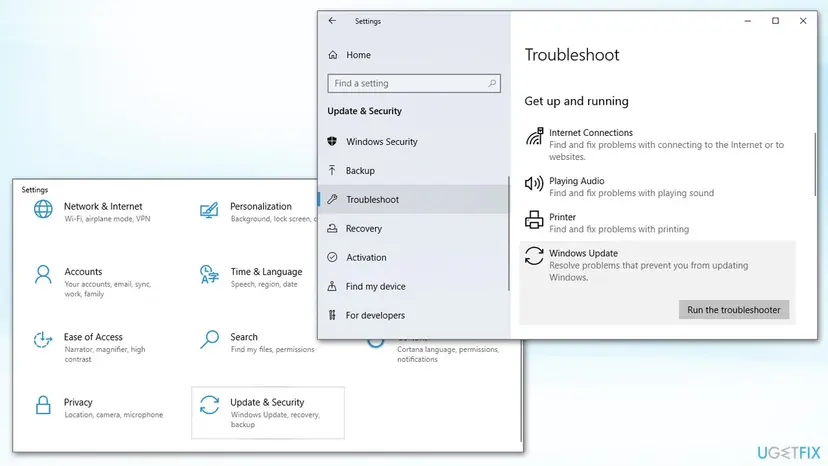
Fix 0x80070002 error on windows 10 reset run windows update troubleshooter - Wait till Windows runs the troubleshooter fully.
These steps should have helped you fix Windows Update Error bug 0x80070002. If, nevertheless, you still receive a pop-up message while upgrading, try the next method.
Method 4. Check the date and time
If the previous method did not help, you should check Date and Time settings because incorrectly set they may also cause 0x80070002 error. For that, you just have to:
- Open Control Panel and select Clock, Language, and Region option.
- Select Change settings button.
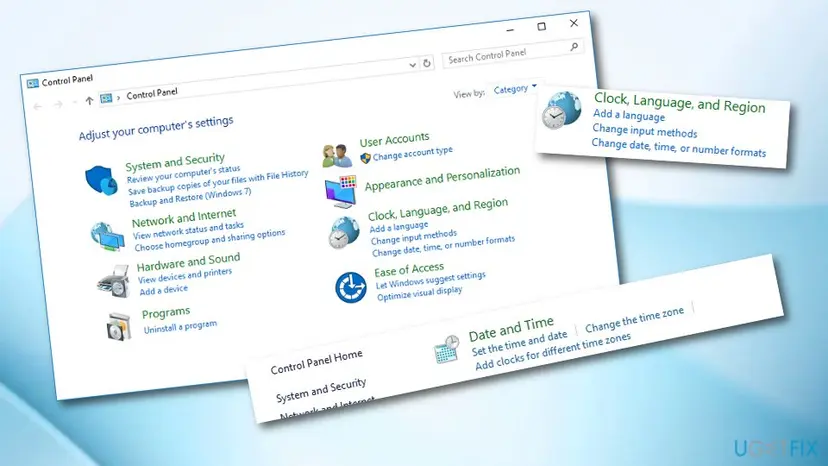
Method nr - Place a tick on Synchronize with an Internet time server and click on Update now.
- Finally, click OK and close the window.
- Finally, reboot your PC and check if Date and Time are correctly set now.
Method 5. Reset Microsoft Store cache to fix 0x80070002 when downloading apps
While 0x80070002 error is mostly prominent when trying to download Windows updates, some users might also experience it when trying to use Microsoft Store to download or update apps. Thus, reset the cache as explained below:
- Type in WSReset in Windows search bar and press Enter.
- A black window will show up for a short period of time - do not perform any actions and wait till it disappears.
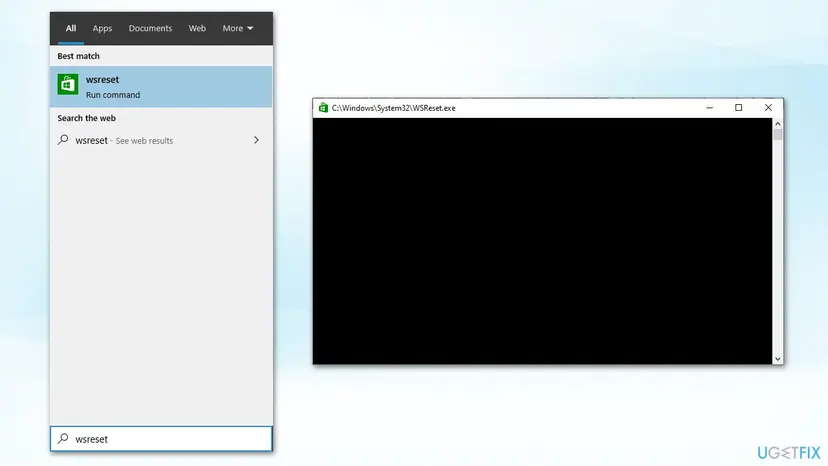
Fix 0x80070002 error on windows 10 reset windows store cache - This will reset Microsoft Store cache.
- Attempt to download/update apps once again.
Method 6. Check your system for file corruption
In order to ensure Windows file integrity, you need perform SFC and DISM scans. For that, you need access Control Panel with administrator's privileges.
- Type in cmd in Windows search
- Right-click on Command Prompt result and select Run as administrator
- In the new window, type in the following command and press Enter:
sfc /scannow
- Now wait till Windows finishes the scan and reports results
- Reboot your PC
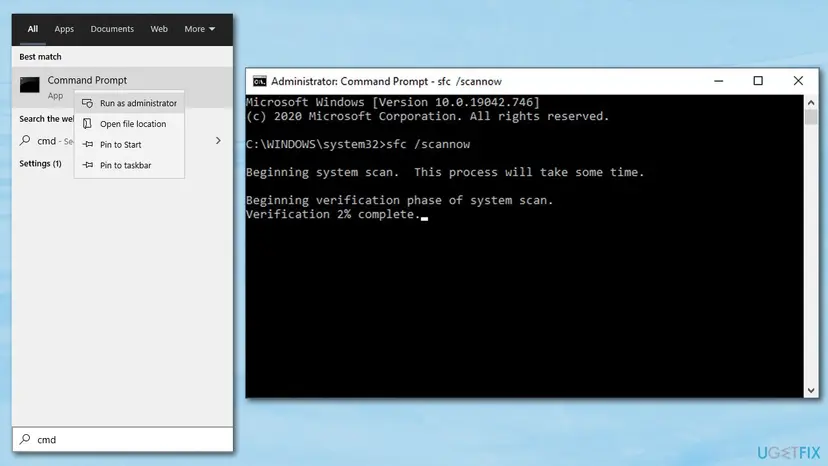
How to fix windows 10 update error 0x80070002 run sfc dism - If nothing was found or SFC reported that some errors were not fixed, you should run DISM tool instead. Once again, access Command Prompt as admin and enter the following commands, pressing Enter after each:
dism /online /cleanup-image /scanhealth
dism /online /cleanup-image /checkhealth
dism /online /cleanup-image /restorehealth - Reboot your computer and check if the issue is solved.
Method 7. Detect the cause automatically
If, however, the methods listed above did not stand up the purpose, you have one solution left. We would highly recommend performing a scan with a registry cleaner (e.g.
Did this fix work?
One click, no account. It tells the next reader which guides are worth their time.
Questions and experiences: fix Windows 10 update error code 0x80070002
Still broken, or found a fix we did not cover? Ask here: members and our editors answer. Reading is open; writing needs a free account.
…