
How to fix Windows 10 Update error code: 0x80073712?
Prefer to fix it yourself? The manual steps follow.
On this page
- How to Fix Windows 10 Update Error Code: 0x80073712 “ERROR_SXS_COMPONENT_STORE_CORRUPT”?
- 1. Run DISM tool
- 2. Use Windows Update Troubleshooter
- 3. Run System File Checker scan for Error Code 0x80073712 fixing
- 4. Restart Windows Update services
- 5. Restart relevant services and rename SoftwareDistribution/Carroot2 folders
- 6. Use Media Creation Tool
Hello. I’m struggling with the Windows update error code 0x80073712 fixes in Windows 10 for a couple of days. I’ve found some fixes related to this bug on Google, but, apparently, they apply to Windows XP and 7, which is not suitable in my case. Could someone please provide me with at least some ideas on how this update error could be resolved? Many thanks!
Microsoft releases Windows updates on a regular basis. That’s a crucial procedure, which enables Microsoft engineers to maintain Windows OS, fix old and ‘fresh’ errors, BSOD, repair security loopholes if there are any, root new system functions step-by-step, and so on. Therefore, each Windows OS update should be installed.
Unfortunately, but Windows 10 Updates often cause serious install issues, for example, Windows Update service does not find updates even though the user knows for sure that one has been released, the installation of an update freezes or is rolled back automatically.
One of the current Windows 10 Update errors is 0x80073712, which can also be accompanied with bug check code ERROR_SXS_COMPONENT_STORE_CORRUPT. Initially, this bug check has affected Windows 10 OS when trying to install cumulative update KB3194798 in particular, which has been released on October 11, 2016.
Nevertheless, it shows a tendency to prevent installation of Windows apps and other updates.
ERROR_SXS_COMPONENT_STORE_CORRUPT
14098 (0x3712)
The component store has been corrupted.
However, it is also important to note that the error 0x80073712 error remained, and some users receive it when trying to simply update Windows, regardless of which KB number is trying to be installed.
Unfortunately, there are no official fixes provided on the Internet, but we believe that Microsoft engineers are already aware of it and work with its solution. Until 0x80073712 error fixes or a patch will be released, you may try the methods that we’ve come up with. When the particular issue gets fixed the best solution is to Update the OS with a bug-free version.
How to Fix Windows 10 Update Error Code: 0x80073712 “ERROR_SXS_COMPONENT_STORE_CORRUPT”?
NOTE that Reimage has an in-built antivirus system, so it will remove malware.
1. Run DISM tool
- Click Win key + X and select Command Prompt (Admin).
- Type the following command and press Enter after each of them:
DISM /Online /Cleanup-Image /CheckHealth
DISM /Online /Cleanup-Image /ScanHealth
DISM /Online /Cleanup-Image /RestoreHealth - Once done, reboot the system.
2. Use Windows Update Troubleshooter
- Right-click on Start and select Settings.
- Find Troubleshoot function.
- Then select Windows Update under Troubleshoot section.
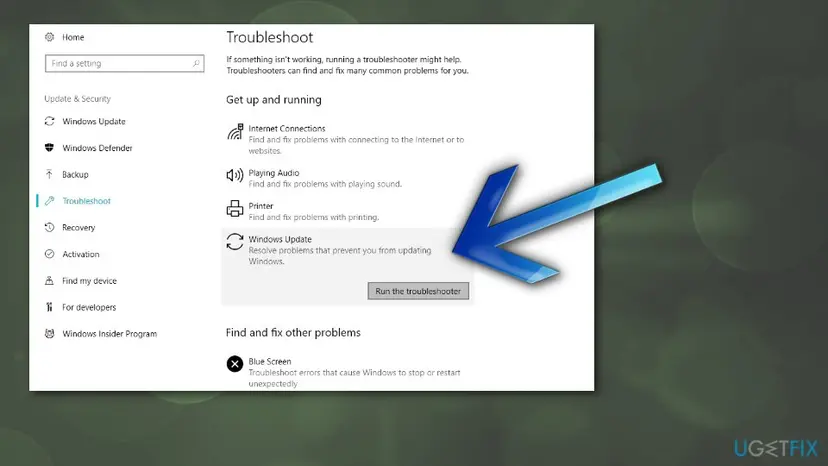
How to fix windows 10 update error code 0x80073712 windows update troubleshooter - Run the troubleshooter.
3. Run System File Checker scan for Error Code 0x80073712 fixing
System File Checker can find and repair Windows system file integrity violations.
- Run the Command Prompt window as administrator.
- Enter the sfc/scannow command and press Enter.
- Wait till the scan is finished and results are reported.
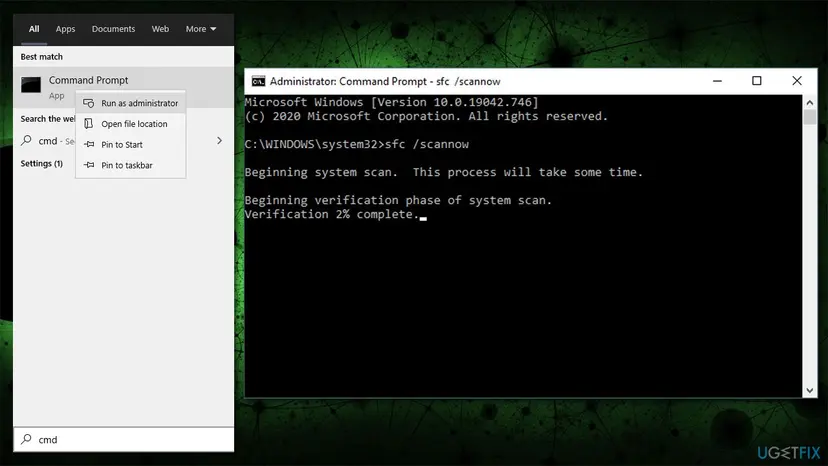
How to fix 0x80073712 error on windows run sfc scan - Reboot your PC.
4. Restart Windows Update services
- Click Win key + R, type services.msc, and click Enter.
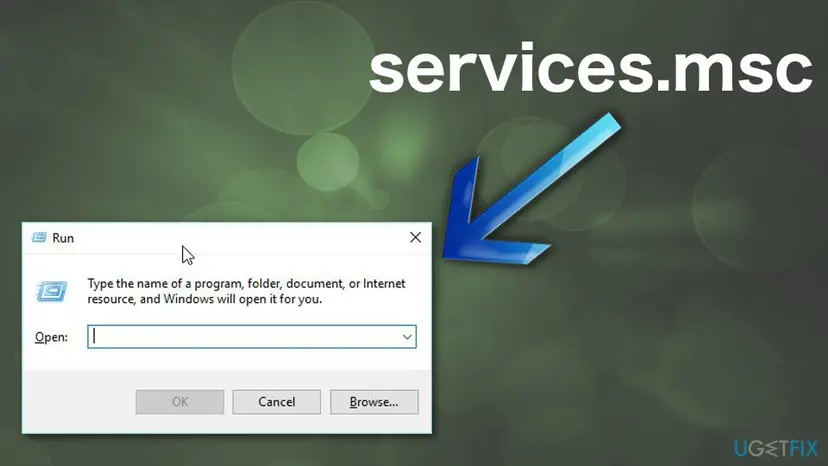
How to fix windows 10 update error code 0x80073712 run services - Locate Windows Update service.
- If the status of Windows Update is not indicated (the column is blank), right-click on it, and select Start.
- It might be that force start of Windows Update ends up with an error.
- In this case, find the option Startup Type, and set it to Automatic.
- Finally, restart the system and try to run the update.
5. Restart relevant services and rename SoftwareDistribution/Carroot2 folders
You can perform these actions by using commands in Command Prompt:
- Open elevated Command Prompt as explained above
- Copy and paste the following commands, pressing Enter after each:
net stop wuauserv
net stop cryptSvc
net stop bits
net stop msiserver
ren C:\\Windows\\SoftwareDistribution SoftwareDistribution.old
ren C:\\Windows\\System32\\catroot2 Catroot2.old
net start wuauserv
net start cryptSvc
net start bits
net start msiserver - Reboot your computer.
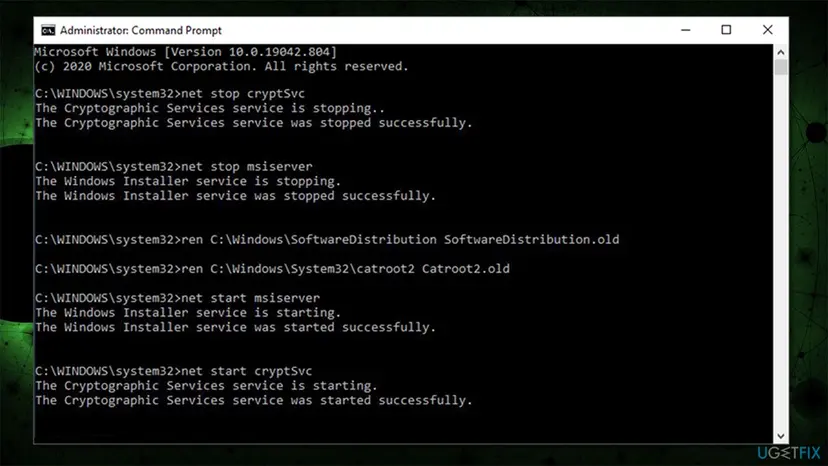
How to fix 0x80073712 error on windows reset windows update components
6. Use Media Creation Tool
One of the best ways to upgrade Windows to the latest version without suffering from any errors is by doing that with Media Creation Tool.
- Visit the official Microsoft website to download Windows 10 installation media.
- Double-click the installer that should show up at the -bottom left of your web browser.
- Agree to Terms and click Next.
- Select Upgrade this PC now and click Next
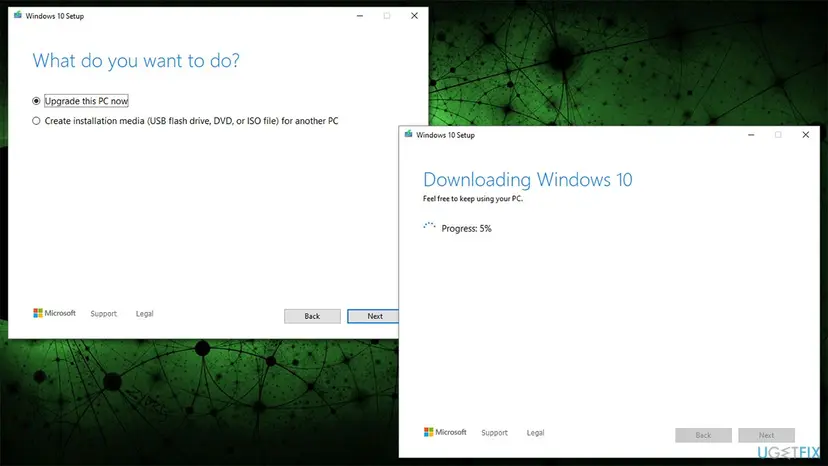
How to fix 0x80073712 error on windows use media creation tool - Wait till all the necessary files are downloaded and upgrade process finishes
- Restart your device.
Did this fix work?
One click, no account. It tells the next reader which guides are worth their time.
Questions and experiences: fix Windows 10 Update error code: 0x80073712
Still broken, or found a fix we did not cover? Ask here: members and our editors answer. Reading is open; writing needs a free account.
…