How to fix
“Windows could not automatically detect this network’s proxy settings”
on Windows
Resolve the "Windows could not automatically detect this network's proxy settings" error on Windows 10 easily. Expert-tested solutions inside!

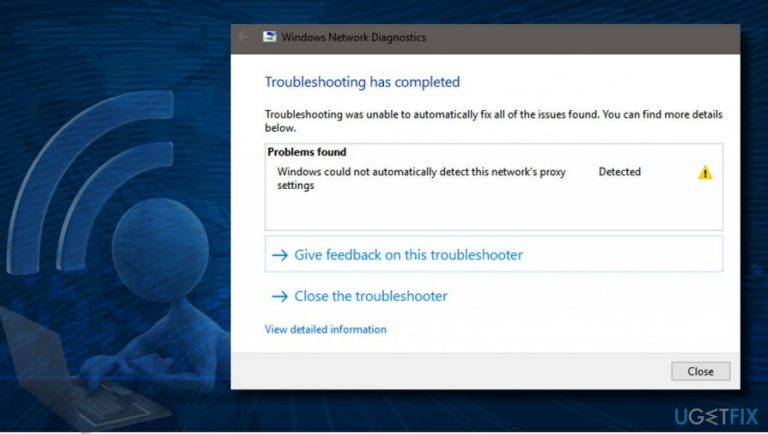
What causes How to Fix “Windows could not automatically detect this network’s proxy settings” on Windows 10?
- Changes in proxy settings
- Malicious programs
- Trojans
- File corruptions
- Network settings alterations
Repairs Windows system files, removes malware, and restores a clean OS state — without reinstalling.
A couple of days ago, I have noticed a small red triangle, apparently a caution sign, next to the my network icon on the task bar. If I clicked on that sign and received a notification saying: "Windows could not automatically detect this network's proxy settings."
I have found out that many people are dealing with the same issue, but could not find a proper solution. Could you please help me? I want my internet back! Thanks in advance.
"Windows could not automatically detect this network's proxy settings" is the issue that indicates a particular problem that appears a yellow warning pop-up. It occurs more often when the internet is slow when the user cannot use their internet properly. There are no prior signs of the error, so it appears at any time and prevents the user from accessing anything on the internet.
The problem can be caused by changes in particular proxy settings on your Windows. Alterations might be the results of malicious programs, trojans, and other silent and damaging malware. File corruptions often lead to changes in references and network settings. Unfortunately, you need to eliminate most of the possibilities to resolve this "Windows could not automatically detect this network's proxy settings" issue.
The notification is delivered by Windows Actions or Notification center[ref en-1] when there is an issue related to the proxy settings. Usually, Windows informs people about particular malfunctions utilizing pop-up alerts or BSOD[ref en-2] errors. Unlike these types of errors, the signs of the issues on network proxy settings are disclosed implicitly.
Windows could not automatically detect this network's proxy settings can cause several issues. Users may first notice Internet connection disorders,[ref en-3] for instance, the Internet connection may be lost and then re-established automatically, the Internet speed diminished, and result in the absence of the internet connection.
Naturally, users go ahead and click on the icon, which brings up the troubleshooting screen. Once the troubleshooter is finished with the scan, users then an issue under "Problems found:"
Troubleshooting was unable to automatically fix all of the issues found. You can find more details below.
Problems found
Windows could not automatically detect this network's proxy settings
Proxy is a server that acts as an intermediary for requests and, once connected, grants anonymity to users. Additionally, it can be used as a means to bypass the block of the IP address or access content that would be unavailable otherwise. Thus, the proxy is very similar to a VPN and can be used for both good and bad purposes.

While initially, Windows could not automatically detect this network's proxy settings problem occurred on Windows 7[ref en-4] and 8 a couple of years ago, Microsoft technicians haven‘t solved it completely, so it has "successfully" been transferred to Windows 10 OS.
Currently, thousands of Windows 10 users are waiting for the instructions on how to fix "Windows could not automatically detect this network's proxy settings" error. Up until this happens, you may try a couple of workarounds that helped many people whose PCs were affected by this problem.
Proxy-related issues like "Windows could not automatically detect this network's proxy settings" can occur very often, and there are various messages, root causes of these errors, and solutions for them:
- Windows cannot detect proxy settings is a common error and can be fixed using general solutions.
- ERR_PROXY_CONNECTION_FAILED - browser-based issue.
- Windows could not automatically detect proxy server - a problem that is related to network configurations.
- Windows won't save proxy settings - another common issue that users can fix with general fixes for the proxy error.
- Windows proxy settings changing or not saving properly - the issue that triggers changes in proxy settings. You might need to turn off proxy and reset settings yourself.
Fix "Windows could not automatically detect this network's proxy settings" on Windows
The first thing that you should try to fix "Windows could not automatically detect this network's proxy settings" bug is to run a scan with a professional anti-malware tool, such applications can check the machine for any malicious programs triggering system damage. The virus might only leave its damage on the computer, so tools like [d1] can help with corrupted files and functions directly.
These days virus infections are seriously dangerous and can initiate various system-related issues, including Internet connection and proxy errors. If the scan finds no infections, then try to disable your anti-virus temporarily and check if the "Windows could not automatically detect this network's proxy settings" problem vanished.
Another problem with such errors - drivers and other pieces of software that are missing and keeping the system from running properly. If the issue with this "Windows could not automatically detect this network's proxy settings" error persists, try running a tool like [rev id="DriverFix"].
Stop using a proxy server
Depending on the Proxy server, it might stop working after some time because it can have a limited amount of connections, or it can be hosted on a personal computer. For that reason, the not working proxy might cause the Windows could not automatically detect this network's proxy settings error. Thus, disable proxy entirely:
- Click Win key + X and select Control Panel.
- Select Internet Options.
- At the top of the window, select Connections tab.
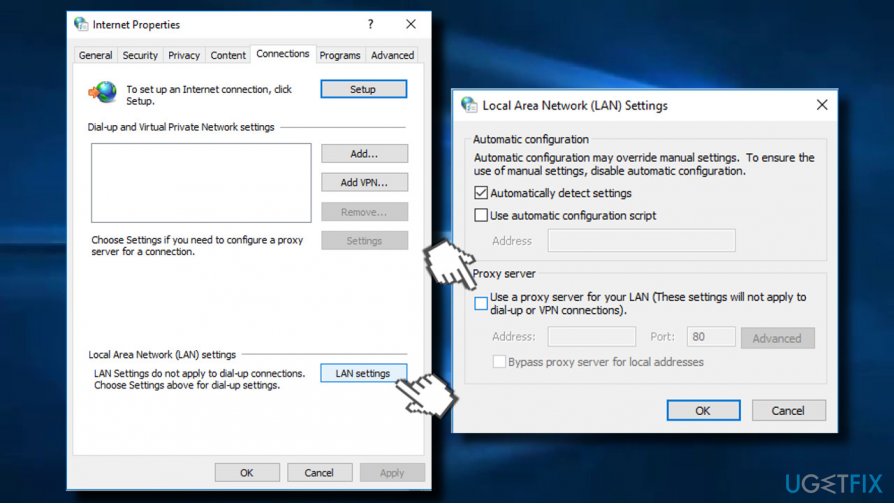
Check internet options - Click LAN settings at the bottom of the window and check if the Proxy Server is unchecked (the third checkbox). If it is checked with a tick, remove it.
Once done, open your web browser and check the settings as well. For example, check Firefox‘s settings:
- Open Firefox and select Tools.
- Go to Options -> Advanced Connections -> Settings.
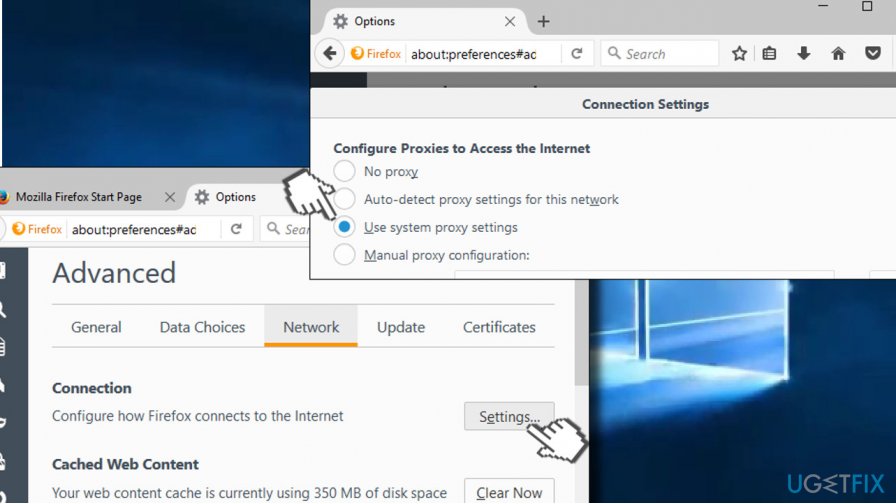
Web browsers settings - The settings should be set as either Use System Proxy Settings or No Proxy.
Obtain DNS settings automatically
- Press Windows button + R and type in ncpa.cpl
- Right-click on your connection and pick Properties
- Select Internet Protocol Version 4 (TCP/IPv4) and click on Properties
- Make sure Obtain DNS server address automatically option is picked and click OK
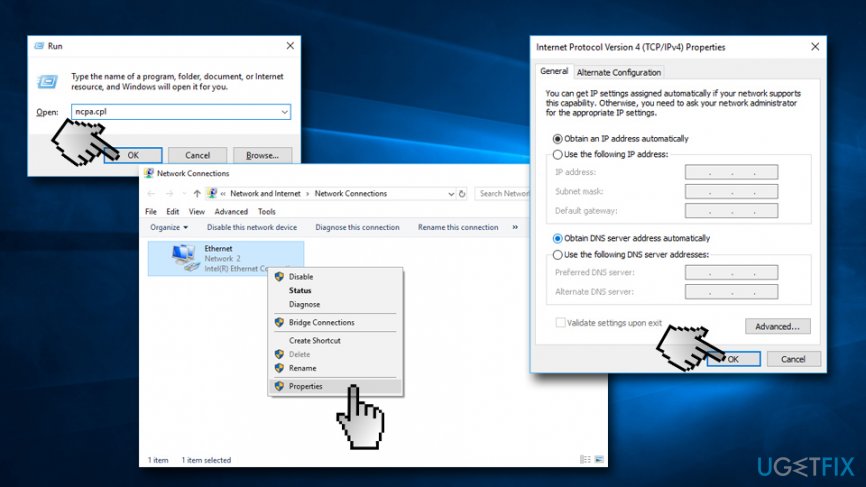
Windows could not automatically detect this networks proxy settings check dns settings
Reset Internet Protocol Suite to fix "Windows could not automatically detect this network's proxy settings"
Internet protocol suite, commonly known as TCP/IP, is a set of communications protocols which indicates how data should be adressed, transmitted and received. Thus, resetting TCP/IP might fix Windows could not automatically detect this network's proxy settings error:
- Click Win key + X and select Command Prompt (Admin).
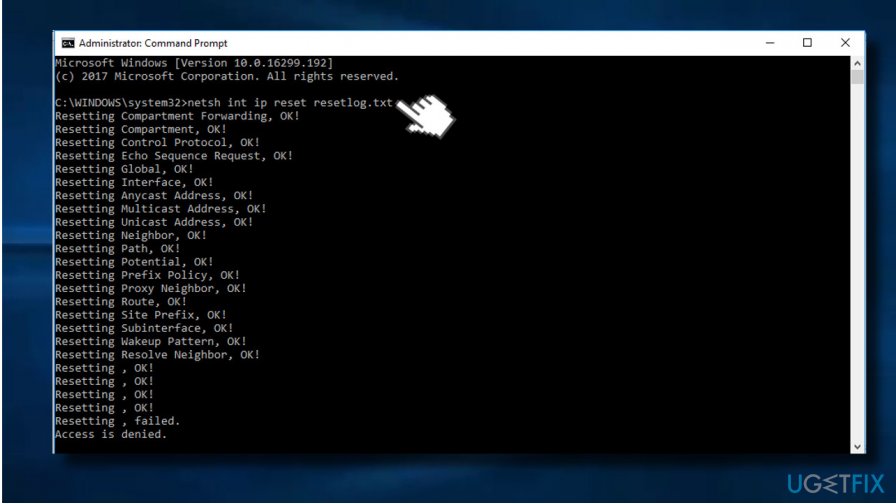
Reset tcp ip - Type netsh int ip reset resetlog.txt command and press Enter.
- Once the command is executed, reboot your PC.
Some experts recommend resetting the adapter, but this solution does not appear to be popular. Most of the people claim that the problem is not related to the device because other devices are successfully connected to the Internet using the same adapter.
Nevertheless, if you feel helpless and want to try everything, you can find information how to reset adapter here.
Restart network adapter to fix "Windows could not automatically detect this network's proxy settings"
- Right-click the network icon at the bottom right corner and choose Open Network and Sharing Center.
- Click Change adapter settings on the menu.
- Find your network connection and right-click it to choose Disable option.
- Right-click the network connection again and choose Enable from the menu.
Use System Restore
Windows 10 OS has a great service known as System Restore Point. It allows people to undo the changes performed on the system , which is very useful in case the system starts to malfunction. Thus, if you have created a System Restore Point earlier, it‘s about time to use that point. Many people have reported that this solution has helped to fix "Windows could not automatically detect this network's proxy settings'' error.
- Click Win key + X and select System Protection on the right pane.
- If a UAC appears, click Yes to proceed.
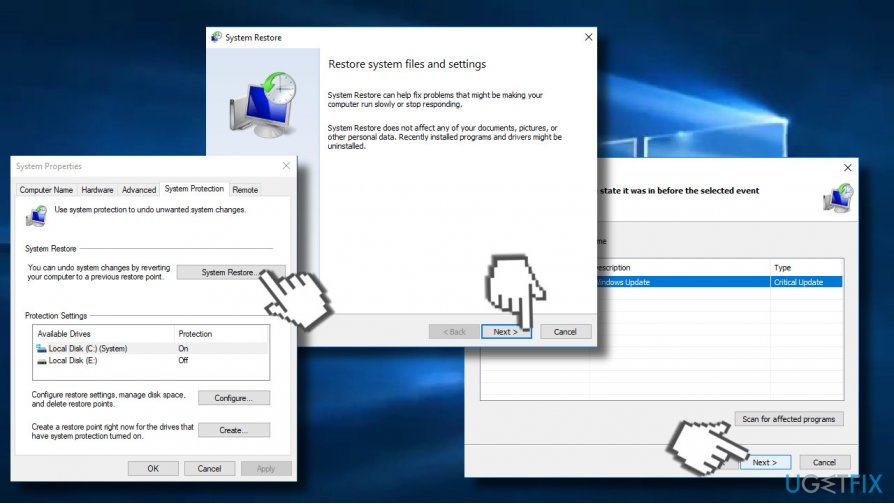
Use system restore point - Select System Restore, click Choose a different restore point and Next.
- Pick out the restore point you would like to restore Windows back to and click Scan for affected programs.
- Carefully analyze what modifications will be initiated and click Close.
- When you are ready to restore the system, click Next.
- Wait for the process to complete and click Finish.
- Once you click Yes, the System Restore Point will be completely launched and the system restarts automatically.
Enable the automatic DNS server address obtaining
- Open Network and Sharing Center. Then go to Change adapter settings.
- Find your network connection and right-click it.
- Choose Properties from the menu.
- Select Internet Protocol Version 4 and click on Properties.
- Choose Obtain DNS server address automatically. Save changes by clicking on OK.
Use SFC scan
A simple, yet efficient tool that can fix system errors automatically can be accessed via Command Prompt. Please follow these steps:
- Click on Start and type Command Prompt or cmd
- Right-click on it an pick Run as administrator
- In Command Prompt Window, type in sfc /scannow and press Enter
- Wait till the scan is complete. Windows will fix any found errors automatically
Bottom line
To resolve the 'Windows could not automatically detect this network's proxy settings' issue, users should check and reset their proxy settings, run a malware scan, and repair any corrupted files. If these steps do not work, consider seeking further technical support.
Frequently asked questions
You can start by checking your proxy settings in the Internet Options and ensuring that the 'Automatically detect settings' box is checked. If the issue persists, consider resetting your network settings or disabling any third-party VPNs.
To disable proxy settings, go to Settings > Network & Internet > Proxy, and turn off 'Use a proxy server' under the Manual proxy setup section. This should help resolve the detection error.
Yes, you can run the Network Troubleshooter by going to Settings > Update & Security > Troubleshoot > Additional troubleshooters and selecting 'Internet Connections.' This can help identify and fix proxy-related network issues.




Report an issue
What's wrong with this guide? We review every report and update or remove content.
Report received — thank you. We'll review and fix it.
You need a free account to submit a report.
Be the first to comment