
How to Fix Windows Defender Error Code 0x8050800c on Windows 10?

Prefer to fix it yourself? The manual steps follow.
5 methods in this guide
Hi. I’m encountering an issue with Windows Defender. I HAD Spybot installed, which I had removed successfully, at least I think so. I’ve checked the registries (manually) and removed the excess of Spybot files. However, when I try to run a scan with Windows Defender, I’m notified that Real Time Protection is handled by another AV. Besides, I receive an error code 0x8050800c randomly, which allows me to click Turn On, Help or Close buttons. If I click Turn On, I’m redirected to the Settings where I’m supposed to delete the other AV, which I cannot find. Please tell me how could I work around this issue as I’m feeling frustrated in trying to run Windows Defender. Many thanks!
Windows Defender is anti-virus software developed by Microsoft. While it has been available for older Windows OS, in Windows 10, it comes by default and starts performing scans automatically. Diverse opinions are expressed toward this anti-virus, which is natural. However, security experts point out more advantages than disadvantages.
For example, Windows Defender will not get on user’s nerves by showing pop-ups and requires purchasing a licensed version or an update, and it uses fewer system resources than third-party anti-virus. Besides, as HowToGeek points out, “AV-TEST found that it still caught 99 percent of the “widespread and prevalent malware” in October 2015, along with 95 percent of the zero-day attacks. AV-Comparatives real-world protection tests found that it caught 94.5% of threats.”
However, just like any other anti-virus, Windows Defender might end up with an error. At the end of 2016, people have started experiencing a Windows Defender Error Code 0x8050800c while trying to turn on the defender, perform a real-time scan or install security updates and other tasks. The error message indicates the fact that Windows Defender Is Handled by Another AV. A full message reads as follows:
An unexpected problem occurred. Install any available updates, then try to start the program again. For information or installing updates, see Help and Support.
The content of 0x8050800c error message may vary, but the error code remains. According to IT engineers, this bug check may prevent Windows Defender from running if there are some remnants of third-party anti-virus software left. Therefore, it’s very important to recall if you had an AV, such as McAfee, Norton, Webroot, Spybot or another running on the system some time ago. In addition to the third-party software leftovers, Windows Defender Error Code 0x8050800c may occur after installation of Windows Anniversary Update. In this case, the problem might happen due to the modified Windows 10 settings or missing security updates.
How to Fix Windows Defender Error Code 0x8050800c on Windows 10?
Method 1. Install a software removal tool
Third-party anti-virus (AV) or AV, in general, install multiple files under various system locations. It is necessary to ensure proper system’s security and prevent AV damage by malware. Unfortunately, but due to the multiplicity of files, anti-virus programs sometimes get difficult to remove.
Method 2. Install available Windows Updates
- Click Win key + I and select Updates & Security.
- Open Windows Updates and click Check for Updates button.
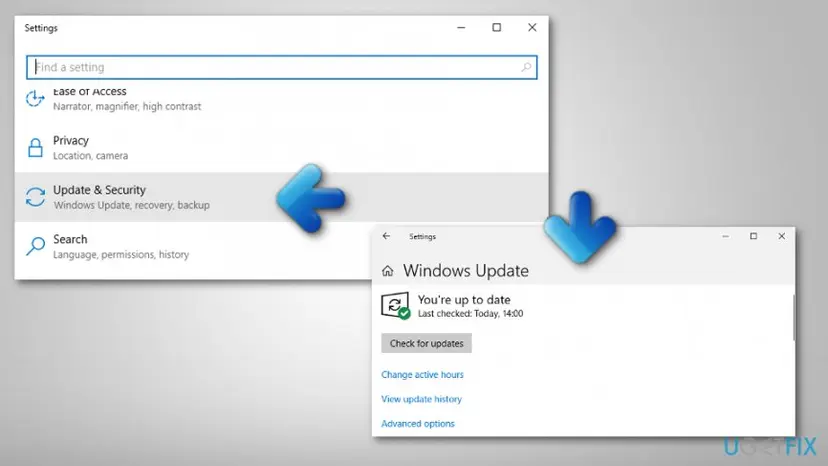
Error fix - Now the system should perform a scan for all available updates, so take a rest and wait until the process is finished.
- When the list of pending updates is delivered, click Install the Updates.
- Once done, reboot the system.
Method 3. Disable Periodic Scanning
- Click Win key + I and select Updates & Security.
- Find Windows Defender in the left pane and click it.
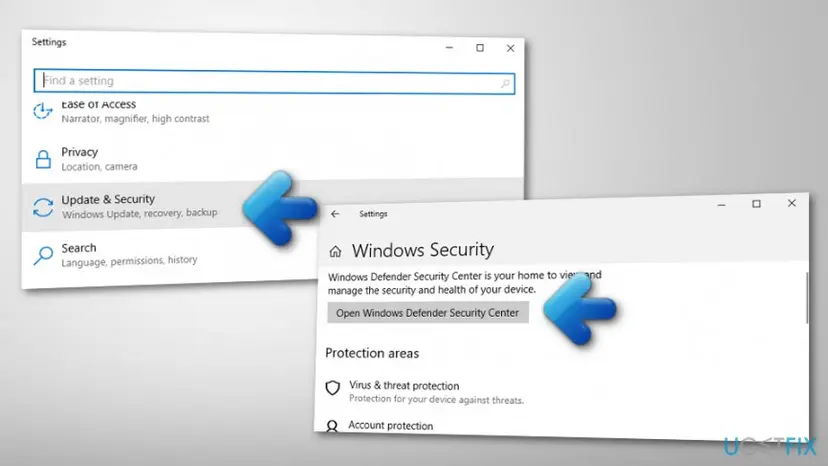
Fix error code - Slide a toggle under Periodic Scanning to Off.
- After that, open Windows Defender and click Turn on.
Many people found this method helpful in 0x8050800c error fix. Hopefully, you either.
Method 4. Check for corrupted files
- Open Command Prompt and choose Run as Administrator;
- Type in DISM.exe /Online /Cleanup-image /Restorehealth;
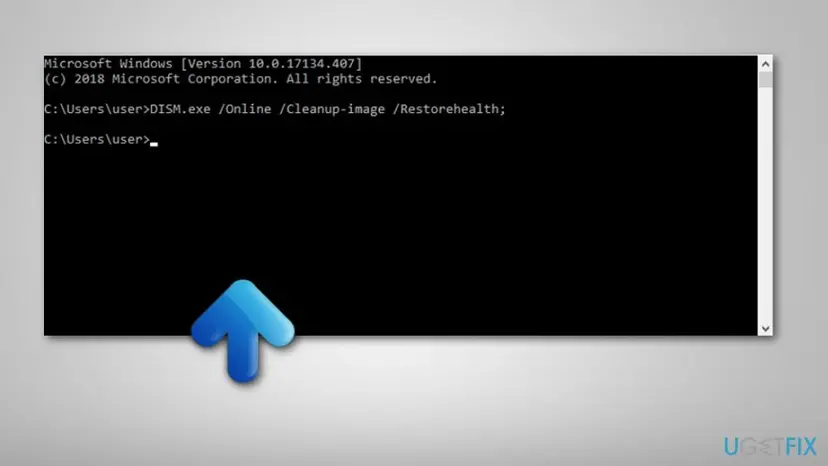
Error fixing - Press Enter and wait for the process to complete;
- After that, type sfc/scan now and hit Enter;
- You will receive a message that will inform you if any files are corrupted or not.
Method 5. Perform a clean boot on your PC
- Type msconfig in the Windows search box;
- Choose System Configuration;
- Enter the Services tab and choose Hide all Microsoft services, and then select Disable all;
- Open the Startup tab and select Open Task Manager;
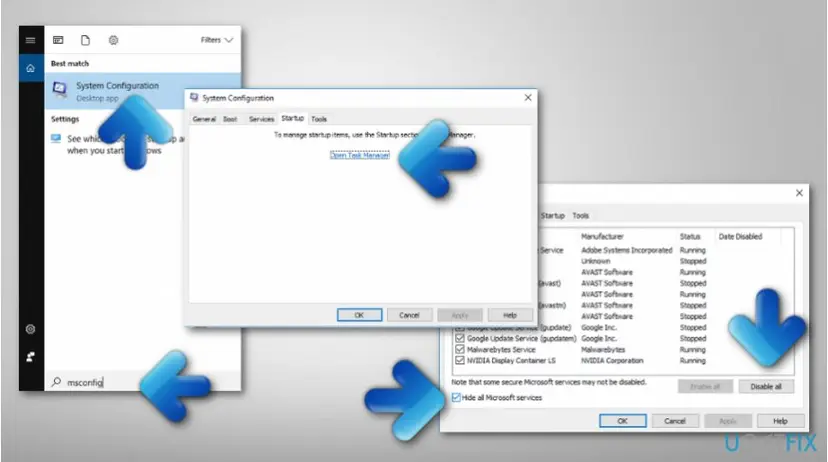
Error code fixing steps - Select each item in the Task Manager and click Disable;
- Close Task Manager and open Startup tab ---> click OK;
- Reboot the computer.
Did this fix work?
One click, no account. It tells the next reader which guides are worth their time.
Questions and experiences: Fix Windows Defender Error Code 0x8050800c on Windows 10
Still broken, or found a fix we did not cover? Ask here: members and our editors answer. Reading is open; writing needs a free account.
…