
How to fix Windows Hello Facial Recognition not working?

Prefer to fix it yourself? The manual steps follow.
5 methods in this guide
Hello. The Facial Recognition feature of Windows Hello has stopped working today and I cannot access my PC using this method. Is there a way to fix this?
Windows Hello Facial Recognition is a feature in Windows 11 that allows users to use facial recognition to log into their devices. To authenticate access, the feature scans the user's face with a camera and compares it to a stored image. When the feature fails, the user's ability to quickly and easily log into their device suffers.
The failure of Windows Hello Facial Recognition can be caused by a variety of factors, including outdated driver software, interference from other programs, or issues with the camera itself. In some cases, the problem could be related to a recent Windows 11 update that caused compatibility issues with the facial recognition software.
Possible solutions to the issue of Windows Hello Facial Recognition not working include rolling back driver updates, reinstalling the facial recognition software, or updating the camera drivers. In some cases, disabling or uninstalling other programs that may be interfering with the facial recognition software can also resolve the issue.
In this guide, you will find 5 steps that should help you fix Windows Hello Facial Recognition not working. Keep in mind that the manual troubleshooting process can be lengthy.
Enable Facial Recognition
- Press the Windows key + I to open the Settings menu
- Select the Accounts tab
- Click on Sign-in options
- Select Facial recognition (Windows Hello)
- Click the Set up button
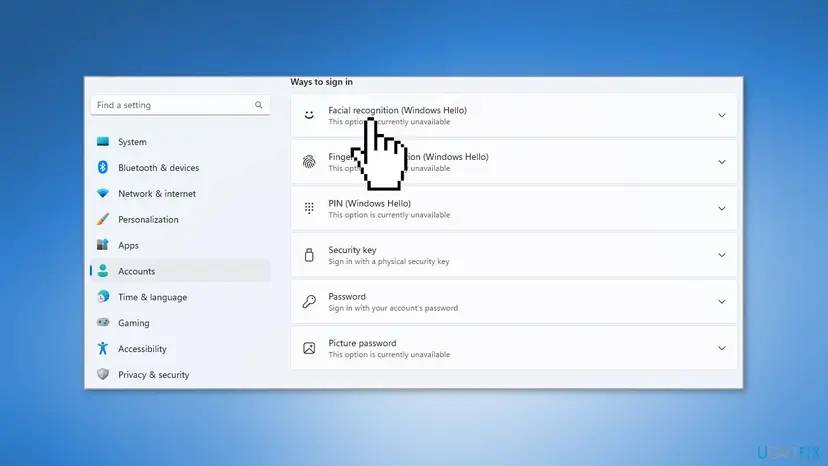
Solution 1. Reinstall the Biometric Driver
A biometric driver is a piece of software that allows biometric authentication hardware on a device, such as a facial recognition camera, to communicate with the operating system. The driver is in charge of interpreting the hardware's data and processing it so that the operating system can understand and use it for authentication.
- Press the Windows key + X and select Device Manager
- Expand the Biometric devices section
- Right-click the device driver and choose Uninstall device
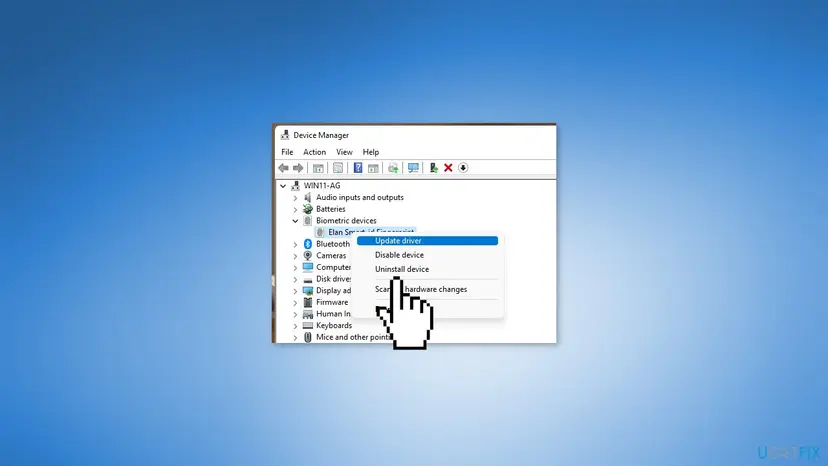
- Click on Uninstall to confirm
- Restart your PC to reinstall the device driver
Solution 2. Reset Facial Recognition Settings
- Press the Windows key + I to open the Settings app
- Go to Accounts
- Select Sign-in options
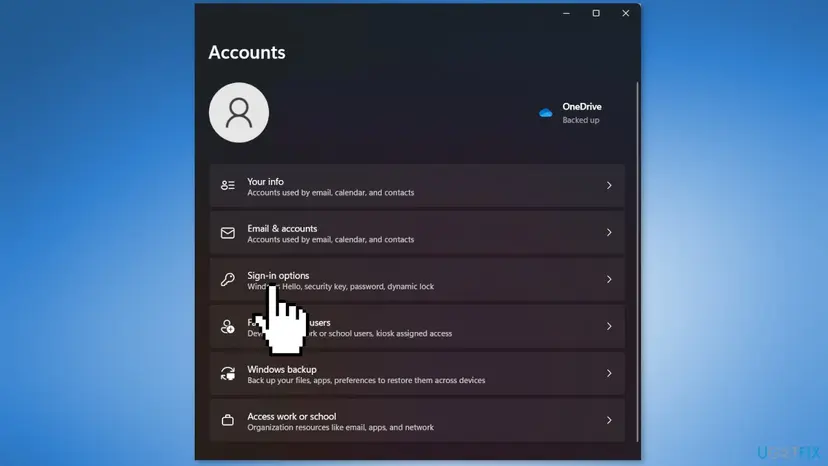
- Select Facial recognition
- Click on Remove
- Click on Get Started to set it up again
Solution 3. Roll Back the Camera Driver
- Press the Windows key + X and select Device Manager
- Locate your camera on the list and double-click it
- Go to the Driver tab
- Click on Roll Back Driver
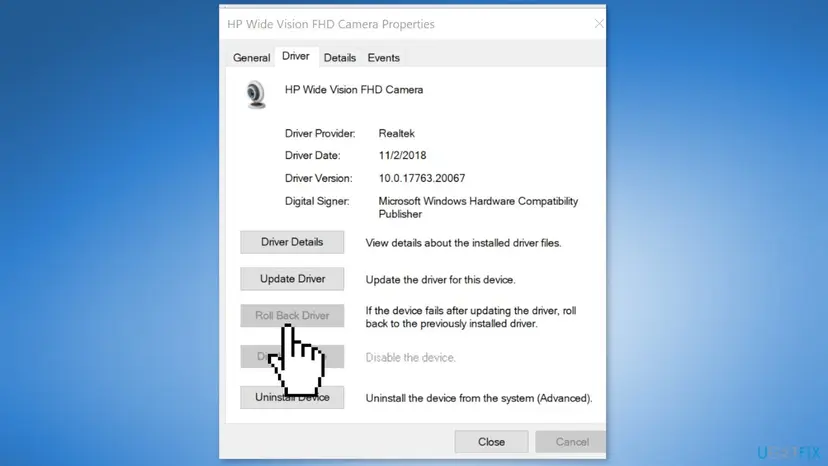
- Follow the instructions on the screen to complete the process
Solution 4. Uninstall the most recent Windows Update
- Open the Settings app by pressing Windows key + I
- Go to Windows Update
- Select Update history and press Uninstall updates
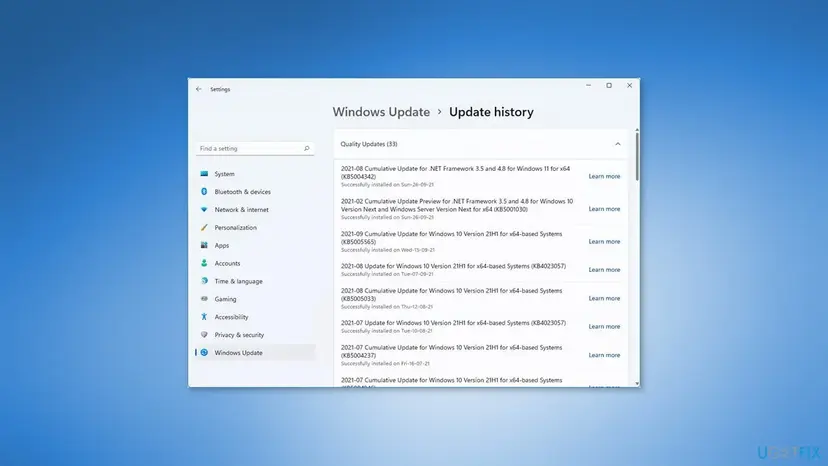
- Locate the latest update
- Click on Uninstall
- Follow the instructions on the screen to complete the process.
Solution 5. Edit the Group Policy
A biometric driver is a piece of software that allows biometric authentication hardware on a device, such as a facial recognition camera, to communicate with the operating system. The driver is in charge of interpreting the hardware's data and processing it so that the operating system can understand and use it for authentication. Windows Professional, Enterprise, and Server editions include the Group Policy feature.
- Press Windows key + R to open the Run dialog box
- Type in gpedit.msc and press Enter
- Expand Computer Configuration
- Go to Administrative Templates
- Go to Windows Components
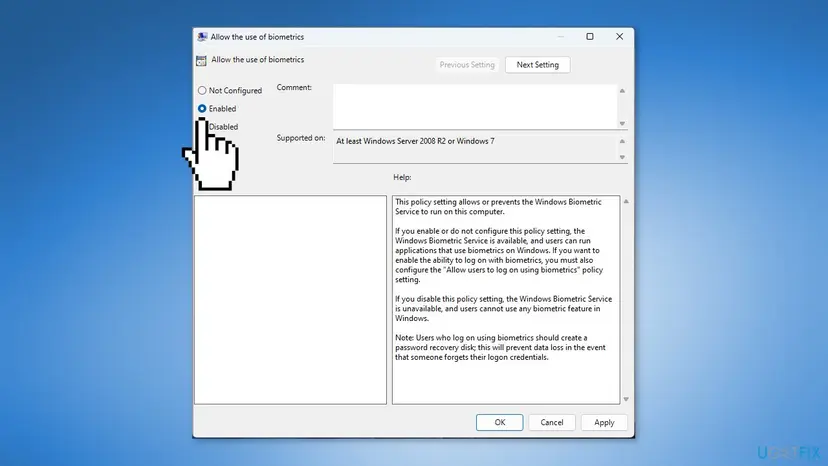
- Select Biometrics
- Double-click on Allow the use of biometrics
- Select Enabled and save the changes
- Restart your PC
Did this fix work?
One click, no account. It tells the next reader which guides are worth their time.
Questions and experiences: fix Windows Hello Facial Recognition not working
Still broken, or found a fix we did not cover? Ask here: members and our editors answer. Reading is open; writing needs a free account.
…