How to fix
“Windows ran into an unexpected error” BSOD
on Windows
Resolve the "Windows ran into an unexpected error" BSOD quickly on Windows 10 and 11. Expert-tested solutions guarantee fixes in minutes!

What causes How to Fix “Windows ran into an unexpected error” BSOD?
- Tech support scam alert
- Displayed during gaming sessions
- Displayed while browsing online
- Not generated by Microsoft
- Appears within browsers
Repairs Windows system files, removes malware, and restores a clean OS state — without reinstalling.
“Windows ran into an unexpected error” BSOD shows up on my screen. The message does not provide much specificity about the bug, except a telephone number that I am supposed to call to fix the error. I’m not sure if I should call. Could you please tell me what is this all about? I have already reported the telephone number to Microsoft so that they would check if it doesn’t belong to scammers. However, I’m waiting for the answer for a week or more, so this BSOD is driving me insane! Please help.
“Windows ran into an unexpected error” Blue Screen Of Death screen is a common error message and occurs on various versions of Windows operating systems. It may cause your device stuck in a loop or refuse to reboot at all. It is possible that the process that was running at the time this screen message got displayed, is not the reason. Users reported about this error during gaming sessions and browsing online.
Despite the identical looks, “Windows ran into an unexpected error” pop-up is not generated by Microsoft. It’s yet another tech support scam[ref en-1] alert, which is distributed by scammers via Google Chrome, Internet Explorer, Mozilla Firefox, Safari, and other web browsers.
Tech support scams can be easily recognized, especially this “Windows ran into an unexpected error”, because of the common features:
- The real Blue Screen of Death[ref en-2] appears when the PC experiences a crash and cannot operate safely anymore. In this mode, users cannot perform any actions and the only option is to restart the PC. However, fake stop errors usually appear within browsers (some types are capable of locking the screen, but that is a far more sophisticated infection) and users can still operate their computers;
- Microsoft would never provide a tech support number on their error screens. The only indicator on legitimate BSODs are error codes, such as CRITICAL_PROCESS_DIED, HAL_INITIALIZATION_FAILED, and similar, although crooks incorporate these into fake errors as well;
- Microsoft can never identify a virus infection on your PC via the browser - only security software is capable of doing so. Only the scan of your machine by a legitimate anti-malware software is capable of detecting viruses. Therefore, do not pay attention to any such warnings coming from your browser;
- Typically, the bogus message creates a sense of urgency and seriousness to the victim. Therefore, the key is not to panic and research the error or a message online before proceeding.
Not all people get the “Windows ran into an unexpected error” scam pop-up. Those who take care of their PC’s security by using anti-malware software, as well as avoid suspicious websites, are much less likely to encounter tech support scams, as adware installed on the PC usually initiates them.
Once the adware roots into the operating system, it drops its add-ons onto the web browser, which starts generating fake BSOD. Inexperienced PC users or those who are not aware of the techniques that scammers use to trick people into giving away their money may easily fall for “Windows ran into an unexpected error” scam.
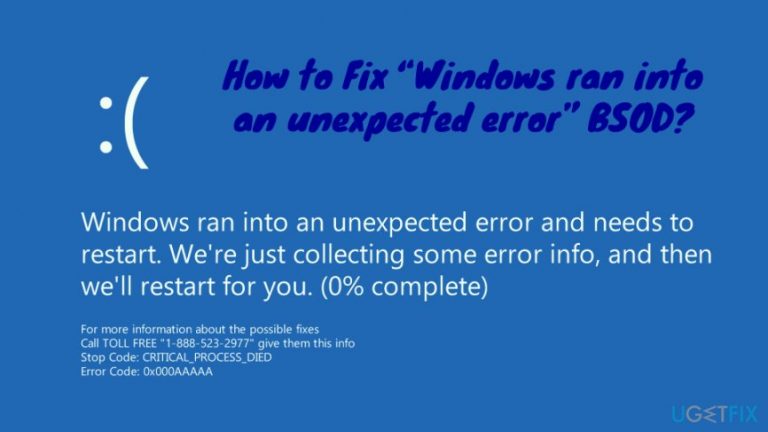
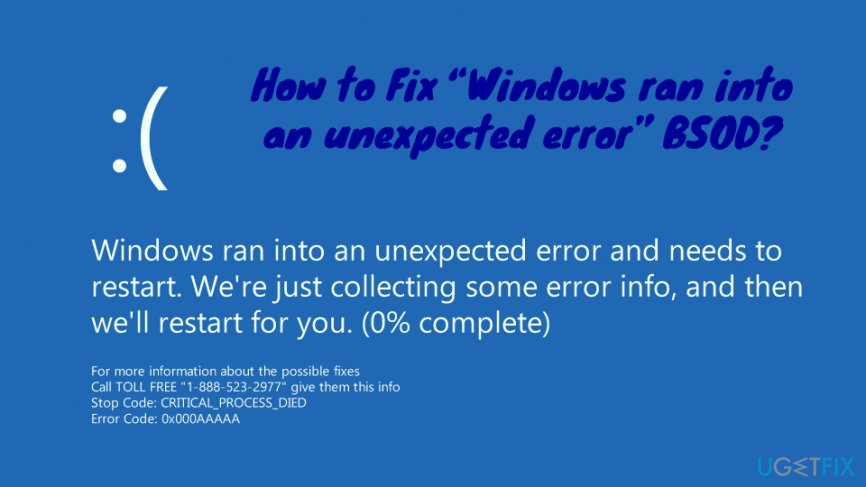
This particular “Windows ran into an unexpected error” message shows up in the form of a BSOD, which informs that the PC ran into a problem, and users should contact the tech support via the provided number:
Windows ran into an unexpected error and needs to restart. We're just collecting some error info, and then we'll restart for you.
0% completeFor more information about the possible fixes
Call TOLL FREE "1-888-523-2977" give them this info
Stop Code: CRITICAL_PROCESS_DIED
Error Code: 0x000AAAAA
If you fail to sense the deception and call the provided number, crooks may ask for remote access to your PC, install data-stealing malware,[ref en-3] offer useless software or demand payment for the alleged help. Basically, they will do everything to get your money or personal information. However, they will not help you fix “Windows ran into an unexpected error.”
Therefore, DO NOT call the numbers provided on suspicious pop-ups as you may get scammed. To fix “Windows ran into an unexpected error” BSOD and prevent your PC from further damage, make sure to remove the adware from the system ASAP and reset the web browser.
You can remove “Windows ran into an unexpected error” automatically by using security software or manually by following detailed instructions below.
Get rid of “Windows ran into an unexpected error” automatically
While adware is not malware, it can lead to severe consequences, especially if not being careful. Thus, if you neglect your system's security, you might have your identity stolen or suffer a sensitive data loss. To prevent that, you need to eliminate adware that is associated with “Windows ran into an unexpected error” message. The easiest way would be to scan your machine with the help of security software that specializes in PUP detection and removal.
Eliminate the potentially unwanted program manually
To fix “Windows ran into an unexpected error,” manually, you will have to enter Control panel and eliminate all the suspicious entries:
- Type in Control Panel into the search box and hit Enter
- Go to Programs > Uninstall a program (Here you will find all the installed apps)
- Look through the list carefully. Locate a suspicious application, right-click on it and select Uninstall
- Follow the on-screen instructions
- Repeat the process for each of the unwanted apps
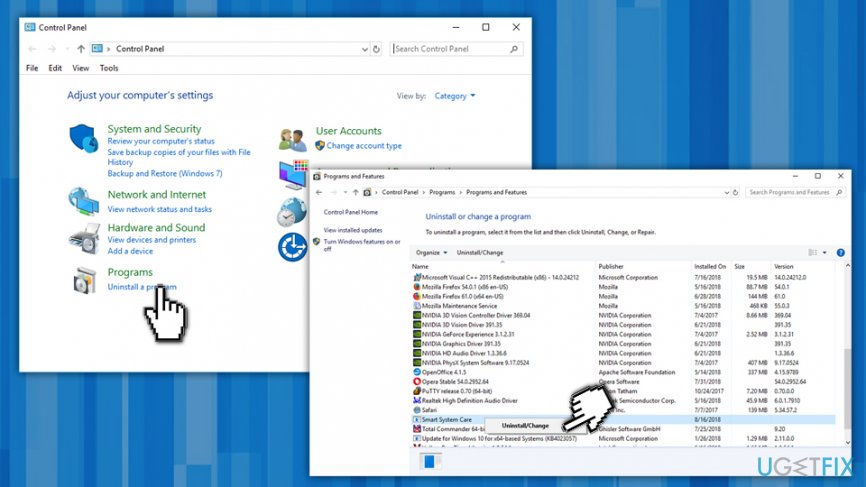
Windows ran into an unexpected error uninstall from frontrol panel
Repair Windows Registry
Modifying the Windows Registry manually is not recommended. However, you can try PC repair tools that can do it for you without deleting important information. For that purpose, we suggest you use [d1]. It can also eliminate all the damage done by a virus infection.
Reset Google Chrome to stop “Windows ran into an unexpected error”
- From the Menu, select Settings
- Scroll down and click on Advanced
- At the very bottom, locate Reset and clean up
- Click on Restore settings to their original defaults and then Reset Settings
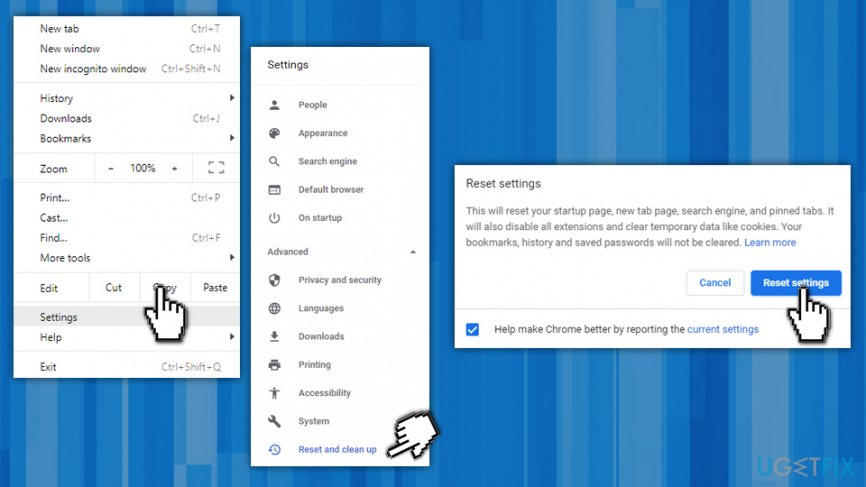
Windows ran into an unexpected error reset google chrome
Refresh Mozilla Firefox for safe browsing
- Go to Menu and select Help
- Click on Troubleshooting Information
- Now select Refresh Firefox and confirm your selection
Safari needs a fresh start
- Open Safari and pick Reset Safari
- Select all the tick boxes and press Reset
- Select all the check boxes and click on Reset
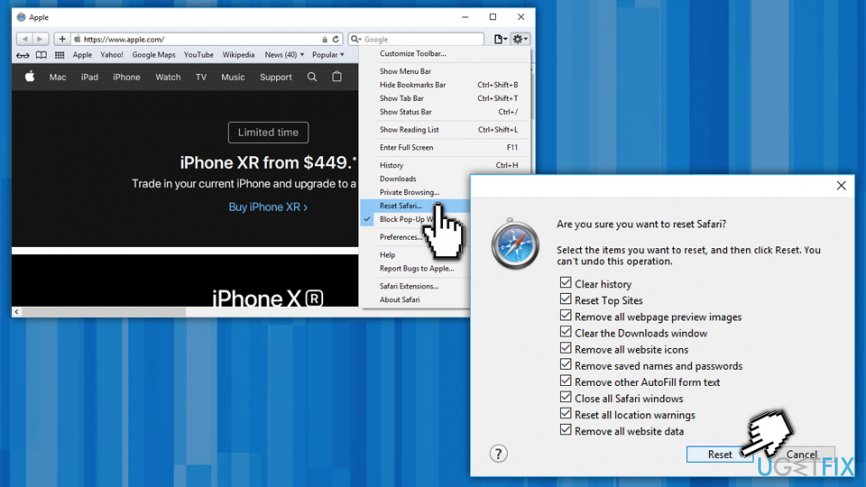
Windows ran into an unexpected error reset safari
Bottom line
To fix the "Windows ran into an unexpected error" BSOD, ensure that you do not call any provided phone numbers, as they are likely scams. Instead, use legitimate security software to scan for viruses and malware. If these steps do not resolve the issue, consider seeking professional technical support.
Frequently asked questions
This BSOD error can be triggered by corrupted system files, outdated drivers, or hardware issues. Running a system file check or updating drivers can often resolve the problem.
You can start by booting into Safe Mode and then performing a system restore or checking for driver updates. Additionally, using the Windows Recovery Environment to repair startup issues may help.
To prevent this error, ensure that your Windows 10 or Windows 11 system is regularly updated and that you run routine maintenance checks on your hardware. Installing reliable antivirus software can also help protect against potential threats.




Report an issue
What's wrong with this guide? We review every report and update or remove content.
Report received — thank you. We'll review and fix it.
You need a free account to submit a report.
Be the first to comment