
How to fix Windows Store error 0x8004e108 in Windows 10?

Prefer to fix it yourself? The manual steps follow.
6 methods in this guide
- Possible ways to fix Microsoft Store error 0x8004e108 in Windows 10
- Option 1. Reset Windows Store cache
- Option 2. Run Windows Store App Troubleshooter
- Option 3. Install available updates
- Option 4. Change the name of SoftwareDistribution folder
- Option 5. Sing out from your Microsoft account and sign in again
- Option 6. Use System Restore Points
I cannot download an app due to the Windows Store error 0x8004e108. What does it mean? How can I get rid of it?
Windows Store error 0x8004e108 is one of the popular errors that might bother Windows 10 users. The error might be triggered by issues with Microsoft Store cache, installed updates, etc. However, the unpleasant pop-up often shows up when users try to update or download the app:
Something went wrong. The error code is 0x8004E108, in case you need it.
As soon as this error message is displayed, user’s actions are interrupted. It means that users cannot install a needed application from Microsoft Store or update it. However, we are here to help you to fix Windows Store error 0x8004e108.
Possible ways to fix Microsoft Store error 0x8004e108 in Windows 10
Many different reasons can cause this Windows Store error. However, we have provided the major solutions to the problem.
Option 1. Reset Windows Store cache
- Click Cortana button on the left of Windows taskbar.
- Type wsreset.exe in the search box.
- When wsreset.exe appears in the search box, right-click it and choose Run as administrator.
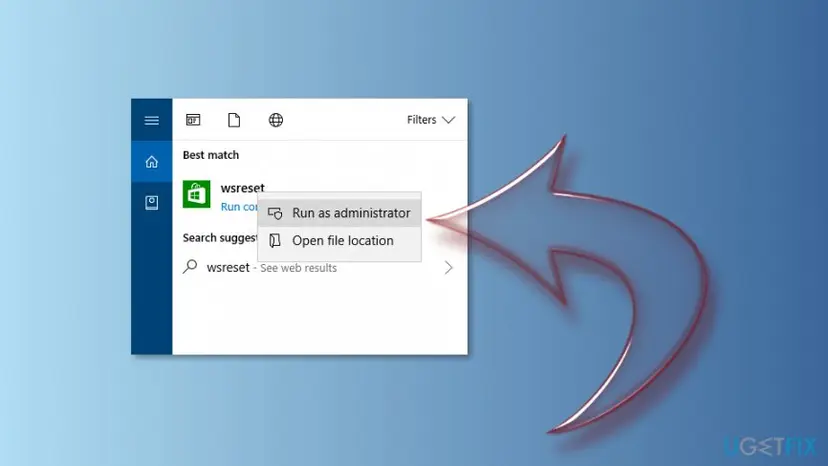
Reset windows store cache - Click Yes to confirm the action.
Option 2. Run Windows Store App Troubleshooter
- Click Cortana button and type troubleshoot in Windows search box.
- Open Troubleshooter.
- Click Troubleshoot in the left pane.
- Click Windows Store Apps option in the right pane.
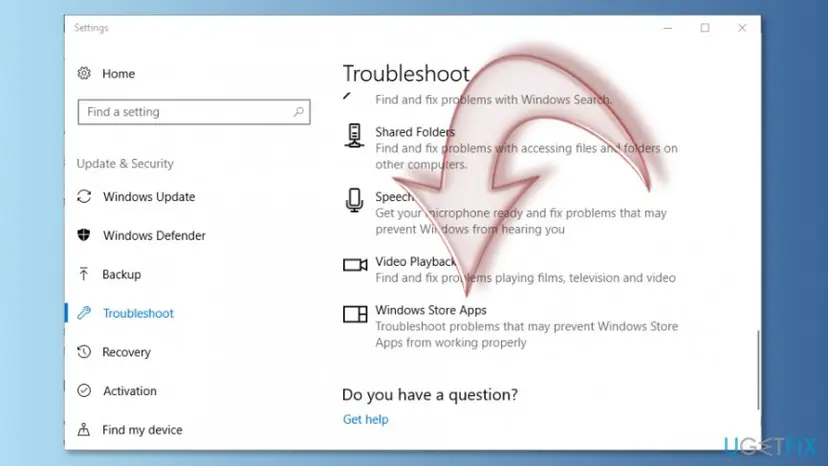
Run windows store app troubleshooter - Press Run the troubleshooter. It will run problem detection process.
When Windows Troubleshooter finishes looking for the problems, it will deliver scan results and fix Windows Store error 0x8004e108 automatically. If not, try the further method.
Option 3. Install available updates
If you disabled automatic installation of Windows 10 updates, you should check if there are any. Sometimes an error occurs due to available updates:
- Click Start button.
- Go to Settings.
- Navigate to Update & Security.
- Click Windows Update and choose Check for updates.
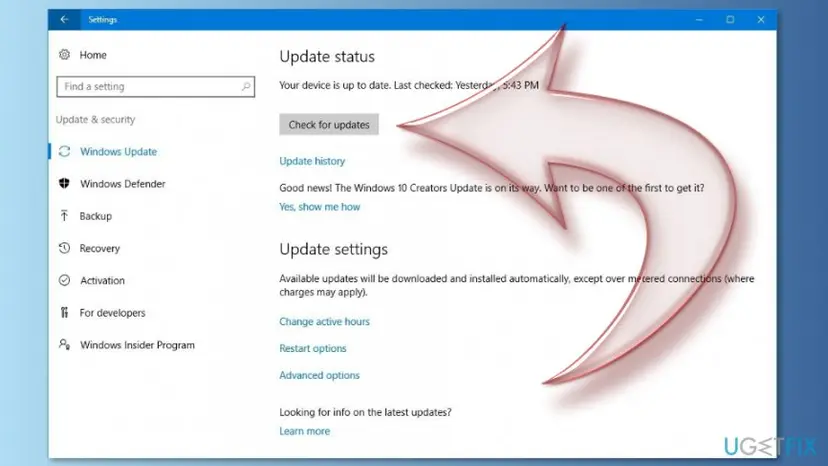
Check for windows 10 updates - If there will be any available updates, they will be installed.
Option 4. Change the name of SoftwareDistribution folder
- Click Cortana button and in the search box enter cmd.
- Open Command Prompt.
- When in Command Prompt, enter net stop WuAuServ and click Enter.
- Click File Explorer button in Windows taskbar.
- Type C:\\Windows in the File Explorer’s address bar and click Enter.
- Find SoftwareDistribution folder. Right-click it and choose Rename option.
- Enter SDold as the new name of the folder.
- Open Command Prompt again.
- Type net start WuAuServ in the Command Prompt and click OK.
If this method did not help to fix Microsoft Store error 0x8004e108, try the second method.
Option 5. Sing out from your Microsoft account and sign in again
- When in Microsoft Store, click on the profile icon in the top right corner.
- Click Sign out.
- Search for the application you wanted to download when you received a 0x8004e108 error.
- Press Get button on the app download page.
- Sing into your Microsoft account, and the installation should begin.
Option 6. Use System Restore Points
If none of the methods presented above helped to fix 0x8004e108 error, you should try restoring Windows to a System Restore Point. This technique allows traveling back in computer’s time and removing all installed programs or updates that might be triggering the issue.
- Press Windows key + R.
- In the appeared Run box, enter rstrui and click Enter.
- You will receive System Restore window where you have to click the Next button.
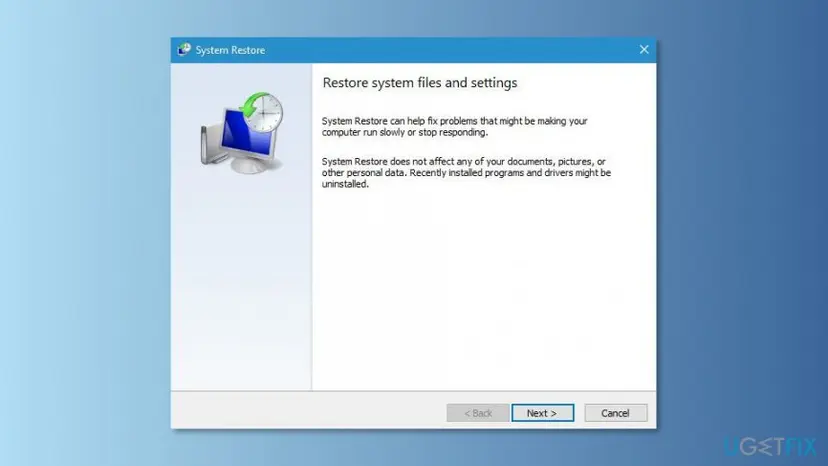
Use system restore points - From the list of restore points, choose the one that brings you back to the date before Windows Store error occurred.
- Click Next and OK to confirm your action.
Did this fix work?
One click, no account. It tells the next reader which guides are worth their time.
Questions and experiences: fix Windows Store error 0x8004e108 in Windows 10
Still broken, or found a fix we did not cover? Ask here: members and our editors answer. Reading is open; writing needs a free account.
…