
How to Fix Windows Store Error Code 0x80073DOA?

Prefer to fix it yourself? The manual steps follow.
4 methods in this guide
My Windows Store does not allow installing applications. Each time I attempt installing applications the download process is stopped by an error code 0x80073DOA. I’ve been searching for the relevant information for the past two weeks, but it seems as if I’m the only person encountering this error. Could someone please help me?
Error Code 0x80073DOA is a Windows Store specific bug check, which may occur on PCs, tablets or mobile phones. Nevertheless, all users who have reported this problem are PC users that run Windows 10 OS. Typically, the error appears when the PC user is trying to install or update particular applications from the Windows Store. It’s very important to stress the fact that the problem is not related to the applications directly, so it doesn’t matter what software you attempt downloading, the error will occur anyway if there are some problems with your operating system.
Usually, 0x80073DOA error gets fixed after clearing Windows Store cache or restarting Windows Update services. Therefore, we will explain how to perform these fixes in the first place. However, the roots of the problem may lie under incorrect date/time or Firewall settings. We have already disclosed the most common causes of the 0x80073DOA error, so in this paragraph, we will describe how to resolve the issue. Since some of the methods require modification of the registry, we would strongly recommend you to make registry backups before any intervention.
How to Fix Windows Store Error 0x80073DOA on Windows 10?
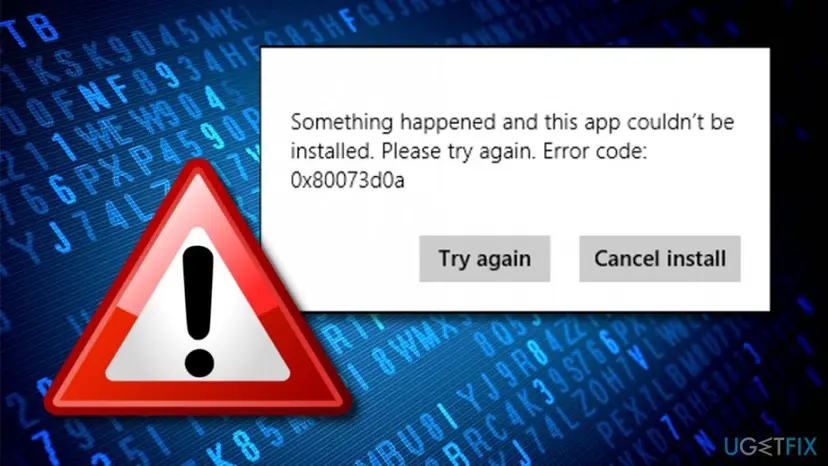
Method 1. Clear Windows Store cache
- Press Windows key + R, type WSReset.exe, and press Enter.
- If this command did not work, the try to re-register Windows Store. Press Windows key + X and select Command Prompt (Admin).
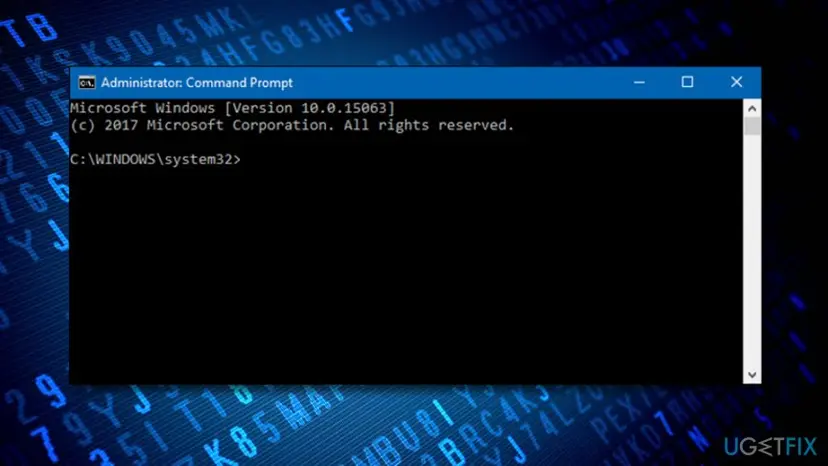
Fix 1 - Type PowerShell -ExecutionPolicy Unrestricted command and press Enter.
- Then paste the $manifest = (Get-AppxPackage Microsoft.WindowsStore).InstallLocation + '\\AppxManifest.xml' ; Add-AppxPackage -DisableDevelopmentMode -Register $manifest command and don’t forget to hit Enter.
Method 2. Turn off anti-virus software and Windows Firewall
It doesn’t matter what kind of anti-virus software you are using, make sure to disable it temporarily. For this purpose, open Task Manager and terminate its process out there. Then find the icon of the security software on the taskbar, right-click it, and select Disable. Once done, turn off Windows Firewall:
- Click Windows key + X and select Control Panel.
- Locate Windows Firewall and click it.
- Press Turn Windows Firewall On or Off option.
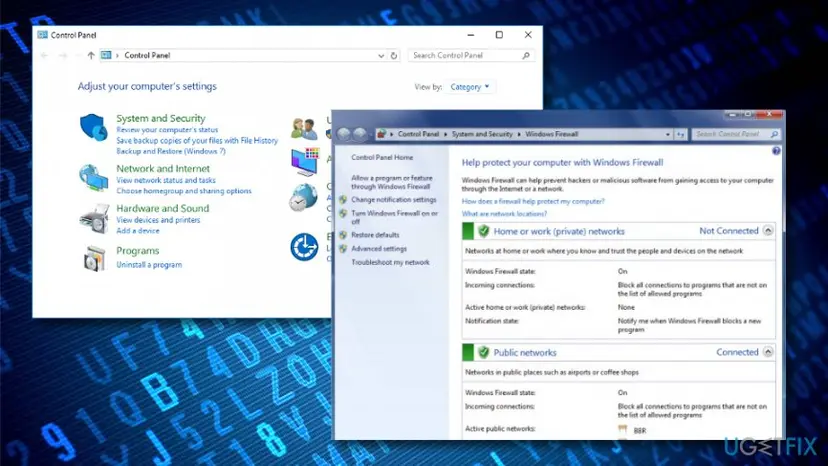
Fix 2 - If required, enter your administrator password and press OK.
- Then set Windows Firewall off of both private and public network.
- Click OK to save the changes and close everything. Now check if the Windows Store error 0x80073DOA has been removed.
Method 3. Check Date and Time Settings
Incorrect Date and Time settings often lead to Windows Store crash. Therefore, check if the Date and Time are correct on your PC. For this purpose, click Windows key + I to open Settings and find Date and Time. Check if the settings are correct. If not change them. It’s also advisable to turn off Set time automatically option and set it on after a while.
Method 4. Reinstall Windows Store
If none of the previous methods helped, the last thing you may try is to reinstall Windows Store and then install all available Windows 10 updates. For this purpose, you have to:
- Click Windows key + R and type PowerShell.
Fix - Right-click on the search results and select Run as Administrator.
- Type Get-Appxpackage –Allusers and press Enter.
- Find Windows Store entry and copy the package name. For this purpose, mark it and press Ctrl + C.
- After that, type Add-AppxPackage -register “C:\\Program Files\\WindowsApps\\” –DisableDevelopmentMode command.
NOTE: replace PackageFullName with the Windows Store package name by pressing Ctrl + V. Besides, instead of C: type the letter of the root driver of your system. - Then reopen PowerShell with administrative privileges as explained above.
- Paste Add-AppxPackage -register “C:\\Program Files\\WindowsApps\\” –DisableDevelopmentMode command and press Enter.
- Finally, reboot the system to execute all changes.
Did this fix work?
One click, no account. It tells the next reader which guides are worth their time.
Questions and experiences: Fix Windows Store Error Code 0x80073DOA
Still broken, or found a fix we did not cover? Ask here: members and our editors answer. Reading is open; writing needs a free account.
…