How to fix
Windows update error 0x800701b1
on Windows
Resolve Windows update error 0x800701b1 quickly with our expert-tested solutions. Get your system back on track with clear steps and zero traces left.

What causes How to fix Windows update error 0x800701b1?
- Error during downloading and installing updates
- Issues with third-party applications
- Corrupted system files
- Incompatibility with new updates
- Failed major build upgrade
Repairs Windows system files, removes malware, and restores a clean OS state — without reinstalling.
Hello, I have tried to upgrade my PC to 22H2 for a while now, but I wasn't able to due to error 0x800701b1. If I try to do it again sometime later, the computer fails to boot, restarts, and restores the previous version instead. Could you advise if any solutions are possible? Thanks in advance.
Windows is an intricate operating system and consists of thousands of files and components, all of which need to work well other to ensure smooth operation and a good user experience. Over time, third-party applications are installed, new updates are released, and other changes are performed, some of which could result in various issues.
0x800701b1 is one of the errors that users encounter during the operation of Windows. It can affect all Windows versions, including the newest Windows 11. There are two scenarios in which the error can occur:
- When downloading and installing the latest Windows updates.
- When trying to copy a file or create a backup.
In the first instance, the 0x800701b1 error can develop whenever any type of cumulative, feature,[ref en-2] security, or another type of update is applied, although a major build upgrade is also a possibility. For example, most recently, users complained that they were unable to upgrade to Windows version 22H2 because of it, and some received additional errors when trying to do so, including 0xc1900101 and 0xc0000098.[ref en-1]

The appearance of the 0x800701b1 error whenever the data is being copied or backups are being created relates to a completely different situation, so the fixes and troubleshooting steps are peculiar - we have already covered them in our article before. In this instance, we will try to help those who experience the 0x800701b1 error when trying to install Windows updates.
Before proceeding, we strongly recommend employing [d1] repair utility, which can repair damaged system components automatically and fix them for you. If you prefer a manual solution, please follow the instructions below.
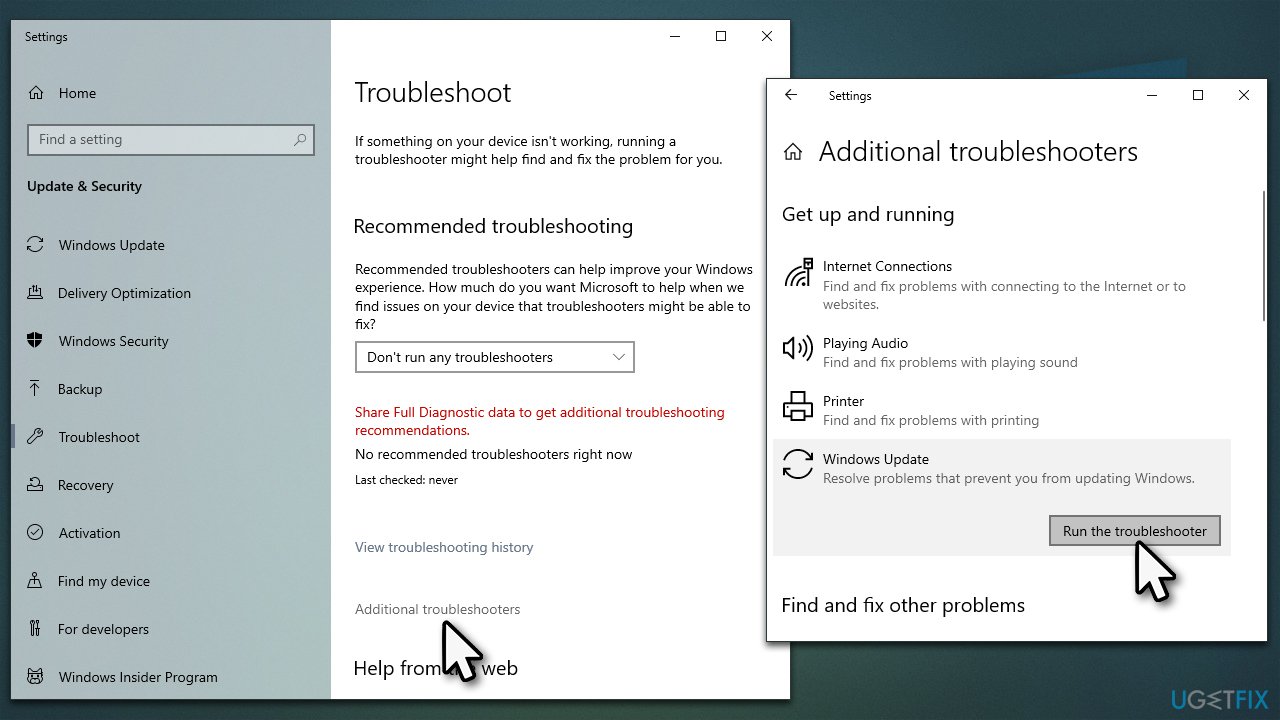
1. Run the troubleshooter
Troubleshooter might point you in the right direction whenever Windows updates fail. Try running it as follows:
- Type in Troubleshoot in Windows search and hit Enter
- Select Additional Troubleshooters/Other troubleshooters option
- Locate Windows Update and click Run/Run the troubleshooter
- As soon as the scan finishes, apply the recommended fixes.
2. Check disk
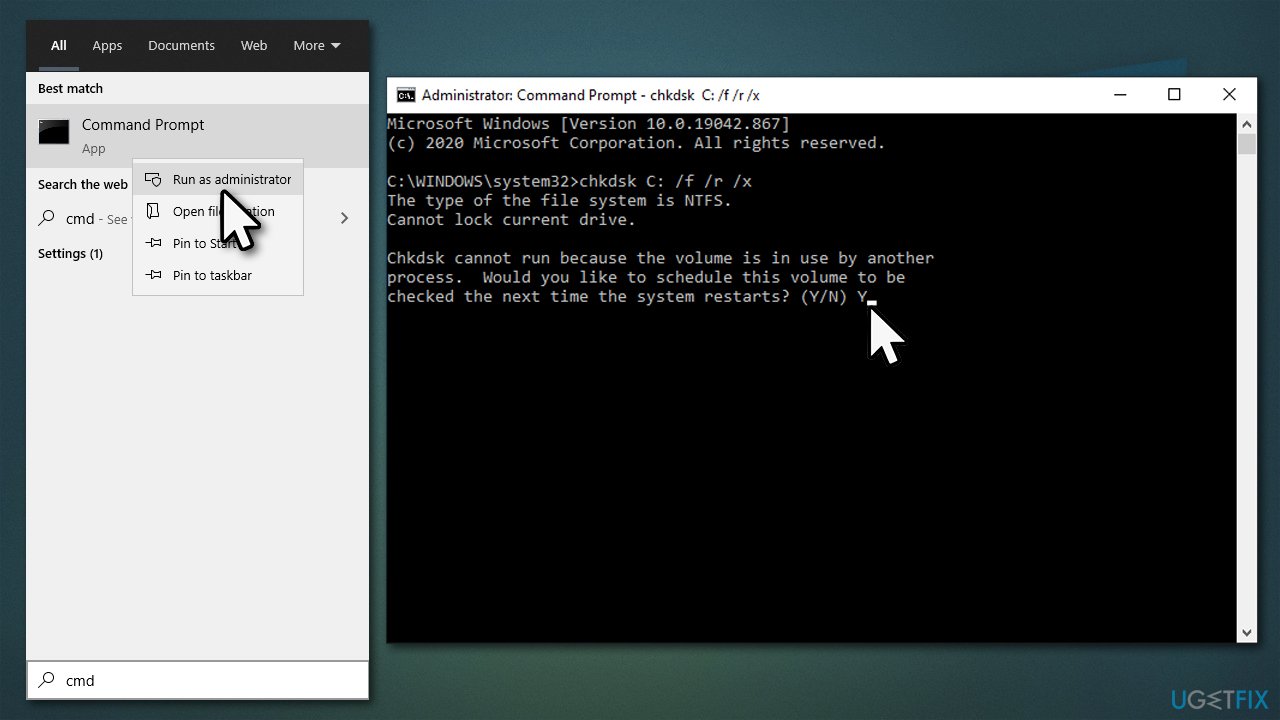
0x800701b1 could be related to data writing, so we recommend checking your drives via Command Prompt.
- Type in cmd in Windows search
- Right-click on Command Prompt and select Run as administrator
- User Account Control (UAC) window will show up - click Yes
- In the new window, type in the following command and hit Enter:
chkdsk c: /f
(Note: use chkdsk c: /f /r /x command if you are using SSD[ref en-3] as your primary partition) - If you receive an error, type in Y, press Enter, close down Command Prompt and restart your device.
3. Run SFC and DISM
Other system file corruption could also cause Windows updates to fail. Proceed with the following:
- Open Command Prompt as administrator as explained in the previous method
- In the Command Prompt window, paste the following command and press Enter:
sfc /scannow - Once the scan is complete, use the following commands and press Enter after each:
Dism /Online /Cleanup-Image /CheckHealth
Dism /Online /Cleanup-Image /ScanHealth
Dism /Online /Cleanup-Image /RestoreHealth - Restart your computer.

4. Free some space
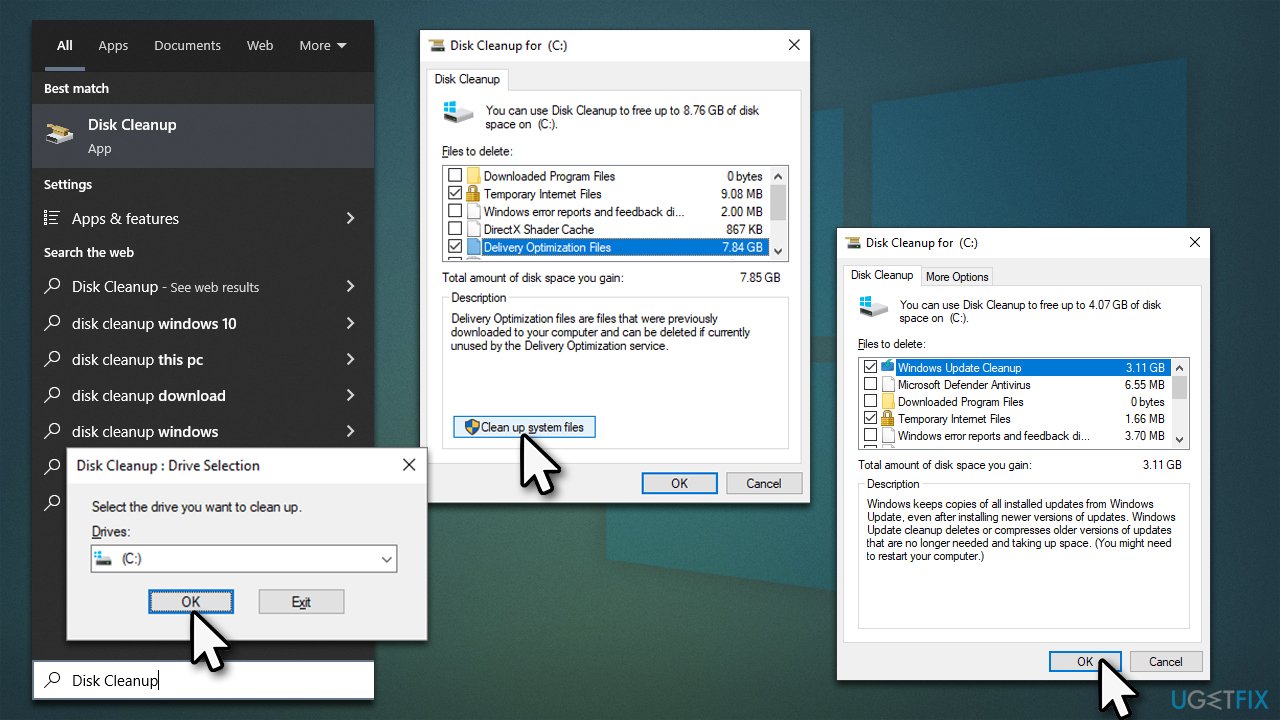
Version updates for Windows might be quite bulky, so make sure you have enough space in your drive. For that, you can remove temporary and other leftover files.
- Type Disk Cleanup in Windows search and press Enter
- Select your main drive (C: by default)
- Click Clean up system files and select your main drive again
- Here, pick the sections you want to clear - Temporary Internet Files, Windows Update Cleanup, and Delivery Optimization Files are among the ones that tend to be largest, so we recommend picking them
- Click OK, and Windows will begin the disk cleanup process.
5. Install manually
In some cases, installing the update manually can prevent the error from occurring. The first step is to find out which update failed, so do the following:
- Type Updates in Windows search and press Enter
- Select View Update History
- Find the error code and note which KB number failed
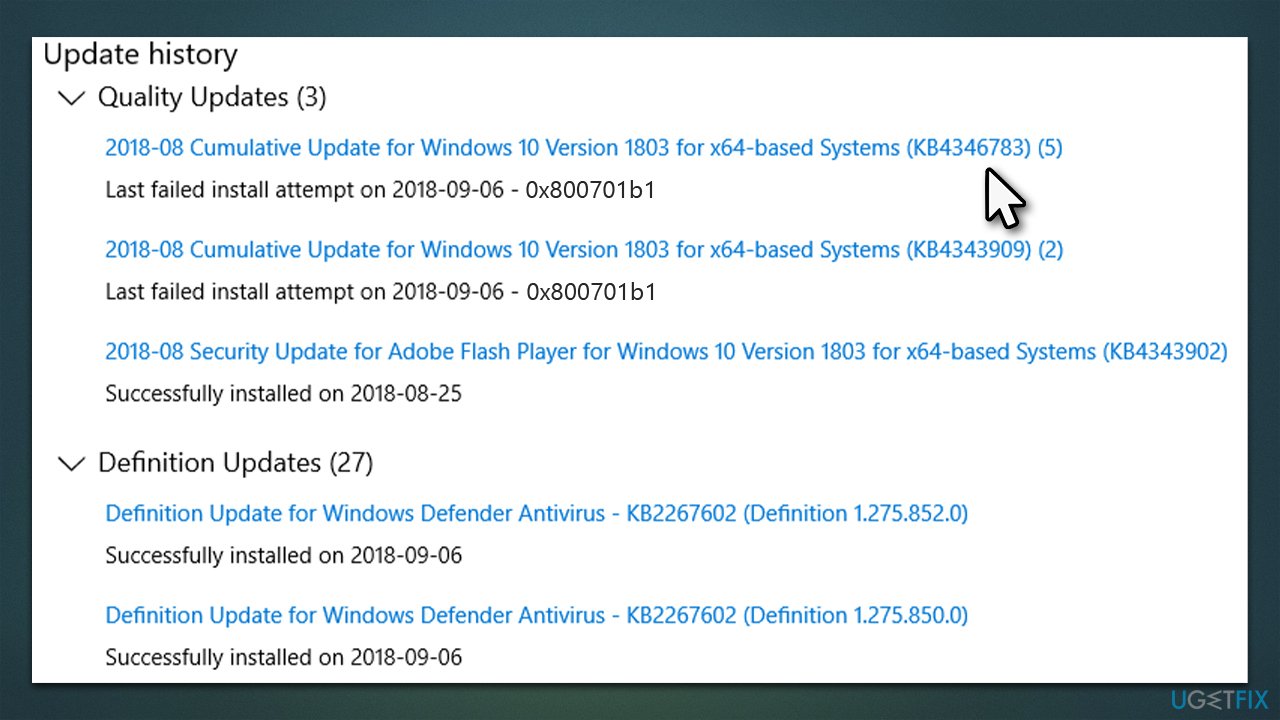
- Next, go to Microsoft Update Catalog
- Paste the KB number into the search bar, and press Enter or click Search
- Select the version that is compatible with your operating system (ignore updates for the server) and click Download
- Proceed with on-screen instructions and restart your computer once finished.
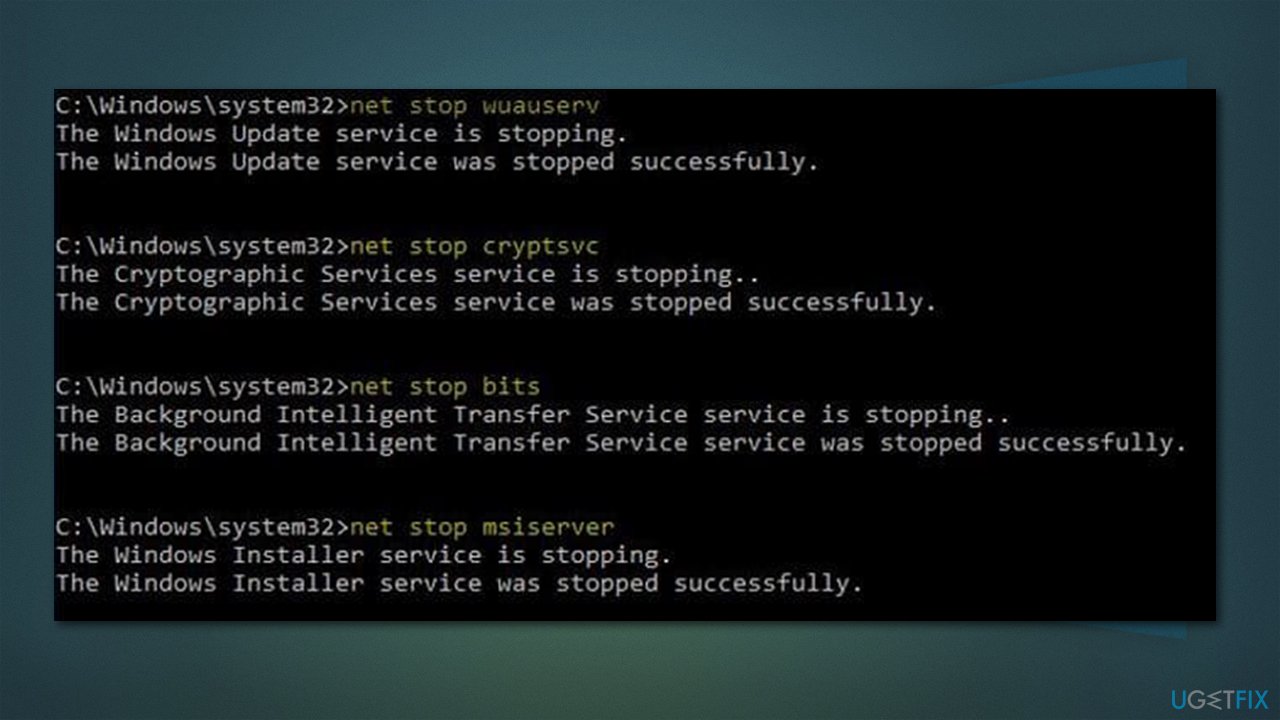
6. Reset Windows Update Components
- Open Command Prompt as administrator
- When the User Account Control shows up, click Yes
- Copy and paste each of the command lines, pressing Enter every time (wait till each of them is executed properly):
net stop bits
net stop wuauserv
net stop appidsvc
net stop cryptsvc
Del “%ALLUSERSPROFILE%\Application Data\Microsoft\Network\Downloader\*.*”
rmdir %systemroot%\SoftwareDistribution /S /Q
rmdir %systemroot%\system32\catroot2 /S /Q
regsvr32.exe /s atl.dll
regsvr32.exe /s urlmon.dll
regsvr32.exe /s mshtml.dll
netsh winsock reset
netsh winsock reset proxy
net start bits
net start wuauserv
net start appidsvc
net start cryptsvc - Restart your device.
Bottom line
To fix the Windows update error 0x800701b1, you can run the troubleshooter to identify issues, employ a repair utility to fix damaged system components, or follow manual troubleshooting steps. If these solutions do not resolve the issue, consider seeking further assistance or exploring additional resources.
Frequently asked questions
The error 0x800701b1 typically indicates that a storage device is not accessible, which can prevent Windows 10 or Windows 11 from completing the update process.
To fix the error 0x800701b1 on Windows 10, try checking your disk connections, running the Windows Update troubleshooter, or performing a System File Check to repair corrupted files.
Yes, you can open Command Prompt as an administrator and run the command 'sfc /scannow' to scan and repair system files that may be causing the error 0x800701b1 on Windows 11.




Report an issue
What's wrong with this guide? We review every report and update or remove content.
Report received — thank you. We'll review and fix it.
You need a free account to submit a report.
Be the first to comment