How to fix
Windows update error 0x8007025d
on Windows
Resolve Windows update error 0x8007025d effortlessly with expert-tested solutions. Get your system running smoothly again in minutes!

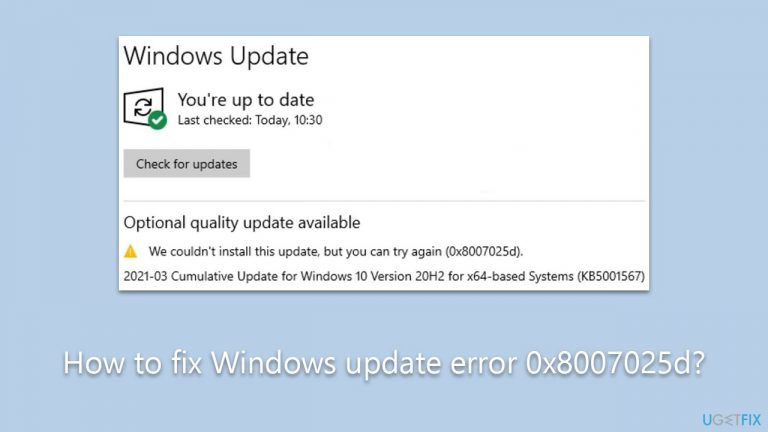
What causes How to fix Windows update error 0x8007025d?
- Corrupted system files
- Not running essential services
- Bugged update components
- Lack of disk space
- Conflicts with third-party security software
Repairs Windows system files, removes malware, and restores a clean OS state — without reinstalling.
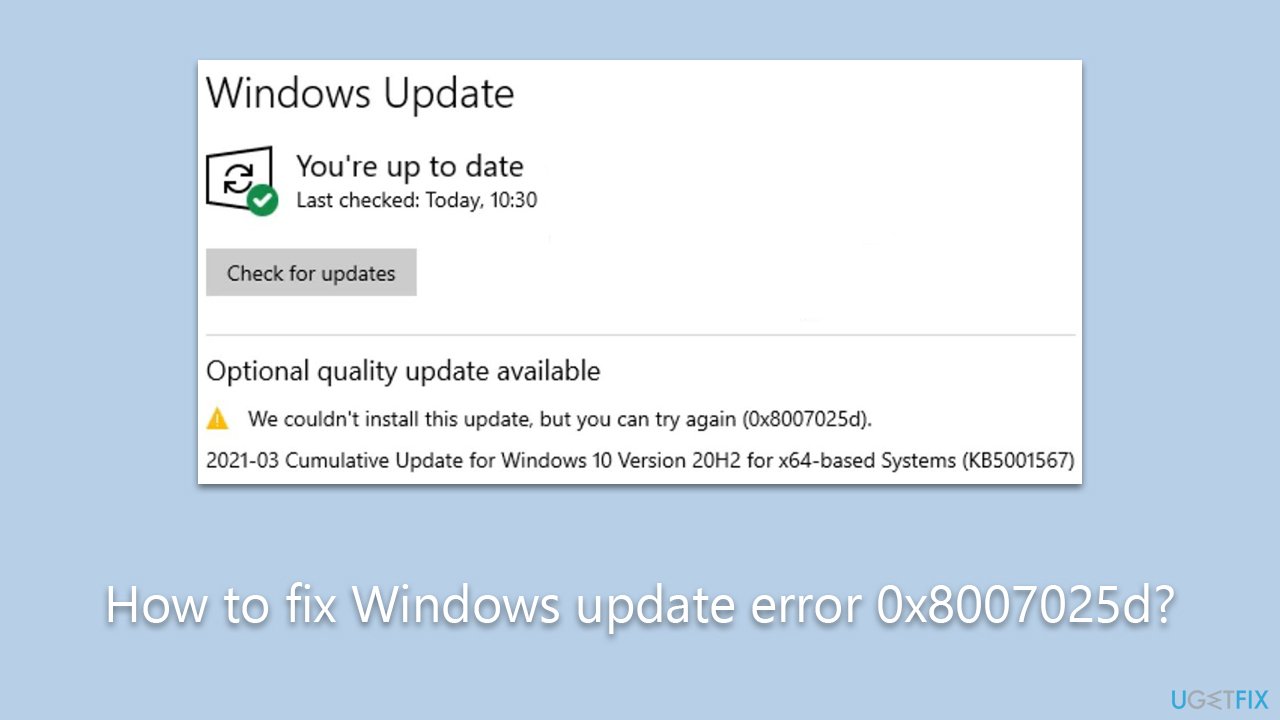
Hi, I am unable to install the latest update on Windows because I keep receiving error 0x8007025d with the message "There were problems installing updates, but we'll try again later." What can I do to resolve this?
Windows updates, created and shipped by Microsoft, are periodic enhancements that focus on fixing vulnerabilities, improving system performance, and adding new functionalities. These updates are divided into categories such as critical updates, security updates, service packs, and optional updates. While usually beneficial, sometimes the update process might fail, resulting in error codes such as 0x8007025d.
Error code 0x8007025d typically occurs during a Windows update due to a range of factors, including corrupted system files, not running essential services, bugged update components, lack of disk space, or conflicts with third-party security software. Each of these causes can lead to a failure in the update process, requiring specific resolutions.
Corrupted system files can be addressed by utilizing the built-in Windows tool called System File Checker, which scans and repairs damaged files. If services essential to the update process are not running, manually starting these services through the Windows Services application can rectify the problem.
Bugged update components might necessitate resetting the Windows Update components, which can be done through specific commands or troubleshooting tools provided by Windows. Lack of disk space calls for freeing up space by deleting unnecessary files or using disk cleanup utilities. Conflicts with third-party security software may require temporary disabling or configuring the software to allow the update.
Each of these resolutions corresponds to the underlying cause and needs to be applied thoughtfully. Comprehensive instructions to address error code 0x8007025d are provided below the article, guiding you through the specific steps required to resolve the issue. Following the provided instructions, most users should be able to complete the update successfully without professional intervention.
In addition to these manual steps, utilizing a [d1] PC repair tool can simplify the diagnosis and repair process, especially for users who may find manual troubleshooting intimidating or time-consuming.
It is important to note that the 0x8007025d error might also occur under different circumstances, such as when using System Restore or performing a Windows upgrade, such as from Windows 10 to Windows 11.
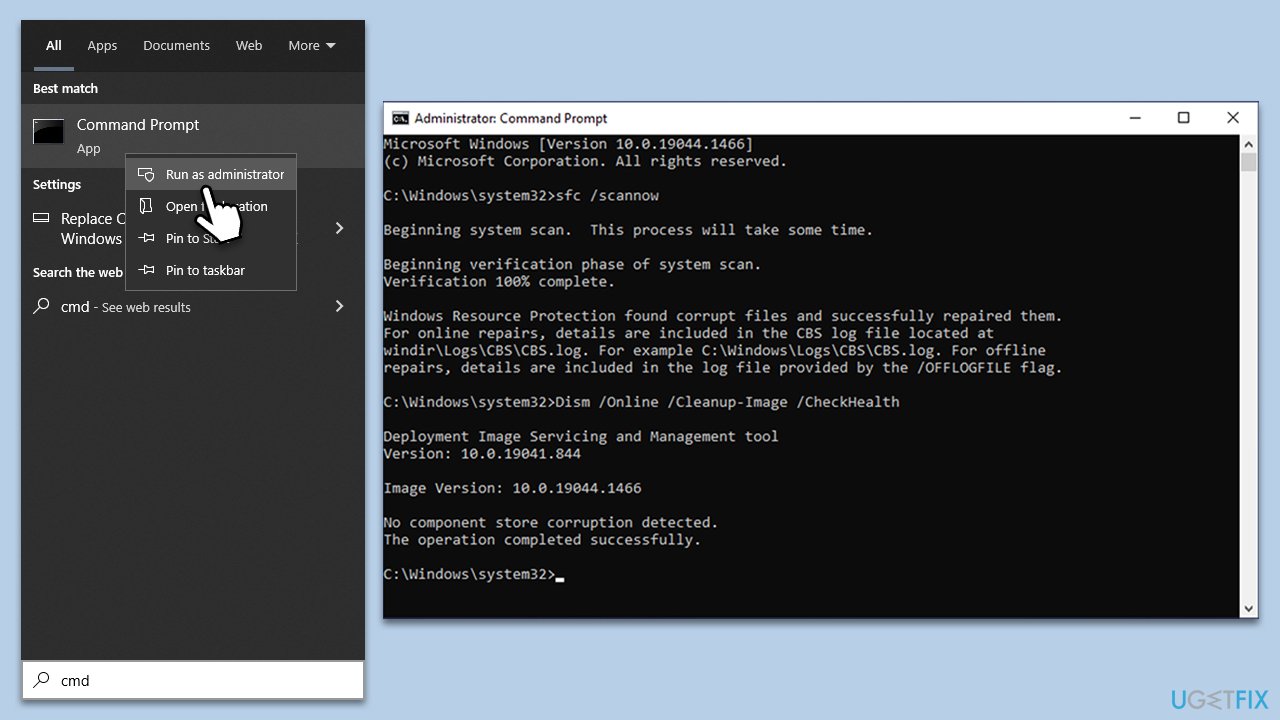
Fix 1. Run SFC and DISM
Running both the System File Checker (SFC) and Deployment Image Service and Management Tool (DISM) offers a comprehensive solution to fix corrupted system files, which may cause error code 0x8007025d. SFC scans and repairs the files, while DISM uses Windows Update to restore the system's health.
- Type cmd in Windows search, right-click on Command Prompt, and select Run as administrator.
- When User Account Control shows up, click Yes.
- Use the following command and press Enter:
sfc /scannow - Once the scan is complete, you should also run the following commands to repair Windows image files (don't forget to press Enter each time):
DISM /Online /Cleanup-Image /CheckHealth
DISM /Online /Cleanup-Image /ScanHealth
DISM /Online /Cleanup-Image /RestoreHealth - Restart your device.
Fix 2. Run Windows Update Troubleshooter
This built-in tool is designed to automatically diagnose and resolve problems with Windows Update. It can identify issues that might be causing errors and fix them automatically.
- Type Troubleshoot into the Windows search bar and press Enter.
- Next, on the right side of the window, select Additional troubleshooters/Other troubleshooters.
- Scroll down to locate the Windows update option and click on it.
- Click on Run the troubleshooter/Run and allow the process to complete.
- Once it is finished, implement any recommended fixes and restart your computer.

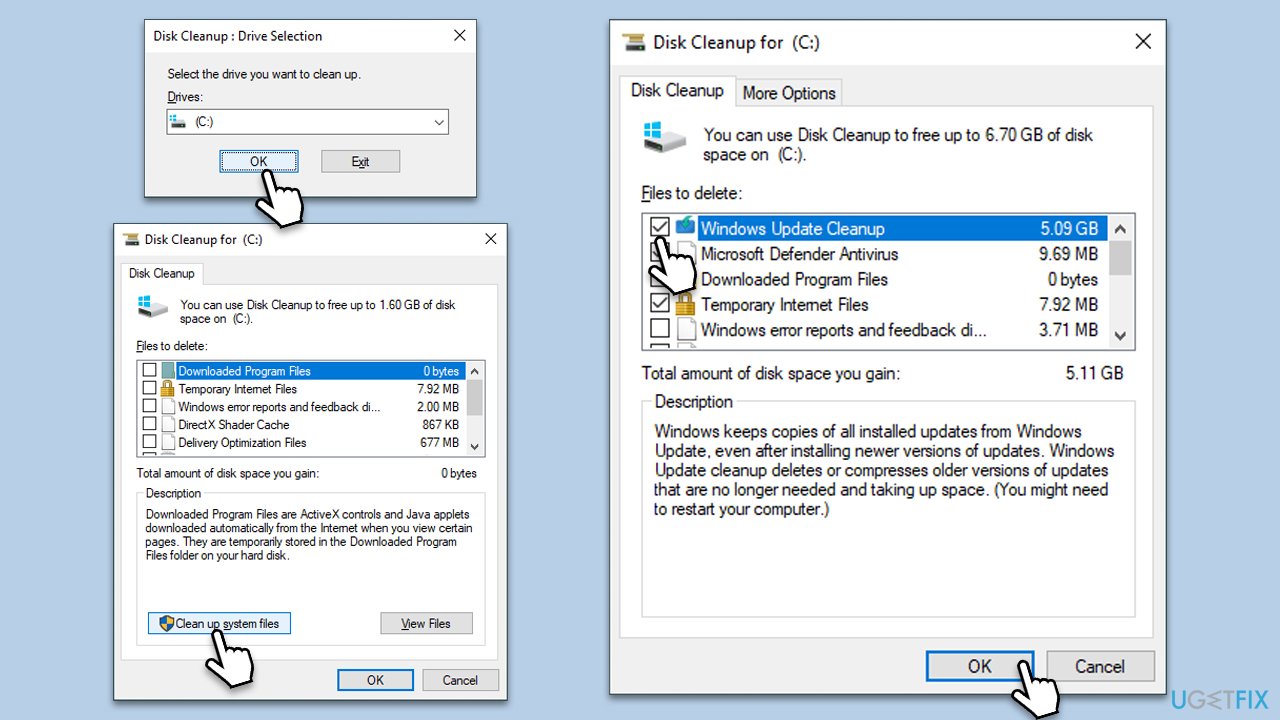
Fix 3. Free up disk space
A lack of space on the system drive might prevent the update. Performing disk cleanup might effectively mitigate the issue and allow Windows updates to go through:
- Type Disk Cleanup in Windows search and hit Enter.
- If your Windows is installed on drive C, pick it from the list (it should be by default) and press OK.
- Click Clean up system files.
- Select your main disk again and click OK.
- Here, select the largest portions of the data used - these typically include Temporary Internet Files, Windows Update, Temporary Files, Recycle Bin, Delivery Optimization Files, and others.
- Click OK - the process should be finished shortly.
Fix 4. (Re)Start essential services
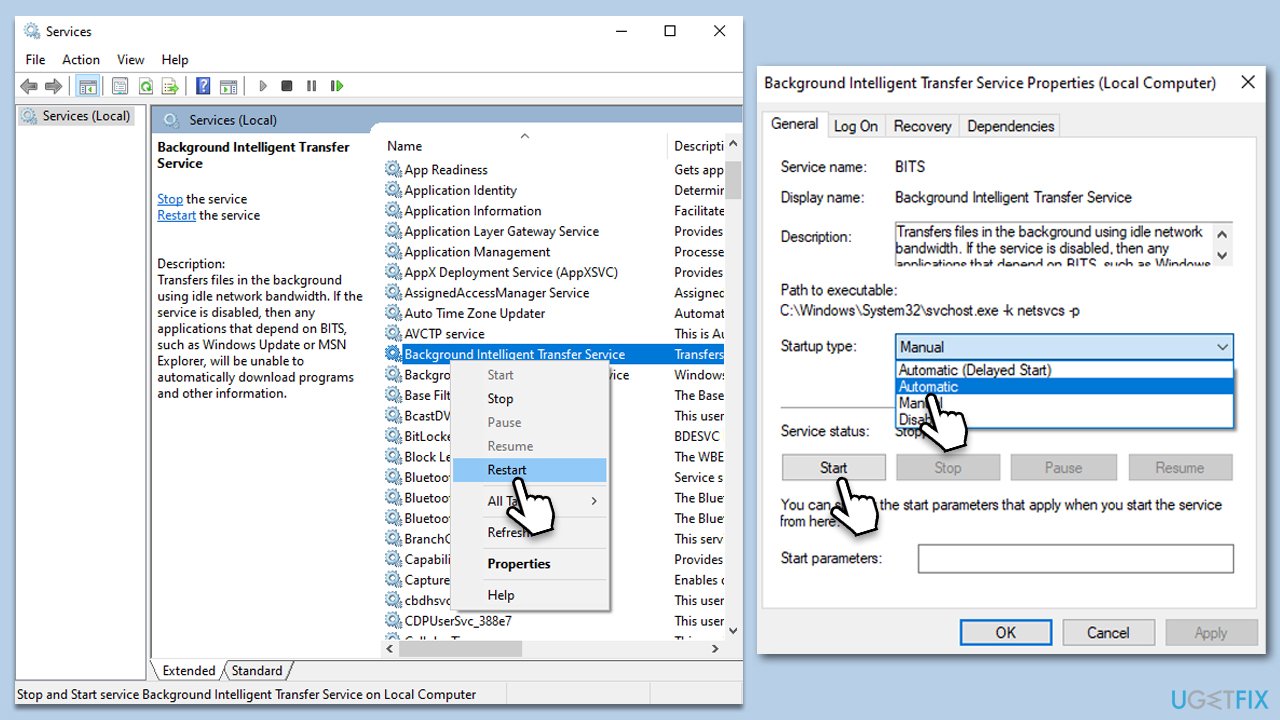
If certain services are not running, the error might occur. Below you will find instructions on how to restart or set them to run automatically if they are not running.
- Type in Services in Windows search and press Enter.
- Find Background Intelligent Transfer Service (BITS).
- If it is already running, right-click and pick Restart.
- If the service is not running, double-click it, and select Automatic under the Startup type from the drop-down menu.
- Click Start, Apply, and OK.
- Repeat this process for Windows Update and Cryptographic services.
Fix 5. Reset update components
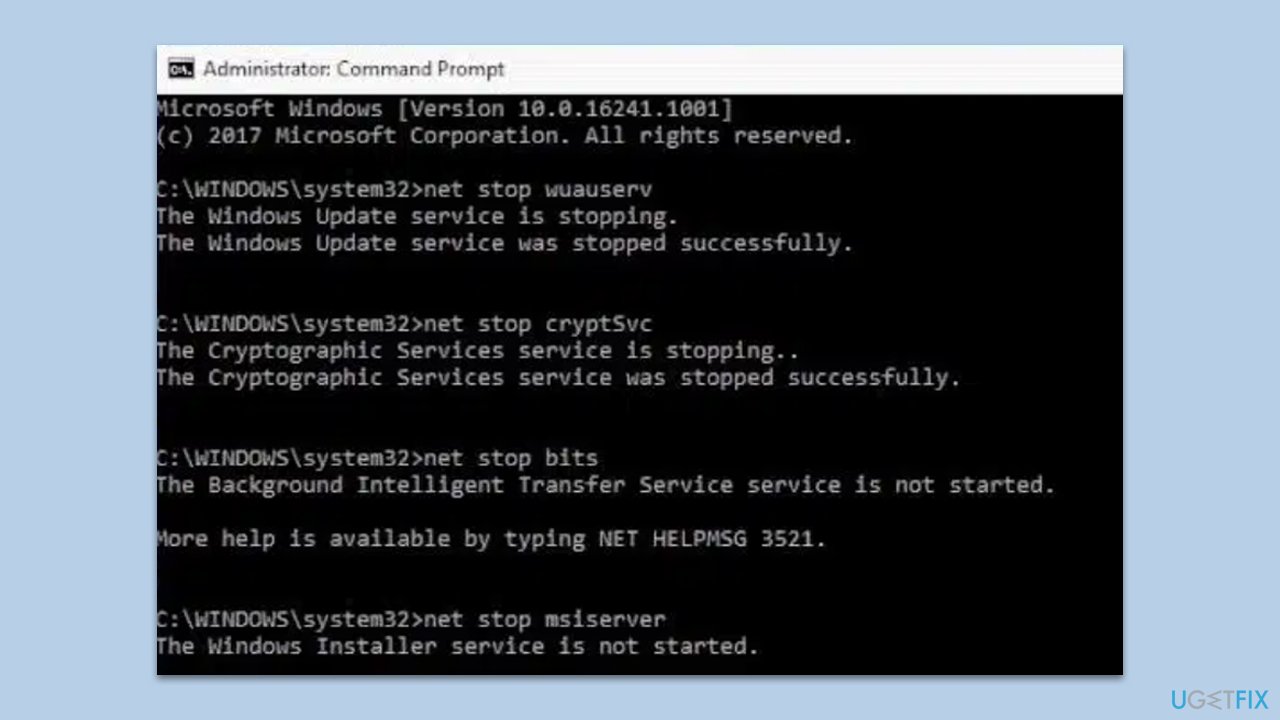
Bugged update components can hinder the update process. Resetting these can resolve the issue.
- Open Command Prompt as administrator, as previously explained
- In the new window, use the following commands, pressing Enter after each:
net stop bits
net stop wuauserv
net stop appidsvc
net stop cryptsvc
Del “%ALLUSERSPROFILE%\Application Data\Microsoft\Network\Downloader\*.*”
rmdir %systemroot%\SoftwareDistribution /S /Q
rmdir %systemroot%\system32\catroot2 /S /Q
regsvr32.exe /s atl.dll
regsvr32.exe /s urlmon.dll
regsvr32.exe /s mshtml.dll
netsh winsock reset
netsh winsock reset proxy
net start bits
net start wuauserv
net start appidsvc
net start cryptsvc - Restart your system.
Fix 5. Configure third-party security software
Conflict with third-party security software can block the update. Configuring or temporarily disabling this software may fix the problem.
- Open the third-party security software.
- Locate and change the settings to allow Windows updates (specific steps may vary between software).
- Alternatively, temporarily disable the security app.
- Restart the computer and attempt the update.
Fix 6. Use media Creation Tool
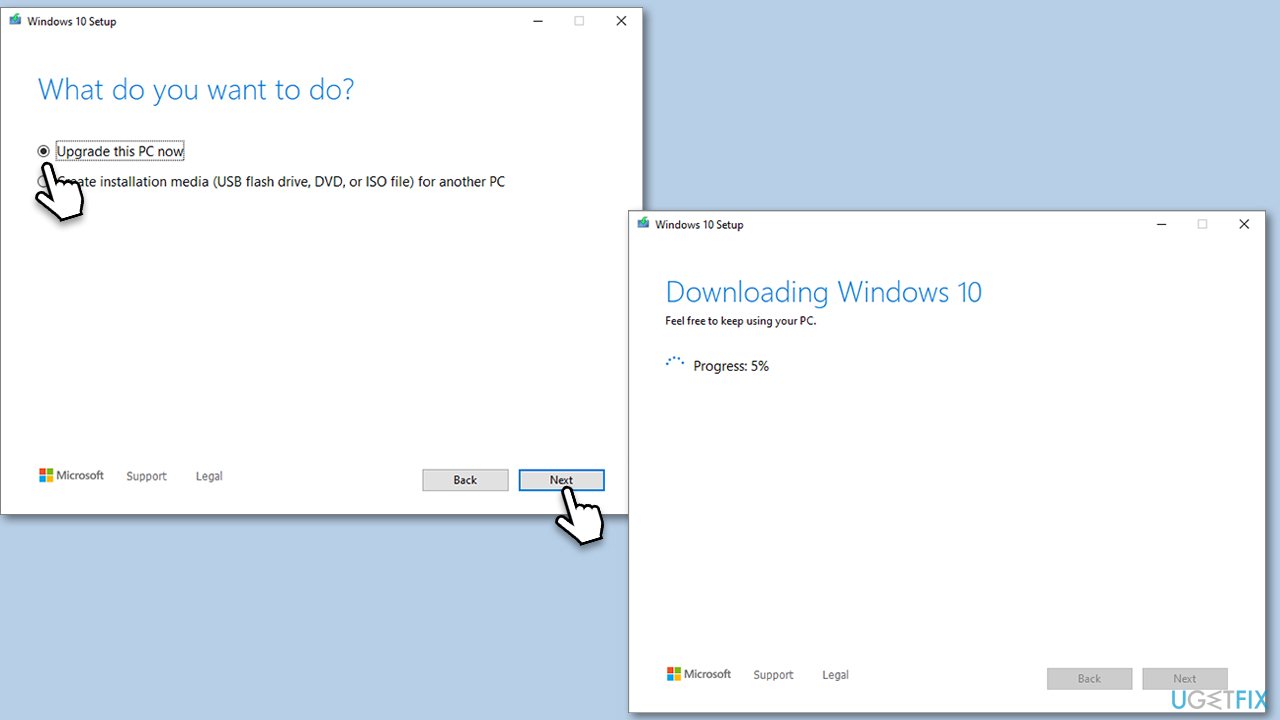
Media Creation Tool is a utility provided by Microsoft to create installation media for Windows. If the standard update process fails, this tool can be used to upgrade or reinstall the system, thus resolving the error.
- Visit the official Microsoft website and download Windows 10 installation media (Windows 11 version).
- Double-click the installer and select Yes when UAC shows up.
- Agree to terms.
- Select Upgrade this PC now and click Next.
- Windows will start downloading the needed files.
- Agree to the terms once again and click Next.
- Before installing, make sure that you are happy with your choices (otherwise, you can click the Change what to keep option).
- Finally, click Install to begin the upgrade process.
Bottom line
To resolve error 0x8007025d, you can use the System File Checker to repair corrupted files, manually start essential services, reset Windows Update components, free up disk space, or temporarily disable conflicting security software. If these steps do not work, consider using a PC repair tool for further assistance.
Frequently asked questions
The error 0x8007025d typically indicates that there is an issue with the installation media or a problem with your hard drive while trying to perform a Windows update on Windows 10 or Windows 11.
You can troubleshoot this error by checking your hard drive for issues, ensuring that your installation media is not corrupted, and running the Windows Update Troubleshooter available in Windows 10 or Windows 11 settings.
Yes, resetting the Windows update components can often resolve error 0x8007025d by clearing any corrupted files or settings that may be preventing the update from completing successfully on Windows 10 or Windows 11.




Report an issue
What's wrong with this guide? We review every report and update or remove content.
Report received — thank you. We'll review and fix it.
You need a free account to submit a report.
Be the first to comment