How to fix
Windows update error 0x8007043c
on Windows
Resolve Windows update error 0x8007043c quickly and effectively. Follow proven solutions for Windows 10 and 11, backed by expert-tested methods.

What causes How to fix Windows update error 0x8007043c?
- Corrupted system files
- Third-party security software
- Bugged update caches
- Lack of space on the C: drive
- Incorrectly configured update-related services
Repairs Windows system files, removes malware, and restores a clean OS state — without reinstalling.
Hello, I am unsuccessfully trying to upgrade to the latest version of Windows 10 version, but it keeps failing with an error 0x8007043c. I would appreciate some assistance on this matter, please.
Windows updates are important for ensuring that your device has the latest security patches and features. These updates are released regularly by Microsoft and are typically available for download through the Windows Update service.
One notable event in the Windows update schedule is known as Patch Tuesday. This is the second Tuesday of each month when Microsoft releases a large number of updates for its various products. These updates can include security patches, bug fixes, and new features and are important for keeping your device secure and running smoothly. However, users sometimes encounter issues when they try updating their systems, which can have a big negative impact on the device.
0x8007043c is a Windows update error that users may encounter whenever they run automatic updates or when they initiate them manually. Likewise, those using the Windows Update Standalone installer can also see an error saying that an error was encountered. The issue affects multiple operating system versions, including the latest ones, Windows 10 and 11. In most cases, users encounter the 0x8007043c update error when the update process is nearly finished, and then the error is delivered instead.
Although update errors and installation failures are relatively frequent occurrences for some users, others hardly ever experience these issues. As a result, those who encounter errors like 0x8007043c, 0xc1900201, 0x800701b1, 0x800705b9, or others, don't know how to deal with them.
In most cases, the reason behind a failing update could be one of the following issues:
- Corrupted system files
- Third-party security software
- Bugged update caches
- Lack of space on the C: drive
- Incorrectly configured update-related services.
Of course, each of the cases needs to be treated individually, as causes may vary. Regardless of why you are receiving this error, you can try using the instructions below to fix it. We also advise running an automatic Windows repair tool [d1], as it could easily fix underlying causes of update failures.
1. Run Windows Update troubleshooter
Running the built-in troubleshooter is among the first things you should do - if you haven't done so yet.
- In Windows search, type Troubleshoot and hit Enter
- Choose Additional troubleshooters/Other troubleshooters
- Find the Windows Update option and click on Run/Run the troubleshooter
- Wait till the scan is finished, apply any suggested fixes and restart your device.
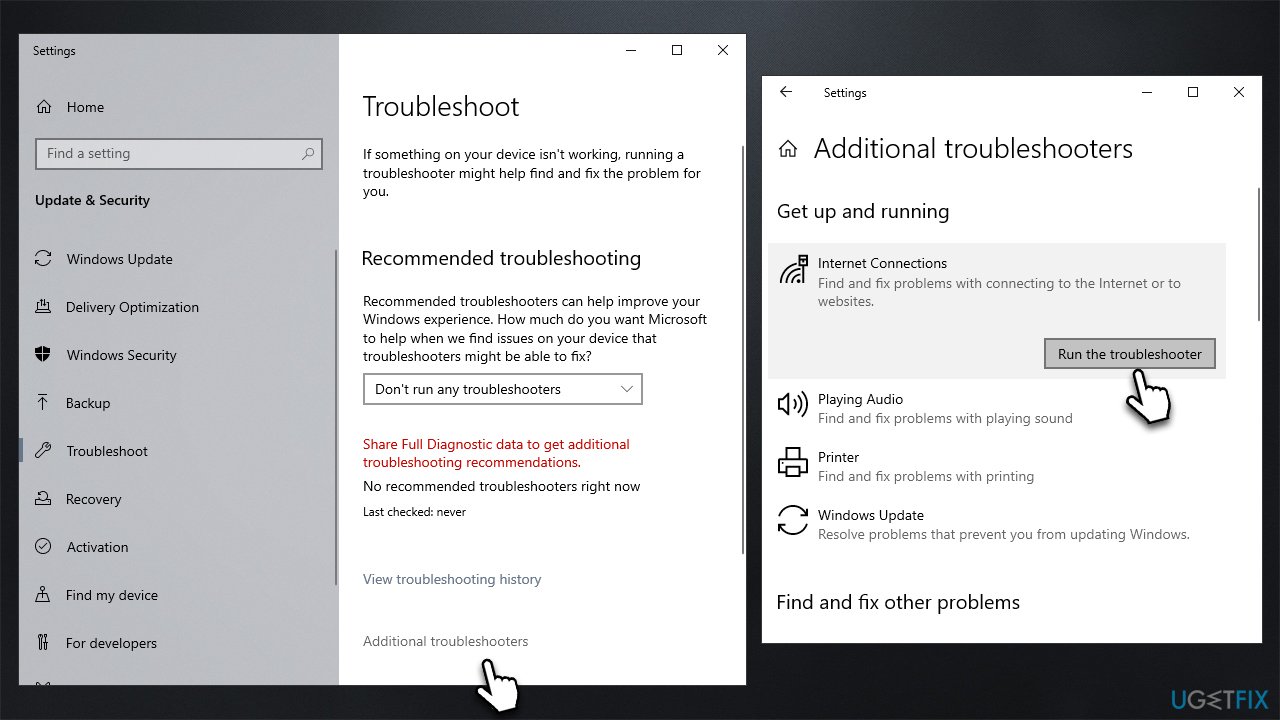
Running the Windows Update troubleshooter can help to diagnose and fix common problems with failed updates.
2. Clear some space
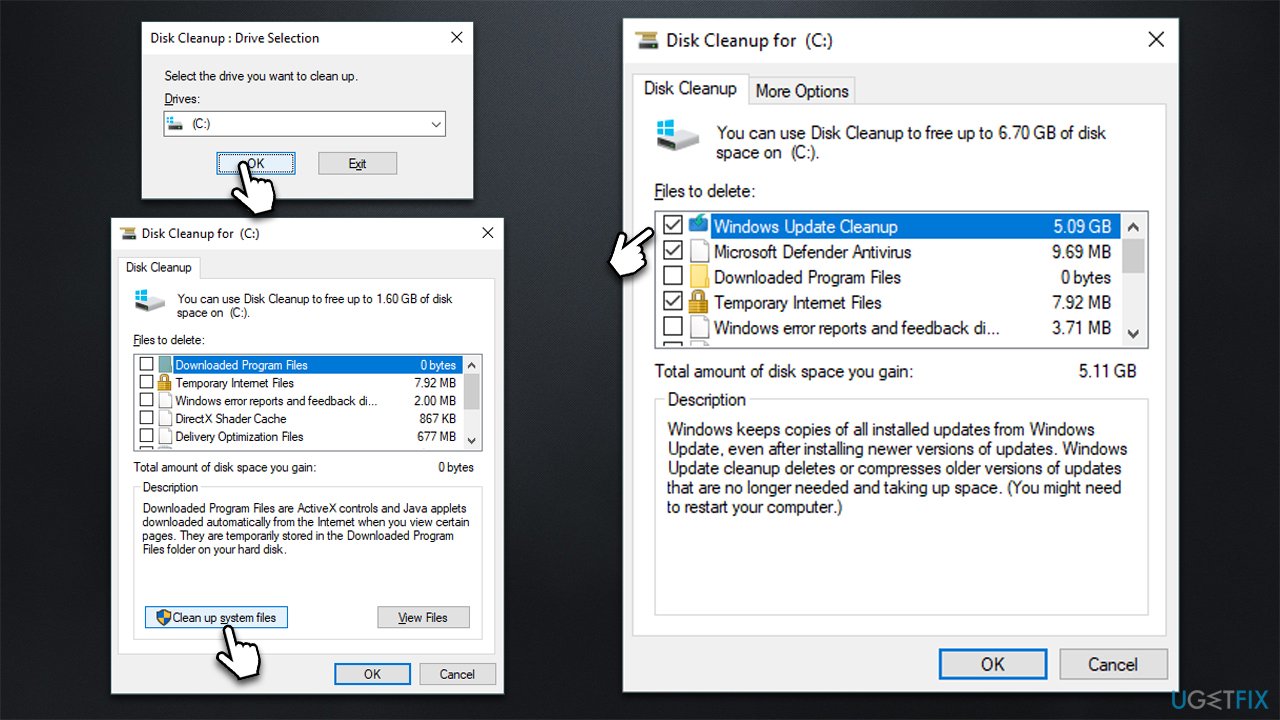
Windows stores its large update and temp files in various cached folders. Over time, the space this data takes might accumulate quite a bit, to the point that there's no more space for the new updates to be applied. You can run the Disk Cleanup utility in Windows to do this:
- Open the Windows search bar and type Disk Cleanup. Press Enter to open the Disk Cleanup utility
- In the Disk Cleanup window, select the drive where your Windows operating system is installed (usually drive C:) and click OK
- Click Clean up system files
- Select the drive again and click OK
- In the list of files that can be cleaned up, select the largest portions of data, such as Temporary Internet Files, Windows Update, Temporary Files, and others
- Click OK to begin the cleanup process.
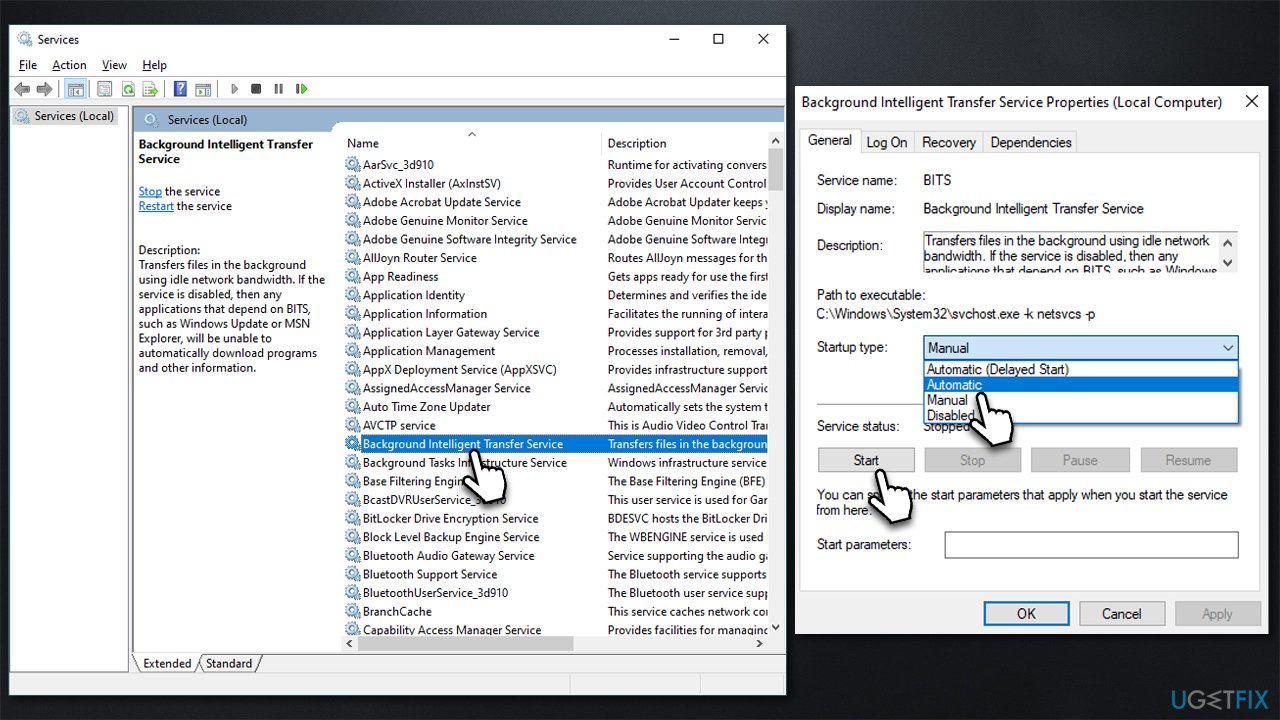
3. Check update-related services
- Type in Services in Windows search and press Enter
- Locate Background Intelligent Transfer Service (BITS)
- If it is already running, right-click and select Restart
- if the service is not running, double-click it to open Properties
- Under the Startup type, select Automatic from the drop-down menu
- Click Start, Apply, and OK
- Locate Windows Update Service and repeat the process.
4. Disable third-party security tool
Issues with failed Windows updates can be caused by the presence of third-party security software on computers. In some cases, these programs may interfere with the update process, preventing updates from being installed properly. This can be particularly problematic if the security software is configured to be overly aggressive in blocking connections to Microsoft servers.
To prevent these types of conflicts, it is recommended to either disable the real-time protection feature on your security software or temporarily uninstall the app before attempting to install a Windows update to avoid the 0x8007043c error. This can help to ensure that the update process runs smoothly and without interruption. Once the update has been installed, you can re-enable your security software if desired, or you can rely on Microsoft Defender instead.
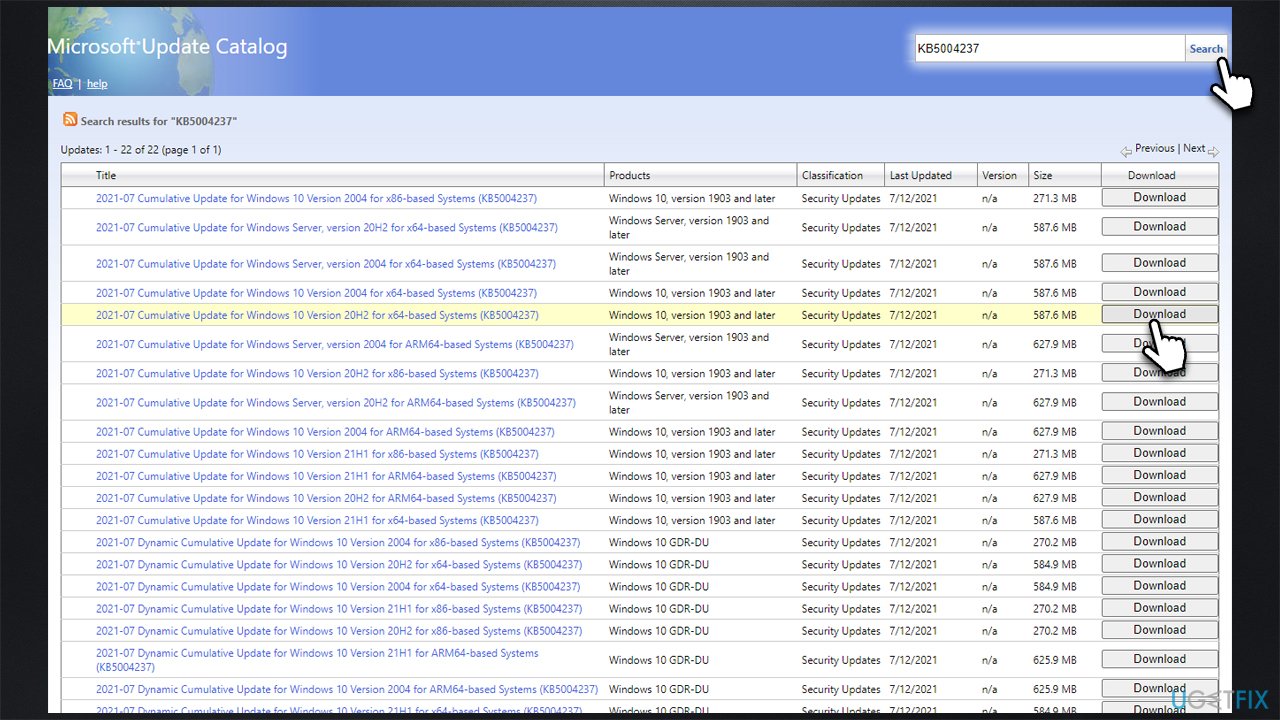
5. Install the update manually
If the automatic update process fails, try a manual one instead.
- Type Updates in Windows search and hit Enter
- Click View update history
- Here, note down the KB number which failed to be installed
- Go to the official Microsoft Update Catalog website
- Type the KB number into the search bar, and press Enter or click Search
- Find the correct version of the update for your device (as a home user, ignore all Windows server versions) and click Download
- Follow the on-screen instructions to install the update and then restart your system.
6. Perform in-place upgrade
Make sure you disconnect all unnecessary devices from your computer (leaving just the mouse and keyboard) and back up your files before proceeding.
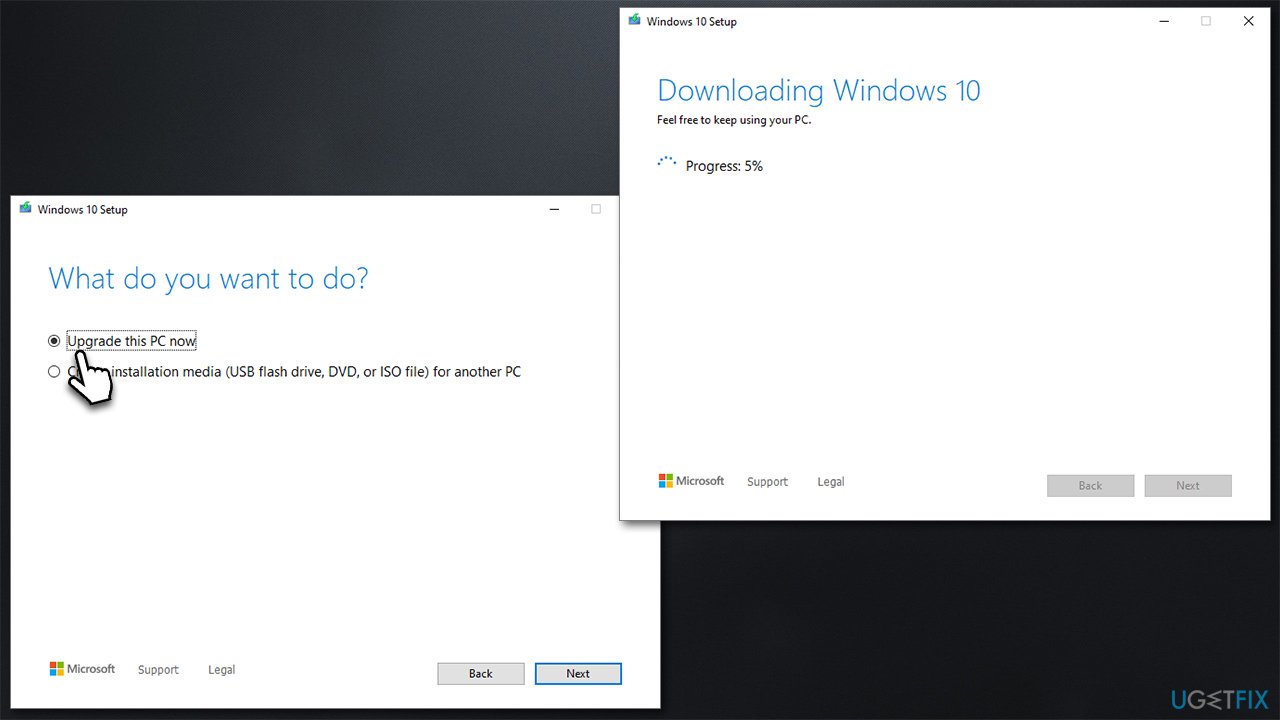
- Visit the official Microsoft website and download Windows 10 installation media (Windows 11 version)
- Double-click the installer, select Yes when UAC shows up, and agree to terms
- Select Upgrade this PC now and click Next
- Windows will start downloading the needed files
- Agree to terms once again and click Next
- Before installing, make sure that you are happy with your choices (otherwise, you can click Change what to keep option)
- Finally, click Install to begin the upgrade process.
Bottom line
To fix the Windows update error 0x8007043c, you can try running an automatic Windows repair tool and addressing the potential causes mentioned. If these solutions do not resolve the issue, further troubleshooting may be necessary.
Frequently asked questions
This error typically occurs due to issues with Windows Update components, corrupted system files, or problems with the update service itself.
You can reset Windows Update components by running Command Prompt as an administrator and executing specific commands to stop services, delete temporary files, and restart the services.
Yes, you can use the Windows Update Troubleshooter found in the Settings app under Update & Security to automatically detect and fix issues related to Windows Update.




Report an issue
What's wrong with this guide? We review every report and update or remove content.
Report received — thank you. We'll review and fix it.
You need a free account to submit a report.
Be the first to comment