
How to fix Windows update error 0x8007371c?

Prefer to fix it yourself? The manual steps follow.
On this page
Hi. Every time I try to update Windows, I receive an error 0x8007371c. I tried rebooting and also waited for almost a week now but to no avail. I would be grateful if any solution for this could be provided.
Windows is a very powerful, customizable, and the most popular operating system in the world. Not only home users but also businesses rely on various OS versions to perform daily tasks. A disrupted update process can cause serious issues to both regular users and those working at the corporations.
Unfortunately, Windows update errors are relatively common, and most users who used Windows 10 for a prolonged time would have experienced it at least once. This time, we are talking about an error 0x8007371c and will explore the solutions that should help you fix the issue once and for all.
The error typically occurs when an automatic or manual system update (typically, cumulative) is initiated, and it reads the following:
Updates failed
There were problems installing some updates, but we'll try again later.
[Date] Cumulative Update for Windows 10 Version XX for x64-based Systems (KBXXXXXXX) - Error 0x8007371c
The message is rather generic, and we saw similar error codes using it as well before, including 0x800f0986, 0x800f0990, or 0x800f0984. In any case, it does not explain why the error occurs or what users should do in order to fix it.
To start the troubleshooting, we should first get to the root cause of the situation. For some people, Windows update errors might go away just by simply waiting for a few days - this usually happens when there are problems with Microsoft's servers or when the user's internet connection is unstable.
However, most people claimed that waiting did not do anything, and they still couldn't update their system. This is because there could be several underlying issues causing it. They include:
- Issues with correlating Windows services
- Damaged Windows update components
- Corrupted system files
- Third-party software, especially antivirus software.
It can find the underlying problems on a PC and replaces the damaged system components within just a few minutes, fixing BSODs, registry issues, and errors automatically. Besides, the app can also be used as a maintenance utility for cleaning various caches and freeing up space, which would also increase the device's speed.
1. Temporarily uninstall your security software
It is not a secret that some third-party security programs might have compatibility issues with Windows OS. There should be no two antivirus programs running unless one of them is a complementary application that does not interfere with another's work.
Nonetheless, it is known that some security apps can be overly aggressive when it comes to data packets downloaded from the internet. To be precise, some anti-malware might start blocking certain connections to Microsoft servers. Thus, when dealing with Windows update errors, it is recommended to temporarily uninstall third-party security software.
Alternatively, you could also access your anti-malware app's settings and add all Microsoft servers to the list of exceptions:
- http://windowsupdate.microsoft.com
- http://*.windowsupdate.microsoft.com
- https://*.windowsupdate.microsoft.com
- http://*.update.microsoft.com
- https://*.update.microsoft.com
- http://*.windowsupdate.com
- http://download.windowsupdate.com
- https://download.microsoft.com
- http://*.download.windowsupdate.com
- http://wustat.windows.com
- http://ntservicepack.microsoft.com
- http://go.microsoft.com
2. Run Windows update troubleshooter
- Type Troubleshoot in Windows search
- Select Additional troubleshooters
- Find Windows Update from the list
- Click it and select Run the troubleshooter
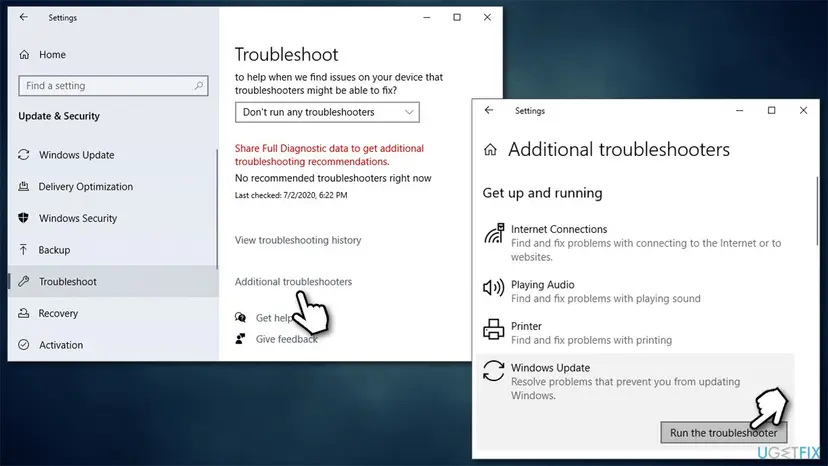
How to fix windows update error 0x8007371c run windows update troubleshooter - Apply the suggested fixes and restart your PC.
3. (Re)start relevant services
You should ensure that BITS and Windows Update services are running. If they are already running, you should restart them.
- Type in Services in Windows search and press Enter
- Locate Background Intelligent Transfer Service (BITS)
- If it is already running, right-click and select Restart
- if the service is not running, double-click it, select Automatic under the Startup type from the drop-down menu
- Click Start, Apply and OK
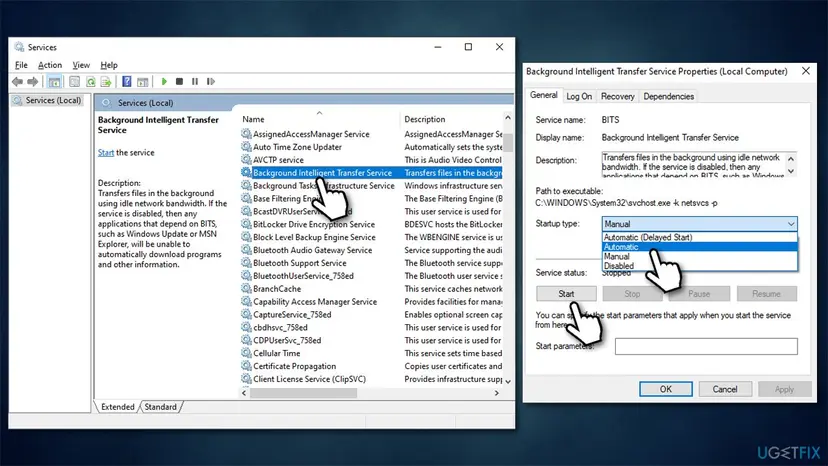
How to fix windows update error 0x8007371c restart relevant services - Do the same with Windows Update service
- If these services are already running, right-click and pick Restart.
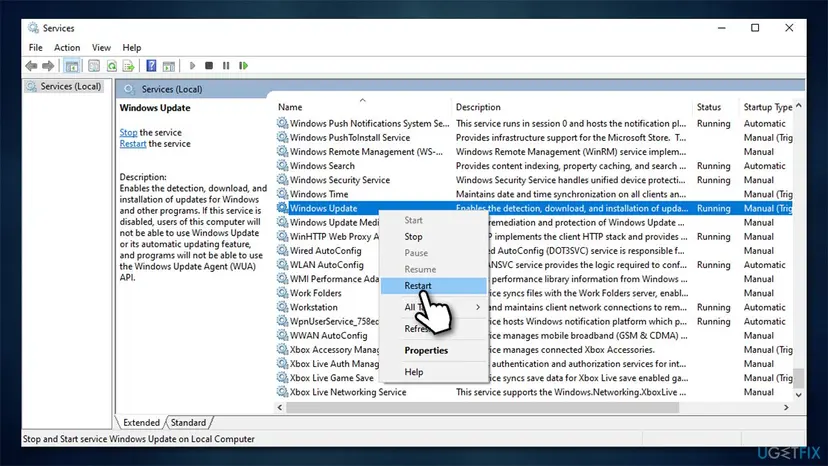
How to fix windows update error 0x8007371c restart relevant services2
4. Install the update manually
You can try downloading and installing the missing update manually. Here's how:
- In Windows search, type in Update and press Enter
- Click View Update History
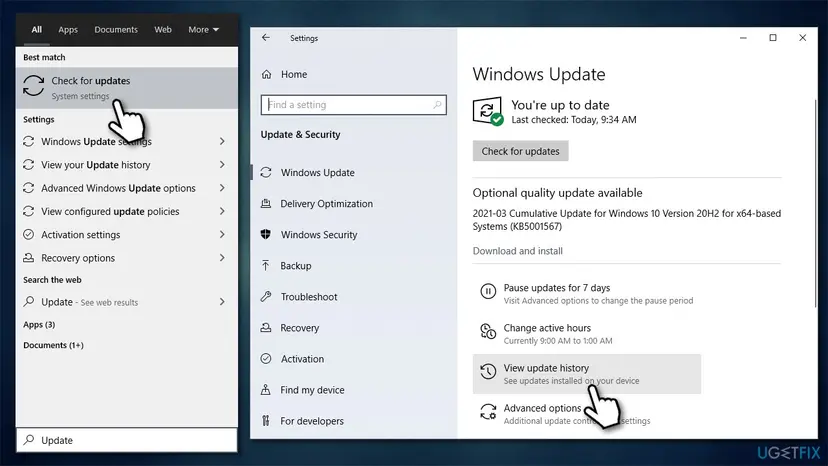
How to fix windows update error 0x8007371c access update history - Find the error code and check the KB number next to it - write it down or copy it
- Open your browser and go to Microsoft Update Catalog
- Within the search bar, use the KB number that failed to install with the 0x8007371c error
- Find the correct version of the update for your operating system (to check this, right-click on Start and pick System. Under Device specifications and check the System type) and click Download
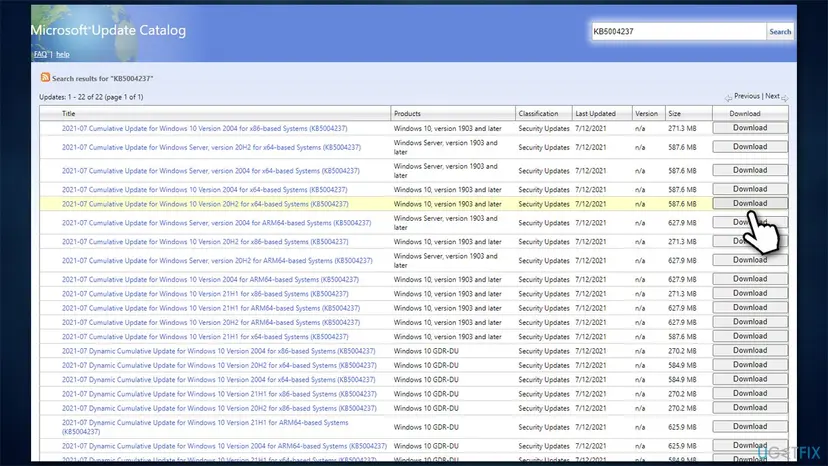
How to fix windows update error 0x8007371c download update manually - Proceed with on-screen instructions and restart your PC once done.
5. Run SFC and DISM scans
To ensure that no Windows system files are corrupted, run commands in the elevated Command Prompt.
- Type cmd in Windows search
- Right-click on Command Prompt result and select Run as administrator
- Paste the following command into the new window:
sfc /scannow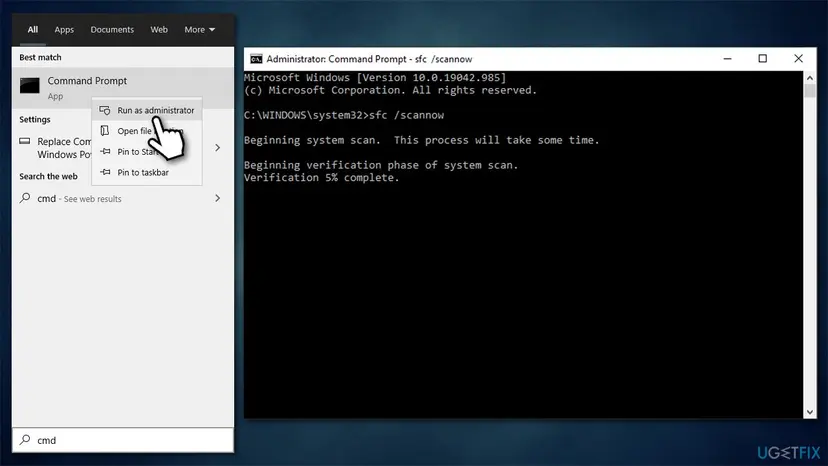
How to fix windows update error 0x8007371c run sfc scan - Press Enter and wait till the scan is finished
- If the scan fixed corrupted files, restart and try updating again. If nothing was found or it returned an error, proceed with the following commands:
DISM /Online /Cleanup-Image /CheckHealth
DISM /Online /Cleanup-Image /ScanHealth
DISM /Online /Cleanup-Image /RestoreHealth - Restart your PC.
6. Reset Windows update components
If Windows update components were corrupted in some way, removing catches should resolve the problem.
- Access Command Prompt as administrator (explained above)
- Use the following commands, pressing Enter each time:
net stop wuauserv
net stop cryptSvc
net stop bits
net stop msiserver - Press Win + E to open File Explorer (make sure Hidden Files are visible)
- Go to the following locations and delete the contents of these folders:
C:\\Windows\\System32\\catroot2
C:\\Windows\\SoftwareDistribution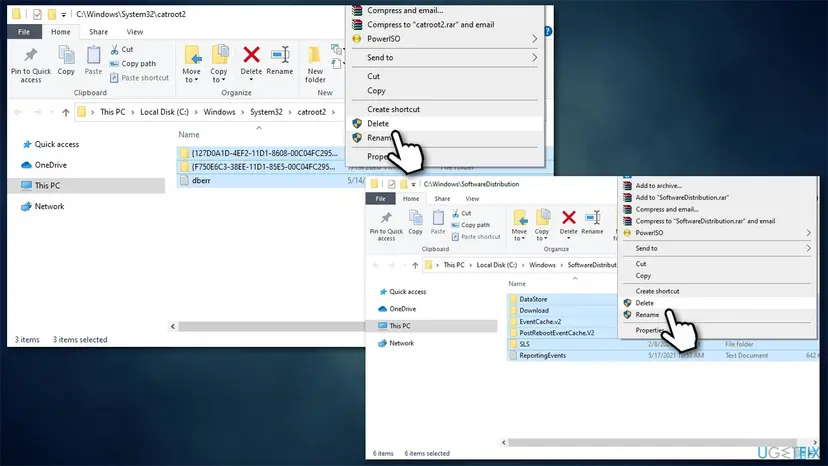
How to fix windows update error 0x8007371c reset windows update components - Go back to Command Prompt and use these lines:
net start wuauserv
net start cryptSvc
net start bits
net start msiserver - Restart your PC.
7. Use Media Creation Tool
If the above methods did not help, you could employ Media Creation Tool to perform an in-place upgrade. Before proceeding, we recommend you backup your personal files and disconnect all external devices except the mouse and keyboard.
- Go to the official Microsoft website and download Media Creation Tool
- Double-click the installer, agree to terms and click Next
- Select Upgrade this PC now > Next
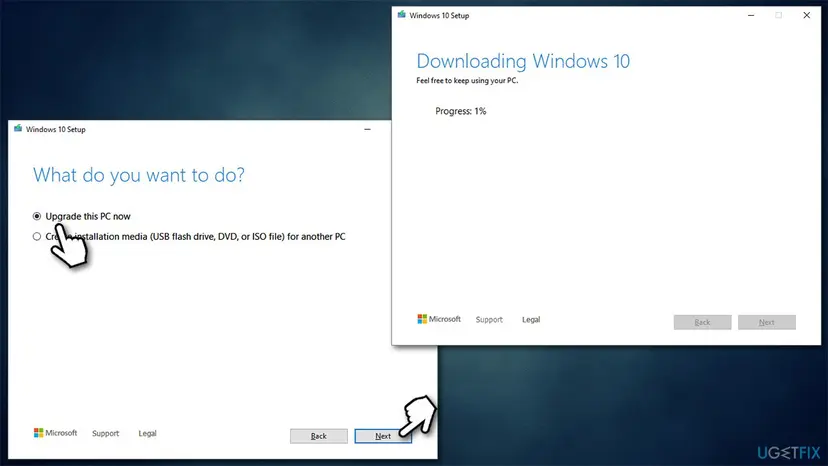
How to fix windows update error 0x8007371c use media creation tool - At this point, wait till Windows downloads and installs the necessary files
- Your system might restart several times.
Did this fix work?
One click, no account. It tells the next reader which guides are worth their time.
Questions and experiences: fix Windows update error 0x8007371c
Still broken, or found a fix we did not cover? Ask here: members and our editors answer. Reading is open; writing needs a free account.
…