
How to fix Windows update error 0x80092004?

Prefer to fix it yourself? The manual steps follow.
On this page
I get this Windows update error 0x80092004 when trying to update Windows 10 computer. The particular KB4512486 update. I cannot install the upgrade. What is wrong, and what can I do to solve the issue?
The particular update error 0x80092004 is reported by various users online because it is commonly frustrating for people who try to upgrade their machines. These updates are essential and important parts of the machine because some of the updates are needed to fix particular bugs and vulnerabilities within the operating system. Without getting the update on the Os, those issues can create more problems and damage the machine significantly.
Security and bug fixes, new drivers for the hardware, and other pieces are needed for the proper performance of the machine. All of those get included in the update. Even though there are users who install updates no matter the contents, these upgrades are, in most cases, important. These issues with the installation of the update keep the user from getting crucial help, but you can sometimes revert to the older version of the current version that is not running smoothly, and the upgrade is failing or not available yet.
However, the Windows update error 0x80092004 is solvable. In most cases, the problem is caused by the faulty update itself, when the upgrade is initiated right after the initial release. It is possible that the upgrade has its own bugs and errors at this stage. It is advised to wait for the reply from testers and community after the release, before updating the OS first.
Another common reason why people encounter this or any similar errors on the machine - corrupted system files. This unfortunate reason can occur when system files get damaged, affected by cyber infections, corrupted due to other processes on the system. The error might show up keeping you from proceeding.
This program can solve issues with virus leftovers, other program compatibility errors because sometimes files get corrupted due to failed installations of various programs.
To fix Windows update error 0x80092004 properly, knowing the cause is important. However, there are some possible solutions that can be effective in this case and help you get rid of the issue properly. If you receive the particular reason for the error, you may indicate the cryptographic value issues, driver problems, or the lack of space. Otherwise, follow these guidelines and thoroughly step by step. Performing these fixes cannot damage any other aspects of the computer, can only solve related problems.
1. Troubleshoot the Windows Update
- Go to Settings.
- Choose Update & Security.
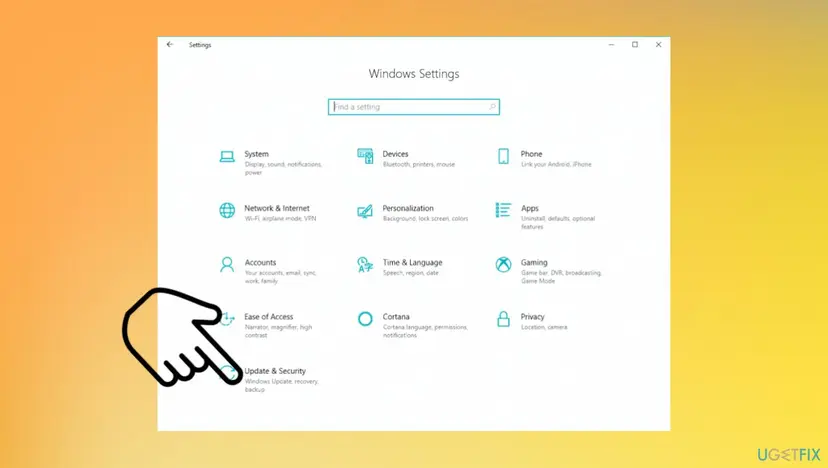
Windows update error 0x80092004 settings - Select Troubleshoot.
- Find on the right pane and select Windows Update.
- Click on the Run the troubleshooter button.
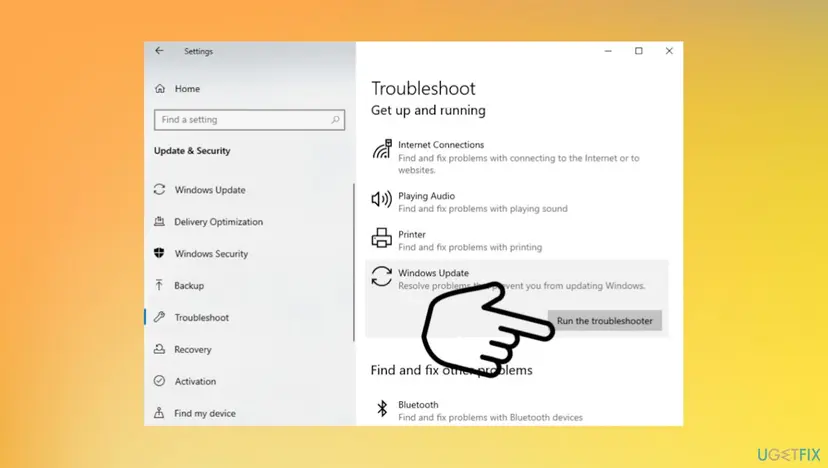
Windows update error 0x80092004 troubleshooting - Wait for the procedure to complete.
- Click on the Next button, and let reboot your system.
2. Pause updates and get the Servicing Stack Update
Service Stack updates are used to upgrade the service that is responsible for the OS update installation. It needs to get all the updates applied before the operating system gets upgraded. You can download the latest version and make sure to disable automatic updates before you run the Servicing Stack Update:
- Press Win + I to get the Windows Settings window to appear.
- Select Update & Security.
- Then choose Windows Update.
- Move to the right pane and click on Advanced Options.
- Under Pause updates options, click on the dropdown menu and choose a date.
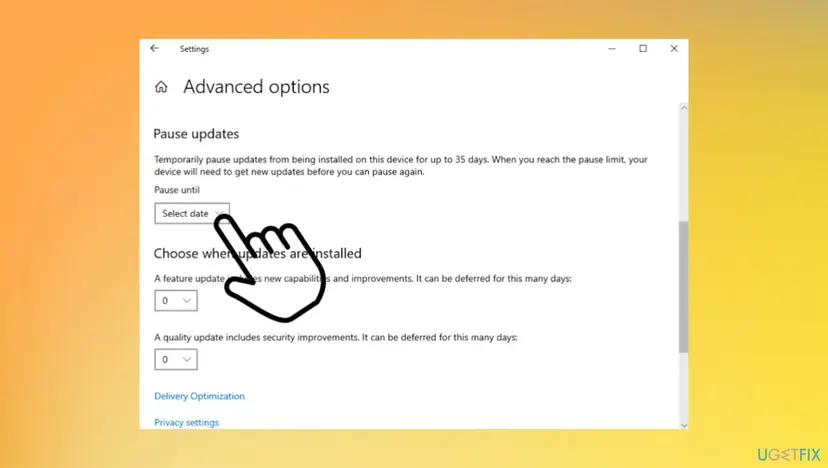
Windows update error 0x80092004 pause updates - Updates will be paused until the selected time.
- Restart the PC.
3. Run SFC and DISM commands
- Press Win+R and let the Run dialog appear on the screen.
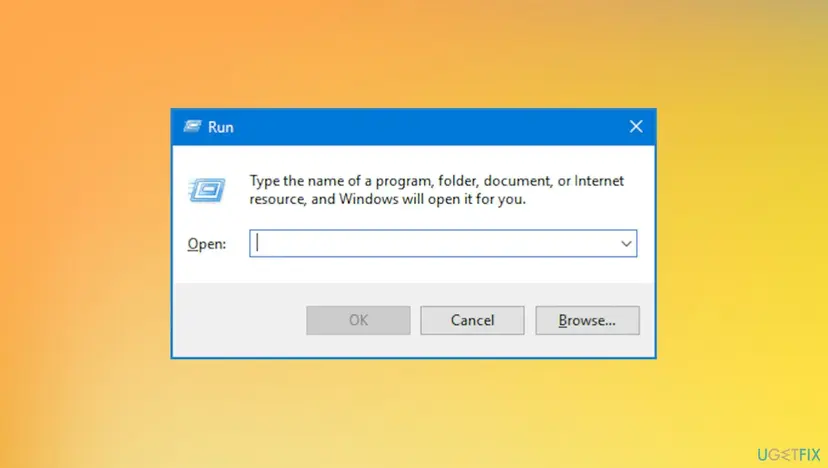
Windows update error 0x80092004 run box - Type cmd and press Ctrl+Shift+Enter together to get the elevated Command Prompt or choose the option by searching cmd in the bottom bar.
- Click on the Yes button if UAC prompts.
- Type in the following command and hit enter:
DISM.exe /Online /Cleanup-image /Restorehealth - Once that is finished, run:
sfc /scannow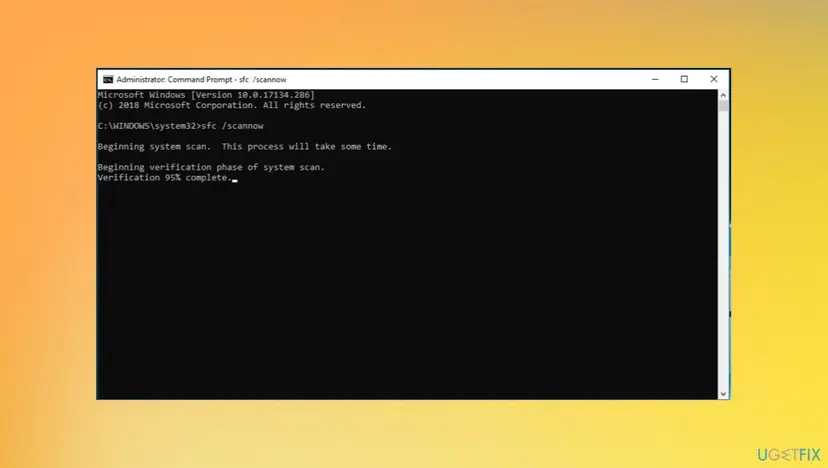
Windows update error 0x80092004 sfc - Press the Enter to scan the system files.
- Try to update.
4. Get rid of recent updates and packages
- Go to Settings.
- Then Update & Security and Windows Update.
- Choose View update history.
- Figure out what KB updates were installed.
- Run the DISM tool to remove it manually.
- Open the elevated command prompt.
- Type the following command and hit Enter:
Dism /online /Get-Packages - This will provide you a list of recently installed packages.
- Figure out the package that is most recent.
- Remove Package.
- In the command prompt, put the following commands one after another followed by the Enter:
dism.exe /online /remove-package /packagename:Package_for_RollupFix_Wrapper~31bf3856ad364e35~amd64~~16299.248.1.17 dism.exe /online /remove-package /packagename:Package_for_RollupFix_Wrapper~31bf3856ad364e35~amd64~~16299.192.1.9 dism.exe /online /remove-package /packagename:Package_for_RollupFix~31bf3856ad364e35~amd64~~16299.192.1.9 - Restart the device.
5. Remove files from the Software Distribution folder
- Type cmd in the search area.
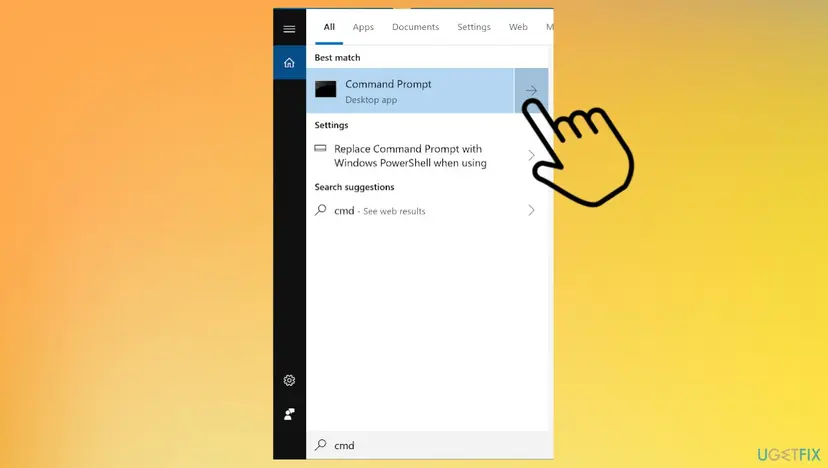
Windows update error 0x80092004 cmd - Select Run as administrator.
- When UAC prompts on the screen, click on the Yes button.
- Input the following command and hit Enter after typing each one of them
net stop wuauserv
net stop bits - This action will stop the Windows Update Service, Background Intelligent Transfer Service (BITS), Cryptographic, and the MSI Installer.
- Navigate to path C:\\Windows\\SoftwareDistribution.
- Press Ctrl+A to select all the files and folders inside and then tap delete.
- If some files are in use and you’re unable to remove them. If so, restart the device.
- Run the above command again in the elevated command prompt.
- Restart again once done.
- Open Command Prompt again.
- Type the following command and hit Enter after one after typing each one of them
net start wuauserv
net start bits - Restart the PC.
Did this fix work?
One click, no account. It tells the next reader which guides are worth their time.
Questions and experiences: fix Windows update error 0x80092004
Still broken, or found a fix we did not cover? Ask here: members and our editors answer. Reading is open; writing needs a free account.
…