
How to fix Windows update error 0x800f0805?
Prefer to fix it yourself? The manual steps follow.
On this page
I try to update my Windows 10, but I cannot achieve what I want. Windows update error appears with code 0x800f0805. It has been a week already, so I cannot upgrade my device, and I can't find a solution for this issue too. Can you explain this? Or maybe you have any solutions?
Windows update error 0x800f0805 appears when the version of Windows is getting the update. Professional to Enterprise or Home to Professional version upgrades trigger this issue. Microsoft releases updates and patches for the Windows operating system regularly. Troubles follow with new releases too.
This error can indicate that the version is not detected, so the upgrade cannot happen. The cause for this problem can be bugs in the delivery of the update to the machine. If the server is experiencing any issues, you can notice the problem even though your device is working correctly.
Unfortunately, the causes for this issue include affected or corrupted Windows files. Update errors are the most common, and since there are many of them, you can find various reports on them too. It is helpful when the problem has an indication code, so you can know what happened.
The Windows update error 0x800f0805 can be included in the message like:
Error: 0x800f0805. The Windows edition was not detected. Check that the specified image is a valid Windows operating system image
or
The changes couldn't be completed. Please reboot your computer and try again.
Error code: 0x800f0805
Users experience this problem, and it is essential to fix the problem, find the root cause to avoid additional damage that the unsolved Windows update error 0x800f0805 can trigger. When the update is not working correctly can be annoying and frustrated. Troubleshooting the issue is essential. It is possible to check particular update issues and run system file checks. You can find PUPs, malware, other problems that can add to this problem or leave damaged data on the machine.
Other fixes are more in-depth, so make sure to follow steps and be cautious and attentive while fixing your OS upgrade problem.
1. Troubleshoot the Windows Update processes
- Click on the Start button and select the gear icon to open Settings.
- Open the Update & Security category.
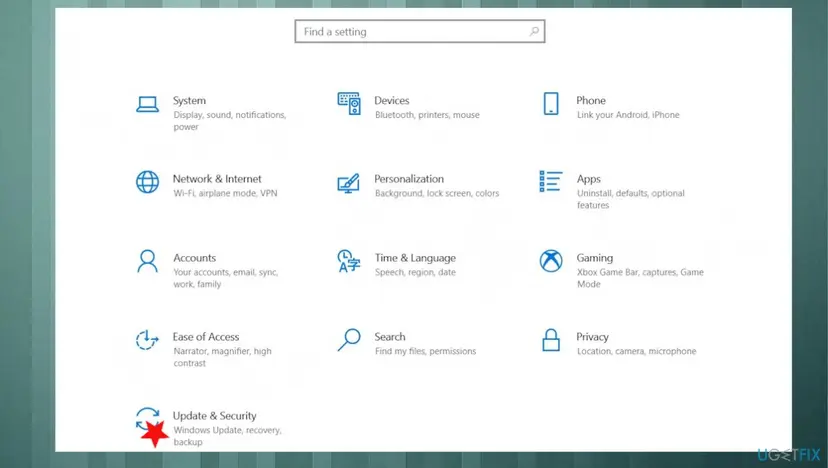
Update error 0x800f0805 fix settings - Find the Troubleshoot section.
- Choose to open Additional troubleshooters.
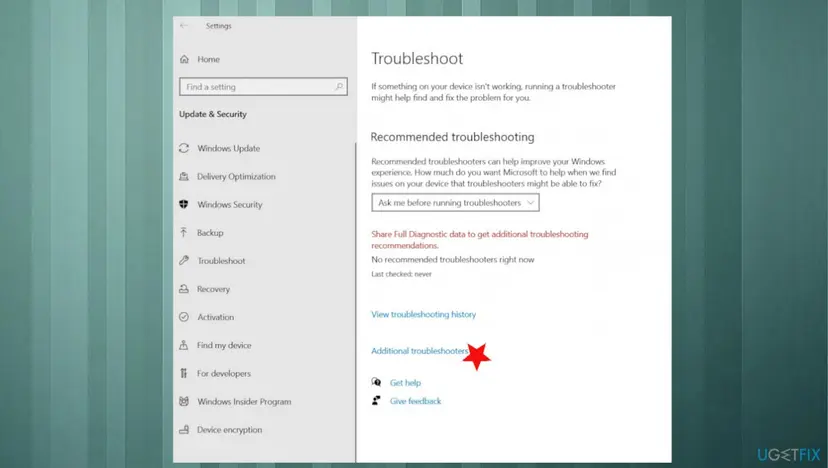
Update error 0x800f0805 fix additional troubleshooters - Select Windows Update.
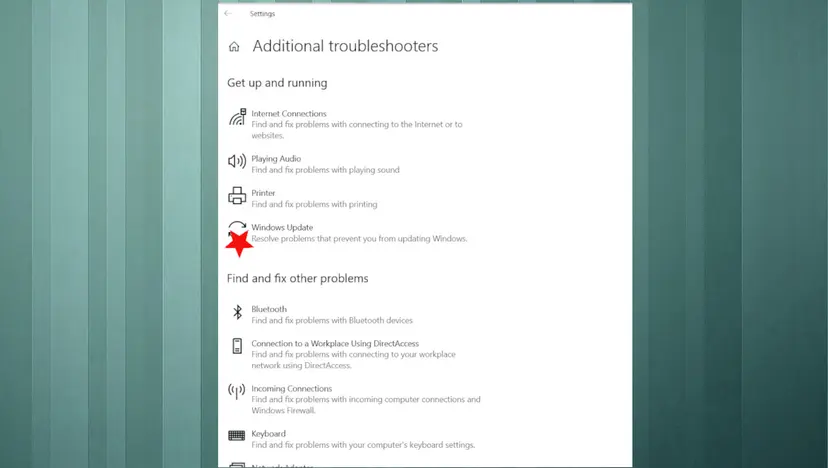
Update error 0x800f0805 fix troubleshooter - Click on the Run the troubleshooter button.
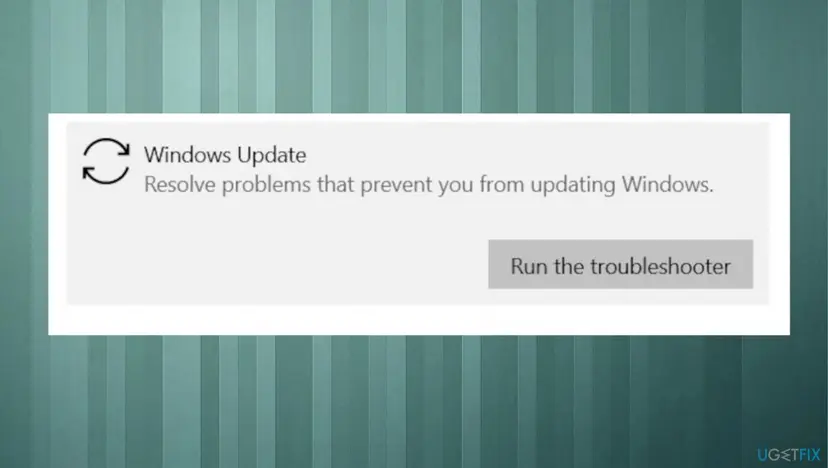
Update error 0x800f0805 fix run troubleshooter - When it finishes, click on the Next button.
- Reboot your system to make the changes effective.
2. Run DISM
- Open Command Prompt.
- Cope and paste the following command lines, pressing Enter each time:
DISM /Online /Cleanup-Image /CheckHealth
DISM /Online /Cleanup-Image /ScanHealth
DISM /Online /Cleanup-Image /RestoreHealth
3. Run SFC
- Type cmd in Windows search.
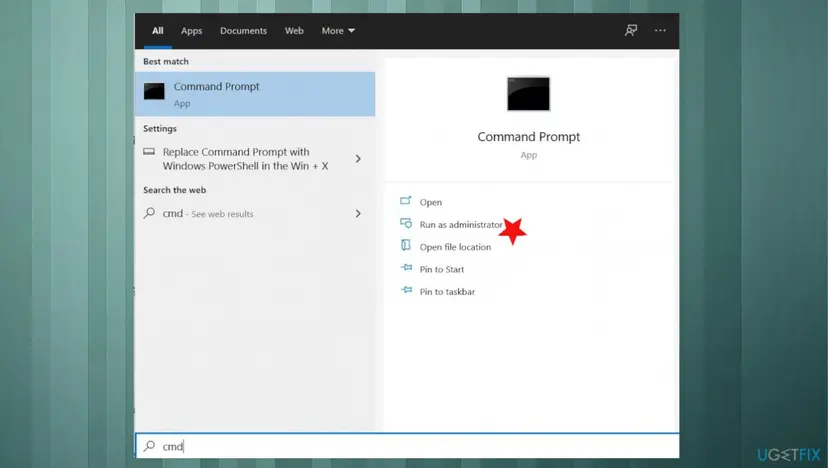
Update error 0x800f0805 fix cmd - Right-click on Command Prompt and select Run as administrator.
- Paste the following command and press Enter:
sfc /scannow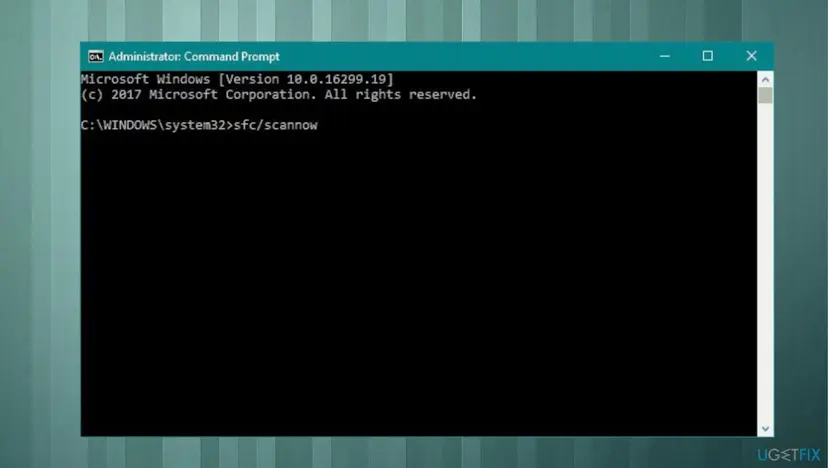
Update error 0x800f0805 fix sfc scan - Wait till the scan is complete.
4. Reset Windows Update components
- Open the Command Prompt.
- Type the following commands one by one and press Enter after each.
net stop bits
net stop wuauserv
net stop appidsvc
net stop cryptsvc
ren %systemroot%\\SoftwareDistribution SoftwareDistribution.bak
ren %systemroot%\\system32\\catroot2 catroot2.bak
net start bits
net start wuauserv
net start appidsvc
net start cryptsvc - Restart the computer and try to update the Windows operating system.
- Check if this solves the problem.
5. Reset the PC
- Search for Reset this PC.
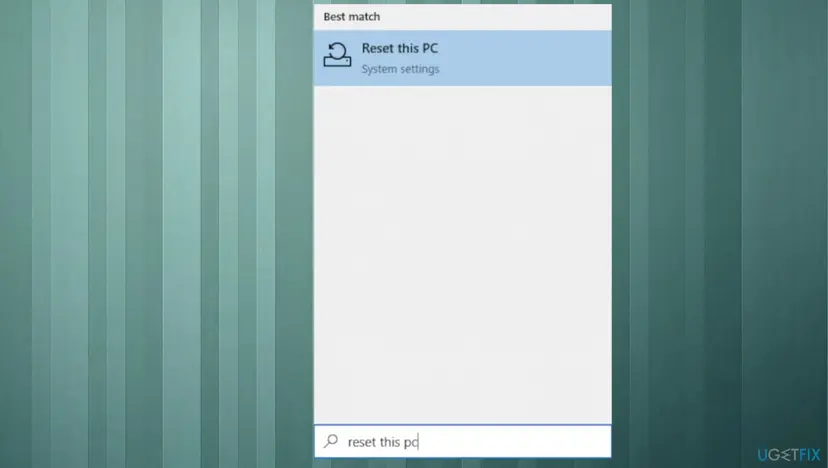
Update error 0x800f0805 fix reset the pc - Click Get started.
- Choose to keep the files from options.
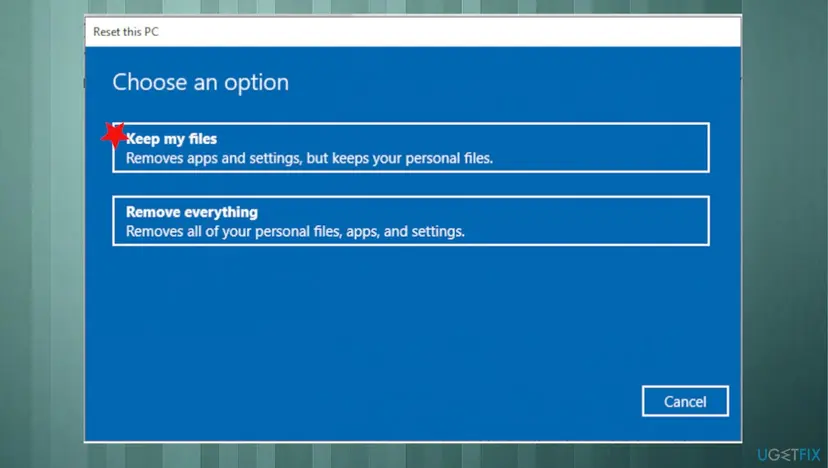
Update error 0x800f0805 fix keep files - Follow the process.
6. Force the new Windows update download
- Press the Windows Key + R keys to open the run box.
- Type services.msc and press OK.
- Services app opens.
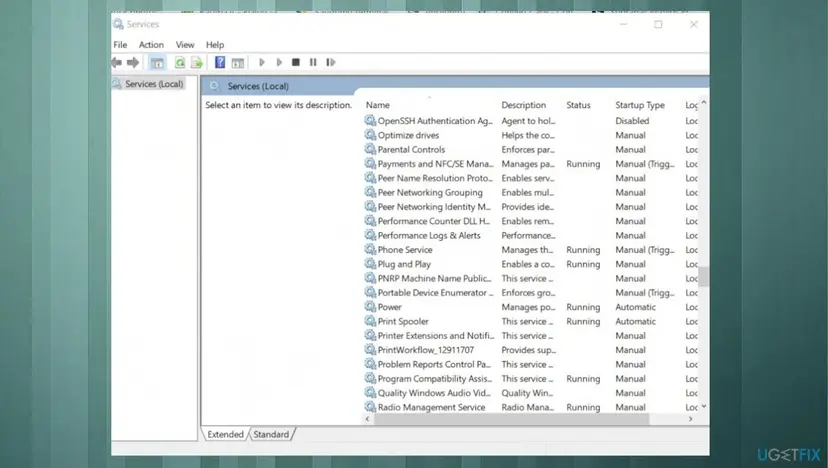
Update error 0x800f0805 fix services - From the list of services, at the right pane, locate the Windows Update service.
- Right-click on Windows Update service and choose Stop.
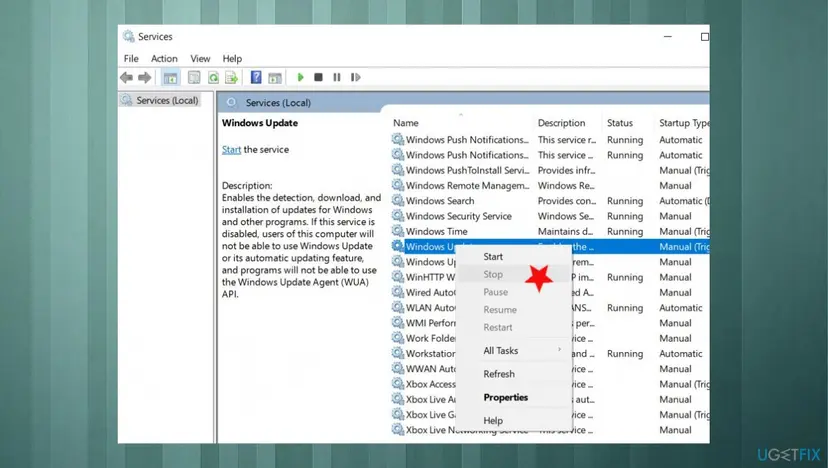
Update error 0x800f0805 fix windows update service - Close Services window.
- Open Windows Explorer and navigate to C:\\Windows folder.
- Locate and then Delete the SoftwareDistribution folder.
Did this fix work?
One click, no account. It tells the next reader which guides are worth their time.
Questions and experiences: fix Windows update error 0x800f0805
Still broken, or found a fix we did not cover? Ask here: members and our editors answer. Reading is open; writing needs a free account.
…