How to fix
Windows update error 0x800F0955
on Windows
Resolve Windows Update error 0x800F0955 effortlessly with proven solutions. Get your updates running smoothly again—expert-tested and fixed in minutes.

What causes How to fix Windows update error 0x800F0955?
- Corrupted files
- Memory issues
- Malfunctioning update components
- Damaged disk
- Incomplete update installation
Repairs Windows system files, removes malware, and restores a clean OS state — without reinstalling.
Hello. I tried to update my Windows 10 PC to version 1809 but I received this message - "Error on installation - Code 0x800f0955." How can I fix this?
Windows is the most popular operating system in the world. People love it for various reasons, including the user-friendly interface, customization abilities, and built-in troubleshooters. Microsoft regularly releases updates which include new features and security patches. It is important to install them to keep the system running smoothly.
However, sometimes users run into issues when trying to install Windows updates. We previously wrote about update errors such as 0x800f0831, 0x8024a223, and 0x8009001D. Recently, users reported receiving an update error 0x800F0955. It is unclear why this error appeared specifically. There may be various reasons for failed update installation.
Sometimes the updates fail to install because of corrupted files, memory issues, or malfunctioning update components. In this guide, you will find 6 steps that could help you fix the Windows update error 0x800F0955. However, manual troubleshooting can be a lengthy process.
We recommend using a maintenance tool like [d1] that can fix most system errors, BSODs,[ref en-1] corrupted files, and registry[ref en-2] issues. This powerful software can also clear cookies and cache[ref en-3] automatically, which are often the culprits of many malfunctions. Otherwise, follow the steps in the guide below carefully.
Solution 1. Run the Update Troubleshooter
- Press the Windows + X keys and go to Settings
- Go to Update and Security
- Click Troubleshooter
- Select Additional troubleshooters
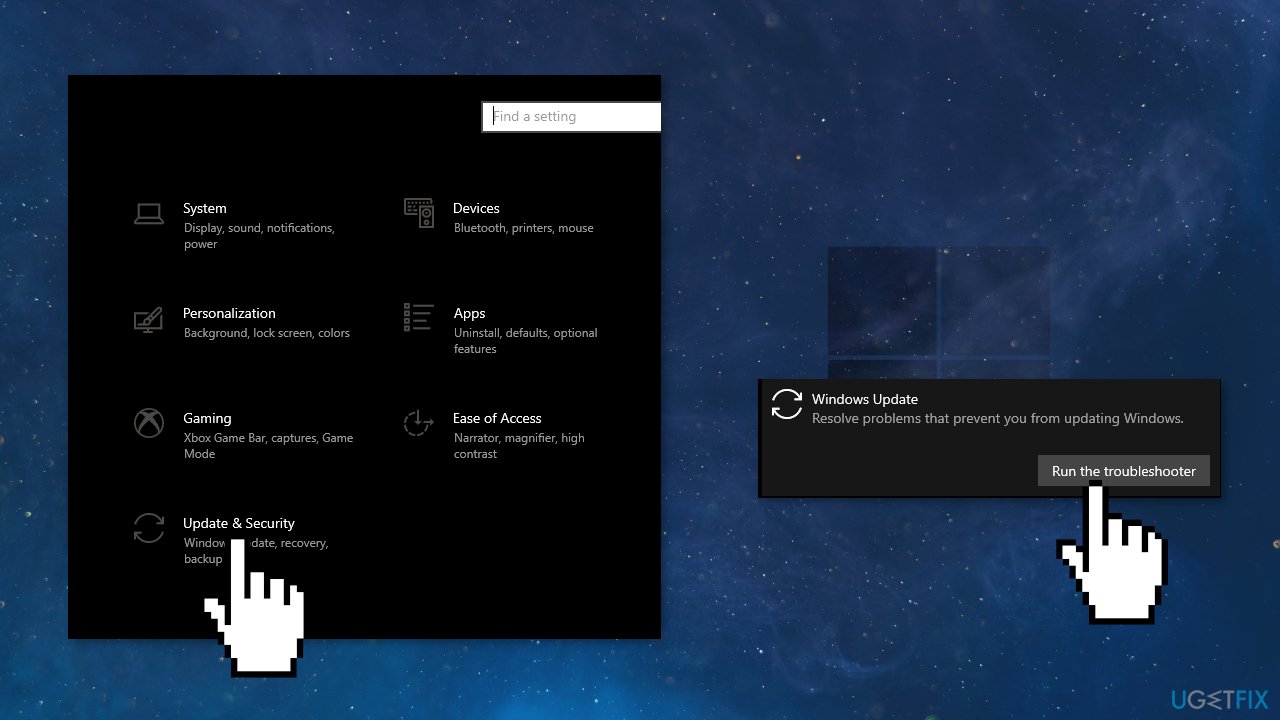
- Run the Update troubleshooter
- Restart
Solution 2. Repair Corrupted System Files and Check Disk
Use Command Prompt commands to repair system file corruption:
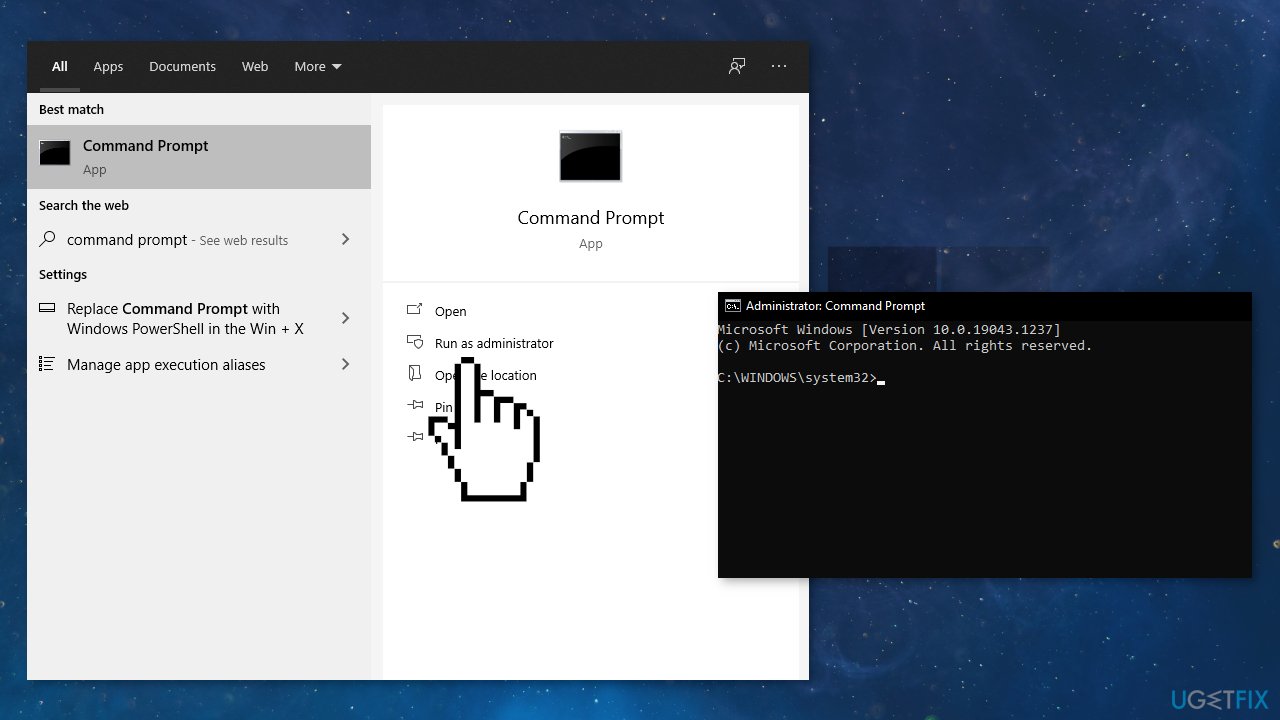
- Open Command Prompt as administrator
- Use the following command and press Enter:
sfc /scannow - Reboot your system
- If SFC returned an error, then use the following command lines, pressing Enter after each:
DISM /Online /Cleanup-Image /CheckHealth
DISM /Online /Cleanup-Image /ScanHealth
DISM /Online /Cleanup-Image /RestoreHealth
- Ensure that your disk is not damaged. You can perform checks using Administrative Command Prompt:
- If you are using an HDD as your main driver (where your operating system is installed - C: by default), use the following command and press Enter:
chkdsk c: /f - If you are using SSD, use this command:
chkdsk c: /f /r /x - If you receive an error, type in Y and hit Enter
- Restart your device to perform the check
Solution 3. Run Windows Memory Diagnostic Tool
Windows has a built-in RAM testing tool. It’s included on Windows 10, Windows 11, Windows 7, and all other modern versions of Windows.
- Open the Start menu, type Windows Memory Diagnostic, and press Enter
- Click Restart now and check for problems (recommended)
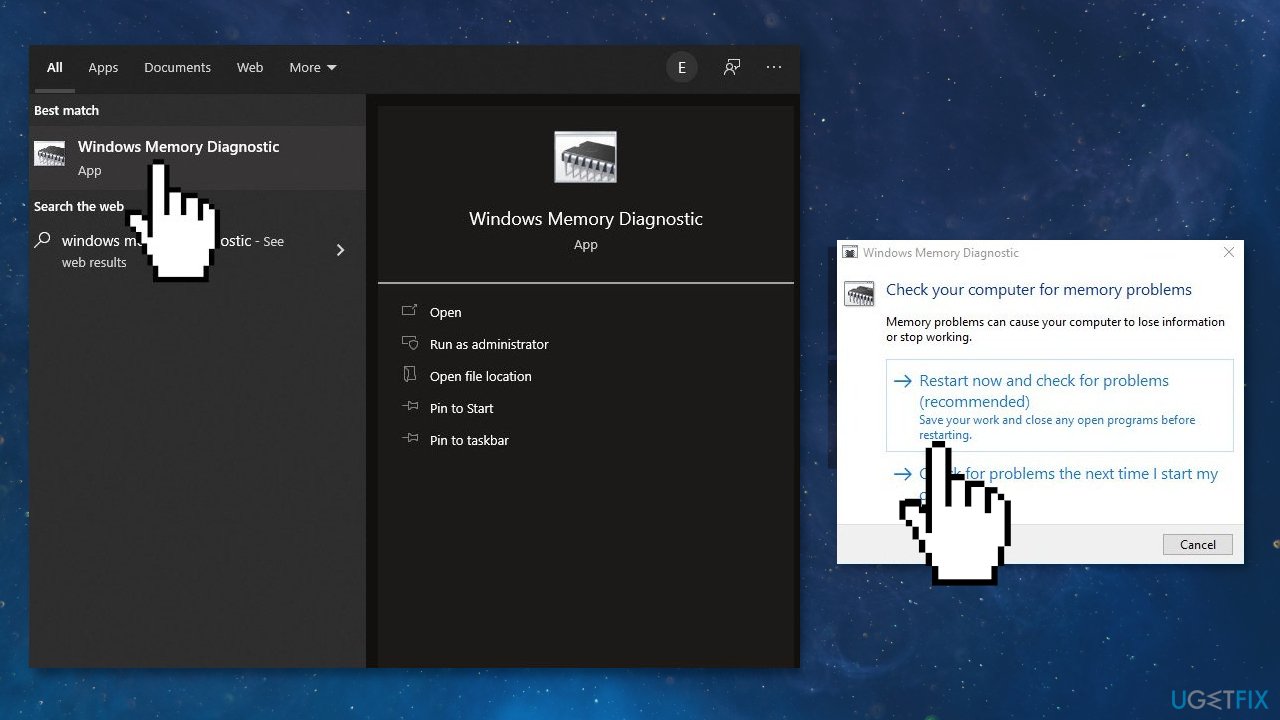
- Your computer will now restart
- The test may take several minutes. You will see a progress bar and a Status message will inform you if any problems have been detected during the process
Solution 4. Reset Windows Update Components
- Open Command Prompt as administrator again
- Copy and paste the following commands, pressing Enter after each:
net stop bits
net stop wuauserv
net stop appidsvc
net stop cryptsvc
Del “%ALLUSERSPROFILE%\\Application Data\\Microsoft\\Network\\Downloader\\*.*”
rmdir %systemroot%\\SoftwareDistribution /S /Q
rmdir %systemroot%\\system32\\catroot2 /S /Q
regsvr32.exe /s atl.dll
regsvr32.exe /s urlmon.dll
regsvr32.exe /s mshtml.dll
netsh winsock reset
netsh winsock reset proxy
net start bits
net start wuauserv
net start appidsvc
net start cryptsvc
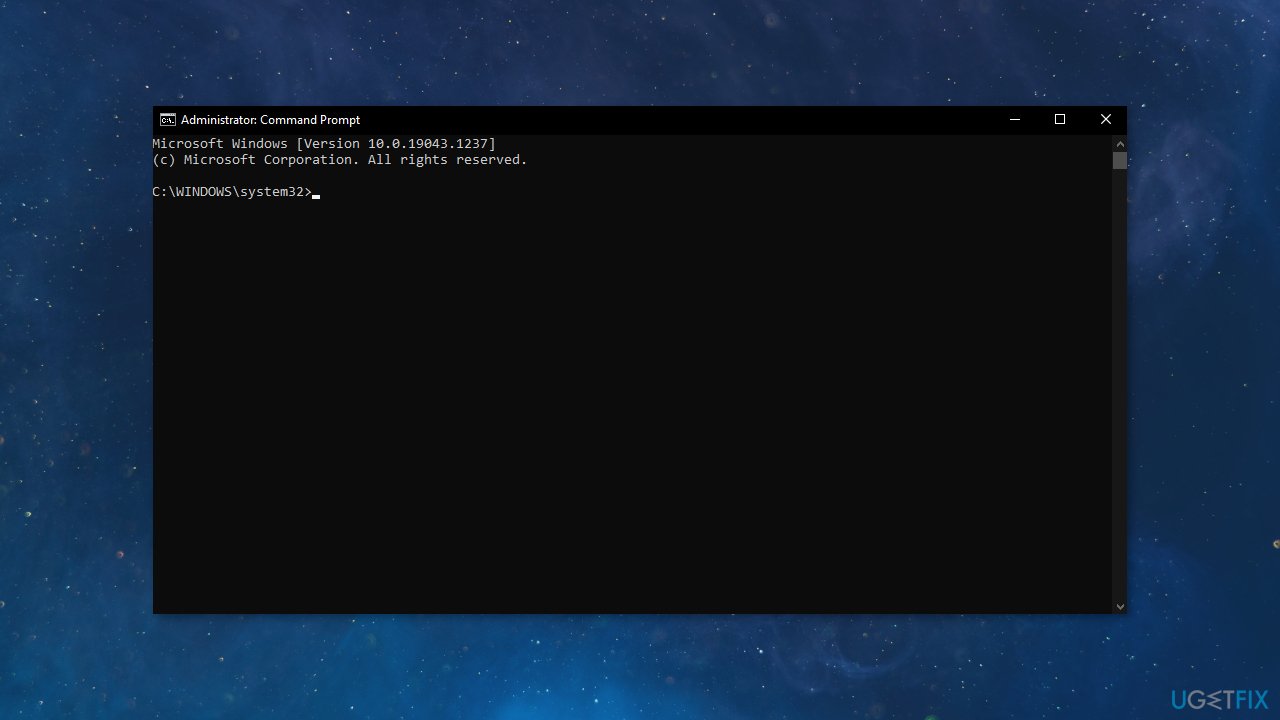
- Restart your PC
Solution 5. Install the Update Manually
Whenever Windows updates fail to install automatically, you can always try doing it manually. First, you need to find out which KB number is relevant to you.
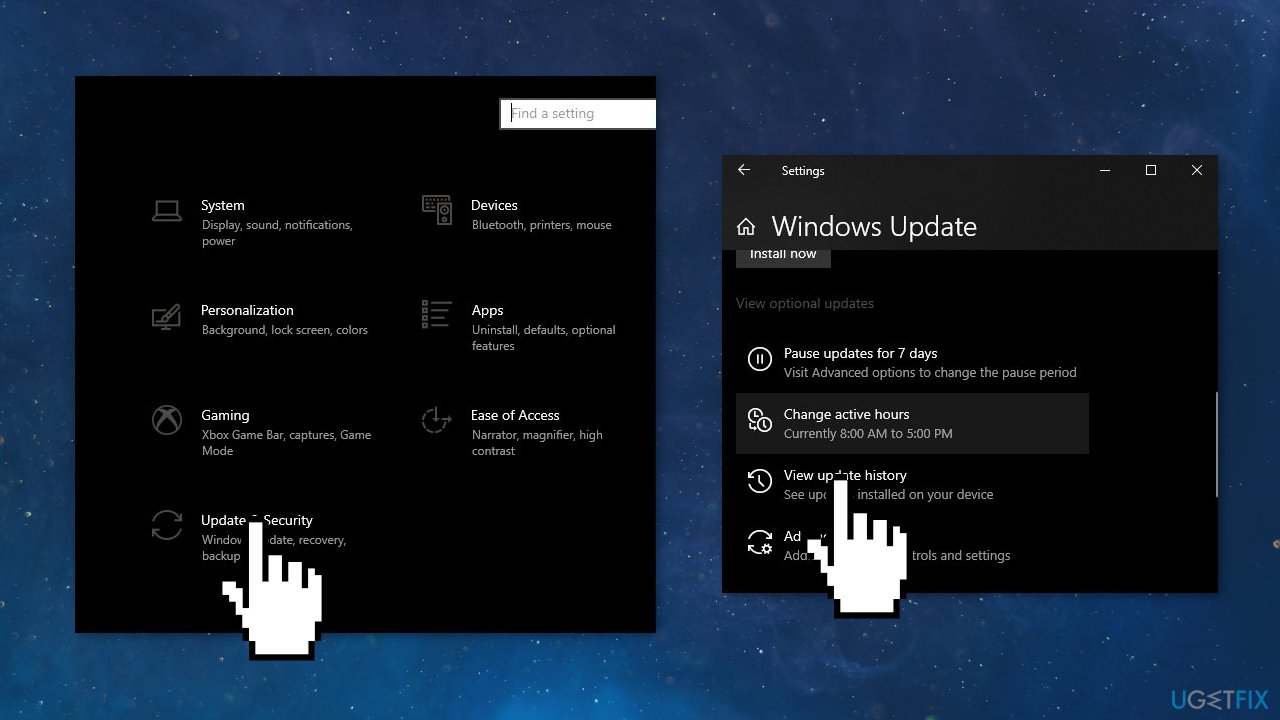
- Right-click Start button and pick Settings
- Go to Update & Security
- On the right, locate and click View update history
- From the list, note the KB number that fails to install with the error code
- Go to Microsoft Update Catalog page, type in the KB number and press Search
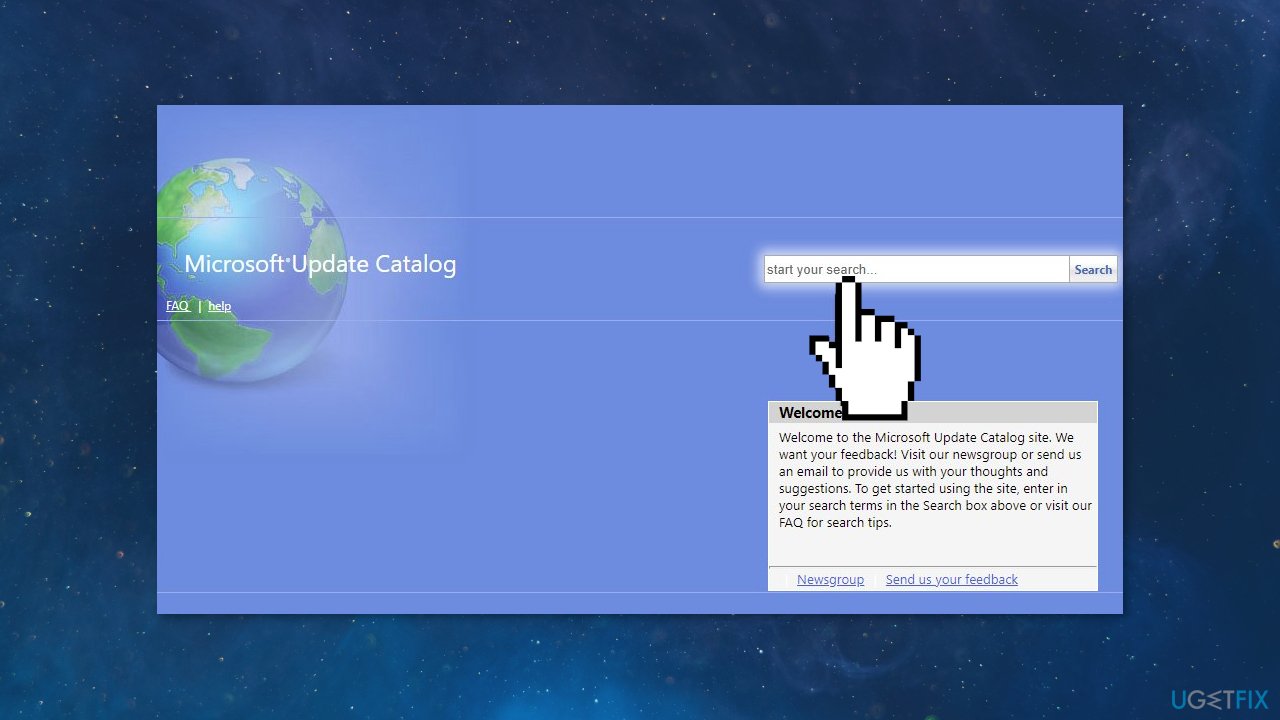
- Download the update and install it manually
(Note: if you are dealing with a Windows upgrade issue, make sure you also download KB4498524 and KB4515384 updates as well)
Solution 6. Update via Media Creation Tool
- Download Windows 10 installation media from the official website
- Open the tool once it installed
- Agree to license terms
- Choose Upgrade this PC now
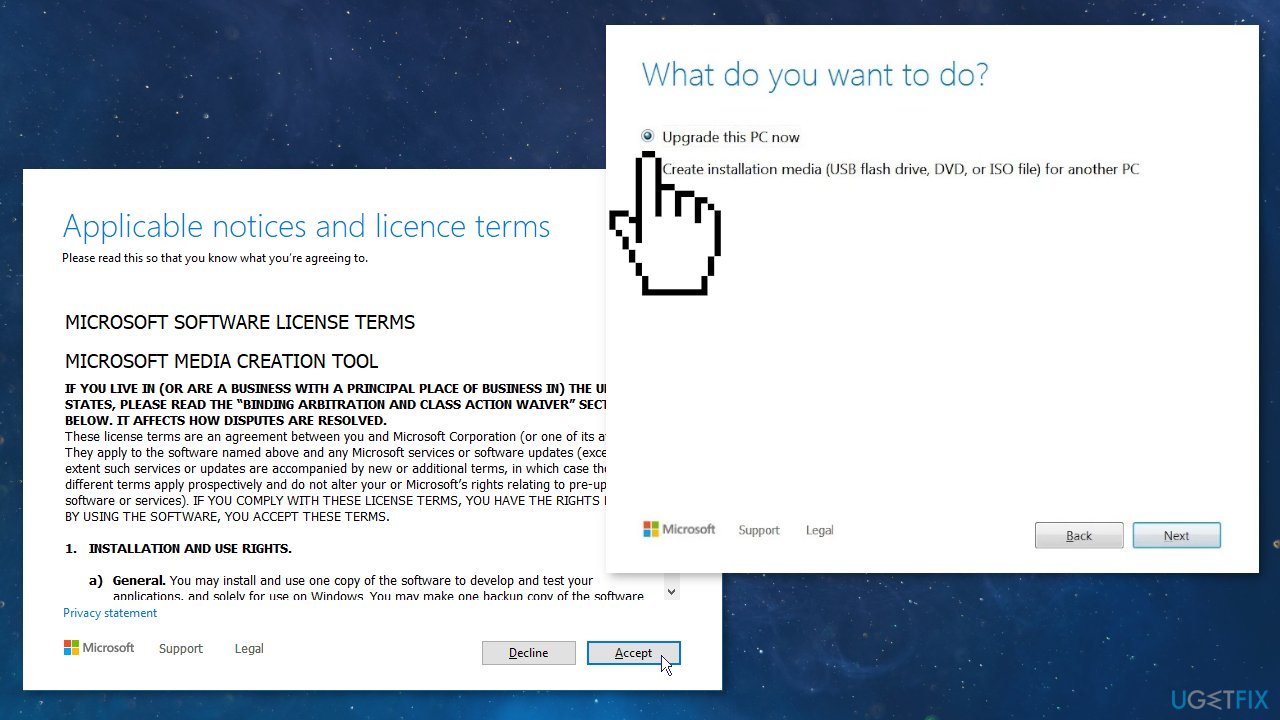
- Wait for the update to be installed
Bottom line
To fix the Windows update error 0x800F0955, you can run the Update Troubleshooter, repair corrupted system files using Command Prompt, and check your disk for errors. If these steps do not resolve the issue, consider using a maintenance tool to address system errors.
Frequently asked questions
The error 0x800F0955 typically indicates that there is a problem with the Windows Update service, often related to missing or corrupted files in Windows 10 or Windows 11.
To fix the 0x800F0955 error on Windows 10, you can run the Windows Update Troubleshooter and ensure that the required services are running properly.
Yes, you can manually download updates from the Microsoft Update Catalog to resolve the 0x800F0955 error in Windows 11, ensuring that you select the appropriate updates for your system.




Report an issue
What's wrong with this guide? We review every report and update or remove content.
Report received — thank you. We'll review and fix it.
You need a free account to submit a report.
Be the first to comment