How to fix
Windows Update Error 0x80246010
on Windows
Resolve Windows Update Error 0x80246010 on Windows 10 effortlessly. Get expert-tested solutions that ensure a smooth update experience, fixed in minutes.


What causes How to Fix Windows Update Error 0x80246010 on Windows 10?
- Issue with Microsoft's servers and overload
- Various third-party software interference
- Corrupted system files
- Missing or corrupt DLL files
- Corrupted registry keys
- Incomplete updates
Repairs Windows system files, removes malware, and restores a clean OS state — without reinstalling.
Hello. I can’t update my PC. Currently I’m trying to install cumulative update KB4038782, but it fails with an error code 0x80246010. The update gets almost done, but then the error shows up saying that the changes have to be undone. Can’t find any relevant information about it, so I would highly appreciate your help!
The Error Code 0x80246010 is a Windows Update[ref en-1] error, which prevents people from installing Windows updates for both system and apps. Many people reported the problem when installing Cumulative Update KB4038782 for Windows 10 OS, but we’ve detected quite a lot of threads escalating on this problem and indicating different cumulative updates.
Users complain about different issues caused by this Update and associated with the particular Error 0x802460010.[ref en-4] Microsoft’s technicians are aware of the problem, but they are not very active in responding to people’s comments. One of the solutions offered by them is to install the needed update manually from Windows Update Catalog. However, those who tried this method encountered another error - 0x80073712.
A plausible cause for this 0x80246010 error can be the issue with Microsofts's servers and the overload. Also, various third-party software may disturb the Windows Update Download Manager. It can be caused by antivirus program. VPN tool or other software. Although these issues should be fixed when the user updates the OS to the newest version, other methods can be used.
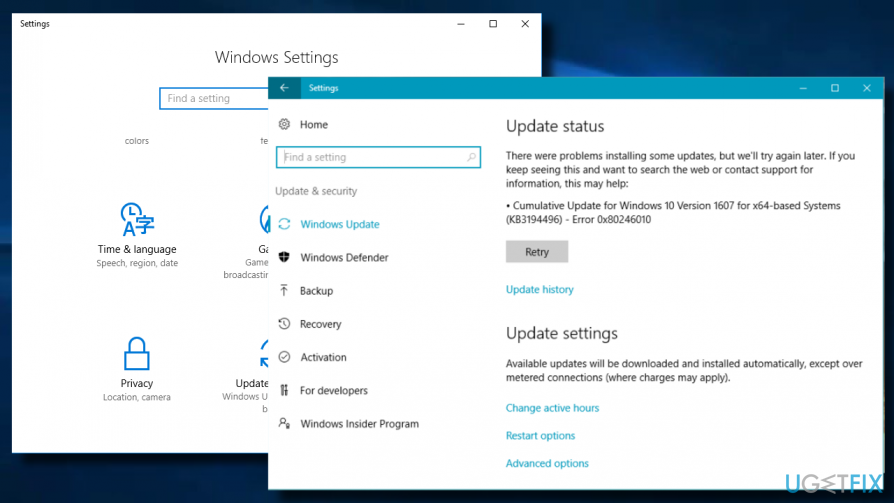
Ways to fix issues related to error 0x80246010
In case the problem happens due to corrupted system’s files, we would strongly recommend running a scan with a powerful optimization utility,[ref en-3] say [d1]. If the scan did not reveal integrity violations, check your Internet connection. Quite frequently the problem behind the 0x80246010 error is an unreliable Internet connection. Try to restart your router or reconnect the LAN cable. If there are no problems with the Internet connection, try the following fixes.
Method 1. Restart Windows Update service
- Press Windows key + R to open Run dialog.
- Type services.msc and press Enter.
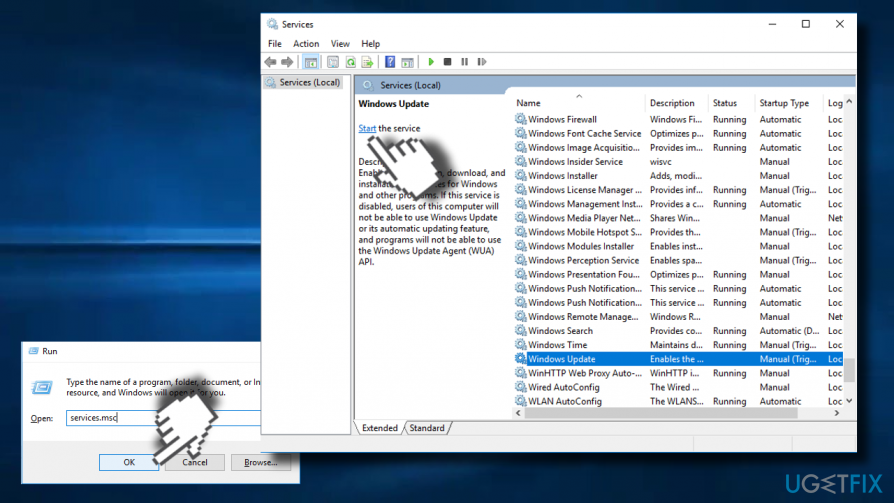
Start windows update service - Scroll down until you find Windows Update service.
- Right-click on it and select Start.
Method 2. Repair the Registry keys
Try to fix 0x80246010 error with an automatic repair tool, which will fix all corrupted registry entries and system files.
- Press Windows key and type Advanced Startup Options.
- Select the Change Advanced Startup Options and open Recovery tab
- Click on the Restart now button under Advanced Startup section.
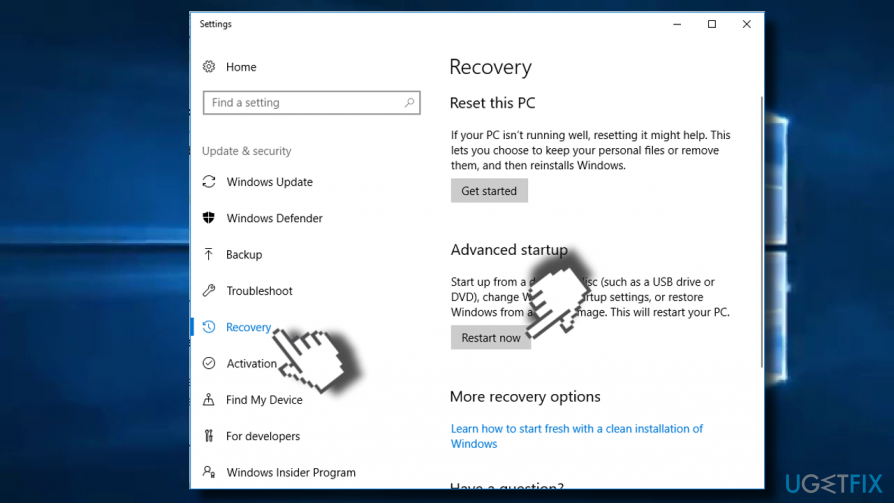
Perform system recovery - This will reboot your PC in advanced startup mode.
- Select the Troubleshoot button and click on Advanced Options.
- Now click Automatic Repair.
- When the system restarts, select administrative account. Once the repair process is finished, check if the needed update can successfully be installed.
Method 3. Rename Software Distribution Folder
- Press Windows key + R to open Run.
- Type services.msc and press Enter.
- Scroll down until you find Windows Update service.
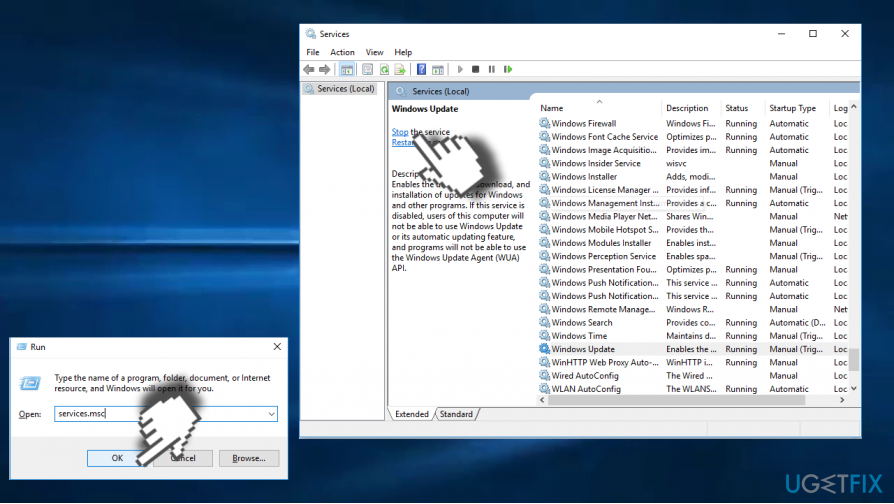
Stop windows update process - Right-click on Windows Update service and select Stop.
- Now navigate to the Local Drive (C:) -> Windows.
- Locate the SoftwareDistribution folder on it.
- Right-click on SoftwareDistribution folder and select Rename.
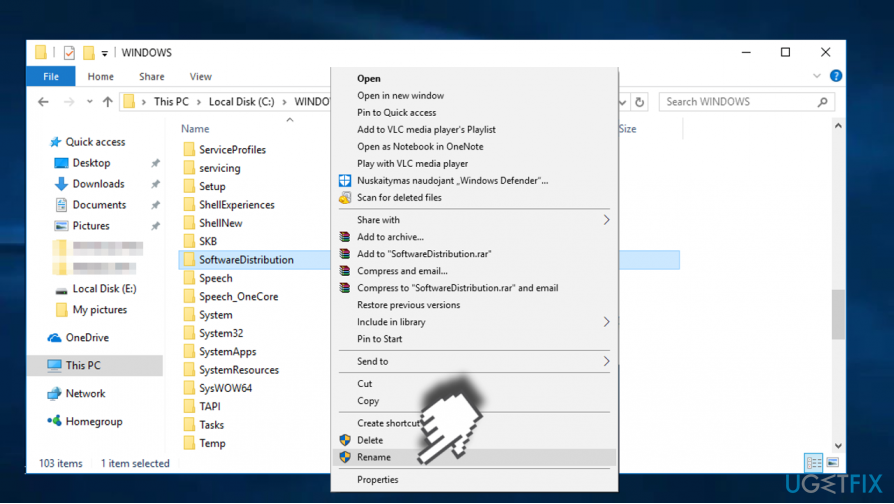
Rename software distribution folder - Rename it to SoftwareDistributionOld.
- Now perform the 1-4 steps above, but instead Stop select Start.
- Finally, reboot your PC and check if the problem was resolved.
If none of the methods provided on this post helped to fix 0x80246010 error, you can find a couple of applicable methods on the 6 Tips to Fix Most of the Windows Update Problems article.
Bottom line
To fix the error 0x80246010, users can run a scan with an optimization utility, check their Internet connection, or restart their router. If these methods do not resolve the issue, consider updating the OS to the newest version or seeking further assistance.
Frequently asked questions
This error typically occurs due to issues with the Windows Update service or problems with the Background Intelligent Transfer Service (BITS). It may also result from corrupted system files or network connectivity issues.
You can restart the Windows Update service by opening the Command Prompt as an administrator and running the commands 'net stop wuauserv' followed by 'net start wuauserv'. This may help reset the service and resolve the error.
Yes, you can use the Windows Update Troubleshooter, which is built into Windows 10, to automatically detect and fix issues related to Windows Update, including the 0x80246010 error.




Report an issue
What's wrong with this guide? We review every report and update or remove content.
Report received — thank you. We'll review and fix it.
You need a free account to submit a report.
Be the first to comment