How to fix
Windows update error 0xc19000401
on Windows
Resolve Windows update error 0xc19000401 quickly with expert-tested solutions. Get your Windows 10 or 11 update running smoothly again! Fixed in minutes.

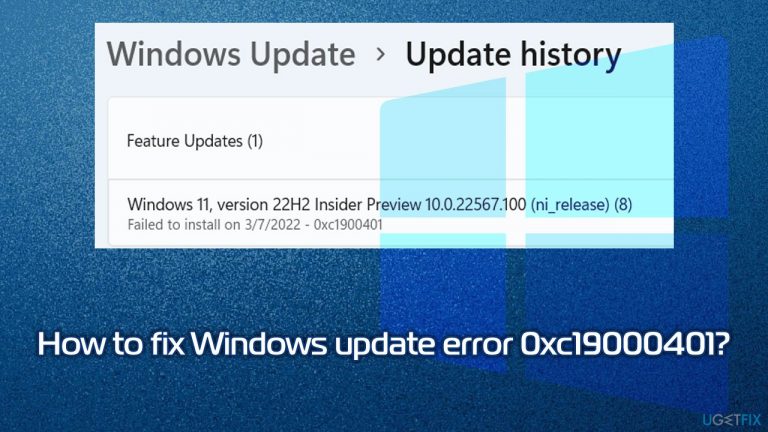
What causes How to fix Windows update error 0xc19000401?
- System file corruption
- Unresponsive relevant update services
- Problems with buggy data packets
- Overloaded Microsoft servers
- Local internet issues
Repairs Windows system files, removes malware, and restores a clean OS state — without reinstalling.
Hello, I keep getting a failed install error code 0xc19000401 whenever I try to update Windows. It's been happening for a few days now, and it fails every time I initiate the update. Any advice on this? Thanks.
Windows update errors prevent users from keeping their systems patched with the latest security and quality features, which can sometimes compromise the integrity and security of the system. 0xc19000401 is one of the errors that users encountered on Windows 10/11 machines recently. While the issue might occur for preview builds, it can also affect regular users who are trying to install regular updates.
The issue usually occurs when users initiate an update process of their operating systems, be it manually or automatically. 0xc19000401 error code can be visible when people access the "Update history section," although it might happen under different circumstances too, e.g., when the update is being downloaded from Microsoft Update Catalog.
As mentioned, Windows update errors such as 0x800f0905, 0x800f084f, or 0x80246019 occur under similar circumstances, although the trigger might differ from machine to machine. In most cases, the errors can dissipate on their own - this is especially true when the issue lies within overloaded Microsoft servers or local internet issues.
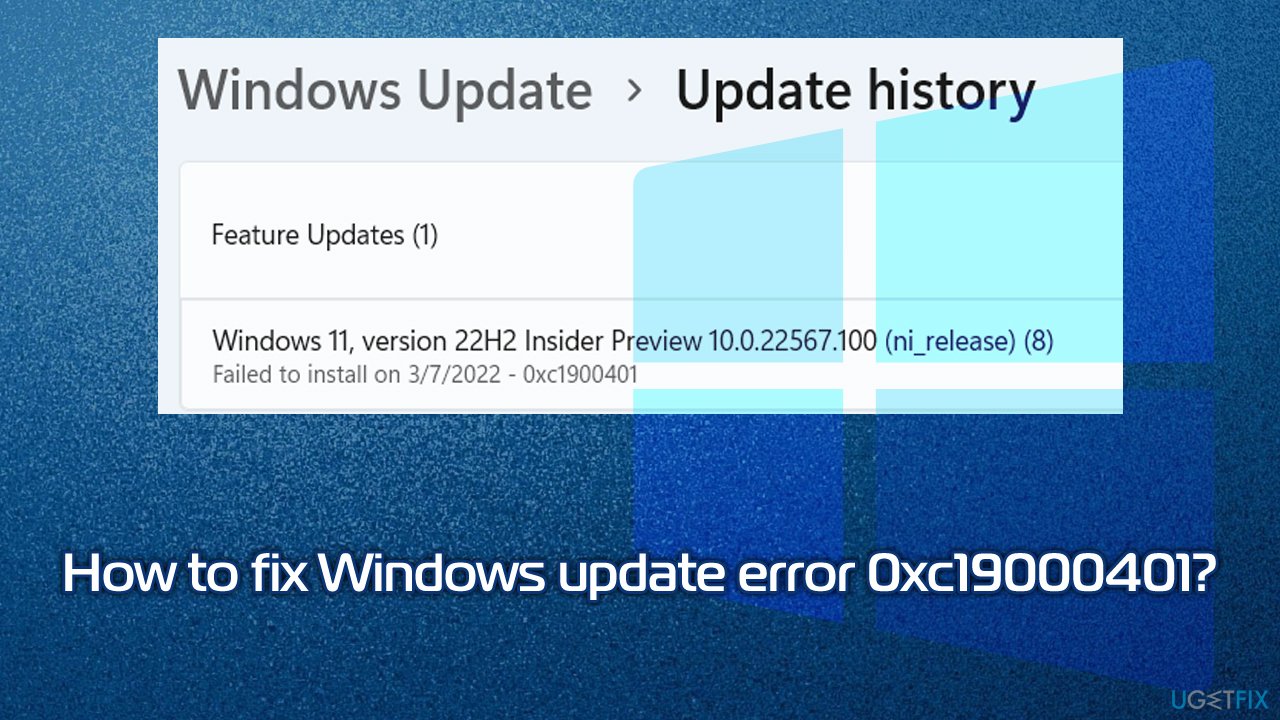
However, it is also not uncommon for users to experience Windows update errors due to various unrelated issues, including system file corruption, unresponsive relevant update services, problems with buggy data packets, and much more. In this article, we will provide several solutions that should help you fix the 0xc19000401 error, although keep in mind that you will likely have to do some troubleshooting before being successful.
Before you proceed, we recommend employing PC repair software [d1], which could find underlying issues on your machine and repair them. Likewise, it can be useful in the future if you would start experiencing issues such as Blue Screen crashes, system errors, registry corruption, and more.
Fix 1. Run Windows Update troubleshooter
As the first solution for any Windows update error, you should try running the built-in troubleshooter. While it may not always find the solution to the problem, it might point in the right direction. Proceed with the following steps:
- Type Troubleshoot in Windows search
- Select Additional troubleshooters
- Find Windows Update from the list
- Click it and select Run the troubleshooter
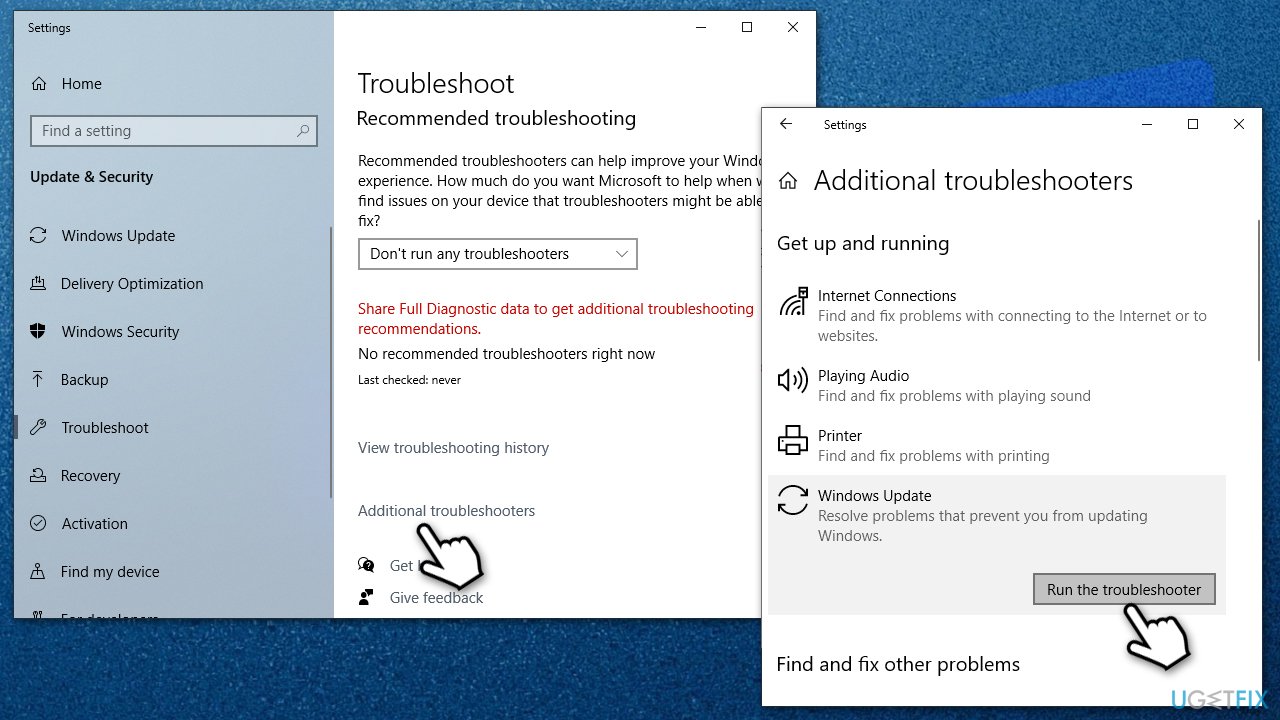
How to fix windows update error 0xc19000401 run troubleshooter - Apply the recommended fixes and restart your computer.
Fix 2. Reset your internet connection
In some cases, lost packets of data might prevent the updater from being fully initialized. Therefore, you could reset your internet connection as follows:
- Type cmd in Windows search
- Right-click on Command Prompt and pick Run as administrator
- Copy and paste the following commands, pressing Enter each time:
ipconfig /flushdns
ipconfig /registerdns
ipconfig /release
ipconfig /renew
netsh winsock reset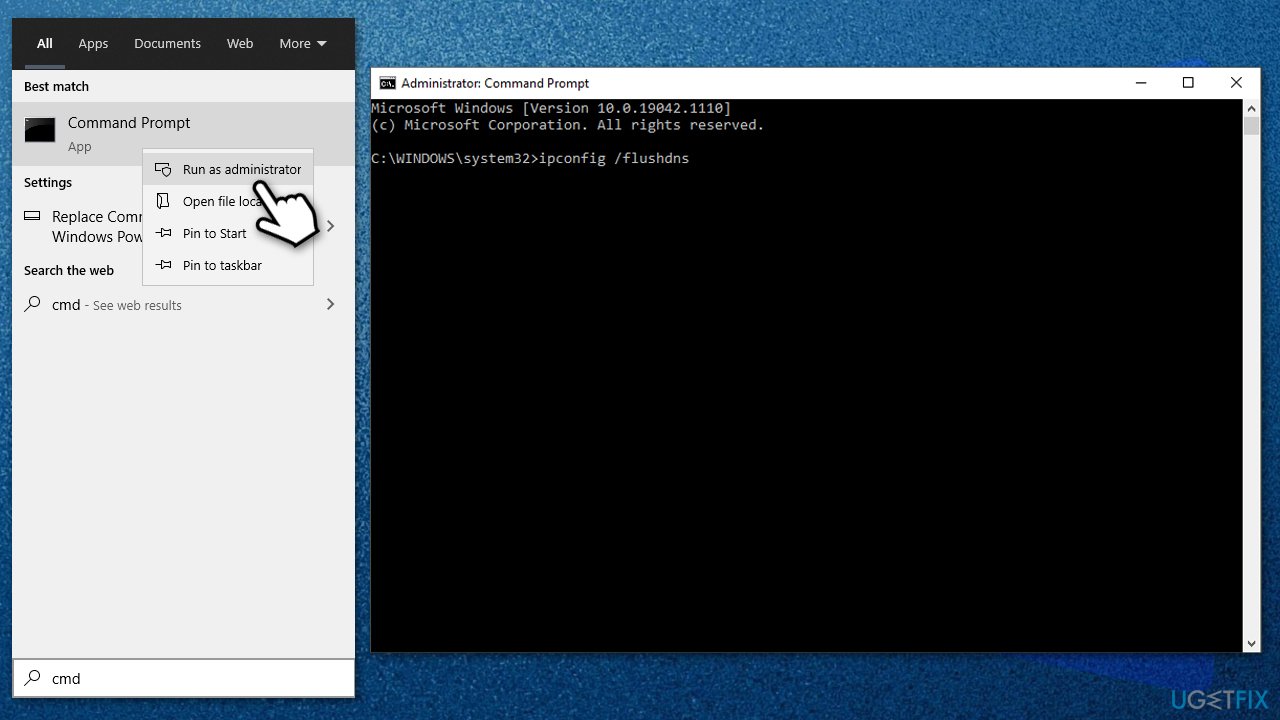
How to fix windows update error 0xc19000401 reset internet - When complete, close down Command Prompt and restart your system.
Fix 3. Reset Windows update components
- Open Command Prompt (Admin)
- Copy and paste the following commands, pressing Enter each time:
net stop wuauserv
net stop cryptSvc
net stop bits
net stop msiserver - Press Win + E to open File Explorer
- Go to the following locations and delete the contents of these folders:
C:\\Windows\\System32\\catroot2
C:\\Windows\\SoftwareDistribution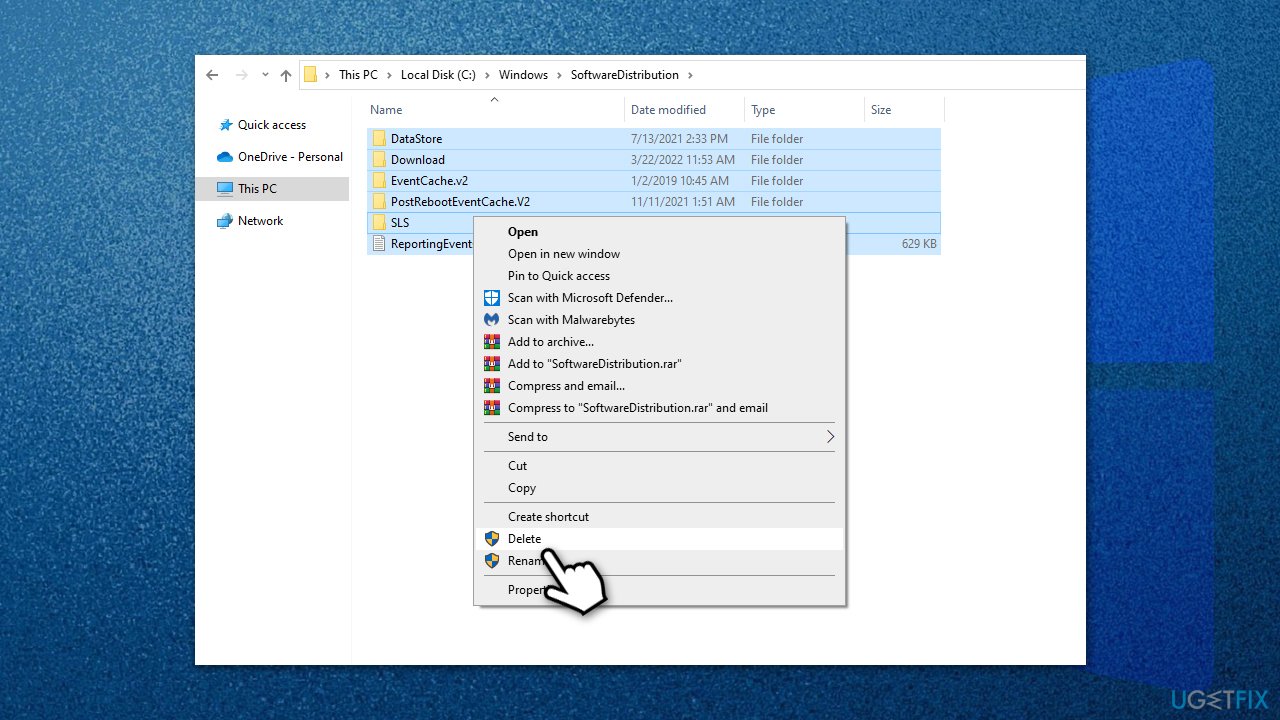
How to fix windows update error 0xc19000401 reset update components - Open Command Prompt again and paste these commands:
net start wuauserv
net start cryptSvc
net start bits
net start msiserver - Reboot your PC.
Fix 4. Check for corrupted system files with SFC and DISM
System file corruption might cause updates to fail. To make sure that is not the case, run special commands via elevated Command Prompt:
- Type cmd in Windows search
- Right-click on Command Prompt and pick Run as administrator
- When User Account Control shows up, click Yes
- Use the following command lines, pressing Enter after each:
sfc /scannow
DISM /Online /Cleanup-Image /CheckHealth
DISM /Online /Cleanup-Image /ScanHealth
DISM /Online /Cleanup-Image /RestoreHealth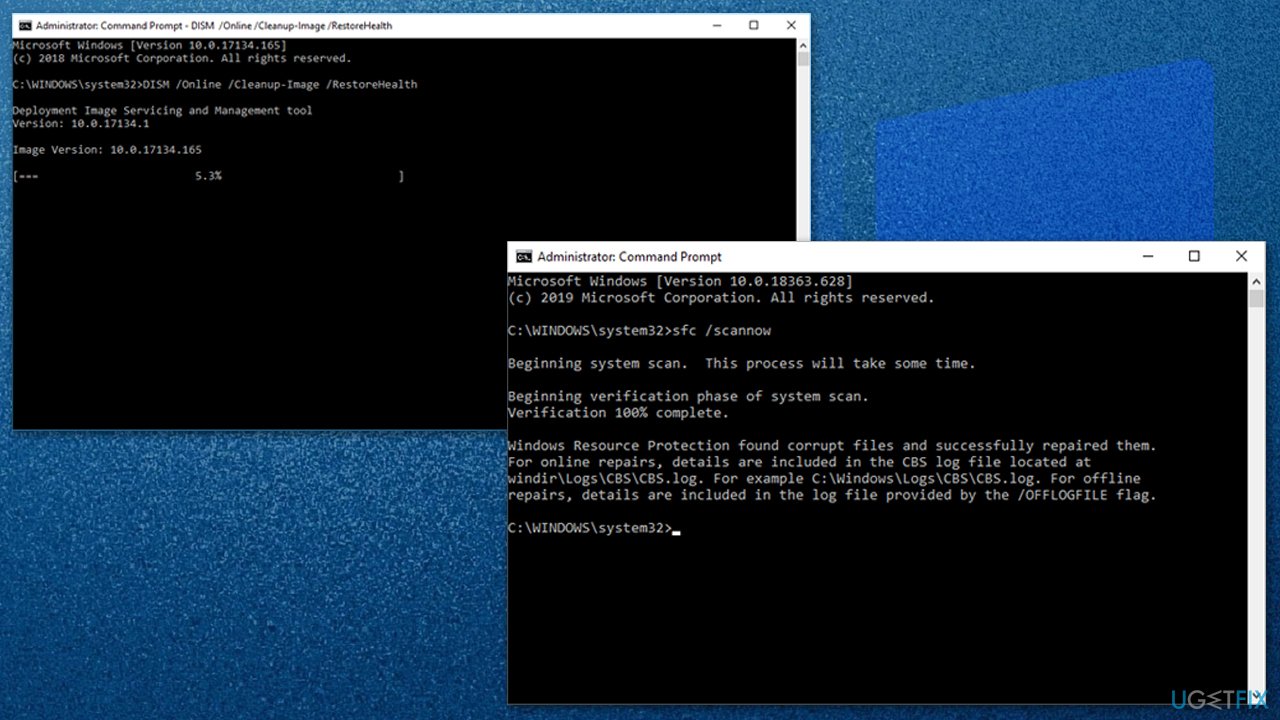
How to fix windows update error 0xc19000401 run sfc dism - When complete, reboot your system and try running the update process once again.
Fix 5. Enable relevant Windows update services
Some of the Windows update services not running might be the reason for the 0xc19000401 error to occur. You can try to restart it if it's already running or enable it if it's not running:
- Type in Services in Windows search and press Enter
- Locate Background Intelligent Transfer Service (BITS)
- If it is already running, right-click and select Restart
- If the service is not running, double-click it, select Automatic under the Startup type from the drop-down menu
- Click Start, Apply, and OK
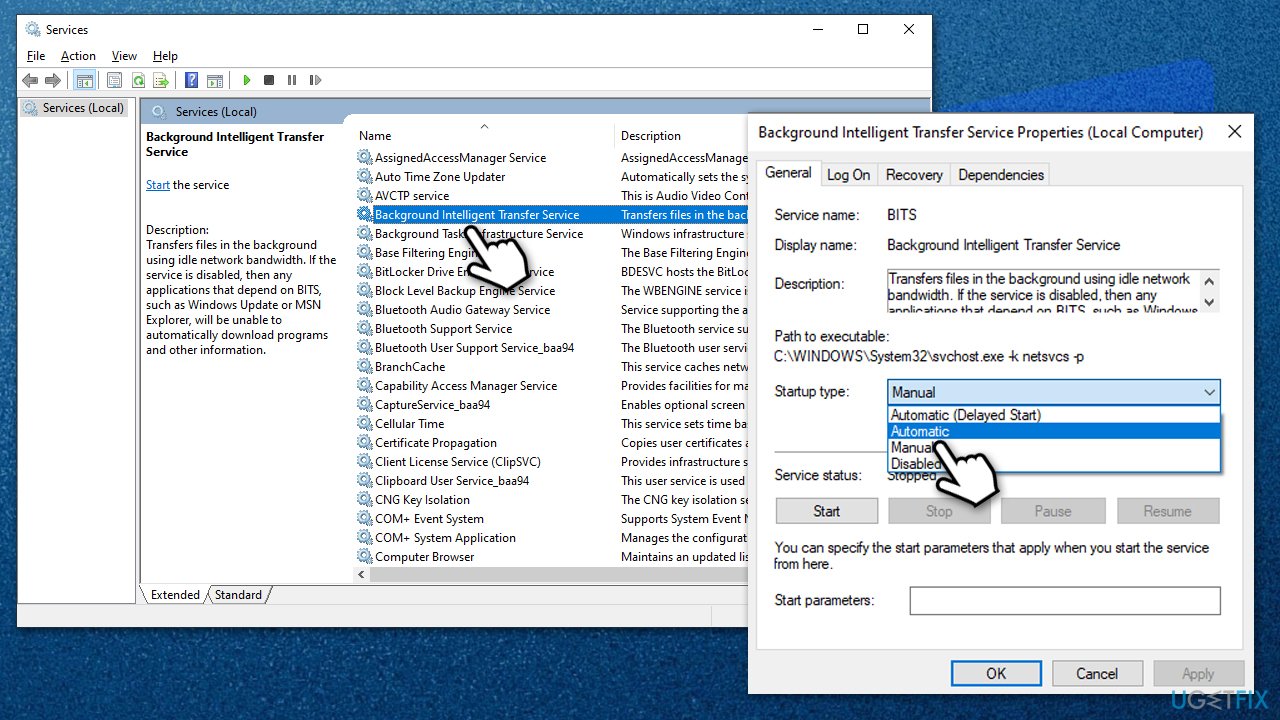
How to fix windows update error 0xc19000401 enable services - Repeat the above steps for the Windows Update service.
Fix 6. Use Media Creation Tool
Before you proceed with this solution, you should make sure that all the irrelevant peripherals, such as printers and other components are not connected. Likewise, uninstall third-party anti-virus software, so it doesn't interfere with this process.
- Visit the official Microsoft website to download Windows 10 files
- Double-click the installer, agree to Terms and click Next
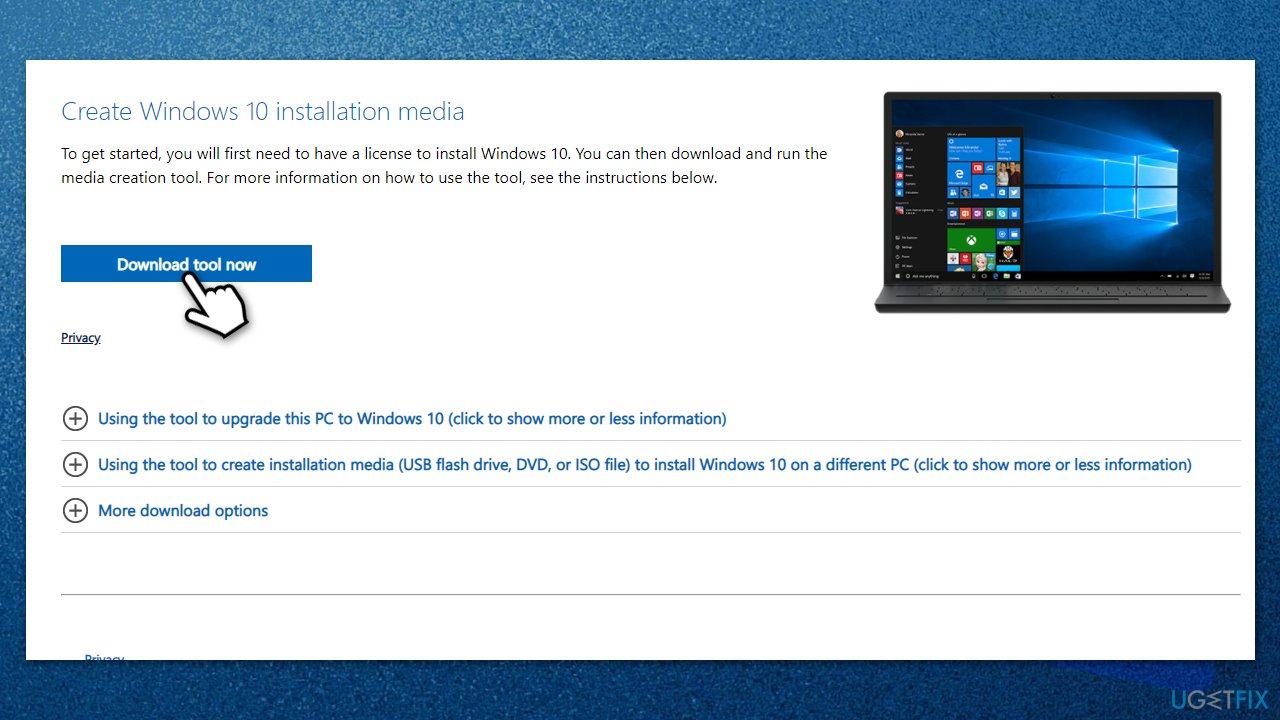
How to fix windows update error 0xc19000401 use media creation tool - Select Upgrade this PC now and click Next
- Wait till Windows downloads all the necessary files
- Agree to terms once again and click Next
- Before installing, make sure that you are happy with your choices (otherwise, you can click Change what to keep option)
- Finally, click Install to begin the upgrade process.
Bottom line
To fix the 0xc19000401 error, you can start by running the Windows Update troubleshooter. If that doesn't resolve the issue, consider using PC repair software to identify and repair underlying problems. If none of these solutions work, further troubleshooting may be necessary.
Frequently asked questions
You can try running the Windows Update Troubleshooter, which can automatically detect and fix problems related to Windows updates. Additionally, make sure your device has sufficient disk space and check for any pending updates that might need to be installed first.
Yes, you can manually reset Windows Update components by stopping the Windows Update services, renaming the SoftwareDistribution and Catroot2 folders, and then restarting the services. This often clears any corrupted files that may be causing the error.
Make sure your system meets the minimum hardware requirements for the updates and that all previous updates have been successfully installed. Regularly check and free up disk space to prevent issues during the update process.




Report an issue
What's wrong with this guide? We review every report and update or remove content.
Report received — thank you. We'll review and fix it.
You need a free account to submit a report.
Be the first to comment