How to fix
Windows update error 0xc1900130
on Windows
Resolve Windows update error 0xc1900130 effortlessly with our expert tips. Get your system back on track, expert-tested and fixed in minutes.

What causes How to fix Windows update error 0xc1900130?
- Insufficient disk space for updates
- Corrupted update files
- Incompatible hardware or software
- Network connectivity issues
- Issues with Windows Update service
Repairs Windows system files, removes malware, and restores a clean OS state — without reinstalling.
Hello, I have been trying to update Windows 10 with the new feature update, and it has constantly been failing with an error 0xc1900130. This has been happening for over a week now, so I don't think that waiting any longer will bring anything new. I'd like to get some tips on how to fix this, please.
As soon as you install a new copy on Windows on your computer, the latest updates should be applied automatically. After that, the updates should be downloaded and installed as soon as they are available automatically unless the settings are changed for it to be done manually.
Since Windows is operated as a service by Microsoft, updates are shipped regularly; mainly every second or, in some cases, the fourth Tuesday of every month,[ref en-2] with occasional out-of-band updates, which come when a serious vulnerability[ref en-3] or a system-breaking bug is discovered. That being said, Windows updates are extremely important to any system, as they improve security, implement new features, and fix bugs.
Regardless of whether you initiate updates manually or automatically, it can end up in a failure with an error code 0xc1900130. Looking and various IT forums, it seems like the problem has been prevalent for several years now. By all means, it does look like a very typical error that one might get when trying to update Windows, as the following message is displayed upon the failure:
Updates failed
There were problems installing some updates, but we'll try again later. If you keep seeing this and want to search the web or contact support for information, this may help:
Feature update for Windows 10, version XXXX - Error 0xc1900130
As we already talked about in our previous articles about 0xC19001E2, 0xc19001e1, 0x80240023, and similar errors, there is little indication of what is causing the issue or how to fix it. This is simply how Windows handles errors, as each of the instances can be different. It is not surprising, considering how many components the operating system consists of, and how many variables can impact the appearance of the error.
Below we will provide several ways on how to fix the 0xc1900130 error on Windows. Before you proceed, we would like to recommend you run a scan with a PC repair tool [d1], which can be used to replace damaged system components automatically thanks to its unique technology. It is also helpful when dealing with BSODs, DLL errors, crashes, and similar common computer issues.
Fix 1. Run Windows Update troubleshooter
The first thing one should do after running into a Windows update error is run the built-in troubleshooter. These tools can be particularly useful and sometimes even solve the problem altogether.
- Type Troubleshoot in Windows search
- Select Additional troubleshooters
- Find Windows Update from the list
- Click it and select Run the troubleshooter
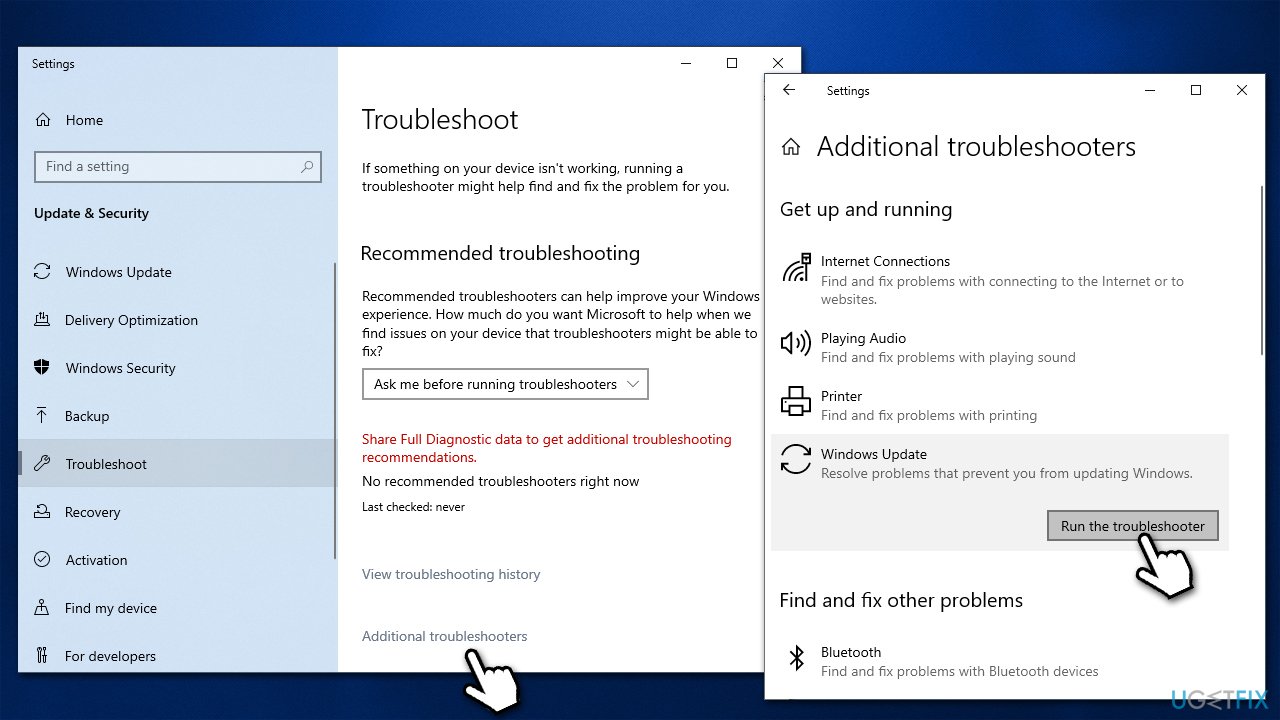
How to fix windows update error 0xc1900130 run windows update troubleshooter - Apply the suggested fixes and restart your computer.
Fix 2. Clean Windows update cache folders
Windows update caches might sometimes get buggy, preventing further updates from being executed. Try cleaning it as follows:
- Type cmd in Windows search
- Right-click on Command Prompt and select Run as administrator
- If the User Account Control prompt shows up, click Yes
- In the new window, copy and paste the following commands, pressing Enter after each:
net stop wuauserv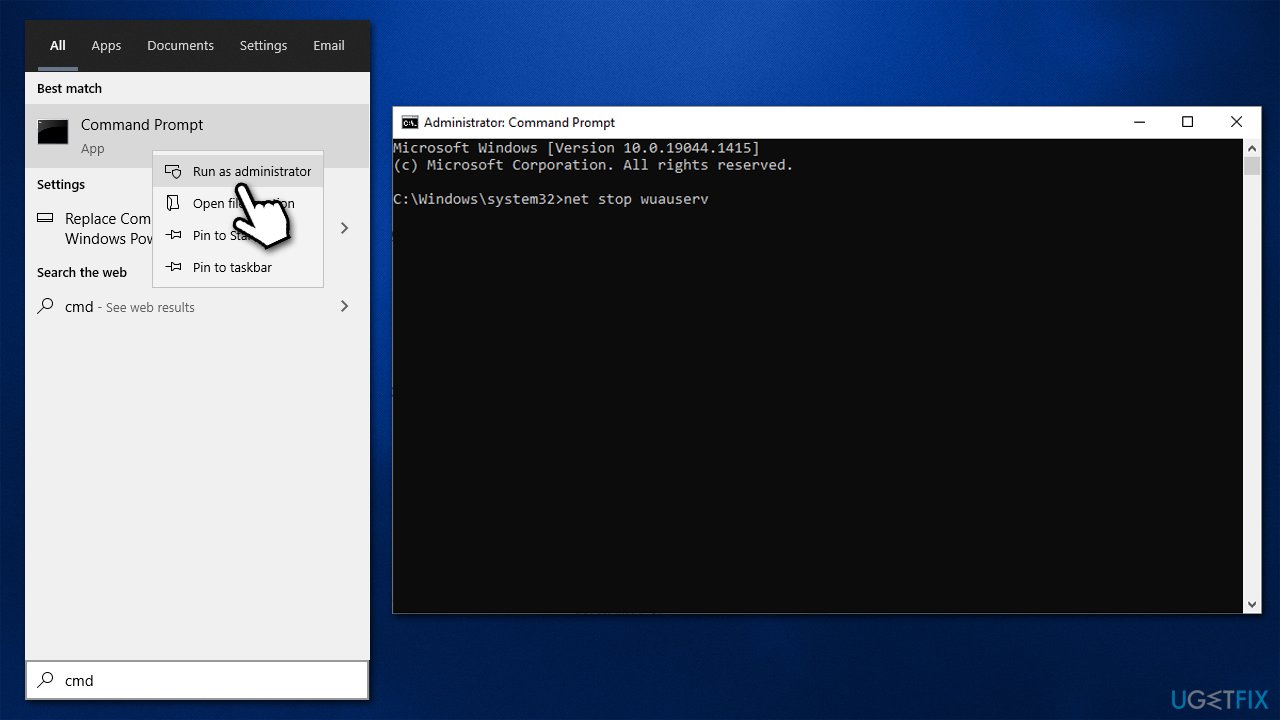
How to fix windows update error 0xc1900130 delete windows update caches2
net stop cryptSvc
net stop bits
net stop msiserver - Press Win + E to open File Explorer
- Go to the following locations and delete the contents of these folders:
C:\\Windows\\System32\\catroot2
C:\\Windows\\SoftwareDistribution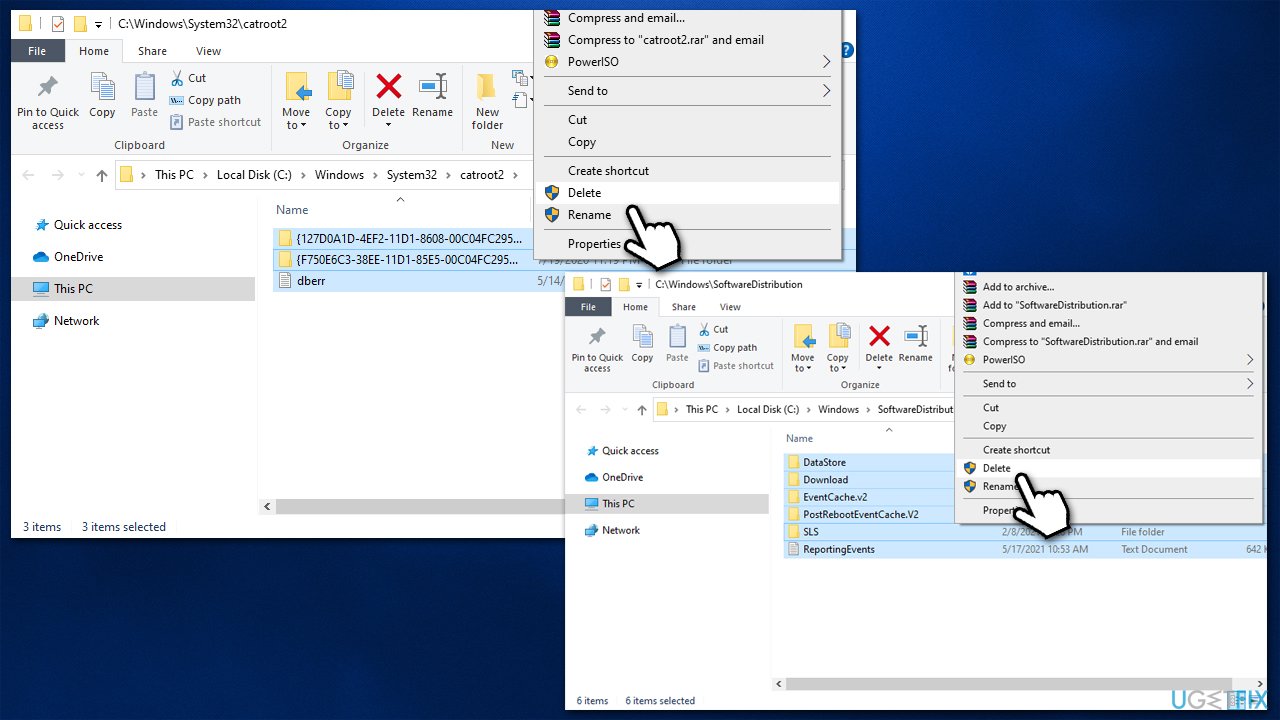
How to fix windows update error 0xc1900130 delete windows update caches - Open Command Prompt once more and use the following commands to restart the services:
net start wuauserv
net start cryptSvc
net start bits
net start msiserver - Reboot your system.
Fix 3. Rename one of the drivers (if applicable)
If you are running Intel software, there might be that the error is caused by incompatibility with it. This is particularly applicable to all the Windows builds 1900 and older.
- Press Win + E to open File Explorer
- Go to the View tab and tick Hidden items
- Now go to the following location:
C:\\Windows\\System32\\drivers - Here, find the following file: iastora.sys and rename it iastora.sys.old
- When UAC shows up, click Yes
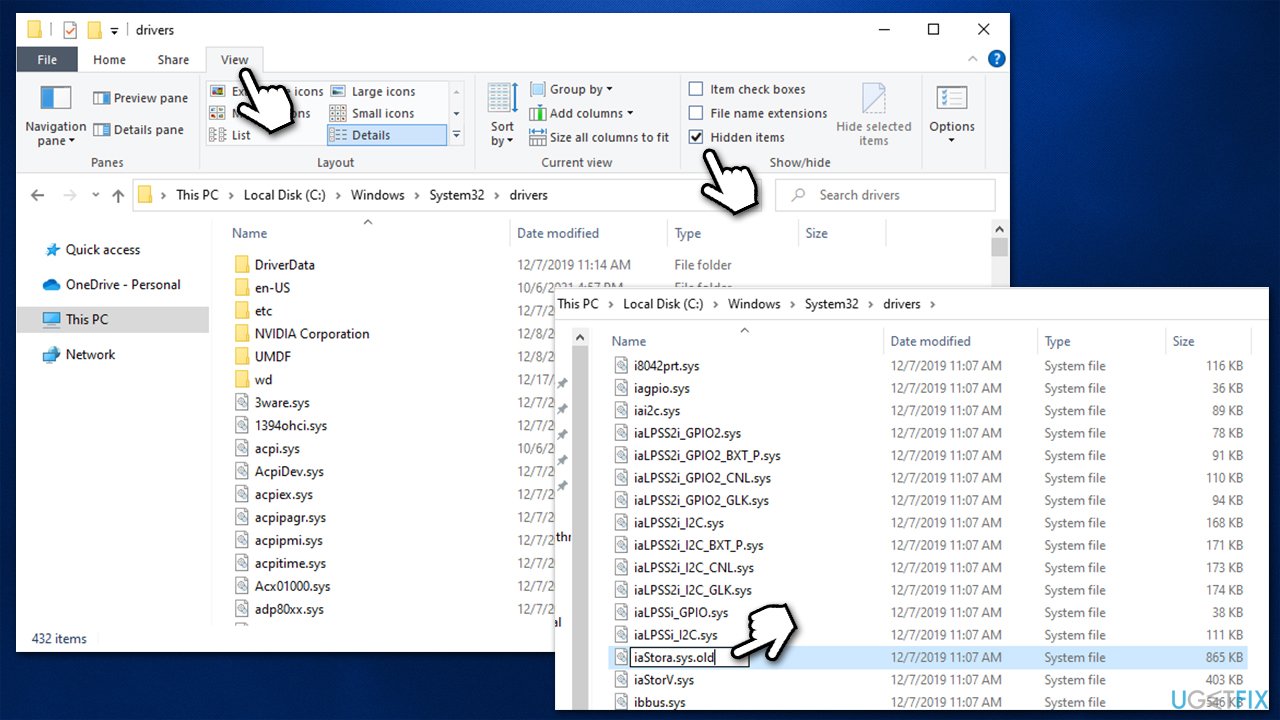
How to fix windows update error 0xc1900130 rename intel driver - Reboot your system and try updating again.
Fix 4. Check system for corruption
Corrupted system files might cause Windows to install updates with an error 0xc1900130. You can try repairing them using the following method:
- Type cmd in Windows search
- Right-click on Command Prompt and pick Run as administrator
- When User Account Control (UAC) shows up, click Yes
- Use the following command lines, pressing Enter each time:
sfc /scannow
DISM /Online /Cleanup-Image /CheckHealth
DISM /Online /Cleanup-Image /ScanHealth
DISM /Online /Cleanup-Image /RestoreHealth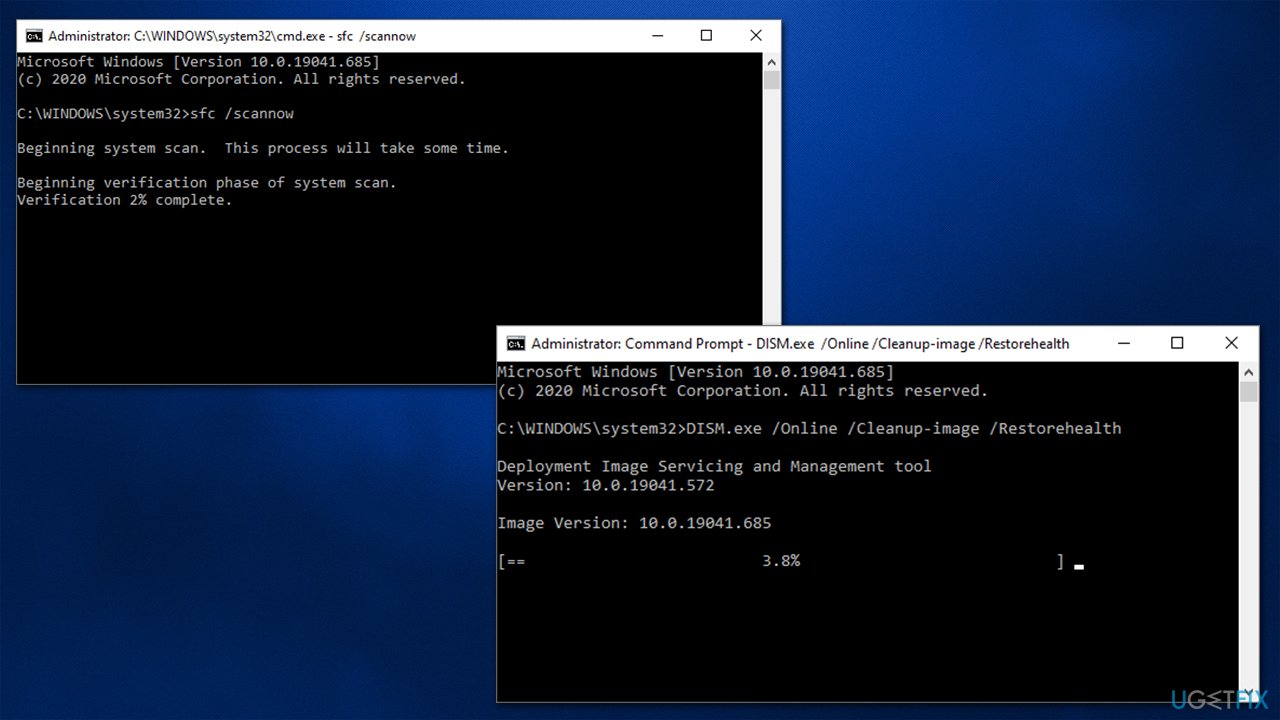
How to fix windows update error 0xc1900130 run sfc dism
Fix 5. Install the update manually
- Type in Update in Windows search and press Enter
- Click View Update History on the right side of the window
- From the list of updates, note the KB number of the one that failed to be installed
- Go to Microsoft Update Catalog
- Here, type in the KB number and click Search
- Pick the version that is compatible with your operating system (ignore updates for the server) and click Download
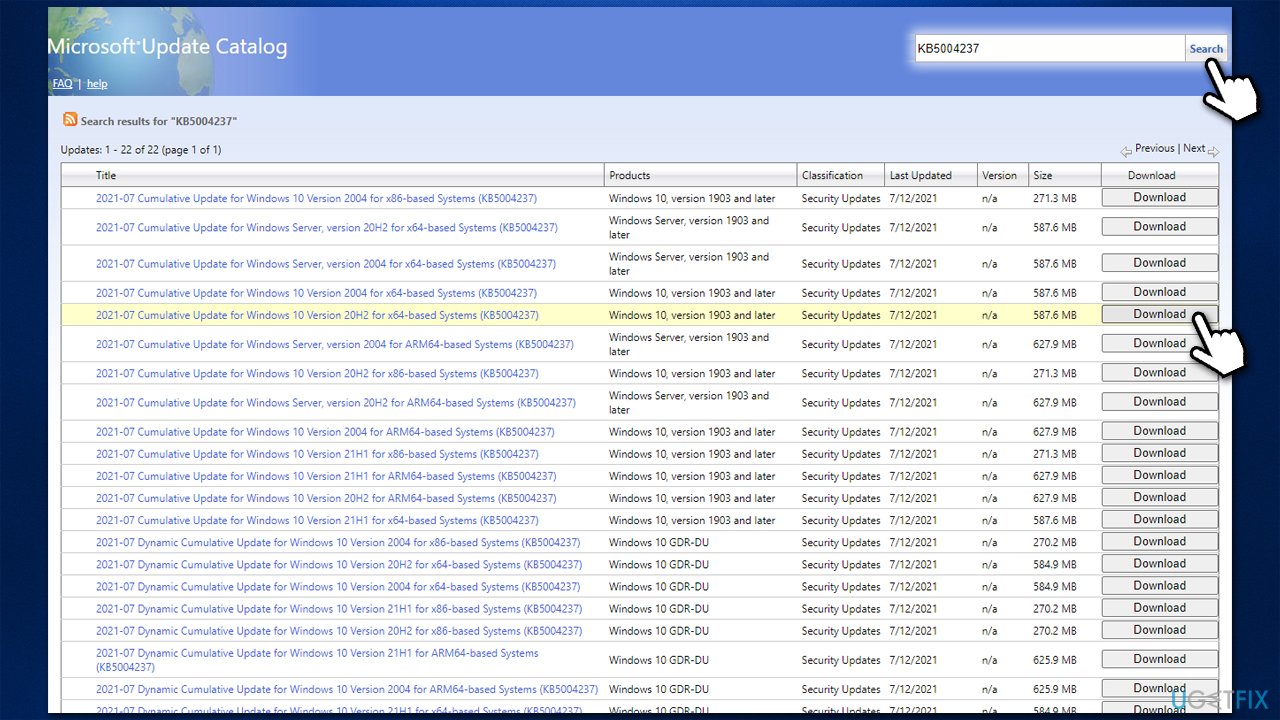
How to fix windows update error 0xc1900130 install update manually - Proceed with on-screen instructions and restart your system once done.
Fix 6. Use Media Creation Tool
Disconnect all the peripherals and backup all your personal files as a precautionary measure before you proceed with this solution.
- Go to the official Microsoft website and download Media Creation Tool
- Agree to terms and click Next
- Select Upgrade this PC now and select Next
- Windows will now download all the necessary files – it might take awhile
- Agree to terms once again and click Next
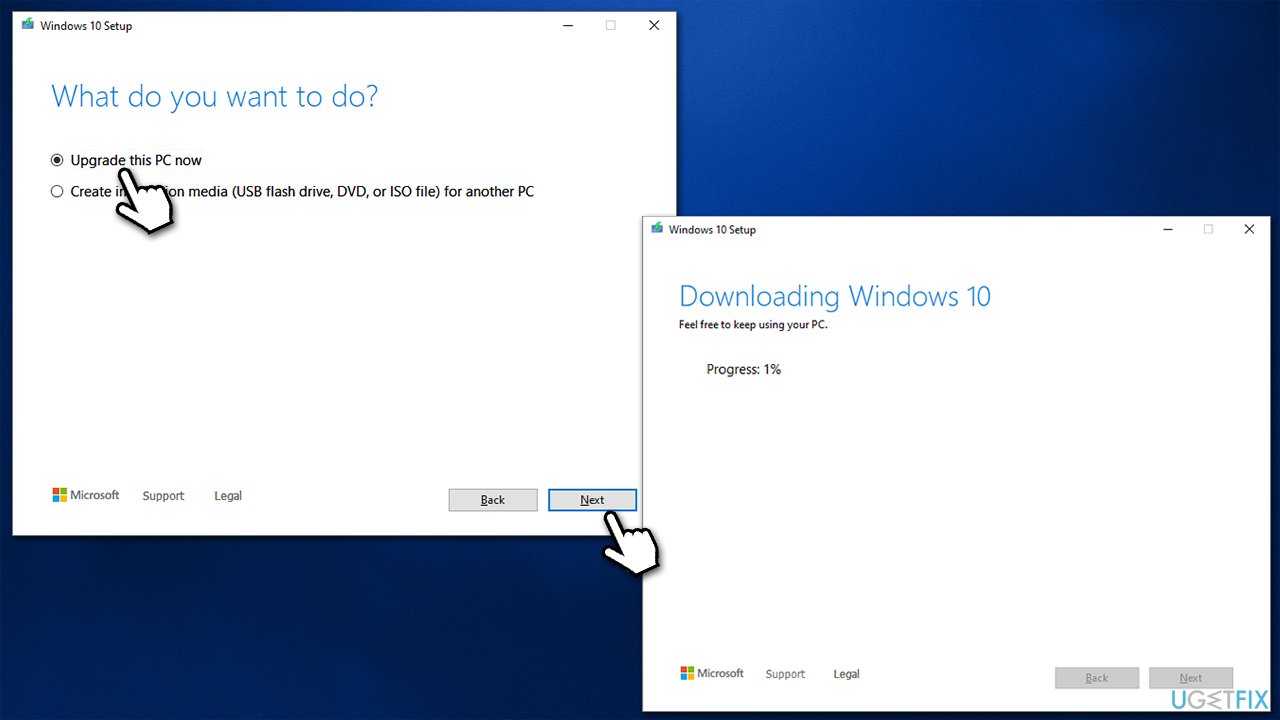
How to fix windows update error 0xc1900130 use media creation tool - Before installing, make sure that you are happy with your choices (otherwise, you can click Change what to keep option)
- Finally, click Install to begin the upgrade process.
Other things to try:
- Check if your time and date are set correctly;
- Temporarily disable VPN, anti-malware, firewall, and other third-party software that could be interfering with the update process;
- Scan your system for malware.[ref en-1]
Bottom line
To fix the Windows update error 0xc1900130, you can try freeing up disk space, resetting the Windows Update components, or checking for hardware compatibility. If these solutions do not resolve the issue, consider seeking further assistance from Microsoft support or IT forums.
Frequently asked questions
The error 0xc1900130 typically occurs due to corrupted system files, network issues, or incompatible software preventing the update process from completing successfully.
To fix this error on Windows 11, you can try running the Windows Update Troubleshooter and ensuring that your device meets the system requirements for the update.
Yes, you can manually download the update from the Microsoft Update Catalog and install it, which may bypass the issues causing the error 0xc1900130.




Report an issue
What's wrong with this guide? We review every report and update or remove content.
Report received — thank you. We'll review and fix it.
You need a free account to submit a report.
Be the first to comment