
How to fix Windows update error code 0x80070026?
Prefer to fix it yourself? The manual steps follow.
4 methods in this guide
Hello. When I try to install Windows Updates, I get an error code 0x80070026. This has been happening for a couple of months now. Is there anything that can be done to fix this?
Windows Update errors strike users regularly, and 0x80070026 is no exception. The problem has been around for years, although users are still trying to find fixes to this day.
While older OS versions had to be updated manually, Windows 10 has a built-in Windows Update feature, which detects, downloads, and installs the latest updates automatically. However, sometimes the device user may want to accelerate the installation of updates and launch the Windows Update service manually.
This is when an error may be encountered, which reads:
There were problems installing some updates, but we’ll try again later. If you keep seeing this and want to search the web or contact support for information, this may help:
(The Name of the Update) – Error 0x80070026
As evident, there is not much information that the error message provides, except that there were some "problems" while trying to install the update. The error may be a result of many different issues, for example, corrupted system files or Windows update services. Therefore, there is not a universal way to fix 0x80070026 error.
Nevertheless, the system fails to install updates when one of the Windows Update Components fails to work properly. If resetting Windows Update Components does not help, we would recommend disabling your anti-virus temporarily, run Windows Update Troubleshooter, or check the system for malware.
Besides, the software can fix other underlying issues that are frequently causing Blue Screen errors or registry file corruption.
Fix 1. Run Windows Update troubleshooter
Troubleshooters are built-in tools that can help you solve many problems on your PC. Hence, if you are having problems with downloading and installing updates, proceed with the following:
- Type Troubleshoot in Windows search and press Enter.
- Here, click Additional troubleshooters (otherwise, you should see them listed on the right side of the window).
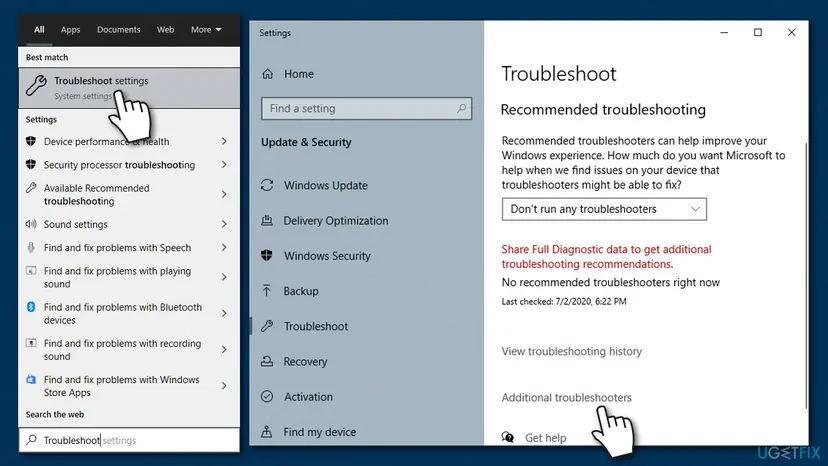
How to fix 0x80070026 update error on windows run troubleshooter - Find Windows Update.
- Click on it once and select Run the troubleshooter.
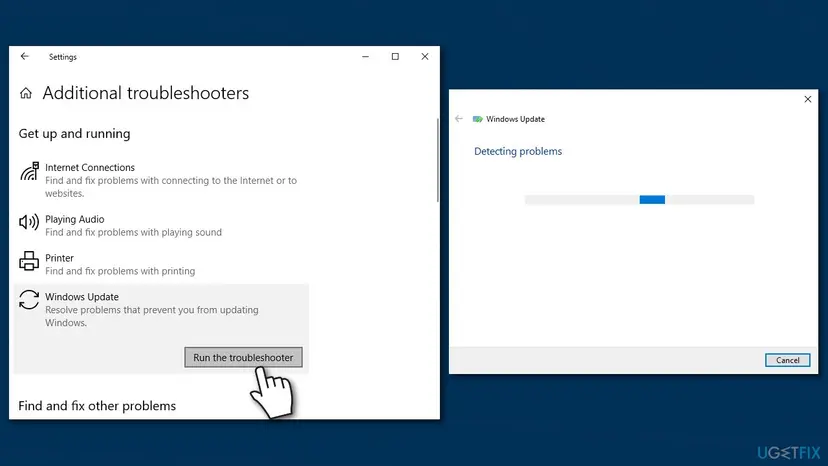
How to fix 0x80070026 update error on windows run troubleshooter2 - Wait till Windows completes the scan and offers automatic solutions.
Fix 2. Reset Windows Update Components
- Type cmd in Windows search.
- Right-click on Command Prompt and select Run as administrator.
- Click Yes on the UAC pop-up.
- Now stop MSI Installer, Windows Update Services, BITS services. For this purpose, copy and paste the following commands in the Command Prompt dialog. Press Enter after each.
net stop wuauserv
net stop cryptSvc
net stop bits
net stop msiserver
- The rename the Catroot2 and SoftwareDistribution folders. Copy and paste the ren C:\\Windows\\System32\\catroot2 Catroot2.old and ren C:\\Windows\\SoftwareDistribution SoftwareDistribution.old commands in the Command Prompt dialog and press Enter after each of them.
- Finally, restart MSI Installer, Windows Update Services, BITS services. To do so, copy and paste the commands given below and press Enter after each:
net start wuauserv
net start cryptSvc
net start bits
net start msiserver
- Close Command Prompt and try to install the updates.
Fix 3. Run SFC and DISM
- Open Command Prompt (Admin) as explained above.
- Type sfc /scannow and press Enter.
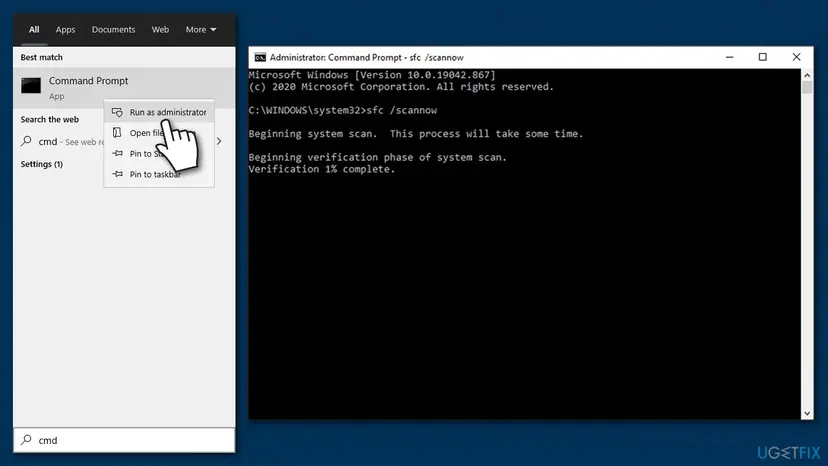
How to fix 0x80070026 update error on windows run sfc scan - Copy and paste DISM.exe /Online /Cleanup-image /Scanhealth command and press Enter.
- Now copy and paste the DISM.exe /Online /Cleanup-image /Restorehealth command. Don’t forget to press Enter to execute it.
- Finally, close Command Prompt and restart the system.
Fix 4. Use Media Creation Tool
When having problems with Windows updates, using Windows Media Creation Tool might help you.
- Visit the official Microsoft website to download Windows 10 installation media.
- Double-click the installer that should show up at the bottom-left of your web browser.
- Agree to Terms and choose Next.
- Select Upgrade this PC now and select Next.
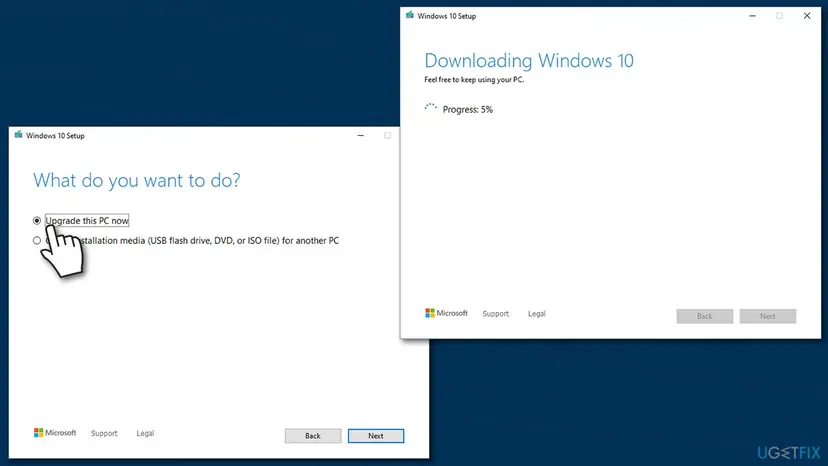
How to fix 0x80070026 update error on windows use media creation tool - Wait till all the necessary files are downloaded and upgrade process finishes
- Restart your computer.
If these steps did not help to fix Windows Update error 0x80070026, we would highly recommend deactivating your anti-virus (especially if you are using a third-party tool).
Did this fix work?
One click, no account. It tells the next reader which guides are worth their time.
Questions and experiences: fix Windows update error code 0x80070026
Still broken, or found a fix we did not cover? Ask here: members and our editors answer. Reading is open; writing needs a free account.
…