
How to fix Windows Update Error Code 0x80080005?
Prefer to fix it yourself? The manual steps follow.
On this page
- Methods to fix Error Code 0x80080005
- Deactivate antivirus software
- Run Windows Update Troubleshooter
- Check for damaged system files and fix 0x80080005 error this way
- Take full control over System Volume Information folder
- Reset Windows Update Components
- Install the required update manually to fix 0x80080005 error
Whenever I try to install the Creators Update, it gives me the error 0x80080005. I’ve searched for this error, but most of the information I’ve come up with is older than a year or two. Therefore, I don’t feel confident about experimenting with the old fixes regarding Creators Update. Could you please help?
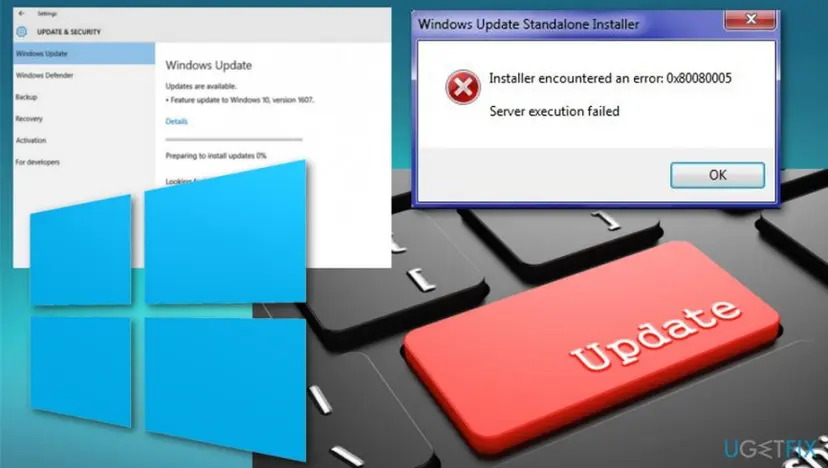
Update error with a code 0x80080005 is a Windows 10 update error, which can abort the installation of Windows 10, its Creators Update or the latest Windows 10 April 2018 update. Although the system can function without receiving updates, it becomes unstable, slow, and vulnerable over time.
Each Windows component, including drivers, applications, smallest system files, anti-virus definitions, etc. have to be updated regularly to prevent errors, crashes, unresponsiveness, and virus infections.The particular Error Code 0x80080005 is an issue that is not easily manageable because it prevents updates when you try to check for the new ones. So updating the OS to a newer version is not going to help.
Error Code 0x80080005 occurs in various instances, and the main reason behind this issue is the clash between Windows Update and a third-party security program. Also, it can be happening because the computer cannot access the System Volume Information folder.
Of course, the Error Code 0x80080005 can appear due to the issues with the Windows Update itself and related components. To ensure proper system’s maintenance, Microsoft introduced the Windows Update service, which automatically checks for the available updates and installs them. However, this service is one of the most problematic so is the Error Code 0x80080005.
The Internet is full of questions regarding Windows Update errors, which occur during or after the scan for updates and prevent the updates from being downloaded/installed. The Error Code 0x80080005 is just that kind. It was reported a long time ago, but apparently, it reoccurs with the new Windows 10 updates regularly.
The first instances of the 0x80080005 error occurrence have been noticed soon after Windows 10 OS release. Anniversary Update “skipped” this error, so it regenerated with the Windows Creators Update. Sadly, but the Windows 10 April 2018 update is not immune to this bug check as well as the later updates. Tens of people have already flooded Windows forum with reports that they cannot install the update.
Luckily, there's a couple of methods that can help to fix a 0x80080005 error. You don't have to be an IT expert to perform those methods, except that try to be as careful as you can not to skip some steps or swap places. We also recommend trying all of them until the issue is not occurring again.
Methods to fix Error Code 0x80080005
Various possible methods help to fix the 0x80080005 Windows Update error. However, you may never know which one could work for you specifically. But first, check the Windows system with a reliable optimization tool. This program will check for damaged or missing files, as well as verify the condition of Windows Registries.
Deactivate antivirus software
Before activating Windows Update service, turn your anti-virus off. It doesn’t matter if you are using Windows Defender or a third-party anti-virus. Disable it temporarily and only then try to check for Windows Updates. If anti-virus is not the culprit of the 0x80080005 error, make sure to enable it. Don’t let the PC unprotected.
NOTE: do not forget to enable the anti-virus after all. Keeping the system unprotected can lead to virus infection.
Run Windows Update Troubleshooter
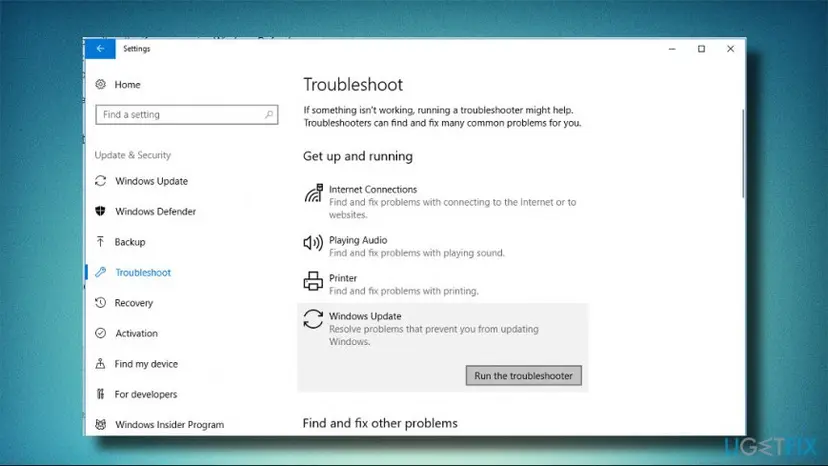
- Press Windows key + I to open Settings.
- Now open Updates & Security section on the left pane.
- Click Troubleshoot.
- Click Windows Update and select Run troubleshooter.
Check for damaged system files and fix 0x80080005 error this way
Windows Updates may stop working due to the damaged, missing or corrupted Windows files. To check that, you can apply a couple of methods. First of all, run SFC scan and DISM tools:
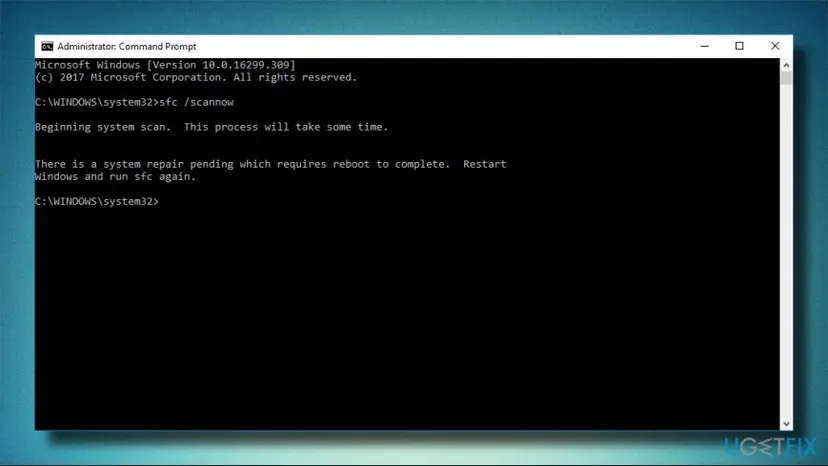
- Click WinX and select Command Prompt (Admin).
- Type sfc /scannow and press Enter.
- Copy and paste DISM.exe /Online /Cleanup-image /Scanhealth command and press Enter.
- DISM.exe /Online /Cleanup-image /Restorehealth is the next command you should activate. Don’t forget to press Enter after it.
- Finally, close Command Prompt and restart the system.
Take full control over System Volume Information folder
- Right-click on Windows key + I and select Command Prompt (Admin).
- Alternatively, open Windows search, type Command Prompt.
- Right-click on the Command Prompt option and select Run as Administrator.
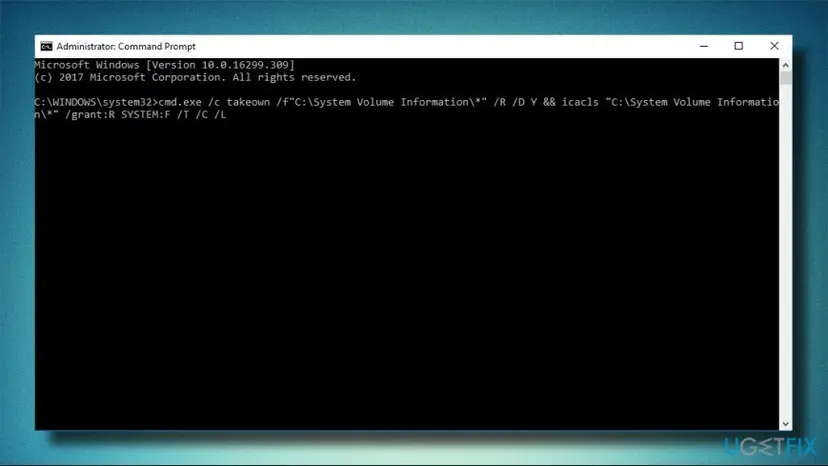
- Copy and paste the following command
cmd.exe /c takeown /f"C:\\System Volume Information\\*" /R /D Y && icacls "C:\\System Volume Information\\*" /grant:R SYSTEM:F /T /C /L
- Press Enter to execute it.
- Finally, restart your PC.
In case this command did not work, try alternative methods listed here.
Reset Windows Update Components
Windows Update service consists of three active components, i.e. MSI Installer, Windows Update Services, and BITS. If any of them stops working, Windows Update stops functioning properly and may deliver errors like 0x80080005. To fix that, you should reset Windows Update components by following the instructions provided here.
Install the required update manually to fix 0x80080005 error
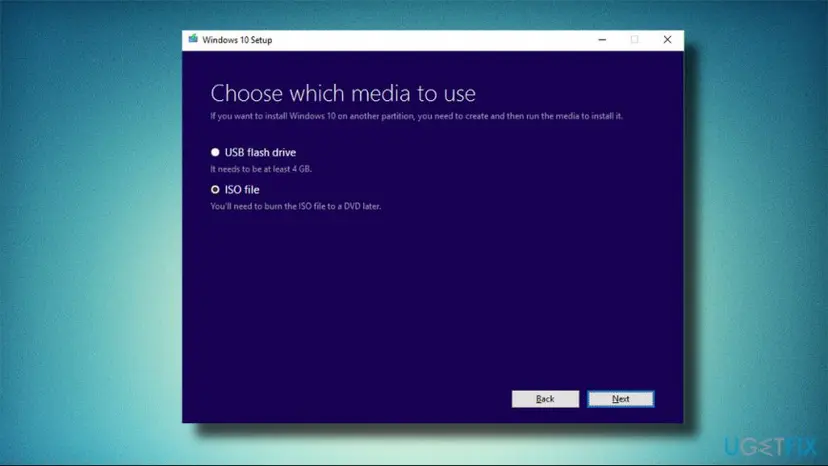
If you encounter the Windows Update error code 0x80080005 during the installation of one particular update, for example, the Creators Update, the solution would be to navigate to the official Microsoft’s website and download the update manually. To access Microsoft Update Catalog quicker, please click on this link.
Did this fix work?
One click, no account. It tells the next reader which guides are worth their time.
Questions and experiences: fix Windows Update Error Code 0x80080005
Still broken, or found a fix we did not cover? Ask here: members and our editors answer. Reading is open; writing needs a free account.
…