How to fix
Xbox app error 0x80090010
on Windows
Resolve the Xbox app error 0x80090010 on Windows 10 and 11 effortlessly. Expert-tested solutions ensure your gaming experience is restored in minutes.

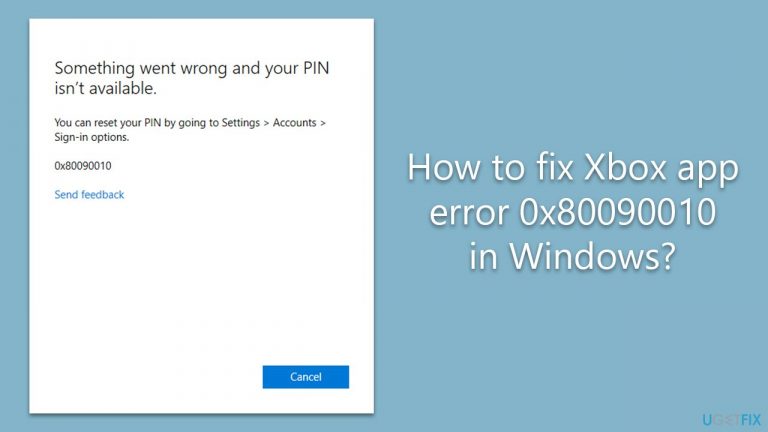
What causes How to fix Xbox app error 0x80090010 in Windows?
- Outdated Windows system
- Corrupted system files
- General bugs
- Issues with account switching
Repairs Windows system files, removes malware, and restores a clean OS state — without reinstalling.
Hi. I was trying to switch between my accounts on the Xbox app on my PC, but I can't log in with my second account because of a 0x80090010 error. Any tips on how to deal with this?
The Xbox app is a popular application that enables gamers to access their Xbox gaming console's features on a Windows PC. With this app, users can play games, interact with friends, and manage their gaming profile from their computer. The seamless integration between the console and PC makes it an indispensable tool for avid gamers, providing a more versatile gaming experience.
However, some users may experience an error while attempting to log in to the Xbox app. This error is commonly known as error code 0x80090010, which is accompanied by the message "Something went wrong." Several factors can contribute to this error, such as an outdated Windows system, corrupted system files, and general bugs. These underlying issues can interfere with the proper functioning of the app, preventing users from accessing their Xbox account and enjoying their favorite games on their PC.
Although the specific reasons behind error 0x80090010 can vary, it's essential to address them to ensure the smooth operation of the Xbox app on Windows. The solutions for this error may include updating the Windows system, repairing or replacing corrupted system files, or addressing any other bugs that might be causing problems. However, the detailed steps to resolve this error will not be provided in this article, as they can be found below.
One effective method of tackling underlying Windows issues that may contribute to error 0x80090010 is using a PC repair tool, such as [d1] PC repair tool. This automated software can diagnose and fix various Windows problems, potentially resolving the error without requiring the user to manually troubleshoot the issue. By using this app, users can save time and effort while ensuring that their system operates efficiently and error-free.
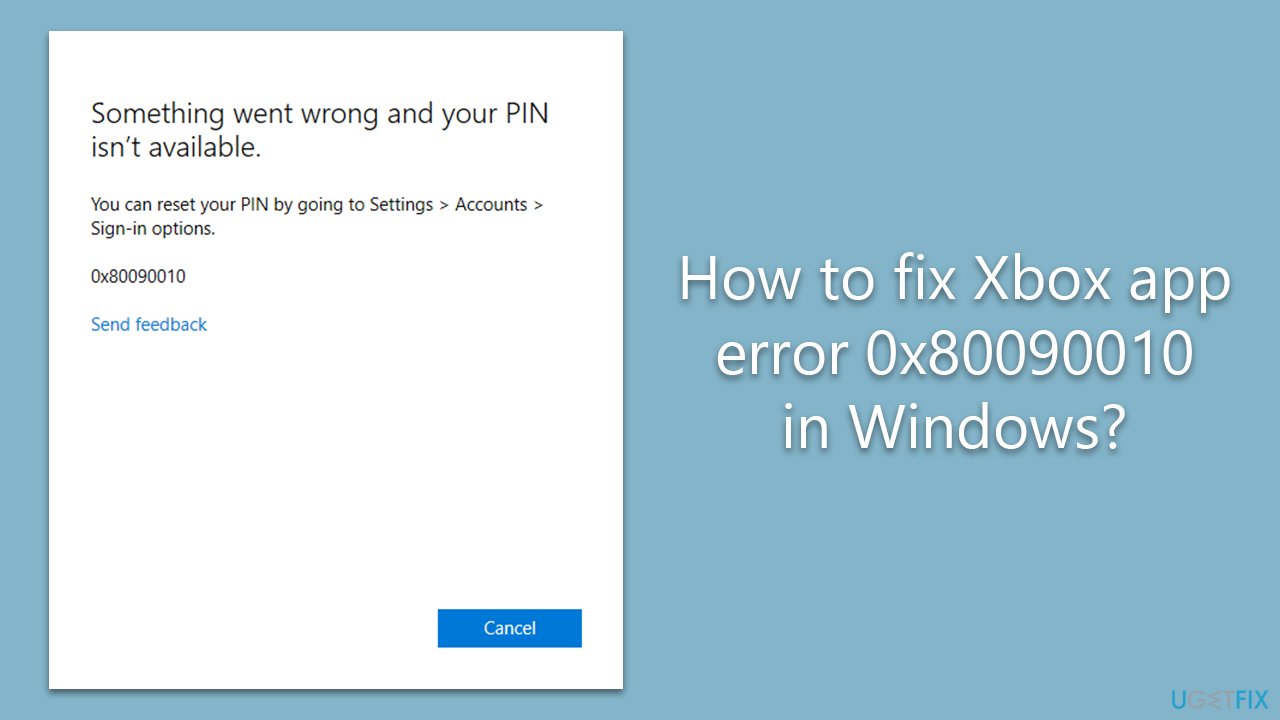
Fix 1. Run the troubleshooter
We first recommend checking whether the issue can be fixed by the troubleshooter. Proceed with the following steps:
- Type troubleshoot in Windows search and press Enter.
- On the right, choose Additional troubleshooters/ Other troubleshooters.
- Find Windows Store Apps and click Run the troubleshooter.
- Wait till the process is finished and apply the recommended changes.
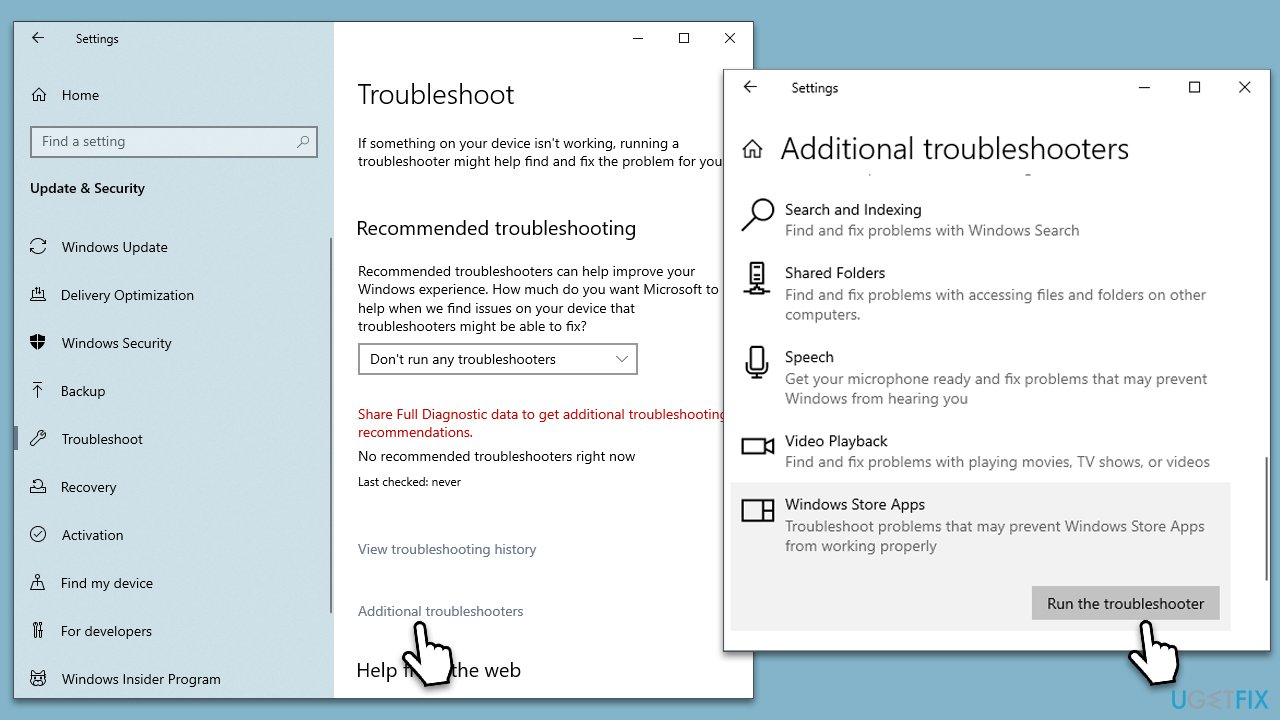
Fix 2. Check for corrupted files
- Enter cmd in the Windows search bar.
- Right-click on Command Prompt and choose Run as administrator.
- When User Account Control appears, select Yes.
- Input the following command lines, pressing Enter after each:
sfc /scannow
DISM /Online /Cleanup-Image /CheckHealth
DISM /Online /Cleanup-Image /ScanHealth
DISM /Online /Cleanup-Image /RestoreHealth - Finally, restart your computer.
Fix 3. Log in to the local account
A weird bug might cause this error, and logging out of your Microsoft Account, logging in with your Local account, and then logging in to your Microsoft account helped some users to solve this problem.
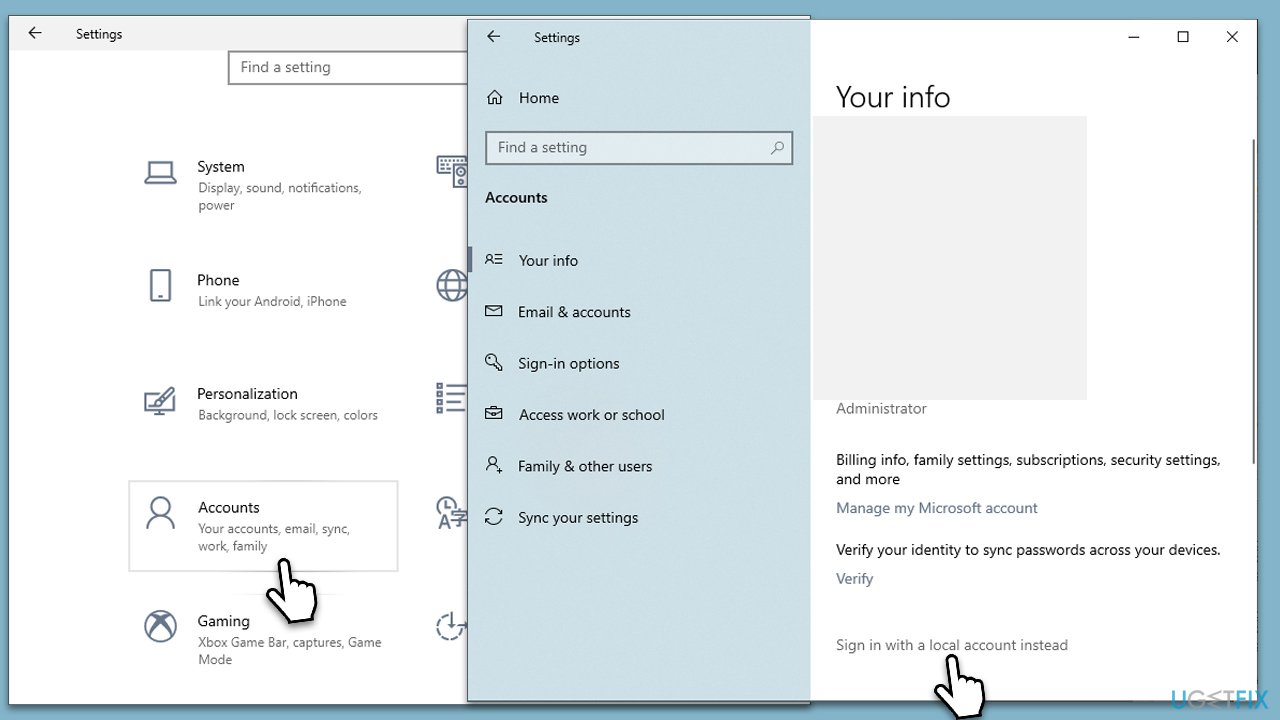
- Click on Start and pick Settings.
- Go to the Accounts section.
- Under Your Info, click the Sign in with a local account instead option.
- Type in the name, password, and password hint - make sure this is different from your Microsoft account.
- Click Next and then Sign out and finish.
- Once signed out, get in with your local account.
- Go to Settings > Accounts and log in using your Microsoft account this time.
Fix 4. Install all updates
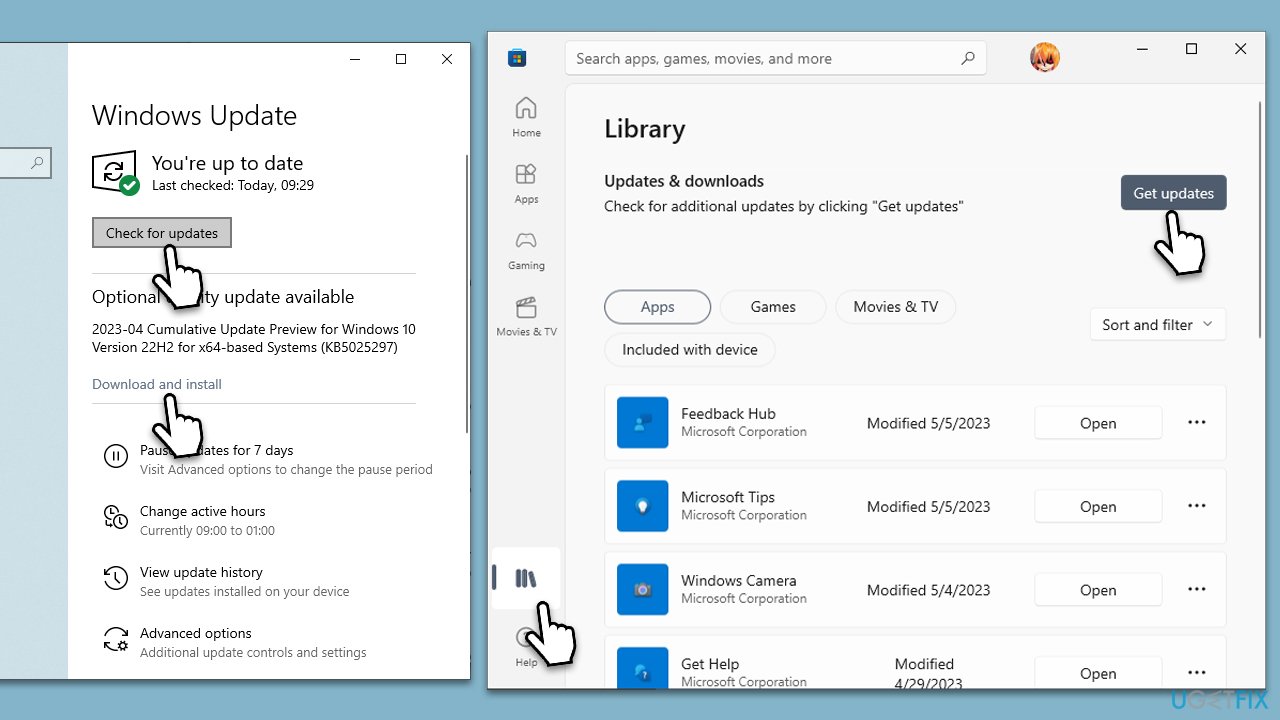
- Enter Updates in the Windows search bar and hit Enter.
- Select the Check for updates button and wait.
- If optional updates are available, make sure to install them as well.
- Open the Microsoft Store.
- Navigate to the Library section.
- Click on Get updates and wait for the installation to complete.
- Finally, restart your system when the process is done.
Fix 5. Check Xbox Live Multiplayer
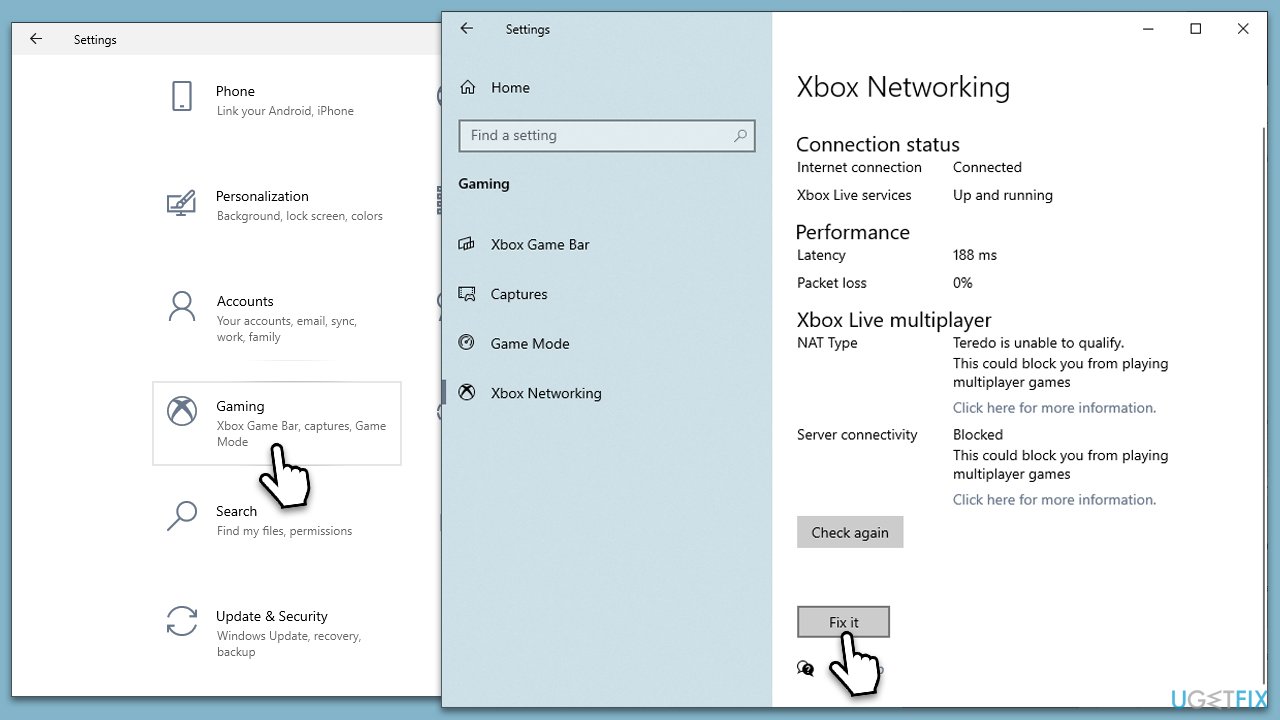
- Right-click on Start and pick Settings.
- Go to the Gaming section.
- Select Xbox Networking on the left.
- Under Xbox Live multiplayer, make sure the Internet connection shows as Connected.
- If not, you can click the Fix it button and follow the on-screen instructions.
Fix 6. Reset Connection items
In most cases, the 0x80090010 error is caused by connection issues, be it on the users' side or on Microsoft's. The following steps should help you reset related items, such as Winsock, or remove the proxy:
- Open Command Prompt as administrator.
- In the new window, copy and paste the following commands, pressing Enter after each of them is executed:
netsh winsock reset all
netsh int 6to4 reset all
netsh int ipv4 reset all
netsh int ipv6 reset all
netsh int httpstunnel reset all
netsh int isatap reset all
netsh int portproxy reset all
netsh int tcp reset all
netsh int teredo reset all
reg add "HKCU \ Software \ Microsoft \ Windows \ CurrentVersion \ Internet Settings" / v ProxyEnable / t REG_DWORD / d 0 / f - Close down everything and restart your PC.
Fix 7. Reset Microsoft Store cache
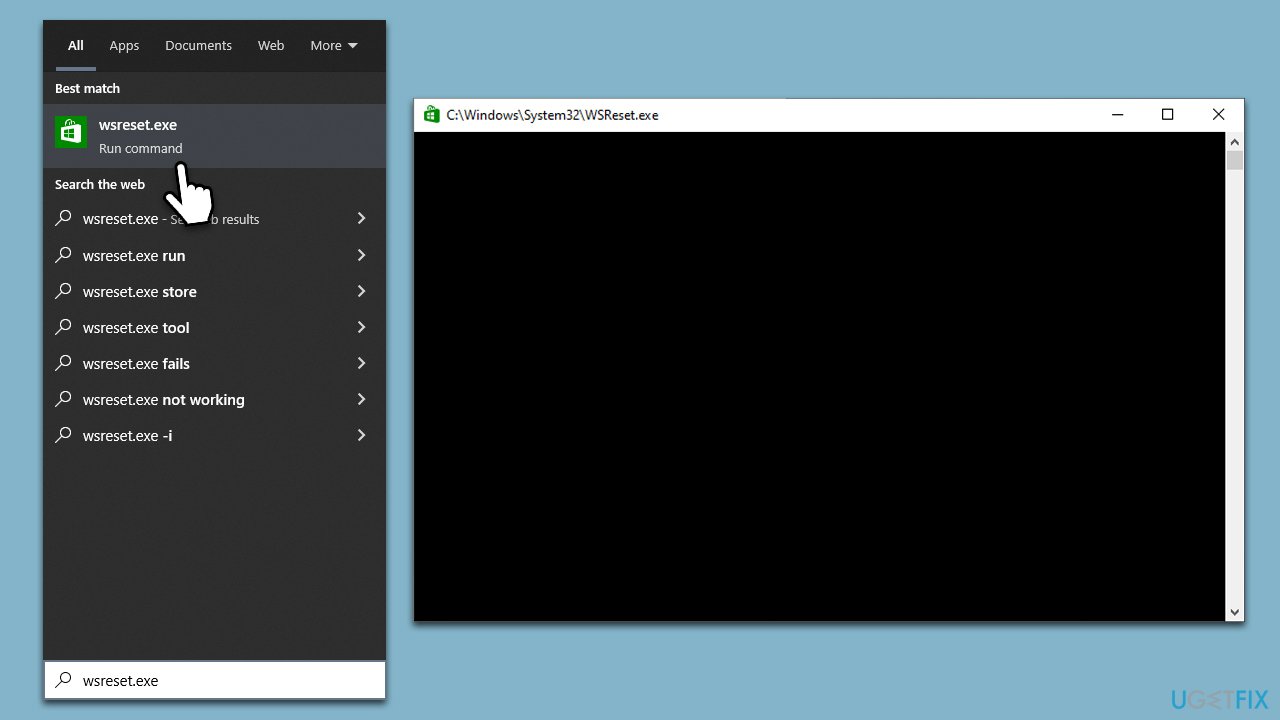
- In Windows search, type wsreset.exe and press Enter.
- Wait till a black window shows up – do not interact with it or close it.
- Once it's gone, Microsoft Store should restart.
- Try downloading apps once again.
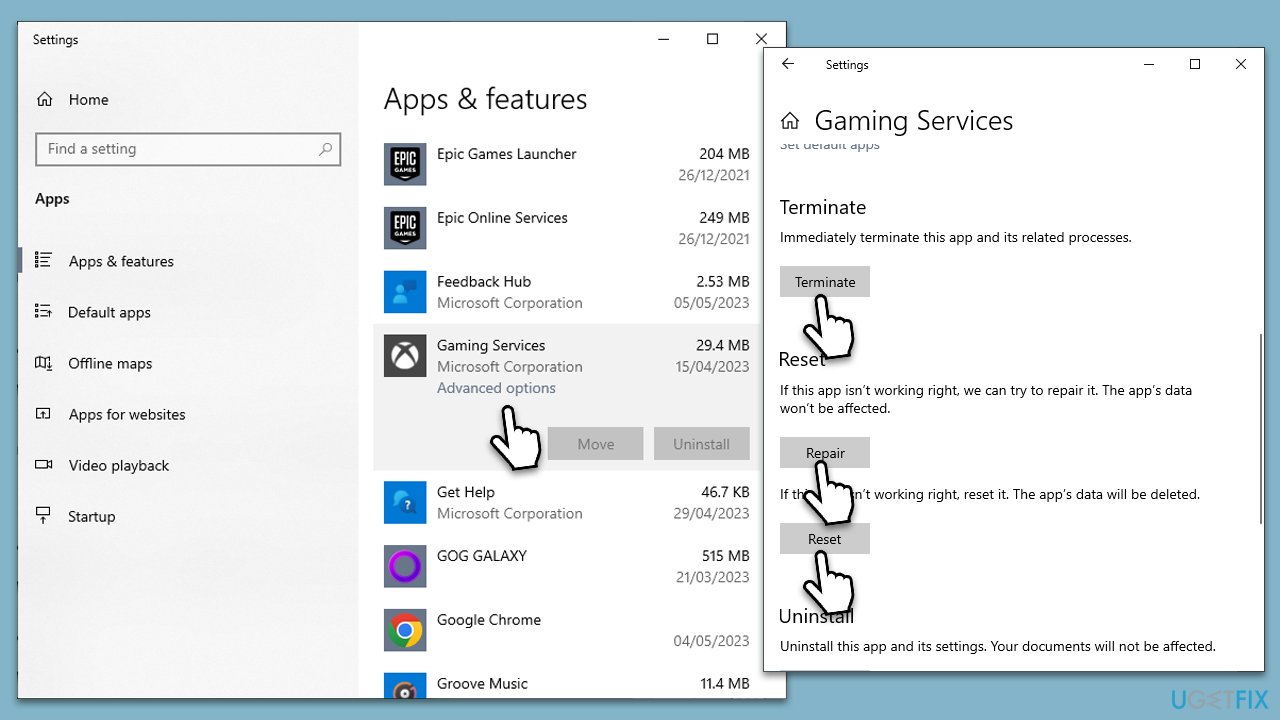
Fix 8. Reset/repair Xbox and other apps
- Right-click on Start and pick Apps and Features.
- Locate Microsoft Store and select Advanced options.
- Scroll down and click Terminate and then Reset.
- Repeat the same process for Gaming Services and Xbox app.
Related articles you might find useful:
Bottom line
To resolve error 0x80090010, users can try updating their Windows system, repairing or replacing corrupted system files, or using a PC repair tool to diagnose and fix underlying issues. If these solutions do not work, further troubleshooting may be necessary.
Frequently asked questions
The error 0x80090010 is typically caused by issues with the Xbox app's connection to the Microsoft account or problems with the Windows Credential Manager.
To reset the Xbox app, go to Settings > Apps > Apps & features, find the Xbox app, click on it, and select Advanced options, then click on the Reset button.
Yes, ensuring that your Windows 10 or Windows 11 is fully updated can resolve compatibility issues that might be causing error 0x80090010.




Report an issue
What's wrong with this guide? We review every report and update or remove content.
Report received — thank you. We'll review and fix it.
You need a free account to submit a report.
Be the first to comment