How to fix
Xbox App error 0x87E00013
on Windows
Resolve Xbox App error 0x87E00013 on Windows 10 and 11 effortlessly. Get expert-tested solutions and tips to fix the problem in minutes.

What causes How to fix Xbox App error 0x87E00013?
- Corrupted system files
- Corrupted game files
- Bugged update
- Stuck update
- Windows update issues
- Microsoft Store issues
Repairs Windows system files, removes malware, and restores a clean OS state — without reinstalling.
Hello. I have a weird problem with game updates via Xbox App. I can play all games fine but whenever there's an update available, I receive an error code 0x87E00013, titled "Something unexpected happened." Please advise.
The Xbox application in Windows is a powerful tool for gamers to get the best gaming experience available. It allows gamers to access their favorite Xbox games, services, and even the Xbox Live Marketplace right from their Windows PC or laptop. The app makes it easy to stay connected with friends and other players, as well as track your achievements and game progress.
Using it, users can purchase games and add-ons from the Xbox Store, and integrate their Windows account with their Xbox Live profile to gain access to exclusive content. After these games are purchased, they reside in the player's library and can be accessed at any time, allowing gaming sessions to be accessible with the click of a button.
However, users have reported some abnormal behavior in their Xbox app due to the error 0x87E00013. According to multiple reports, the error comes up whenever the game initiates an update process and fails. Some people said that the issue affects only games installed on the Xbox app through Game Pass. The message is as follows:
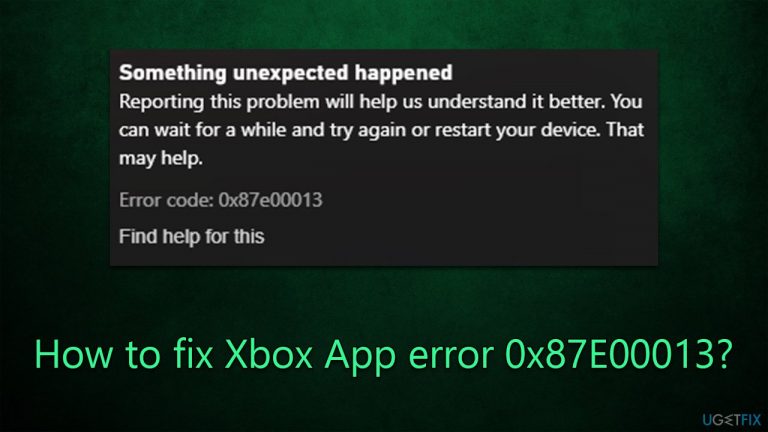
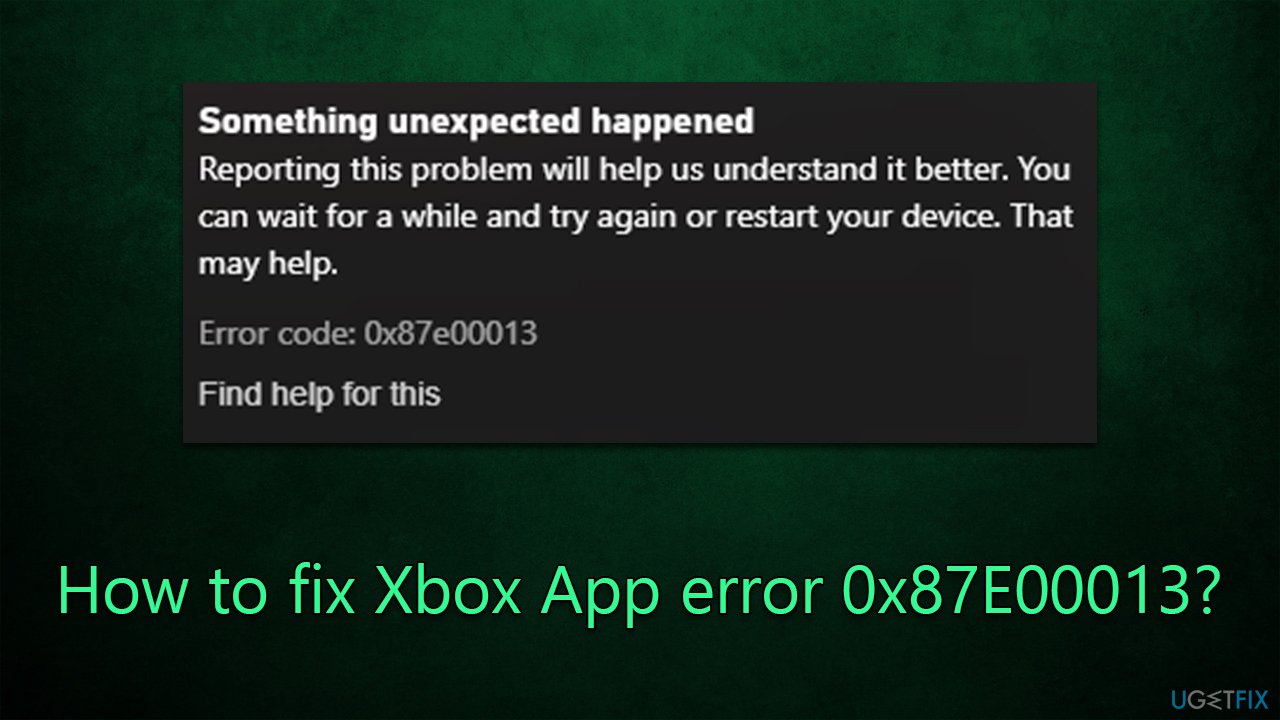
Something unexpected happened
Reporting this problem will help us understand it better. You can wait for a while and try again or restart your device. That may help.
Error code: 0x87e00013
As the message implies, many users resort to restarting their devices, but to no avail, and the problem persists.
This error code 0x87E00013 usually indicates that something went wrong during the update process, which can be linked to a corrupted system or game files, bugged update, stuck update, a Windows update or Microsoft Store issues, and more. In some cases, dependent services might not be running correctly - an issue that can also be addressed.
Before proceeding with the steps below, you should run a scan with a powerful PC repair tool [d1], which can quickly and easily eliminate issues such as corrupted system files or registries, BSODs, DLL errors, and similar.
Fix 1. Cancel the update process
Sometimes, the update process simply bugs out, and canceling the update process may help.
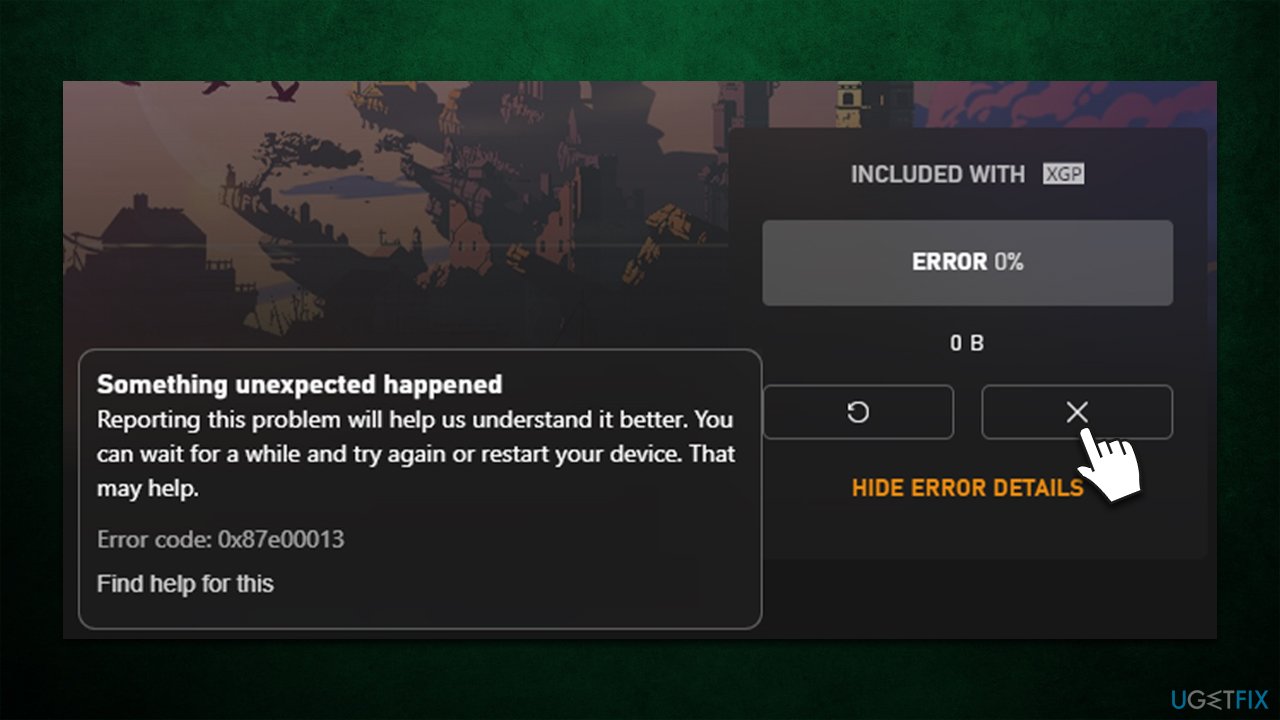
- Open Xbox app
- Go to your library and find the game which fails with the 0x87E00013 error
- Click the X button to cancel the update
- Restart your computer
- Try initiating the update once again.
Fix 2. Reinstall Gaming services
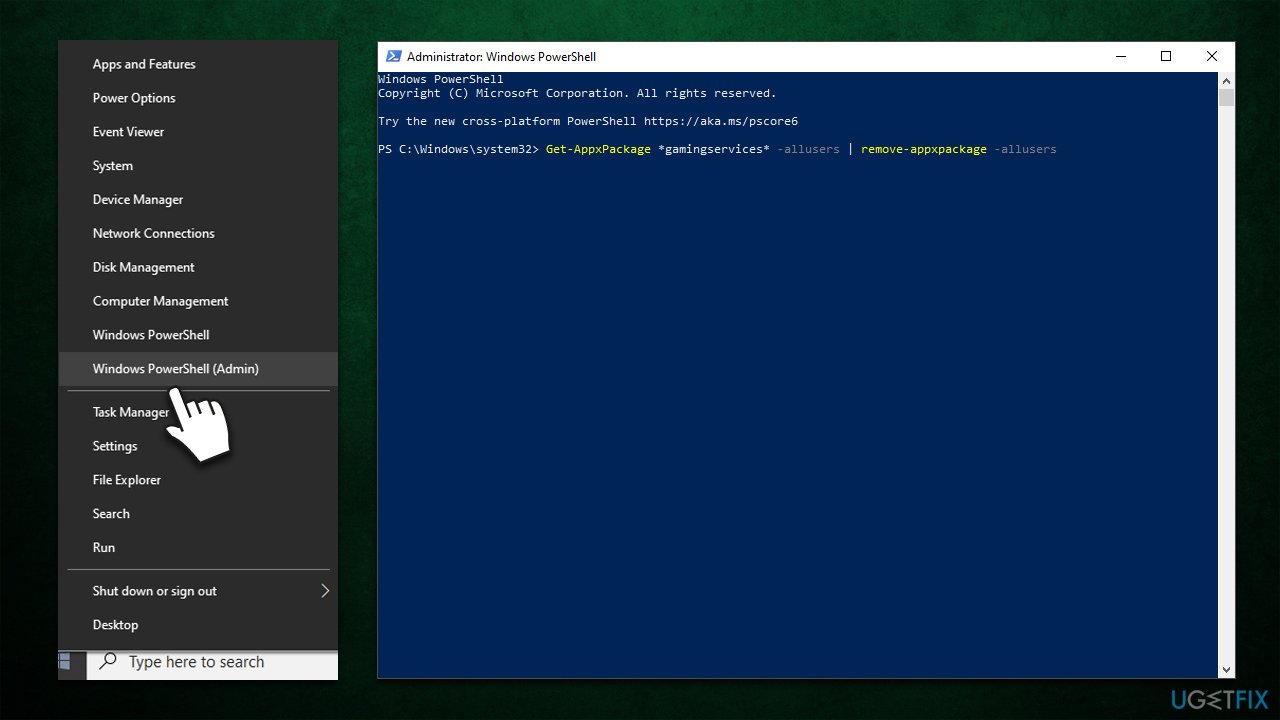
Gaming Services can only be reinstalled by issuing special commands via elevated PowerShell:
- Right-click Start and pick PowerShell (admin)
- When User Account Control shows up, click Yes
- In the new window, copy and paste the following command, pressing Enter after:
Get-AppxPackage *gamingservices* -allusers | remove-appxpackage -allusers - Once the command is executed, run the following commands next:
Remove-Item -Path "HKLM:\System\CurrentControlSet\Services\GamingServices" -recurse
Remove-Item -Path "HKLM:\System\CurrentControlSet\Services\GamingServicesNet" -recurse - Once done, restart your computer
- When Windows loads, open the Xbox app - a prompt would ask you to install Gaming Services
- Press Install and follow the on-screen instructions.
Fix 3. Reinstall the associated game
Some users said the 0x87E00013 error went away only after they reinstalled the game in question.
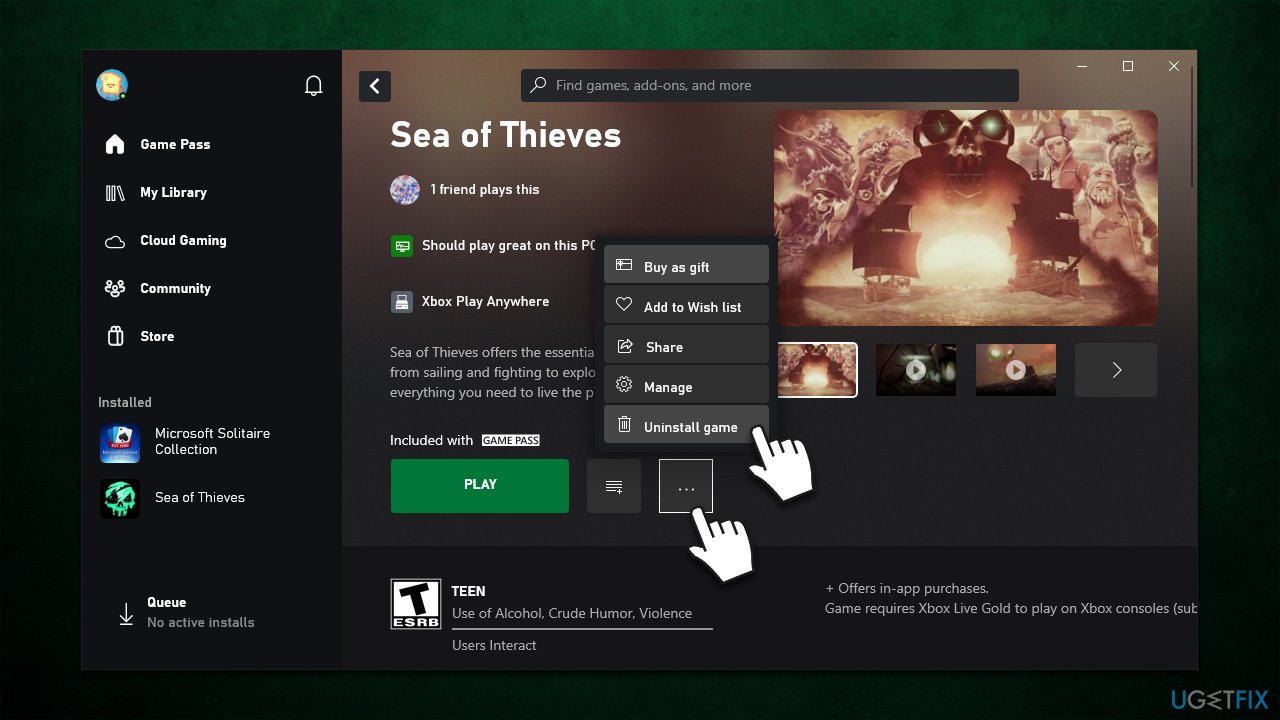
- Open the Xbox app and go to My Library
- Select the game that's failing to update
- Select the More actions button (…) and pick Uninstall game
- Follow on-screen instructions
- Restart your system
- Launch the Xbox app again and install the game.
Note: some users said that changing the location of the game files during the installation helped them to fix the error. Try installing the game in the same drive where your Xbox app is located, and vice versa.
Fix 4. Repair or reset Microsoft Store
Problems with Microsoft Store could be causing Xbox app issues, so we recommend repairing/resetting it:
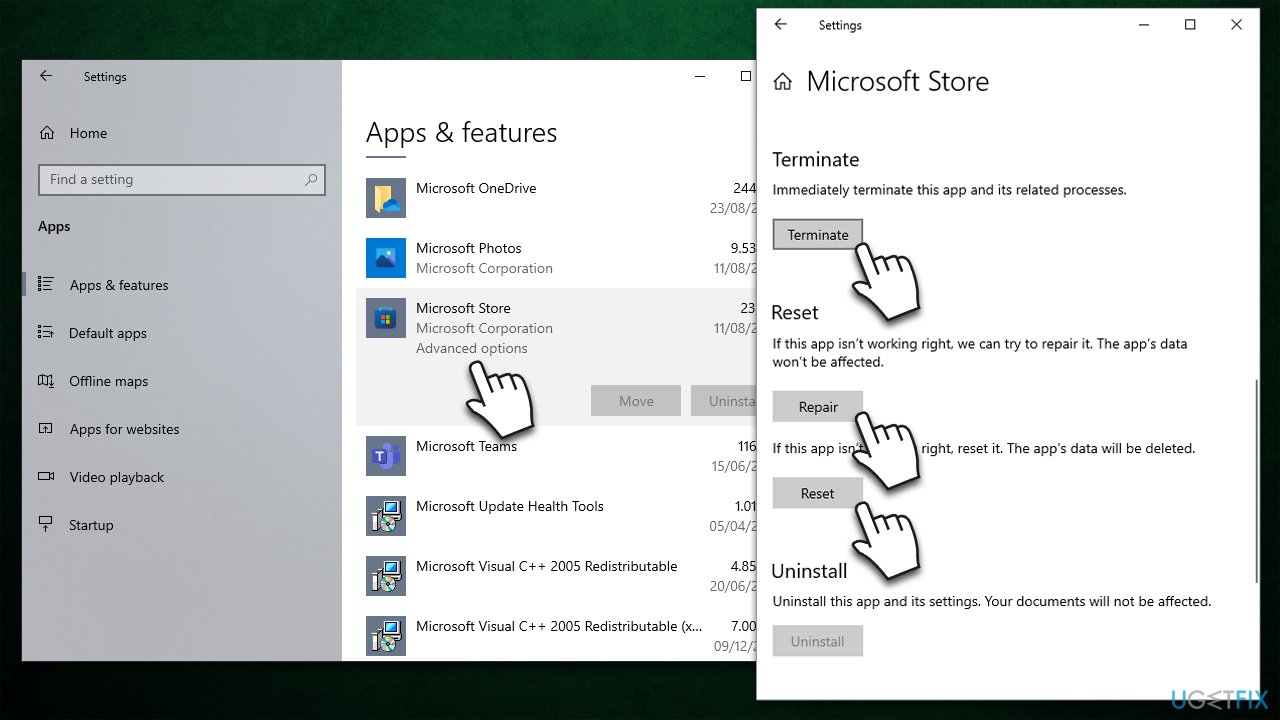
- Right-click on Start and pick Apps and Features
- Scroll down to find Microsoft Store
- Select Advanced options
- Scroll down a bit and click Terminate
- Next, click the Repair button and check if the problem is gone
- If the error returns, try using the Reset option.
Fix 5. Reinstall Xbox app
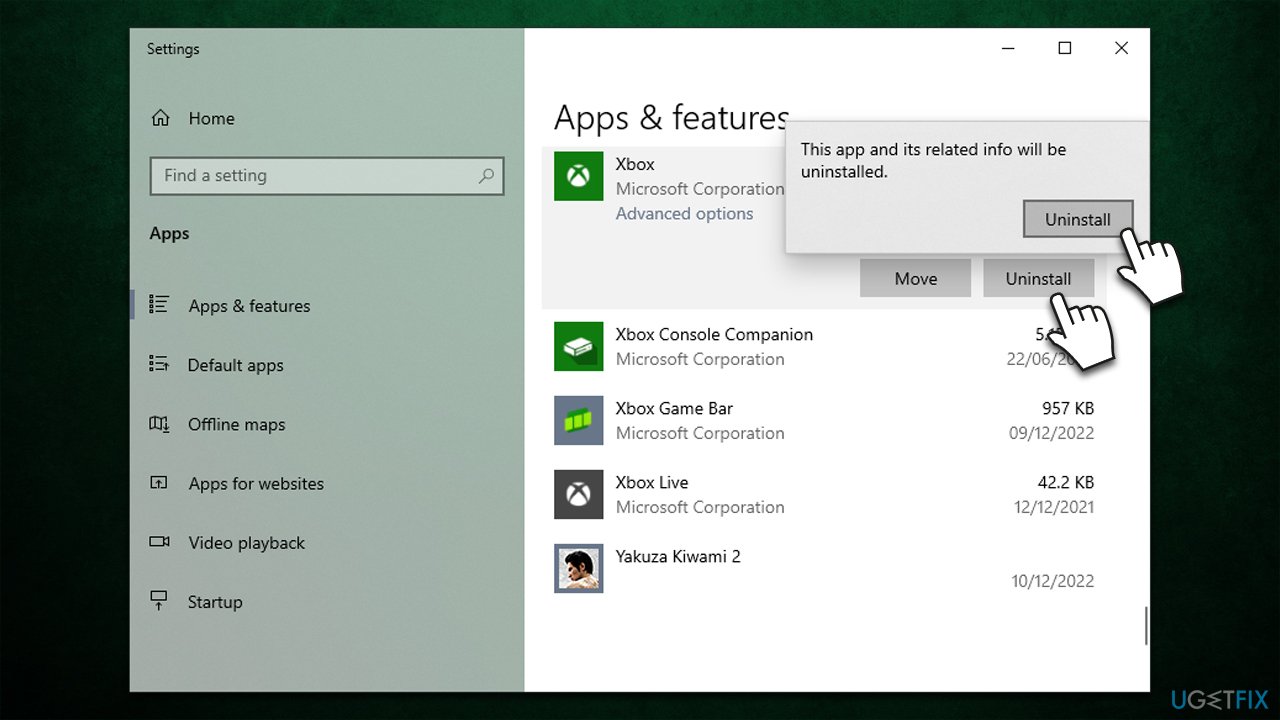
- Right-click on Start and pick Apps and Features
- Scroll down to find Xbox app
- Click Uninstall > Uninstall
- Proceed with on-screen instructions
- Restart your device
- Reinstall the app from Microsoft Store.
Related articles:
Bottom line
To fix the Xbox App error 0x87E00013, users can try restarting their devices, running a scan with a PC repair tool, and ensuring that all dependent services are running correctly. If these steps do not resolve the issue, further investigation into system and game file integrity may be necessary.
Frequently asked questions
This error typically indicates that the Xbox App is unable to connect to the Xbox Live service, often due to network issues or account problems.
To fix this error, try resetting the Xbox App through Settings > Apps > Apps & features, then select the Xbox App and click on 'Advanced options' to reset it.
Yes, ensure that your internet connection is stable and consider checking your firewall or antivirus settings to make sure they are not blocking the Xbox App.




Report an issue
What's wrong with this guide? We review every report and update or remove content.
Report received — thank you. We'll review and fix it.
You need a free account to submit a report.
Be the first to comment