How to fix
Zoom Error code:10002
on Windows
Resolve Zoom Error code: 10002 on Windows 10 and 11 effortlessly. Follow expert-tested solutions for a seamless video conferencing experience. Fixed in …

What causes How to fix Zoom Error code:10002 in Windows?
- Unstable internet connection
- Outdated software versions
- Firewall restrictions
- Corrupted files
- Compromised registry entries
Repairs Windows system files, removes malware, and restores a clean OS state — without reinstalling.
Hi, I keep getting Error code:10002 in Zoom. How can I fix this? I am running Windows 11 with all latest updates installed.
Zoom, a cloud-based video conferencing service, has revolutionized the way businesses, schools, and families communicate and share information. With its ease of use and robust features such as screen sharing, recording, chat, and much more, Zoom has quickly become an indispensable tool in today's digital landscape.
While the software largely enjoys a reputation for being user-friendly and reliable, it's not without its technical challenges. Some users, for instance, may experience an error code: 10002 when attempting to update the Zoom application on their Windows operating system.
The Zoom error code: 10002 typically arises when there's an issue during the app's update process. It is usually triggered by problems related to the network, such as unstable internet connections, outdated software versions that can't support the new update, or firewall restrictions that block the app from connecting to the Zoom update server.
Sometimes, it can also be symptomatic of more significant complications within your computer system. These may include corrupted files, compromised registry entries, or other system-level issues that obstruct the seamless operation of the update process.
These issues might seem formidable at first, but it's important to remember that they are, by and large, fixable. Some of the potential solutions include checking and stabilizing your internet connection, ensuring that your Zoom app is running on the latest version, temporarily disabling your firewall, or reinstalling the app altogether. Such troubleshooting steps can often help users resolve the issue effectively.
Detailed, step-by-step instructions on how to implement these strategies are available below this article. By following them, you can navigate through the troubleshooting process more effortlessly, saving valuable time and effort.
In conclusion, while it's true that technical issues like Error code: 10002 can temporarily disrupt the smooth operation of Zoom, they are generally solvable problems. It's also worth mentioning that using a PC repair tool like [d1] can prove beneficial.
Fix 1. Check internet connection
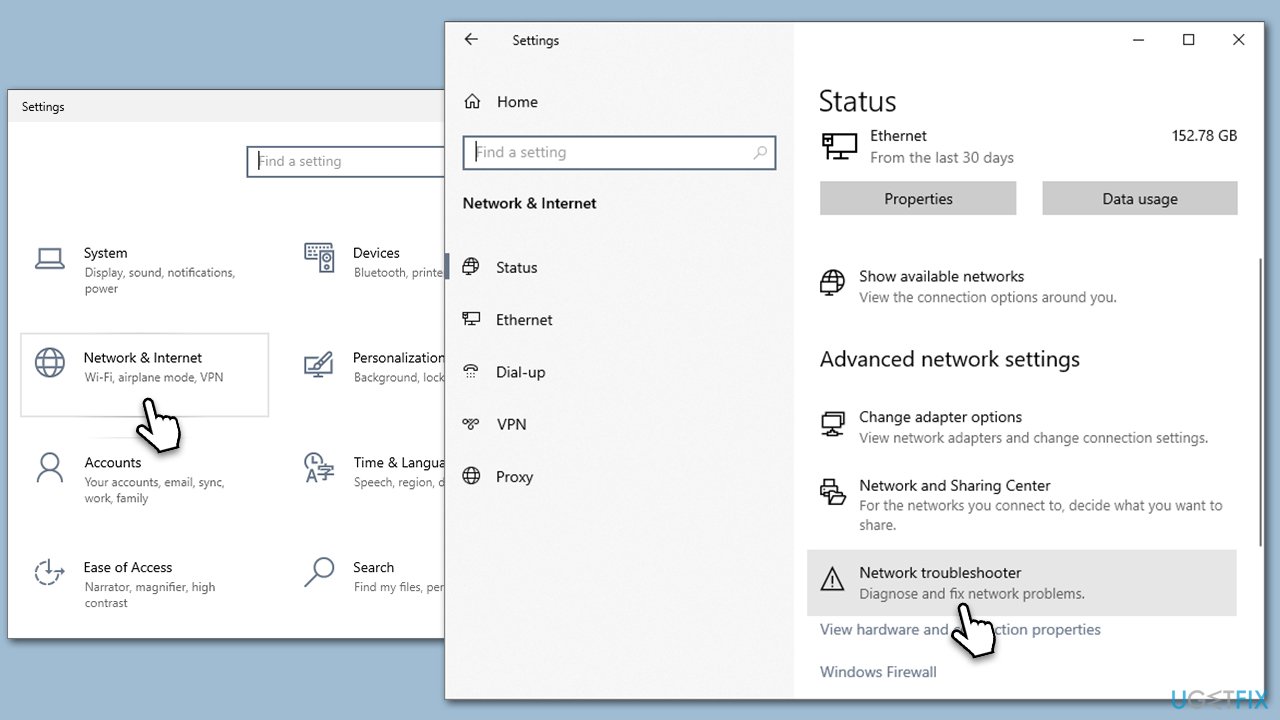
Your Zoom app needs a stable internet connection to connect to the update server. If your connection is unstable, it can disrupt the update process, causing the error code: 10002. Running a network troubleshooter might help.
- Right-click on Start and pick Settings.
- Go to Network & Internet section.
- On the right side, find the Advanced network settings section.
- Click Network troubleshooter and wait.
- The fixes should be automatically applied.
Fix 2. Update Zoom version manually
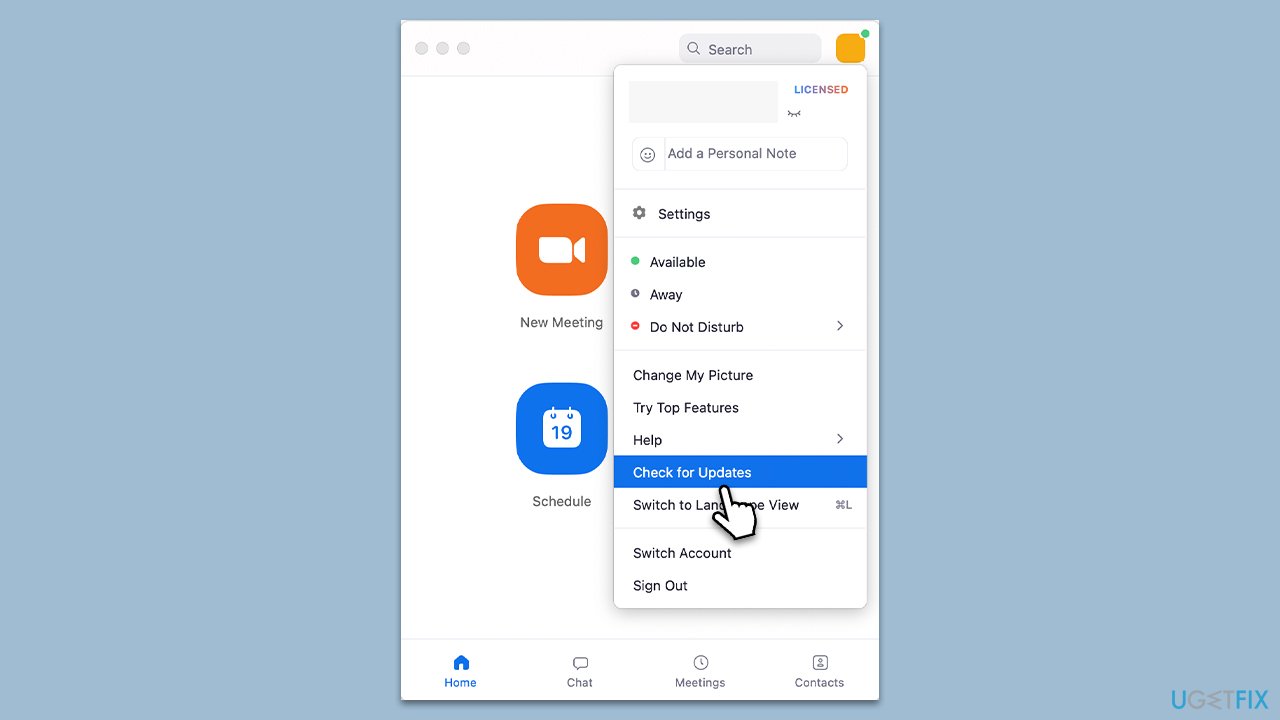
Sometimes, the Zoom app might fail to update itself automatically due to various reasons. Manually updating the app can help bypass these issues.
- Open the Zoom app and click on your profile picture in the top-right corner.
- From the dropdown menu, select "Check for updates."
- If an update is available, follow the prompts to install it.
Fix 3. Allow Zoom through Firewall
Sometimes, your computer's firewall settings might block Zoom's access to its update server, causing the error code: 10002. Adjusting your firewall settings to allow Zoom can potentially resolve this issue.
- Type Control Panel in Windows search and press Enter.
- Click on System and Security.
- Select Windows Defender Firewall.
- On the left-hand side, click on Allow an app or feature through Windows Defender Firewall.
- Click on Change settings.
- Scroll down the list to find Zoom on the list. If it is not present, click on Allow another app, locate it, and add it to the list.
- Ensure both Private and Public checkboxes are ticked
- Finally, click OK to save changes.
Remember to ensure that you have the necessary administrative privileges on your computer to change these settings.
Fix 4. Reinstall the app
At times, Error code: 10002 can be due to issues within the Zoom application itself, such as corrupted or outdated files. Reinstalling Zoom ensures that you're using the most recent version and can resolve the error by replacing any corrupted files in the process.
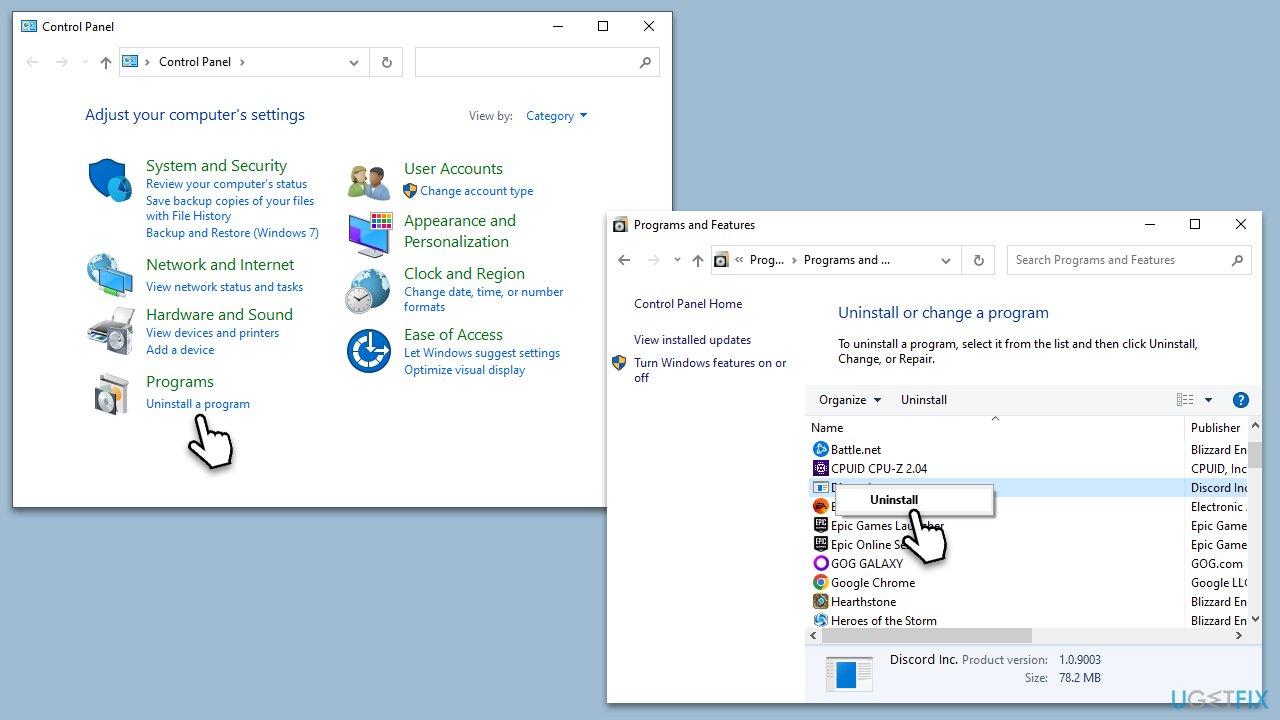
- Go to the Control Panel on your Windows device.
- Click on Uninstall a program under Programs.
- Scroll through the list to find Zoom, click it, then select Uninstall.
- Follow the prompts to uninstall the application.
- After uninstallation, restart your device.
- Go to the Zoom website to download the latest version of the application.
- Follow the prompts to install the new version of Zoom.
Other related articles that might be useful:
Bottom line
Error code: 10002 can disrupt the operation of Zoom but is generally fixable. Potential solutions include checking your internet connection, ensuring the Zoom app is updated, temporarily disabling your firewall, or reinstalling the app. If none of these solutions work, consider using a PC repair tool for further assistance.
Frequently asked questions
Zoom Error code: 10002 typically occurs due to network connectivity issues or firewall settings blocking the app. Ensuring a stable internet connection and checking your firewall settings can help resolve the issue.
To troubleshoot this error on Windows 11, start by restarting your computer and checking your network settings. If the problem persists, try reinstalling the Zoom application.
Yes, you can fix the error by clearing the Zoom cache and ensuring that your Windows 10 firewall allows Zoom to access the internet. This can often resolve the issue without the need for a full reinstallation.




Report an issue
What's wrong with this guide? We review every report and update or remove content.
Report received — thank you. We'll review and fix it.
You need a free account to submit a report.
Be the first to comment