
How to reset Windows 10 to factory settings?
Prefer to fix it yourself? The manual steps follow.
3 methods in this guide
Hi, I am sure that my computer is full of suspicious third-party programs that I can't remember installing. It would take me a lot of time to uninstall each of them manually, so I was wondering maybe you can tell me how to reset my PC automatically? That would be great. In other words, I am looking for a quick way to restore my Windows 10 to factory settings!
Factory reset is a feature that can restore all the software on the machine to its original state before any modifications were made to the system. In the process, users lose all their personal files, installed applications, and settings. This option allows users to eliminate all unwanted applications, system errors, crashes, freezing, and similar issues caused by software conflict, corrupted drivers, etc.
Computer users often opt for Factory reset when they want to sell the device. Fortunately, performing such a task is not that complicated - you should check below on how to reset Windows 10 to factory settings. This allows users to manually reset the PC to factory settings, and return the OS to a brand-new state, just like the one they got when they first booted the PC.
There are two modes of Windows 10 factory reset available: one that allows you to keep all your files and deletes all the programs installed, and another one which resets everything and removes everything (apart from the pre-installed apps and system files) from the computer. We recommend the former if you want to reset the PC for the performance boost.
If you want to factory reset your Windows 10 computer because it was infected with malware or you think that someone modified computer settings without your knowledge, you do not necessarily need to reset your Windows 10 computer.
This program can not only detect hardware, security, and stability issues but also fix them in minutes. However, if you came here because you are disposed to reset Windows 10, follow the instructions provided below:
Method 1. Use the built-in Windows reset feature
This method was introduced when Windows 8 was launched, and it remains the most convenient way to reset Windows 10 to factory settings. Follow these steps:
- Right-click on the Start button and pick Settings
- Now, go to Update & Security and access Recovery panel.
- Here, you will notice Reset This PC section and a Get Started button. Click on it.
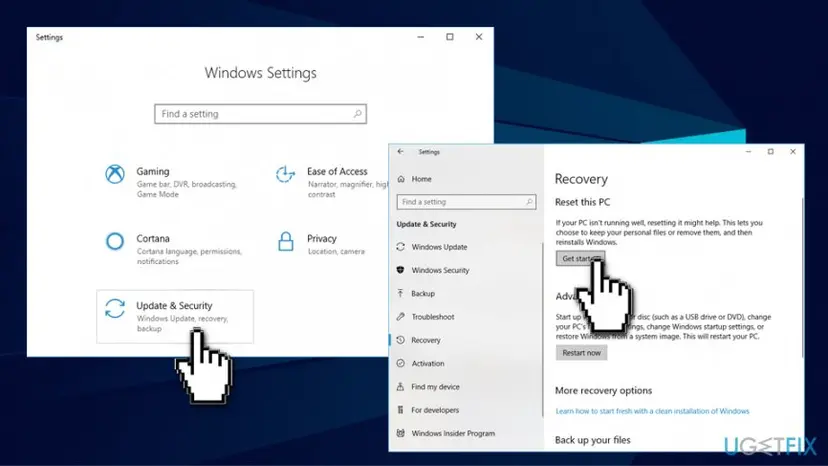
Reset windows 10 to factory settings use windows recovery - Now, you will encounter a short list of options: Keep my files, Remove everything, and Remove everything. Please remember that no matter which option you select, your apps will be eliminated and all changes in settings will be cleared. As a result, you will have to reinstall removed programs and configure system settings starting from scratch.
- If you choose the Remove everything option, we suggest saving needed information and files on a USB, CD, removable hard drive, or another data storage device beforehand, because this option just wipes out all components proving that you used the PC.
- After choosing this option, select one of the suggested options again - Remove my files and clean the drive (this deletes files and cleans the hard disk) or Just remove my files option (just deletes your files).
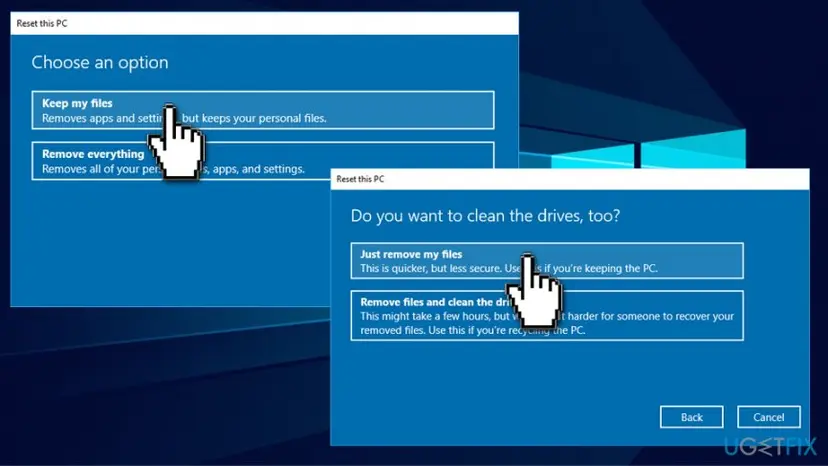
Reset windows 10 to factory settings choose keep files or remove everything - If you wish, read the particulars of the Windows 10 reset and start the procedure by clicking on the Reset button.
Method 2. Reset Windows 10 without logging in
If you cannot log into Windows, you can easily reset the operating system from Windows 10 Boot Options menu:
- Typically, Boot options menu will be provided to you after 2 or 3 unsuccessful attempts to boot the operating system. If this menu won’t appear automatically, hold down the Shift key, and at the same time do the following: click on Power button in the Windows login screen and choose Restart Option. Wait until computer reboots.
- Your PC will boot in Boot Options menu. Here, click on Troubleshoot option.
- Select Reset this PC.
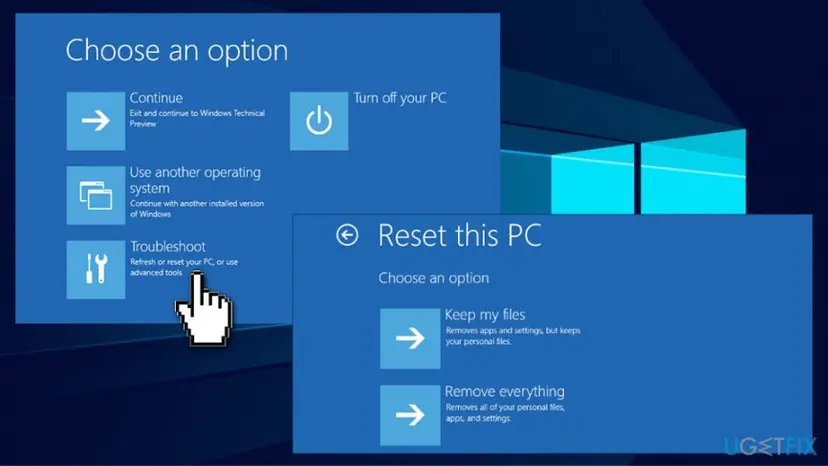
Reset windows 10 to factory settings if you cant boot into windows - Choose Keep my files or Remove everything option
- Wait until the full-reset is finished. Click on Continue to finish.
Method 3. Use Windows Fresh Start option
This feature was introduced in Windows 10 Creators Update. Fresh start is similar to the built-in reset, although it has quite few neat features that users might prefer more. First of all, Fresh Start always keeps your personal files and does not have the option to eliminate them. It also downloads the newest version of Windows into the C:\\Recovery folder. Due to this, all the problematic apps are removed, avoiding bloatware and other useless apps that interfere with normal operation of the device. Additionally, Fresh Start keeps some settings, although it is not specified which ones. Follow these steps to perform Fresh Start:
- Right-click on Start button and then go to Settings > Update & Security > Recovery.
- On the right pane, scroll down and you will see the Learn how to start fresh with a clean installation of Windows under More recovery options. Click it.
- This action will prompt Windows Defender to open.
- Click Get Started
- Few warnings will pop-up, click OK and Next
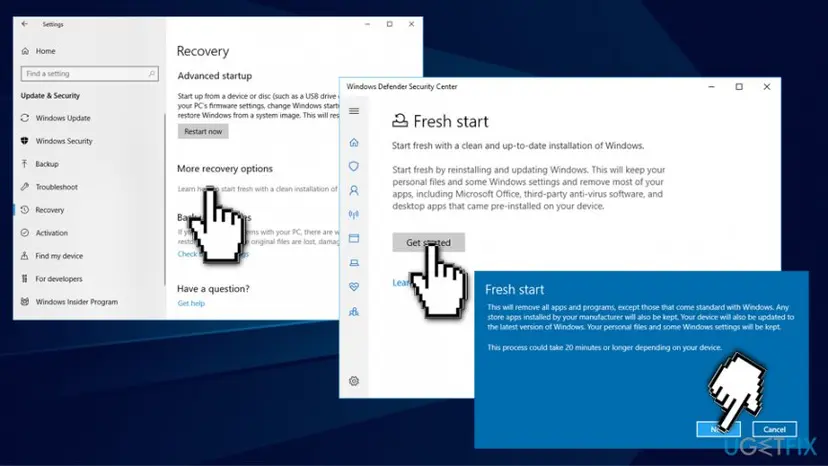
Reset windows 10 to factory settings use fresh start option - Wait for the process to finish
Did this fix work?
One click, no account. It tells the next reader which guides are worth their time.
Questions and experiences: reset Windows 10 to factory settings
Still broken, or found a fix we did not cover? Ask here: members and our editors answer. Reading is open; writing needs a free account.
…