How to fix
What is Taskeng.exe and how to remove it
on Windows
Discover what Taskeng.exe is and how to safely remove it from Windows 10 and 11, ensuring your system runs smoothly. Expert-tested solutions included.

What causes What is Taskeng.exe and how to remove it?
- Malware infection
- Registry corruption
- System file corruption
- Scheduled tasks misconfiguration
- Missing executable files
Repairs Windows system files, removes malware, and restores a clean OS state — without reinstalling.
Hello. From yesterday, I see a weird Taskeng.exe pop-up showing up randomly. It does not show anything inside - no text, commands, or explanations, it's just a blank, black pop-up window. Any idea what this is and should I be worried at all?
Windows operating system consists of thousands of components that make smooth operation possible. It includes system files, services, background processes, documents, archives, scheduled tasks, and much more. Each of them has particular names and, while some of them are very well known (e.g., svchost.exe), others can be a complete mystery to users.
Taskeng.exe black window popup is something that many users came across while performing daily tasks on their computers. Usually, the window is empty, although sometimes it might include a short message which claims that a particular executable could not be found. The issue can affect any version of Windows, including Windows 7, 8, 10, or 11, and has been around for several years now. So what is this file and why does it keep randomly popping up?
The answer to this question is not so straightforward. The original Taskeng.exe is known as a Task Scheduler Engine process - it is an integral part of any Windows operating system and is responsible for calling up certain programs, tasks, or scripts when they are necessary for the OS to run properly. The legitimate executable is always located in the Windows subfolder (System32).
Since the file is responsible for calls of other programs, it can be used by malware[ref en-2] for certain functionality, which would also explain the mysterious Taskeng.exe pop-up window. A virus could initiate certain background tasks through this process. Indeed, there were several instances of users finding out that the activity is related to a computer infection, so the first thing to do here is performing a full system scan with anti-malware software.
However, you should not immediately jump to a conclusion that your system is infected - there are plenty of other reasons why you might encounter this problem. For example, a simple registry or other system file corruption might cause this pop-up. Thus, there are several ways to fix it, and we provide all of them below.
Method 1. Scan your computer for malware
As previously mentioned, users managed to fix the Taskeng.exe error after performing a full system scan with anti-malware. Various potentially unwanted programs, such as Rocket Tab or MyWebSearch, are known to be the culprits. You can use any reputable third-party security application, although if you have none available it is not a big problem - simply employ Windows' built-in Defender.
- Type Windows Security in Windows search and press Enter
- Select Virus & threat protection and pick Scan options
- Choose Microsoft Defender Offline scan and click Scan now
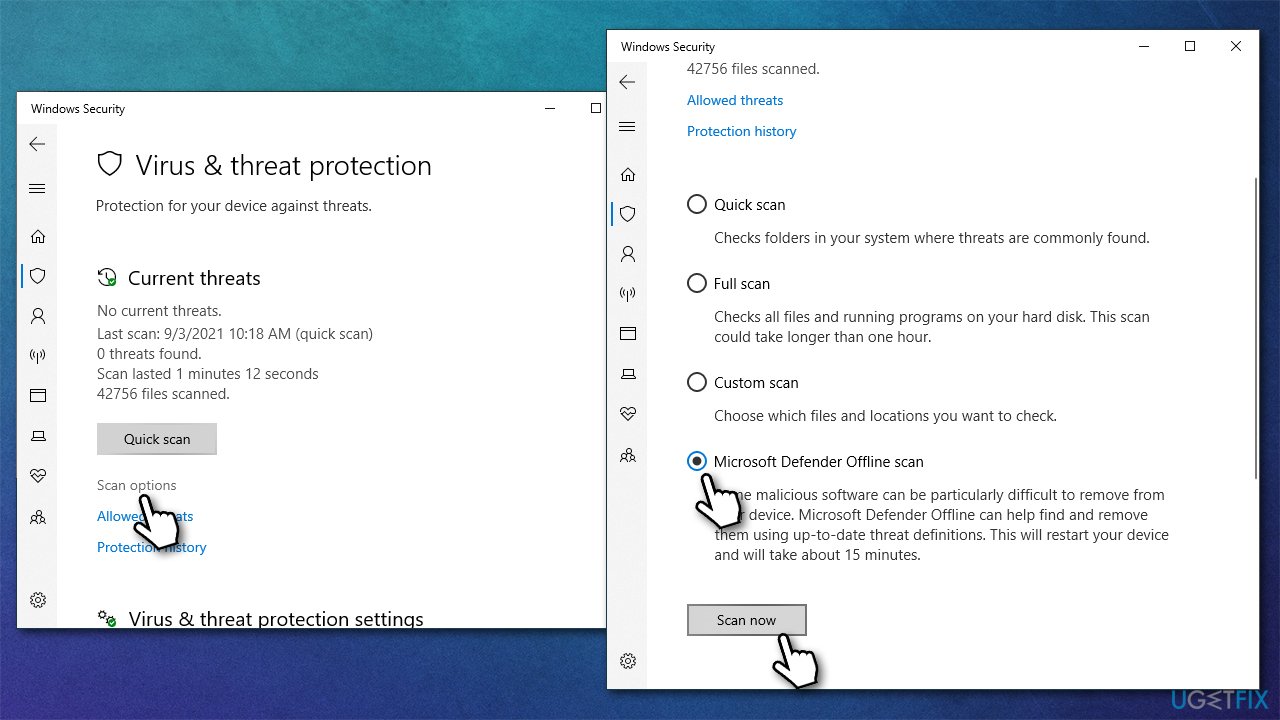
What is taskeng exe and how to remove it scan with anti malware - Your computer will immediately restart and the deep scan begin.
After you complete the scan and remove all the malware-related components, you might start experiencing strange Windows behavior - lag,[ref en-3] crashes, inability to launch certain apps, BSODs,[ref en-1] etc. This is one of the most common problems that users come across after malware removal, as it might corrupt certain Windows components. You can reinstall Windows if the situation is dire, although first recommend trying [d1] repair and maintenance utility in this situation, as it can easily fix most of the damage caused by a virus.
Method 2. Run SFC and DISM scans
System file corruption can be fixed by using commands via an elevated Command Prompt.
- Type in cmd in Windows search box
- Right-click on Command Prompt result and pick Run as administrator
- User Account Control (UAC) should show up - click Yes
- Paste in the following commands, pressing Enter after each (make sure each of them is executed before starting the next one):
sfc /scannow
DISM /Online /Cleanup-Image /CheckHealth
DISM /Online /Cleanup-Image /ScanHealth
DISM /Online /Cleanup-Image /RestoreHealth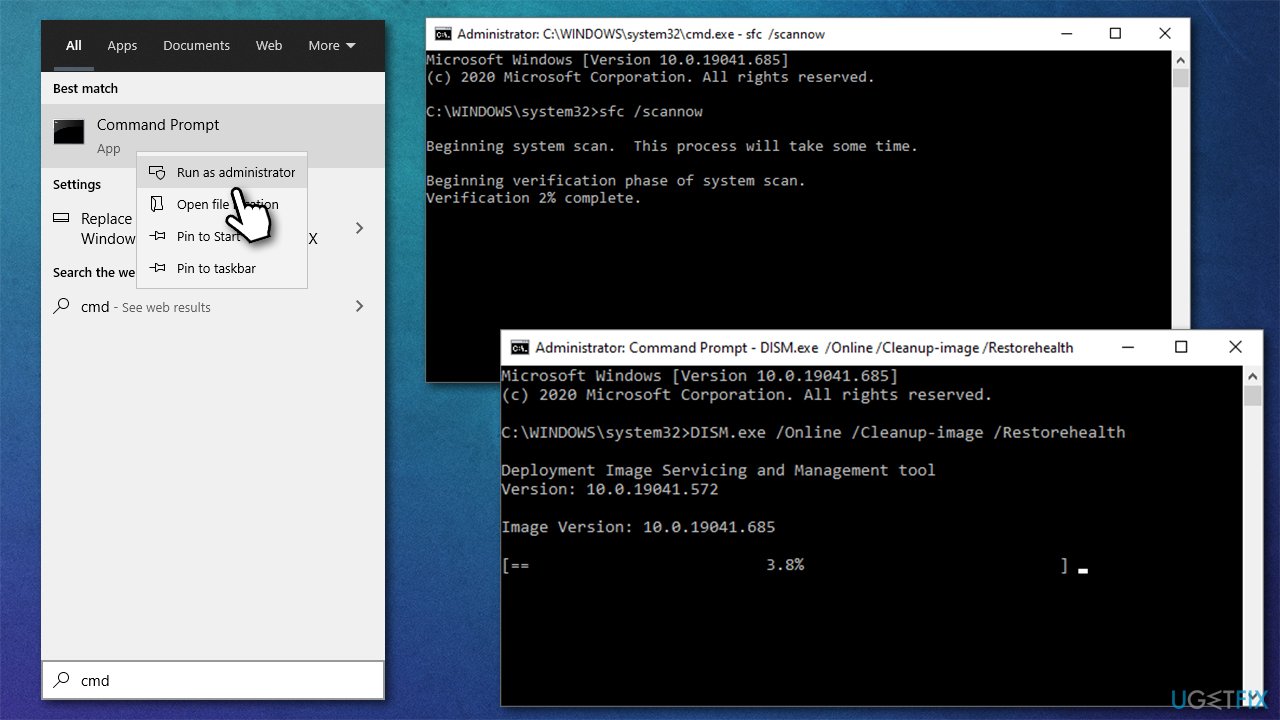
What is taskeng exe and how to remove it run sfc dism - Once done, restart your computer.
Method 3. Use Autoruns to remove unwanted tasks
You might try disabling the tasks manually.
- Download Autoruns for Windows from the official website
- Go to the Downloads folder or anywhere else your files are directed to be placed
- Right-click on the ZIP file and select Extract to Autoruns and enter the folder once done
- Select the right version: Autoruns.exe if you are using 32-bit Windows or go for Autoruns64.exe if you are using 64-bit Windows
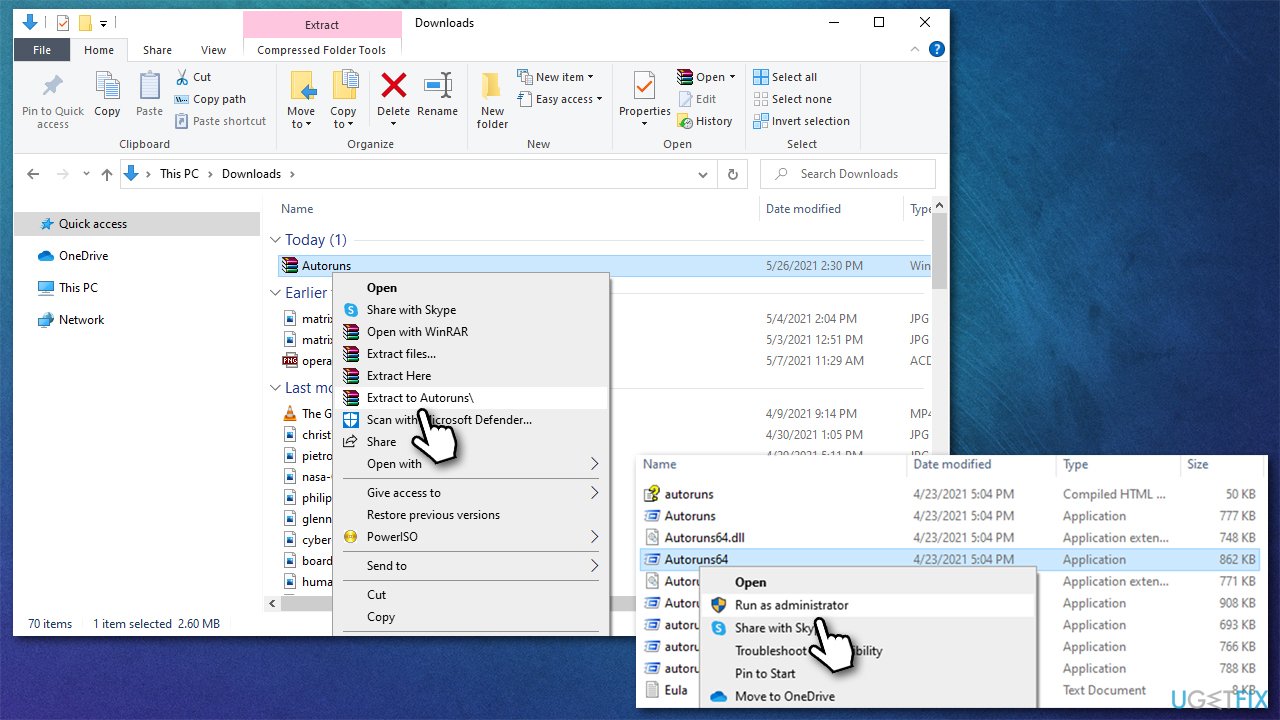
What is taskeng exe and how to remove it extract autoruns - Right-click on the correct EXE file and select Run as administrator
- In the UAC window, click Yes
- Go to the Scheduled tasks section
- Uncheck tasks that could be causing the problem, e.g., MS Office tasks.
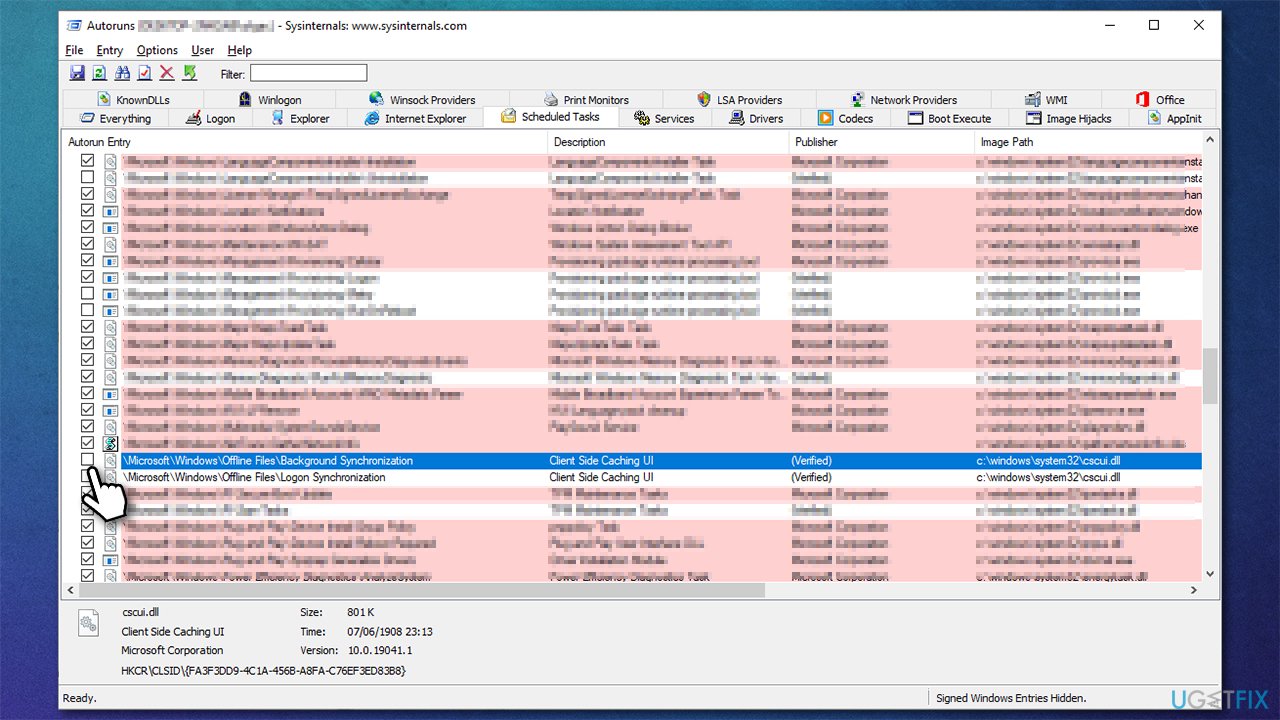
What is taskeng exe and how to remove it remove scheduled tasks
Method 4. Disable the hidden User_Feed Synchronization task
You can remove the Taskeng.exe pop-up by disabling a related task in the Task Scheduler.
- Type Scheduler into Windows search box and hit Enter
- Click the Task Scheduler Library once
- In the middle pane, select User_Feed Synchronization
- In the pane below it, select History
- If the history log is empty, you don't need to do anything - check out other methods
- If you see a list of errors, you should disable the task. To do that make sure User_Feed Synchronization is selected and then click Disable in the right pane.
Note: If you can't see the task, you should right-click on the Task Scheduler Library on the left pane and go to View, ticking the Show Hidden Tasks option.
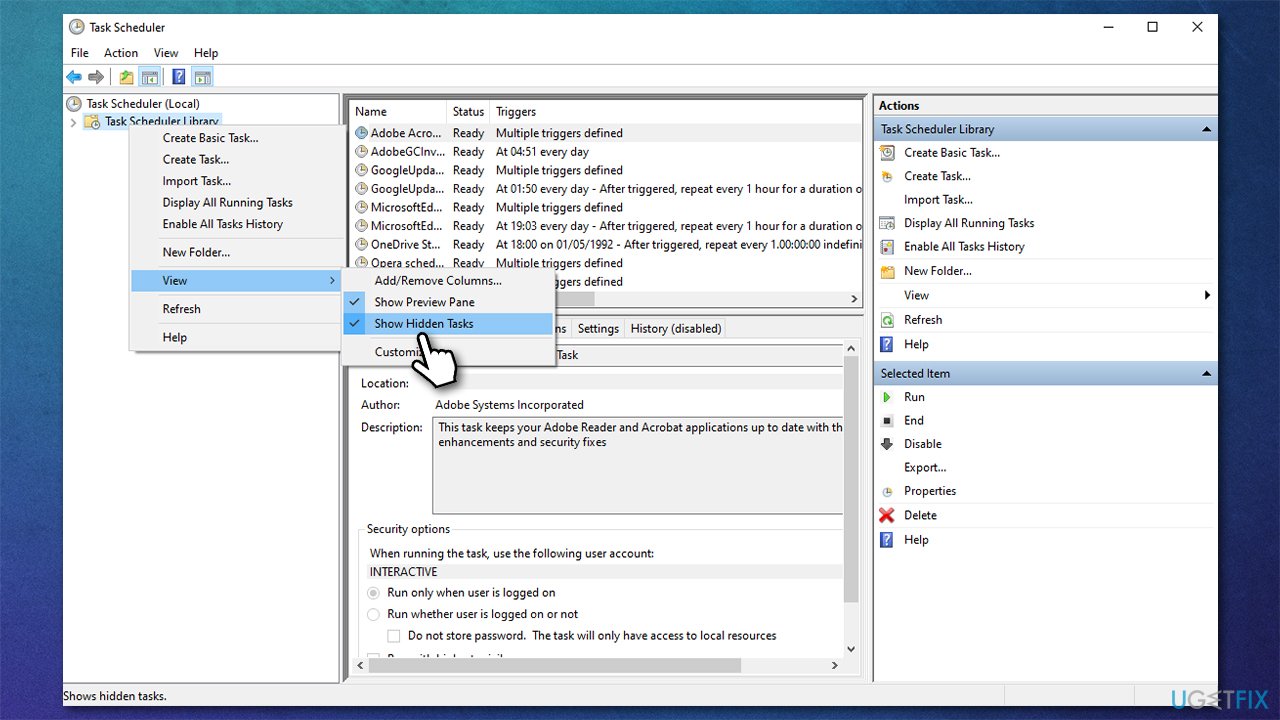
Method 5. Disable Office-related tasks
It turned out that some of the Microsoft Office apps can cause the problem. So, if you are using the suite, make sure you try this workaround:
- Type Scheduler into Windows search box and hit Enter
- Click on Task Scheduler Library once and go to Microsoft > Office
- Select the OfficeBackgroundTaskHandlerRegistration entry by clicking on it once
- On the right side of the window, click Disable
- Next, select OfficeBackgroundTaskHandlerLogon and click Disable.
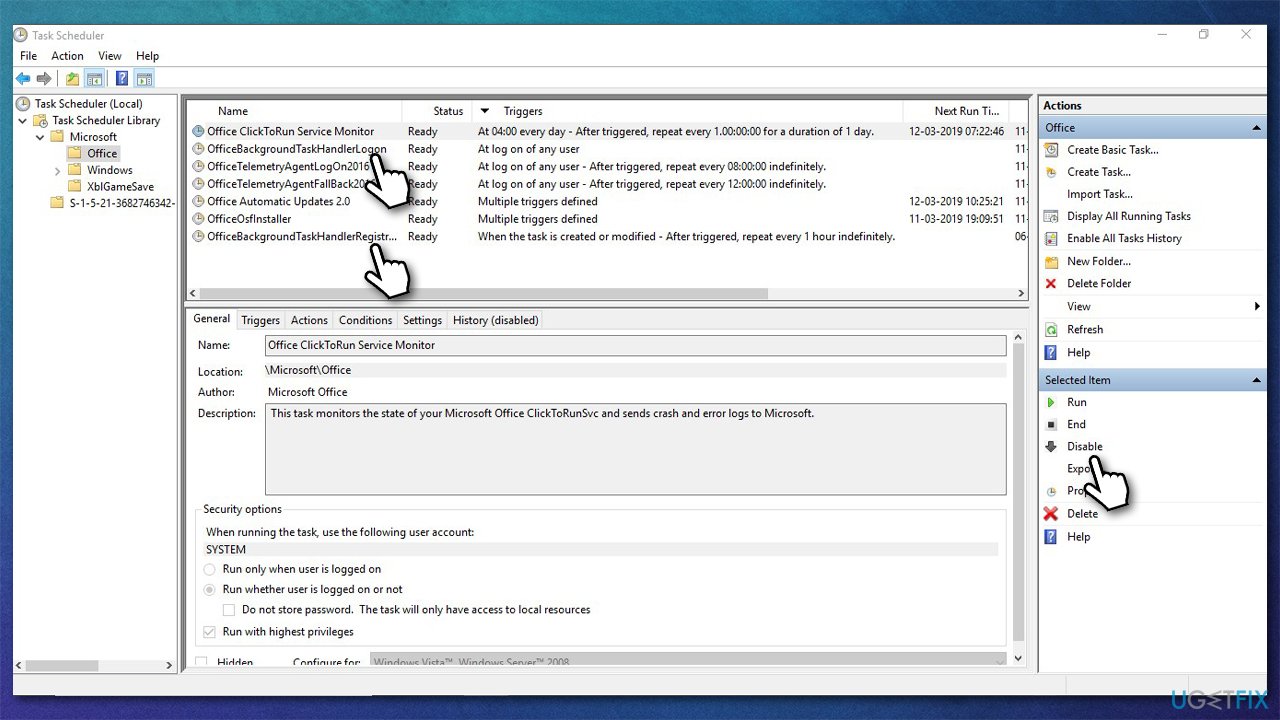
What is taskeng exe and how to remove it disable office tasks
Bottom line
To address the Taskeng.exe pop-up, perform a full system scan with anti-malware software, check for registry issues, and ensure all necessary system files are intact. If these solutions do not resolve the issue, further investigation into scheduled tasks and system settings may be required.
Frequently asked questions
Taskeng.exe, or Task Scheduler Engine, is a Windows component that manages scheduled tasks for running programs or scripts automatically. It helps automate maintenance and other repetitive tasks in the operating system.
It is not recommended to remove Taskeng.exe as it is a crucial system file; instead, you can disable specific tasks through the Task Scheduler if they are causing issues. If you suspect malware, run a thorough scan using Windows Defender or a reputable antivirus.
If Taskeng.exe is using excessive CPU, check the Task Scheduler for any problematic tasks and disable or modify them accordingly. Additionally, ensure your system is free of malware that could be affecting its performance.




Report an issue
What's wrong with this guide? We review every report and update or remove content.
Report received — thank you. We'll review and fix it.
You need a free account to submit a report.
Be the first to comment