How to fix
A total guide to speeding up computer performance
on Windows
Unlock your PC's full potential with expert tips to optimize Windows 10 or Windows 11 performance. Boost speed and efficiency today—fixed in minutes!

Why does A total guide to speeding up computer performance occur?
- Various caches
- Temporary files
- Unused registries
- Software incompatibility issues
- Corrupted drivers
- Failing hardware
Repairs Windows system files, removes malware, and restores a clean OS state — without reinstalling.
I'm using my computer for about a year and assume that it's still quite new - or at least it should be. However, I'm having various issues with it, such as crashes and random slowdowns. Any advice you could give me to address my PC performance issues?
Once you purchase a new PC, it comes either completely empty or pre-installed with Windows operating system (usually, home edition). While the latter does not have to be upgraded necessarily, operating a computer without an operating system is simply impossible. As soon as you install Windows 10 or another version of the OS, you will start filling your machine with applications and files, each of which will change the configuration profile.
Over time, various caches, temp files, unused registries, and other unneeded components pile up on your PC, slowing it down significantly. Therefore, maintenance is extremely important for speeding up computer performance, although it is also important to note such critical events like malware infections may impact your machine negatively by a significant margin.
In some cases, even new computers may start lagging, crashing, and suffer from other issues. In these cases, the most likely culprits are software incompatibility issues, corrupted drivers, or even failing hardware. In this article, we will explain how to keep your PC optimized and increase its performance - regardless of its age.
Step 1. Clean your computer from junk
Start PC optimization from getting rid of cleaning your computer from various temporary files, such as unused installers, offline webpage data, etc. If not cleaned on time, these can pile up and reduce the amount of space on your hard drive. Therefore, it is necessary to clean your disk from time to time - here's how to do it:
- Type Disk Cleanup into Windows Search and hit Enter
- Once the new pop-up opens, you can select what you want to be cleaned
- Practice caution with options like Downloads, as it may include files you want to keep. If in doubt, select View Files option and check whether you want to keep something
- After you select appropriate categories, click on Clean up system files
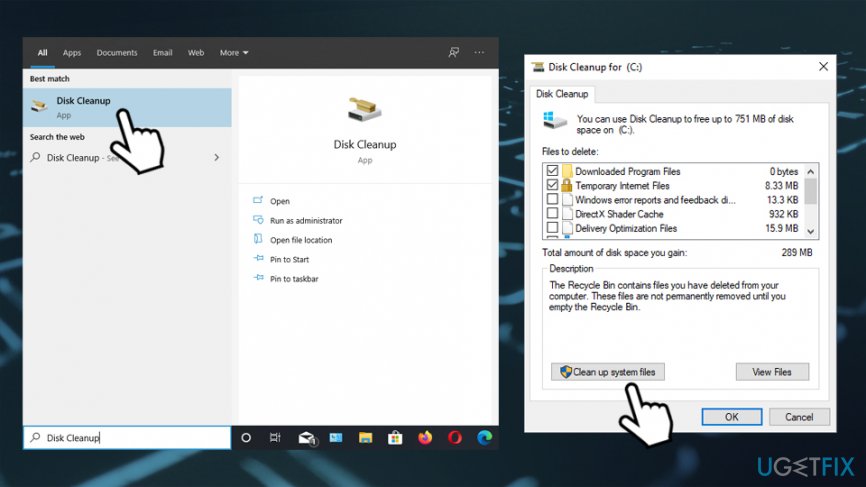
Guide to speeding up computer performance use disk cleanup
There is another option to clean your temporary files to speed up PC performance:
- Type in Delete temporary files into Windows search and hit Enter
- In the new window, you can manage large folders, pictures and other files
- Access Temporary files
- In addition to features Disk Cleanup has, you can delete the unused copies of Windows updates - these can take many gigabytes of space. Besides, you can get rid of unused Windows Defender files, DirecX cache, and other files
- Select appropriate options and click Remove files
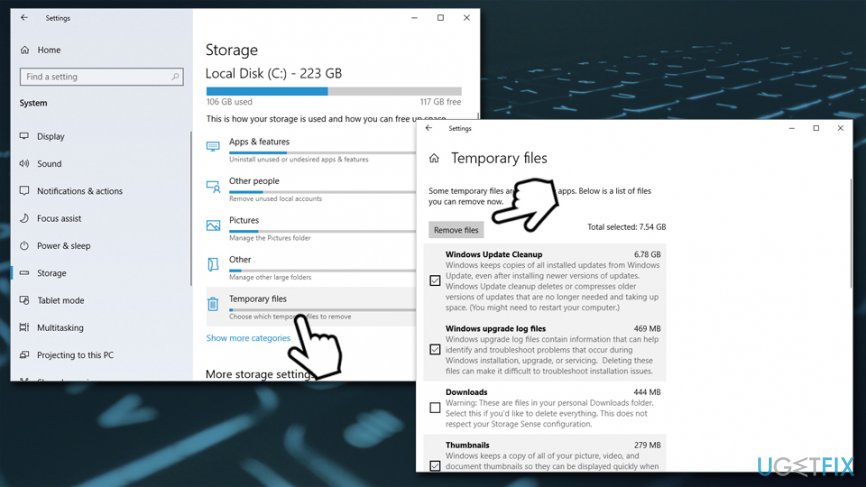
Guide to speeding up computer performance clean temporary files
Step 2. Get rid of unwanted programs
Find and remove applications that haven't been used for a long time, as some apps tend to run in the background and hog up your CPU[ref en-2] and disk space. Besides, some users may be suffering from an excessive number of potentially unwanted programs that do nothing useful but flood browsers with ads and even exposure to dangerous sites:
- Type Control Panel into Windows search bar and press Enter
- Go to Programs > Uninstall a program
- Right-click on a useless app and pick Uninstall
Step 3. Update Windows
Not only Windows updates are important to keep the operating system at its peak performance, remove bugs[ref en-3] and increase stability, but they are also extremely important for security. If the system is not patched, it might be suffering from critical vulnerabilities[ref en-4] that can be used by hackers to implant malware without user interaction. Therefore, ensure that Windows is updated at all times:
- Right-click on Start and select Settings
- Go to Update & Security
- On the right, click on Check for updates
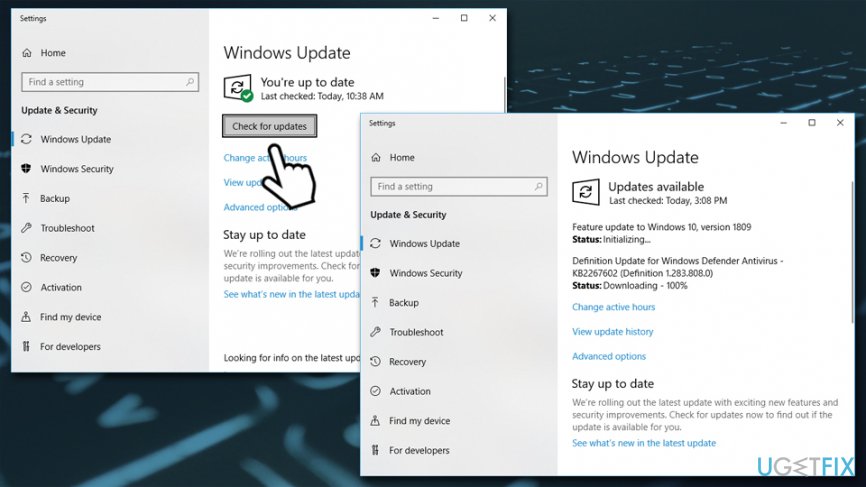
Guide to speeding up computer performance update windows - Wait till Windows downloads and installs updates
- Reboot your computer
Step 4. Disable auto-start for some apps
There are many applications that establish themselves to be launched every time the OS is booted. While this functionality is useful for some Windows components (for example, OneDrive service might be necessary to keep syncing features enabled), many apps just launch to sit in the background without being used, gobbling up tons of resources that could be used to speed up your computer performance instead.
Therefore, you should check the Windows startup and disable automatic launch for apps that you rarely use:
- Press Ctrl + Shift + Esc on your keyboard
- Once the Task Manager opens, select Startup tab at the top
- You should check the Startup impact column - apps that are ranked as "High" should be taken care of (if you don't really need them that is)
- Select the app, and then click on Disable at the bottom-right of the window
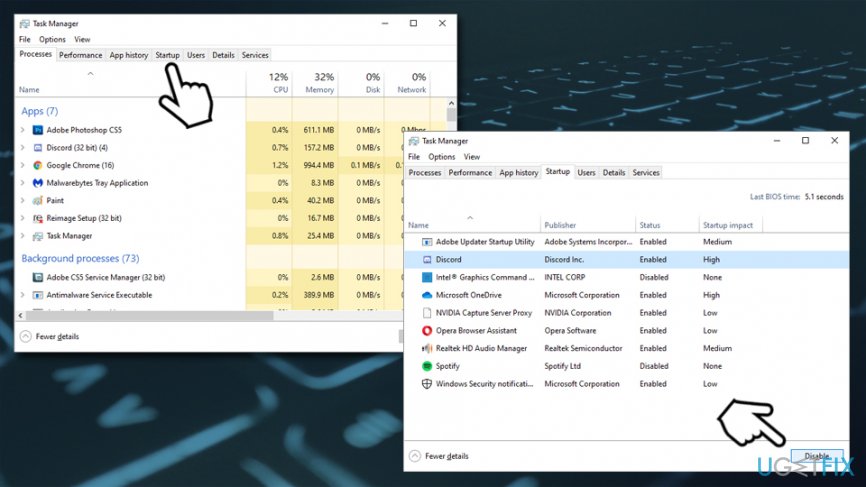
Guide to speeding up computer performance disable startup programs
Step 5. Check your computer for malware
There are no doubts that malicious programs take up resources of your computer while running in the background of the system. Figuring out which processes, services, and files belong to malware is practically impossible, so this task should be performed by anti-malware software that can quickly and efficiently detect and eliminate malware from the system.
There are plenty of paid and free options available from third-parties, although performing a scan with a built-in Windows Defender (Microsoft Defender) should be sufficient - Microsoft security shows great results when compared to other AV vendors (e.g., it is rated as "Top Product" by IT Security lab AV-Test):[ref en-1]
- Type in Security into Windows search and pick Windows Security
- Choose Virus & Threat protection
- Go to Scan options
- Select Full scan and then click Scan now
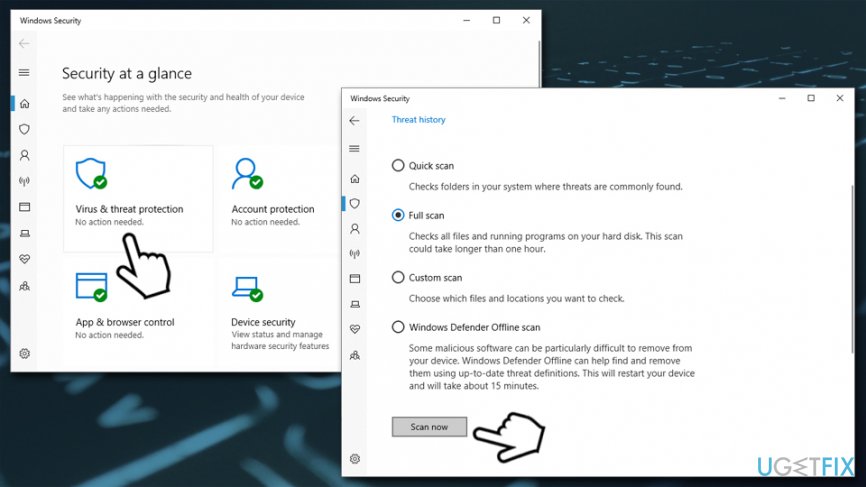
Guide to speeding up computer performance scan computer for malware
Step 6. Repair registry errors
Repairing Windows registry[ref en-5] errors is not that simple of a task as it might look at first. Although it can be initiated manually, manual registry error fix poses a high risk of damaging important programs. In order to fix Registry errors manually, you should detect what kind of program causes errors and access Windows Registry Editor:
- Press Win + R on your keyboard
- Type in regedit and press Enter
- If User Account Control prompt shows up, select Yes
If you know which app is causing issues, you can search for its registry entries manually:
- In the Registry Editor, press Edit
- Pick Find Next
- Enter the name or part of the name of the app in question and click Find Next
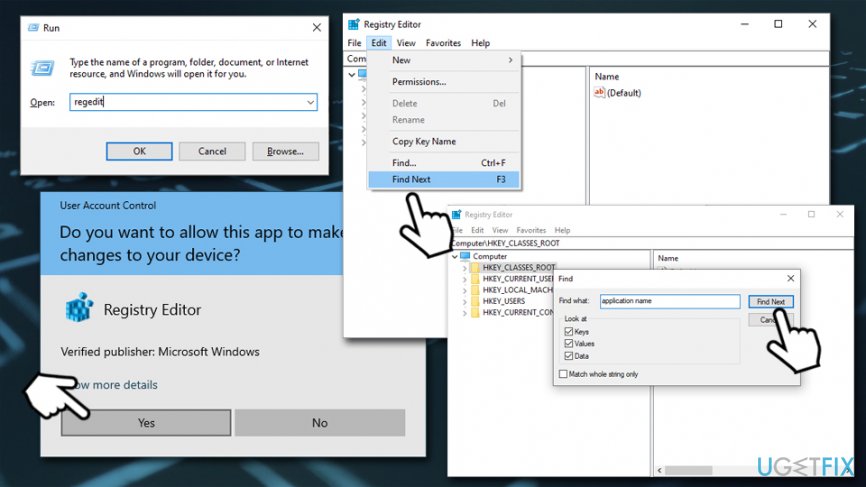
Guide to speeding up computer performance clean windows registry
However, deleting wrong registries can severely damage your computer performance instead of increasing it. Therefore, we highly advise you employ automated tools like [d1] - it can find and remove corrupted registries as well as fix other computer issues automatically.
Step 7. Defragment hard drive
This process is extremely significant if you want to maintain fast PC performance. When you save, change or delete files on your machine, both files and the volume itself become fragmented, resulting in computer slowdowns. According to specialists, heavy computer users should defragment their hard drives weekly, while light users should do it monthly. (Note that only hard drives can be defragmented, as Solid State Drives use a different technology to store data)
- Type in Defrag into Windows search box and hit Enter
- In the newly-opened window, click Optimize (admin)
- Also, you can set the Scheduled optimization setting to ON for automatic scans in the future
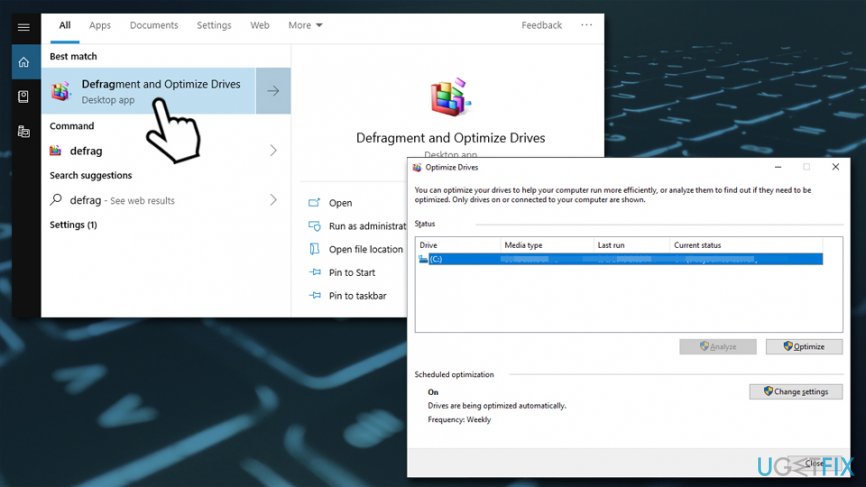
Guide to speeding up computer performance defrag drives
Step 8. Change Power settings to optimize speed
- Type in Control Panel into Windows search and press Enter
- Select System and Security > Power Options
- Select High Performance option
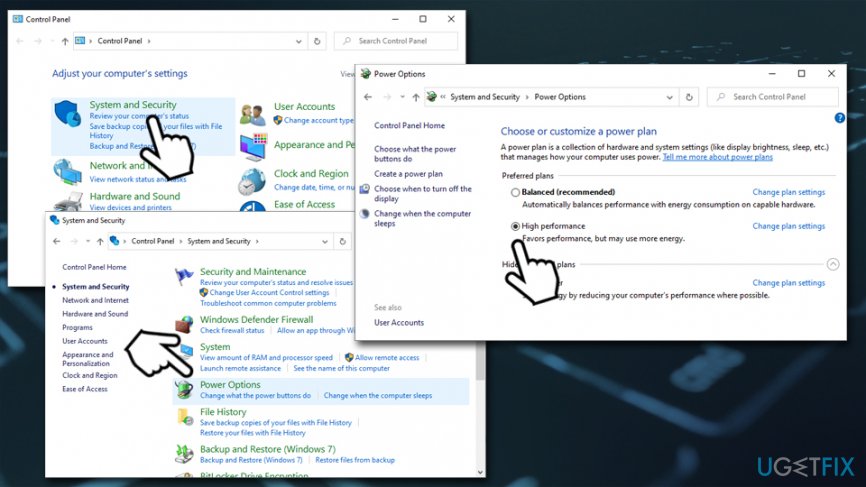
Guide to speeding up computer performance cofigure performace options
And remember, each computer is different. Thus, speeding up computer performance is an individual experience, and some tips listed above might not help comprehensively. Nevertheless, we do hope that we helped you to keep your PC in the best state. If you want to optimize your PC for gaming, check out the following article.
Bottom line
To speed up your computer performance, start by cleaning your system of junk files using Disk Cleanup. Regular maintenance and monitoring for malware infections are also crucial. If these steps do not resolve the issues, consider checking for hardware problems or seeking professional help.
Frequently asked questions
You can disable visual effects, adjust power settings to 'High performance', and manage startup programs through the Task Manager to enhance performance.
Utilizing the built-in Disk Cleanup tool, removing unnecessary files, and enabling Storage Sense can significantly free up space and speed up your computer.
Yes, increasing your RAM can lead to noticeable improvements in multitasking and overall system responsiveness, especially if you frequently run demanding applications.




Report an issue
What's wrong with this guide? We review every report and update or remove content.
Report received — thank you. We'll review and fix it.
You need a free account to submit a report.
Be the first to comment