How to fix
Change desktop icon spacing
on Windows
Easily customize your desktop icon spacing in Windows 10 and Windows 11 for a cleaner look. Expert-tested solutions to optimize your workspace!

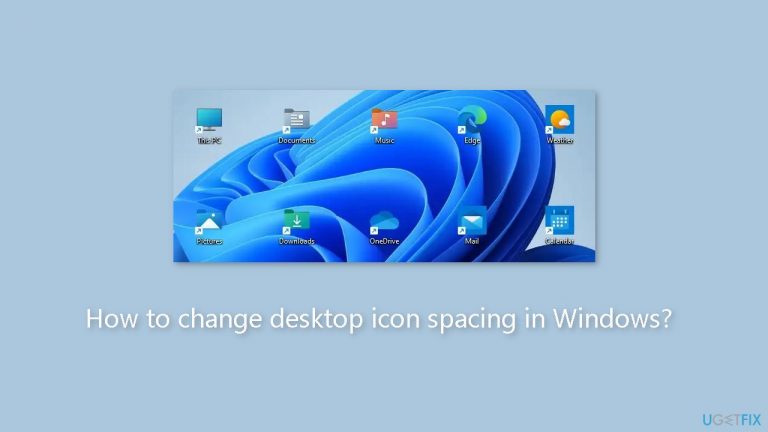
Why does How to change desktop icon spacing in Windows occur?
- Visual impairments making it difficult to distinguish between closely spaced icons
- Preference for a more organized and less cluttered desktop
- Desire to fit more icons on high-resolution monitors
- Default icon spacing being too close or too far apart
- Need for customization to suit individual user needs
Repairs Windows system files, removes malware, and restores a clean OS state — without reinstalling.
Hello. I was wondering if it is possible to change the spacing between icons in Windows. Any tips would be appreciated.
The amount of space between icons on your desktop is referred to as desktop icon spacing. Windows' default spacing is set to a specific value, but some users may find it too close or too far apart. Fortunately, you can customize the desktop icon spacing in Windows to suit your needs.
A user may want to change the icon spacing on their desktop for a variety of reasons. Some users may have visual impairments that make distinguishing between icons that are too close together difficult. Others may prefer a more organized and less cluttered desktop, which can be achieved by increasing the icon spacing. Users with high-resolution monitors may also want to reduce the icon spacing to fit more icons on their screen.
Users must access the Registry Editor and modify specific registry keys to change the desktop icon spacing on Windows. This process can be confusing for users who are unfamiliar with the Windows operating system, and it is critical to carefully follow the instructions to avoid causing any damage to the system.
There are several options for changing the desktop icon spacing in Windows. Some third-party tools and software can be used to change the icon spacing without having to manually edit the registry. However, when using third-party software, users should exercise caution because it may contain malware or viruses that can harm their system.
This guide will show you how to use the registry to change the spacing between icons. Keep in mind that the registry contains critical system information that, if altered incorrectly, can cause serious problems. Changing or deleting the incorrect registry values or keys can cause the system to become unstable, crash, or even fail to boot.
Therefore, it is essential to back up the registry before making any modifications. You can do that easily by following our How to back up and restore the Windows registry? guide.
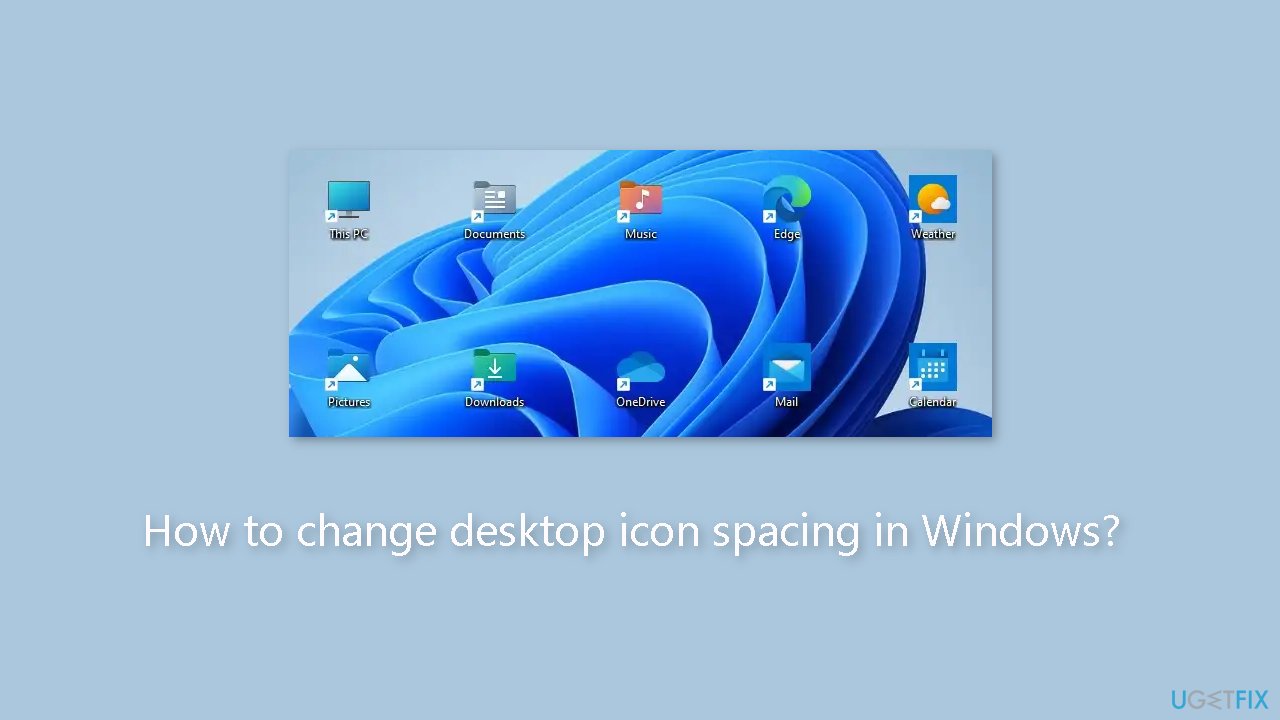
Use the Windows Registry
- Right-click the Start button on the taskbar.
- Select the Run shortcut from the pop-up menu.
- In the Run dialog box, type regedit and click OK.
- In the Registry Editor window, go to the following registry key:
Computer\HKEY_CURRENT_USER\Control Panel\Desktop\WindowMetrics
- You can copy and paste that registry location in the address bar or click the keys for it on the left sidebar.
- Select the WindowMetrics key.
- Double-click the IconSpacing string. This will bring up the Edit String window.
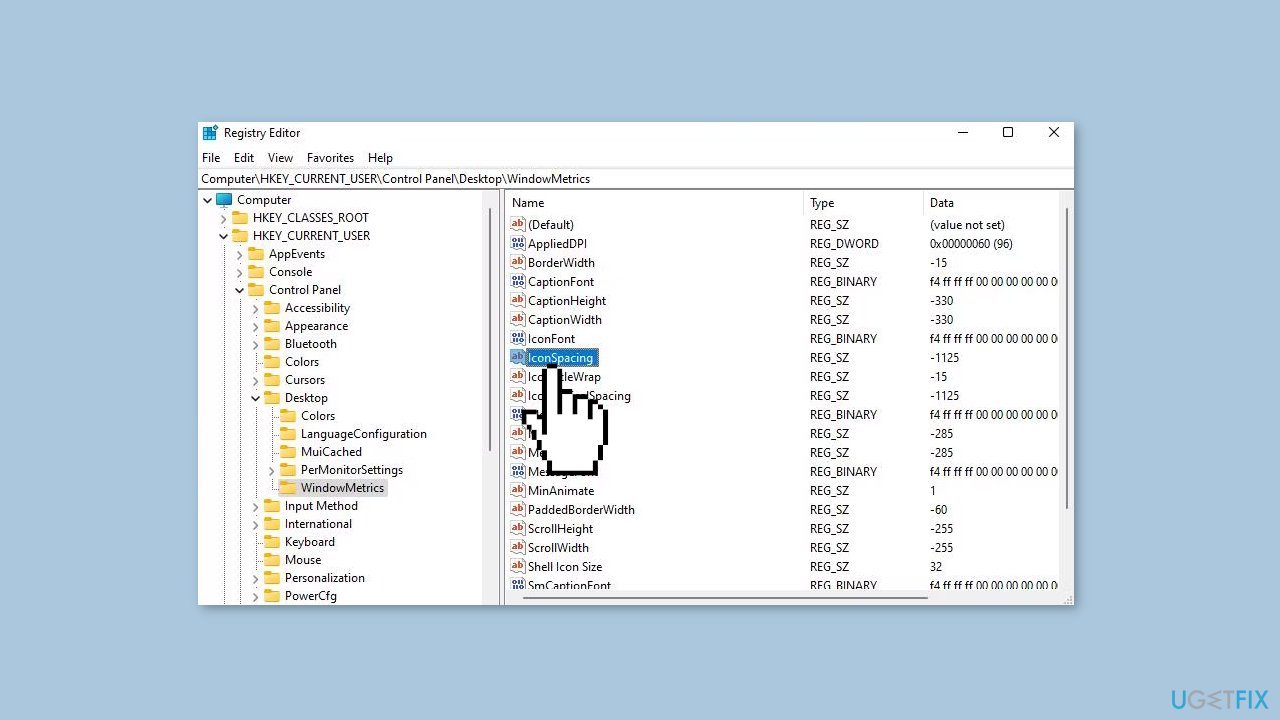
- Delete the current value (-1125) from the Value data box.
- Enter a new value for horizontal icon spacing with a minus (-) sign in front of it. For example, entering -1180 will slightly increase the horizontal spacing.
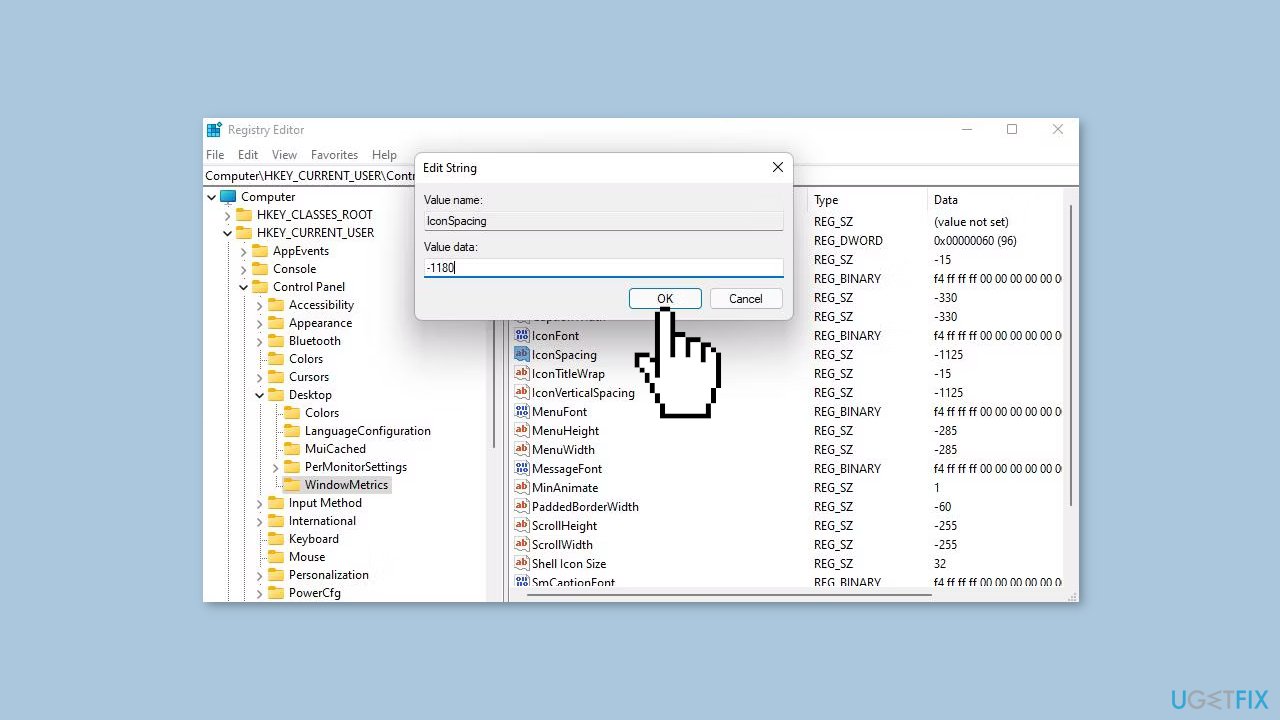
- Click the OK button to close the Edit String window.
- Double-click the IconVerticalSpacing string. This will bring up the Edit String window.
- Delete the current value from the Value data box.
- Enter a new value for vertical icon spacing with a minus sign in front of it. If you want the vertical spacing to be the same as the horizontal, enter a number there that matches the IconSpacing value.
- Click the OK button to close the Edit String window.
- Exit the Registry Editor.
- Restart your computer to apply the changes.
- After the restart, the icon spacing on your desktop will have changed according to the new IconString and IconVerticalSpacing values you entered.
Restore Default Spacing
- If you want to restore the default desktop icon spacing, return to the WindowMetric registry key and enter -1125 for both the IconString and IconVerticalSpacing string values.
- Restart your computer again to restore the default spacing.
Bottom line
To change desktop icon spacing in Windows, users can modify specific registry keys or utilize third-party tools. It is crucial to back up the registry before making any changes to avoid system instability. If these methods do not work, consider seeking additional support or exploring other customization options.
Frequently asked questions
To change the desktop icon spacing in Windows 10, right-click on the desktop, select 'Display settings', then scroll down to 'Advanced scaling settings' and adjust the size of text, apps, and other items.
Yes, in Windows 11, you can adjust icon spacing by right-clicking on the desktop, selecting 'Display settings', and using the 'Scale' option to modify the spacing indirectly.
The default icon spacing in Windows is set by the system, but you can customize it by adjusting the display settings or using third-party tools for more precise control.




Report an issue
What's wrong with this guide? We review every report and update or remove content.
Report received — thank you. We'll review and fix it.
You need a free account to submit a report.
Be the first to comment