How to fix
Change Taskbar position
on Windows
Easily reposition your Taskbar in Windows 10 or 11 for a customized experience. Quick adjustments with expert-tested tips for optimal performance.

Why does How to change Taskbar position in Windows occur?
- Personal preference
- User comfort
- Better use of vertical space on widescreen monitors
- Aesthetic reasons
- Desire for a symmetrical layout
Repairs Windows system files, removes malware, and restores a clean OS state — without reinstalling.
Hello. I was wondering how to move the taskbar to a different place in Windows. Any tips would be appreciated.
For many users, changing the position of the taskbar in Windows can be a useful customization. The taskbar is normally located at the bottom of the screen, but some people may prefer it to be placed elsewhere for various reasons. There are several reasons why someone might want to change the taskbar's default position.
Personal preference and user comfort are two common reasons. Some people may find it more convenient to have the taskbar on the left or right side of the screen, especially if they have a widescreen monitor and want to make better use of the vertical space. Others may prefer the taskbar at the top to free up more space for other applications or to mimic the layout of other operating systems.
Another reason to relocate the taskbar is for aesthetic reasons. Some users may prefer a specific layout or wish to create a more symmetrical or balanced appearance by moving the taskbar. Customizing the taskbar placement allows users to personalize their desktop environment, improving their overall user experience.
However, due to changes in the operating system, changing the taskbar position in Windows 11 may not have the desired effect. While registry edits can be used to change the position of the taskbar, the animations, and behaviors associated with the start menu and other options may still adhere to the default position at the bottom. When the taskbar is placed on the left or right side of the screen, this can cause compatibility issues and limitations.
In Windows 10, the taskbar position can be changed using a variety of methods, including the previously mentioned registry edit, taskbar settings, and simply dragging and dropping the taskbar to the desired location. However, when modifying the registry, it is critical to exercise caution, as incorrect changes can cause system instability. You can look at our guide on How to back up and restore the Windows registry? to take care of the risks.
Method 1. Taskbar Settings
- Right-click any empty area in the taskbar.
- Click on Taskbar settings.
- Scroll down and locate the Taskbar location on-screen option.
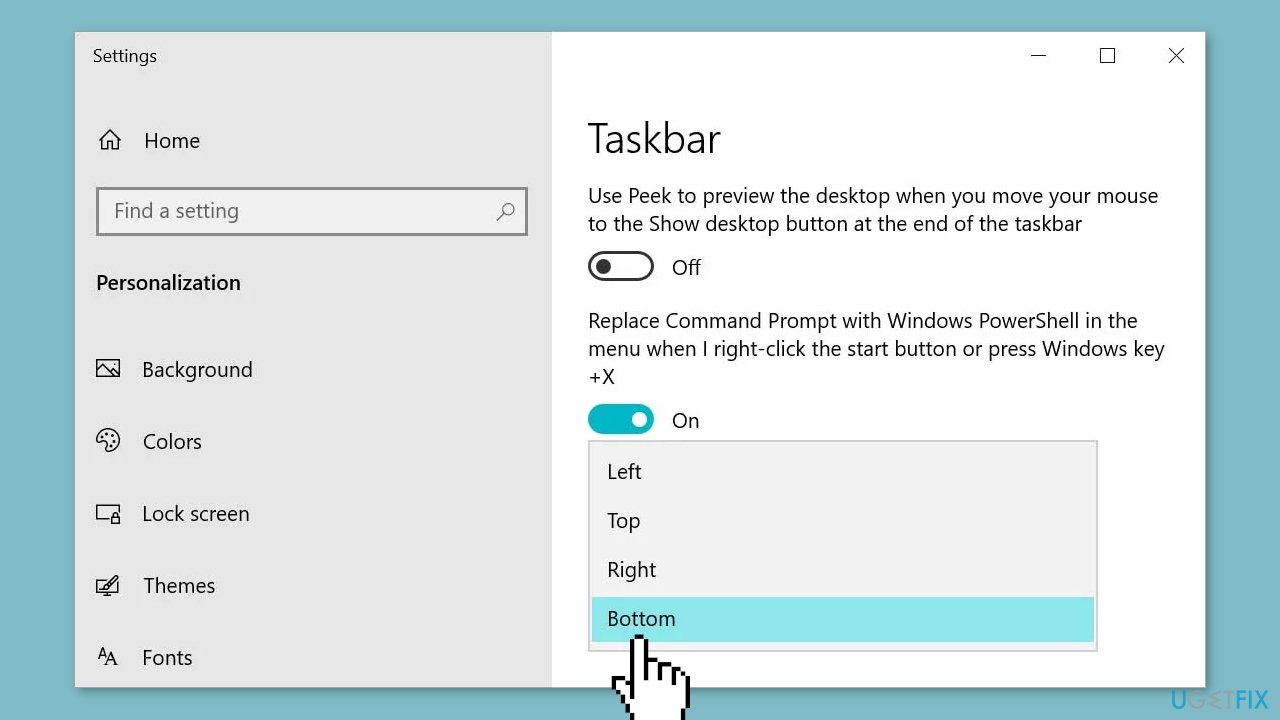
- Select the drop-down menu.
- Choose the desired position from the available options.
Method 2. Taskbar Properties
- Right-click your taskbar.
- Select Properties.
- Go to the Taskbar header.
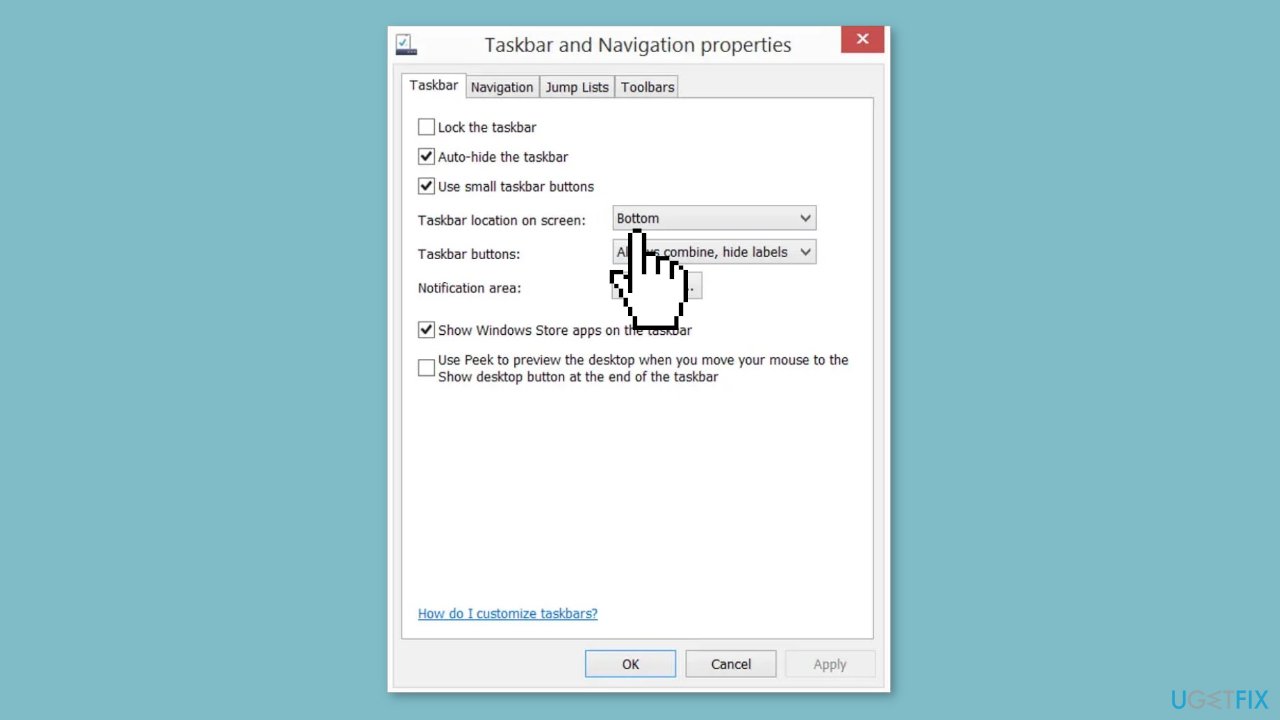
- Locate the Taskbar location on screen option.
- Select the desired position from the available options.
- Click Apply and then OK.
Method 3. Unlock the Taskbar
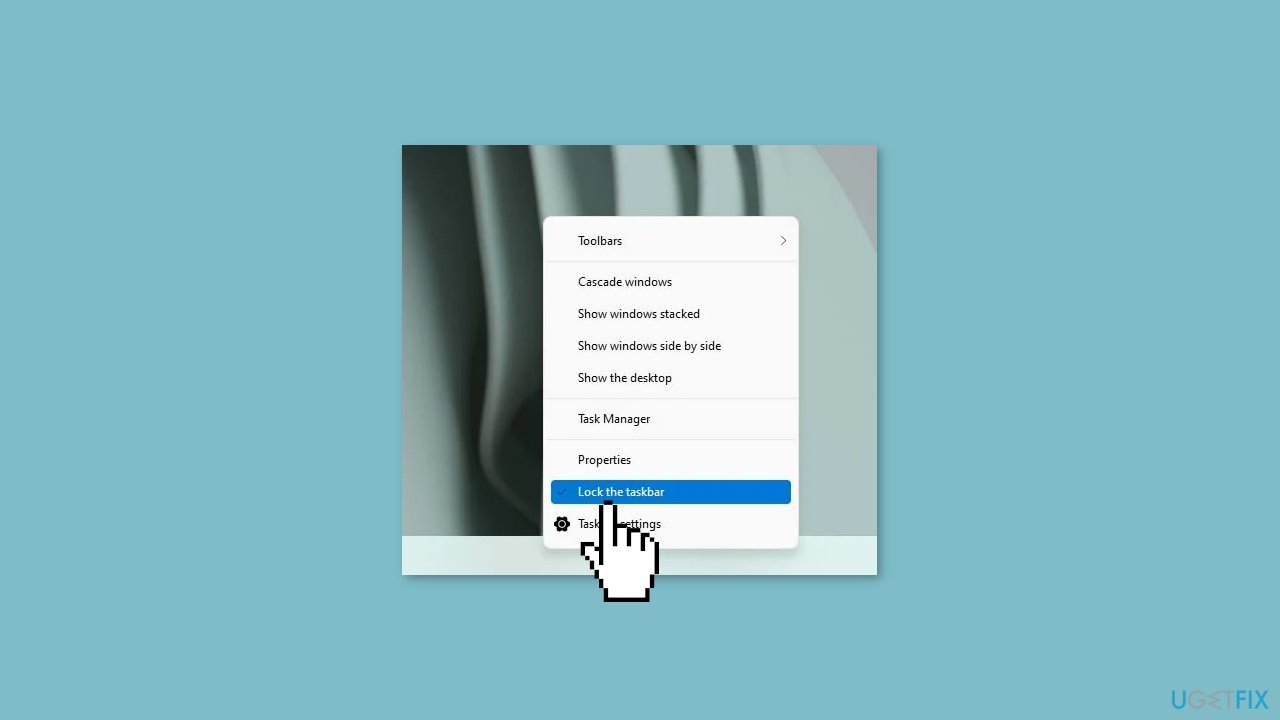
- Right-click the taskbar.
- Click on Lock the taskbar to unlock it (if there is a checkmark beside the option, it means the taskbar is locked).
- Click and hold the taskbar.
- Drag and drop the taskbar to the desired position.
Method 4. Modify the Windows Registry
- Launch the Run dialog box by pressing the Windows key + R.
- Enter regedit to open the Registry Editor.
- Navigate to:
Computer\HKEY_CURRENT_USER\Software\Microsoft\Windows\CurrentVersion\Explorer\StuckRects3
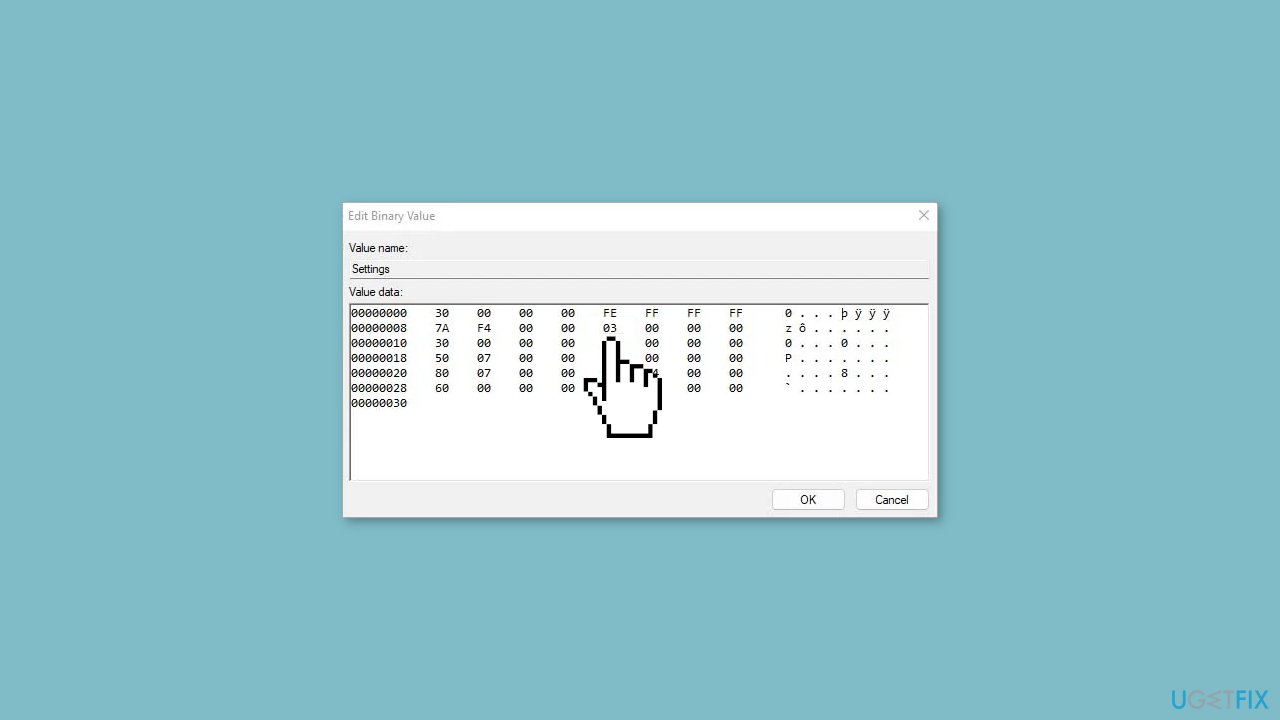
- Double-click on the Settings entry.
- In the Value data field, locate the number in the second row and sixth column (below FE).
- Change the number to adjust the position of your taskbar:
00 for left
01 for top
02 for right
03 for bottom
- Press Ctrl + Alt + Del and choose Task Manager to open it.
- In the Processes tab, locate Windows Explorer (usually at the bottom or top of the list).
- Select Windows Explorer and click on Restart.
Bottom line
To change the taskbar position in Windows, users can utilize methods such as registry edits, taskbar settings, or dragging and dropping the taskbar to the desired location. However, caution is advised when modifying the registry due to potential system instability. If none of these methods work, consider consulting additional resources or guides.
Frequently asked questions
Right-click on the Taskbar, select 'Taskbar settings', and under 'Taskbar behaviors', find the 'Taskbar alignment' option to change its position to 'Top'.
Yes, you can move the Taskbar to the left or right by accessing 'Taskbar settings' and changing the 'Taskbar location on screen' option.
No, moving the Taskbar does not affect open applications; they will remain in their original positions and can be accessed as usual.




Report an issue
What's wrong with this guide? We review every report and update or remove content.
Report received — thank you. We'll review and fix it.
You need a free account to submit a report.
Be the first to comment