How to fix
Disable Error Reporting
on Windows
Easily disable Error Reporting in Windows 10 and 11 to optimize your system's performance and prevent interruptions. Expert-tested solutions included.


Why does How to disable Error Reporting in Windows occur?
- Feature introduced in Windows XP
- System not connected to the internet
- Outdated OS version no longer supported
- Frequent pop-ups are annoying
- Lack of crash report submission to Microsoft
Repairs Windows system files, removes malware, and restores a clean OS state — without reinstalling.
Hello. How do I disable the Error Reporting feature in Windows?
Windows Error Reporting is a feature that was introduced in Windows XP to help users troubleshoot crash dumps and send crash reports to Microsoft for further analysis. It can be helpful in finding solutions to system problems and releasing patches to fix them. However, there may be scenarios where users may want to disable Windows Error Reporting.
One reason to disable the feature is if you use a spare system that is not connected to the internet, or if it has an outdated OS version that is no longer supported by Microsoft. Some users may also find the tool annoying if it frequently pops up. Before deciding to disable Windows Error Reporting, it is important to consider the potential consequences. If Microsoft does not receive crash reports, it will not be aware of problems with the OS and will not release patches to fix them.
Additionally, solution information will not be available in the Security and Maintenance section of the Control Panel. There are several ways to disable Windows Error Reporting. These include using the Services Panel, the Group Policy Editor (available on Windows Professional, Ultimate, and Enterprise editions), and the Registry Editor.
Older Windows OS versions, such as Windows 7, also have their own method using the Action Center in the Control Panel. It is important to carefully follow the steps and create a backup of the registry before attempting any changes. If you experience any system problems, you can use a maintenance tool like [d1] that can fix most system errors, BSODs,[ref en-1] corrupted files, registry[ref en-2] issues, or clear cookies and cache[ref en-3] automatically.
To disable Windows Error Reporting:
Method 1. Using the Services Panel
- Press the Windows key + R to open the Run command box
- Type services.msc and press Enter to open the Services panel
- Scroll down and locate the Windows Error Reporting Service
- Double-click to open the Properties window
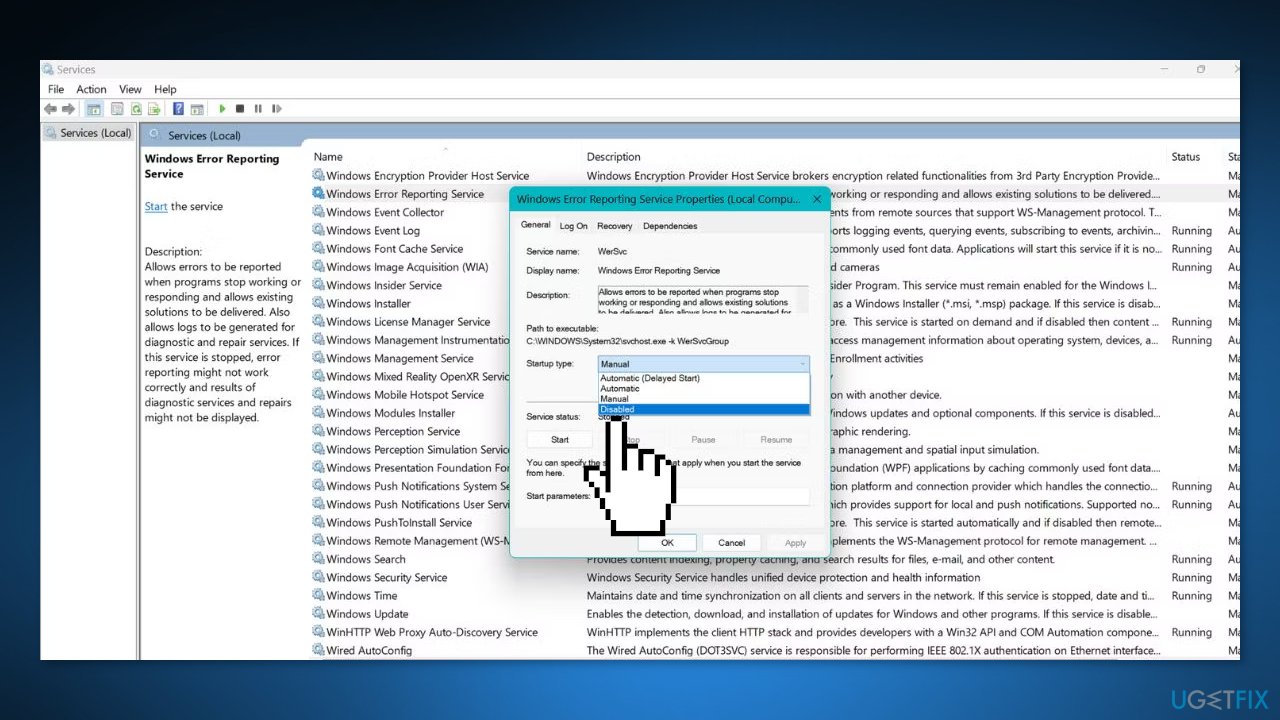
- Change the Startup type to Disabled and click Apply
- Click OK and exit the Services panel
- Restart your system
Method 2. Using the Group Policy Editor
The Group Policy Editor is another tool that can be used to disable the Windows Error Reporting feature. It is a powerful Windows administration tool that allows users to modify various aspects of the operating system. However, this tool is only available to users of Windows Professional, Ultimate, and Enterprise editions.
- Press the Windows key + R to open the Run command box
- Input gpedit.msc and press Enter to open the Group Policy Editor
- Navigate to Computer Configuration > Administrative Templates > Windows Components > Windows Error Reporting
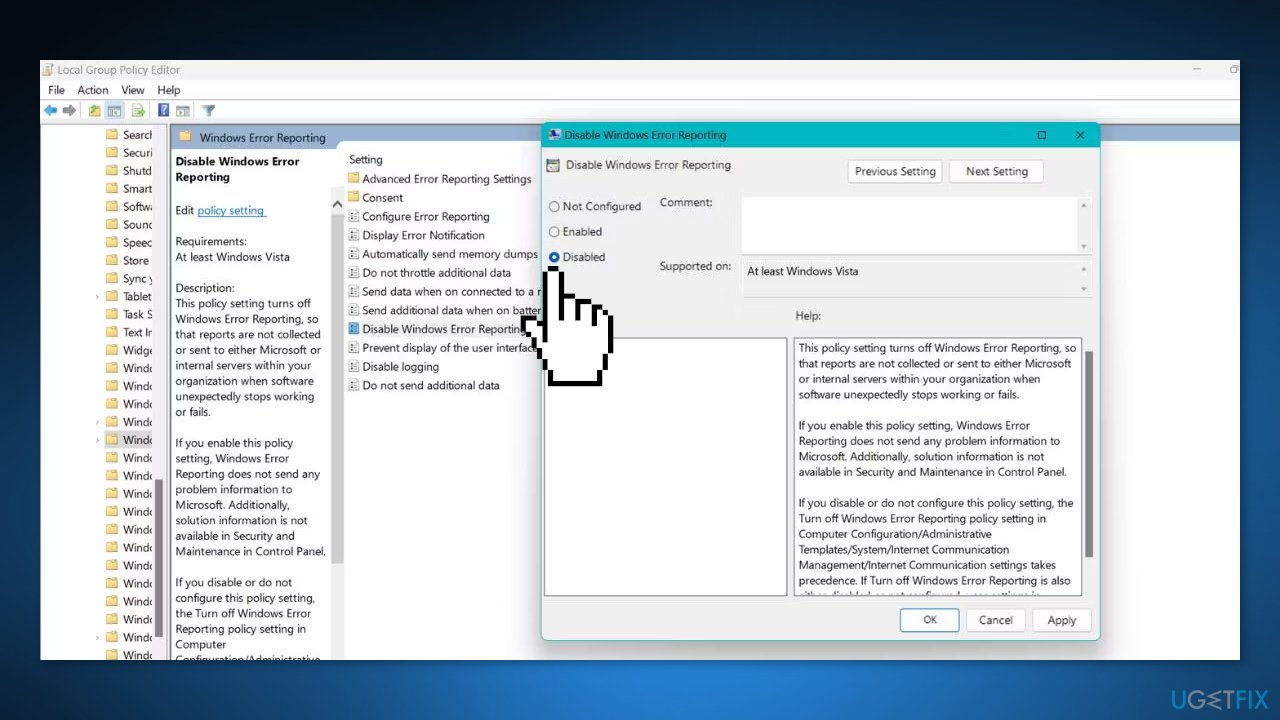
- Double-click on Disable Windows Error Reporting and select the Disabled radio button
- Click Apply and then click OK
- Exit the Group Policy Editor and restart your system
Method 3. Using the Registry Editor
Windows Home users can try modifying the registry. However, it is important to note that incorrect registry modifications can disrupt the normal functioning of the system. Therefore, it is recommended to create and export a backup of the registry before attempting any changes. This way, you can revert to the old registry settings if something goes wrong. For more information, check How to back up and restore the Windows registry?
- Press the Windows key + R to open the Run box
- Type regedit and press Enter
- Navigate to Computer\HKEY_LOCAL_MACHINE\SOFTWARE\Microsoft\Windows\Windows Error Reporting
- Right-click on the right-hand side pane and select New > DWORD (32-bit) value
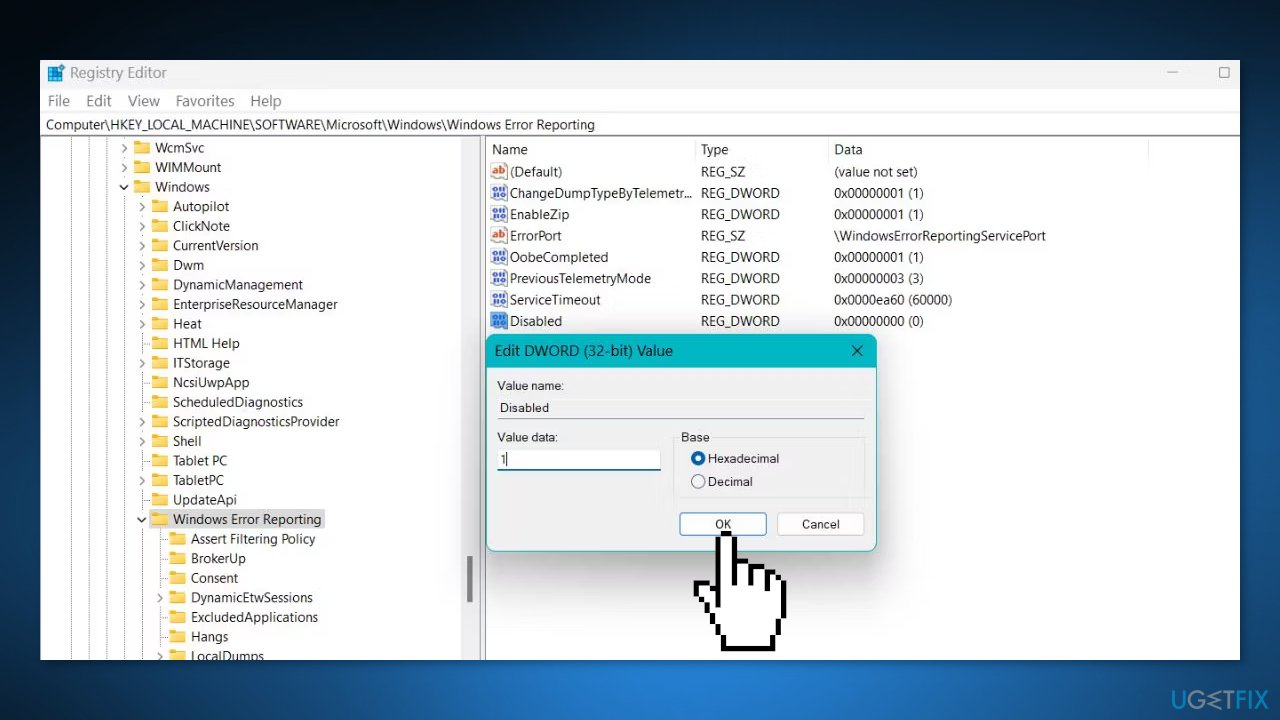
- Name the value as Disabled and double-click on it
- Go to the Value Data field and enter 1
- Keep the base as hexadecimal
- Click OK to save the changes and restart your system
Method 4. On older Windows OS versions
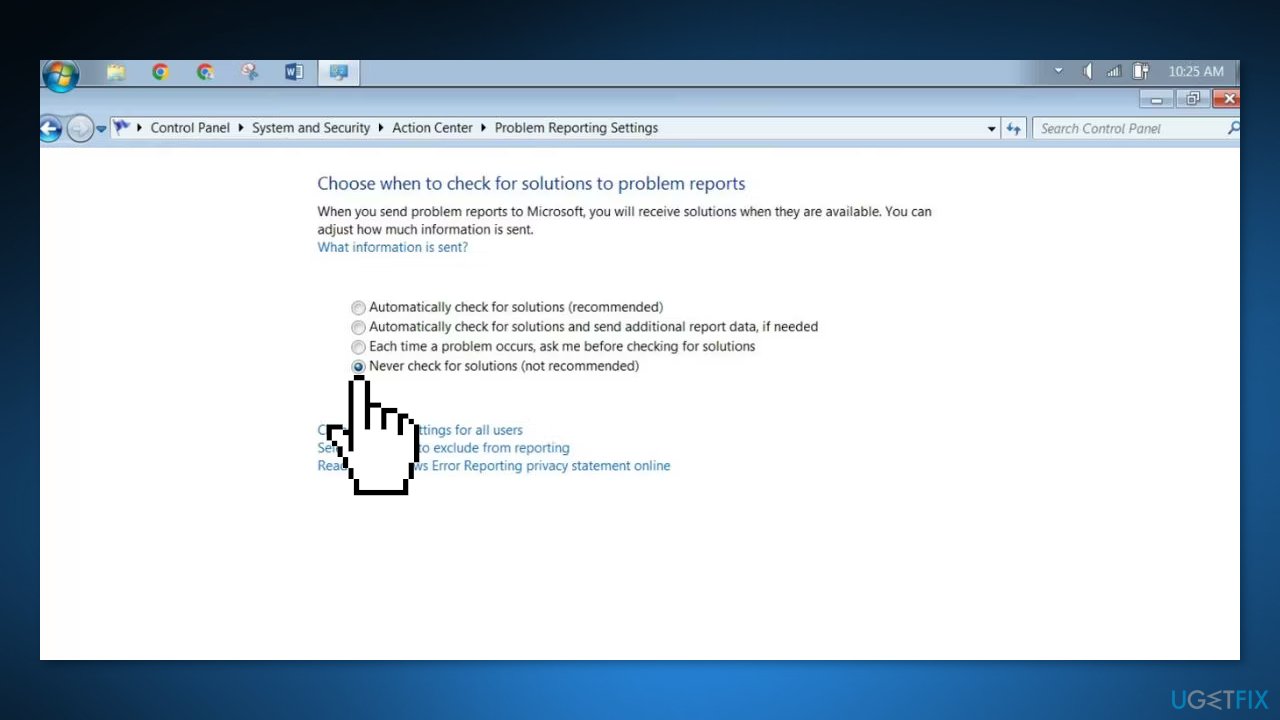
On Windows 7, you can disable the Windows Error Reporting feature using the old Action Center, which was merged with the Security and Maintenance section in Control Panel on Windows 10 and 11.
- Press the Windows key and click on Control Panel in the Start Menu
- Navigate to System and Security > Action Center > Problem Reporting Settings
- Click on Change Setting and select Never Check for Solutions
- Click OK to save the changes
Bottom line
To disable Windows Error Reporting, you can use methods such as the Services Panel, Group Policy Editor, or Registry Editor. It's important to back up the registry before making changes. If these methods do not resolve your issues, consider using a maintenance tool to fix system errors.
Frequently asked questions
To disable Error Reporting in Windows 10, go to Settings > Privacy > Diagnostics & feedback, and select 'Basic' under Diagnostic data. You can also navigate to Control Panel > Security and Maintenance, and turn off the 'Report problems' option.
Yes, in Windows 11, you can disable Error Reporting by going to Settings > Privacy & security > Diagnostics & feedback, and then selecting 'Basic' under Diagnostic data.
Disabling Error Reporting will not affect system updates in Windows 10 or Windows 11, but it may prevent Microsoft from receiving information about crashes and errors that could help improve future updates.




Report an issue
What's wrong with this guide? We review every report and update or remove content.
Report received — thank you. We'll review and fix it.
You need a free account to submit a report.
Be the first to comment