
How to Fix "COM Surrogate Has Stopped Working" error on Windows?

Prefer to fix it yourself? The manual steps follow.
6 methods in this guide
I desperately need a fix for “COM Surrogate has stopped running” error. This annoying pop-up message appears on the screen whenever I try to open some media files or print something from the Internet.
Sometimes, it pops up at random times for no reason. I need a solution because I would like to use my computer without having to encounter such mysterious problems on a daily basis. Can you help?
“COM Surrogate has stopped running” is a common Windows error that keeps bothering Windows 7,8, 8.1 and 10 users. Usually, you can encounter it while browsing though videos or pictures on your computer. If you try to open them, the suspicious message pops up. Additionally, this error might appear once you try to use Control Panel or other applications.
COM Surrogate itself is a legitimate Windows process also known as dllhost.exe *32. It is responsible for hosting one or a couple of system services and is used by many computer programs. It not only manages applications which are based on DLL but controls the operations of Internet Information Services (IIS) as well.
Actions performed by COM Surrogate can hardly be recognized by a regular PC user. However, the best example of its performance would be the thumbnails of the programs or files. You can see the different images once you open a folder only because of this process which might seem unnecessary at first sight.
While COM Surrogate is not likely to be corrupted by malware, there is also a malicious version of this Windows process, widely known as COM Surrogate virus. This Trojan horse disguises under a name of a legitimate Windows process and can significantly decrease your computer performance. Additionally, be aware that it might steal your personal information or other valuable data.
The “COM Surrogate has stopped running” error often bothers users who try to access media files. In such situation, the main cause of the error message can be compatibility errors with certain media codecs. The issue can be solved using solutions provided below. Sadly, but there are many reasons why you might face this issue.
Likewise, if COM Surrogate process crashes for a different reason than media codecs, you should try all of the provided methods and see which one solves the problem. In case you have found an alternative solution to fix "COM Surrogate has stopped working" error that isn’t provided in this guide, feel free to share it in the comments section so that other users could try it as well.
Method 1. Roll Back Display Driver to the previously used one
- Launch Run prompt by pressing down Windows key and R at the same time.
- Type in: hdwwiz.cpl and click OK (or just press Enter).
- In Device Manager, find Display Adaptors. Right-click it and choose Properties.
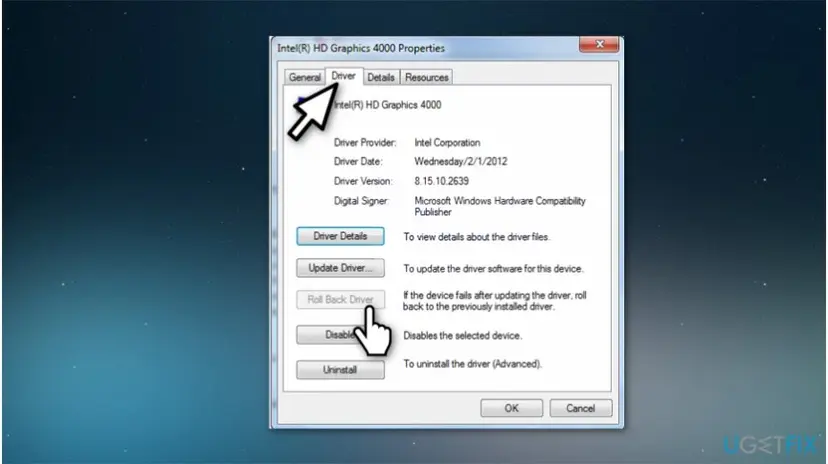
Roll back driver - Here, press Roll Back Driver button. In case you can’t click the button because it is grayed out, try a different method.
- If the button works, follow instructions provided on the screen.
Method 2. Renew Codecs
You can download Codec Installation Package from official Microsoft’s website. Use instructions provided on the developer's website to install the codecs.
Method 3. Fix Internet Explorer
Users experiencing the “COM Surrogate has stopped running” issue when trying to print something from the Internet often reveal that the problem occurred when using Internet Explorer browser. The issue can be solved by resetting the browser. Here’s the easiest way to do it:
- Find Windows key + R and press them both at the same time.
Type inetcpl.cpl in the Run window. Press Enter. - In the Advanced tab, click Reset. Do not forget to put a checkmark on Delete Personal Settings option before clicking Reset again.
- Restart your computer and see if the problem persists.
Method 4. Register vbscript and jscript DLLs
- Press Windows key + R at the same time. Type cmd.exe and hit Enter or OK button on the screen.
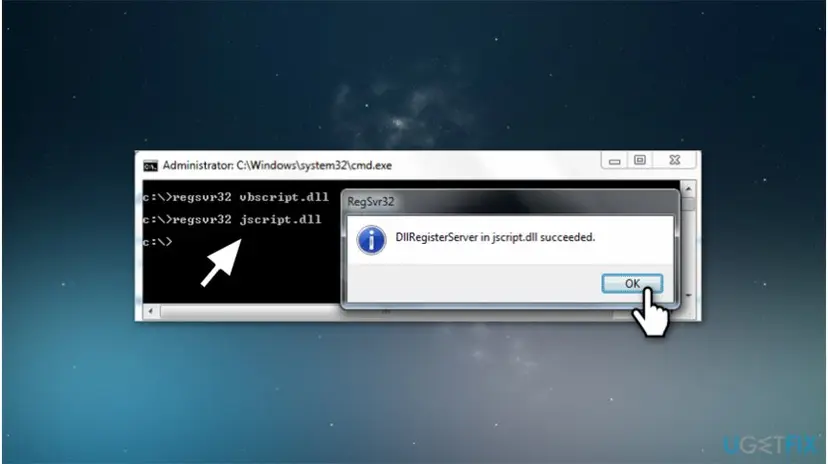
Register dlls - Type regsvr32 vbscript.dll and press Enter.
- Now, type regsvr32 jscript.dll and press Enter again.
- Check if the problem persists.
Method 5. Check if the error occurs when trying to open files stored in particular drive
If you noticed that the “COM Surrogate has stopped running” error appears when trying to access files from a particular drive only (let’s say C:\\ disk), then you should check this disk for errors.
- At the same time press Windows key and E.
- Windows 7 and Vista users should see a list of drives.
- If you’re using Windows 8, 8.1 or 10, open This PC. Right-click on the troublesome drive and select Properties.
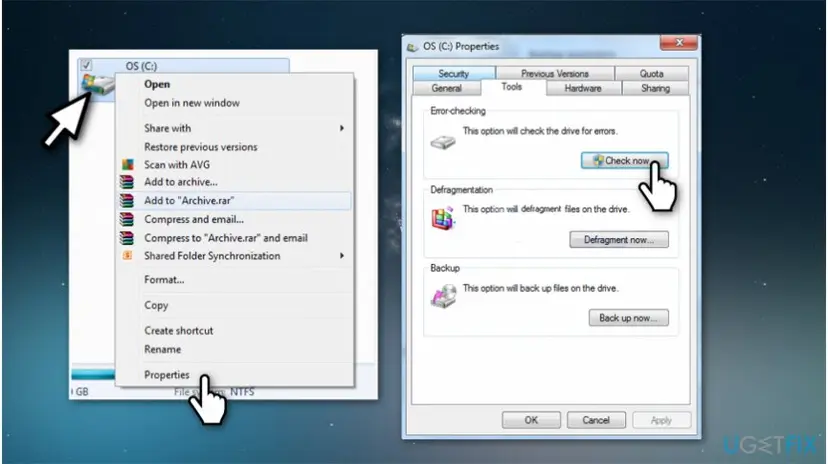
Check disk for errors - Go to Tools tab and click Check Now.
- Select both Options and click Start.
Method 6. Turn on DEP for specific programs only
- Click Start, then right-click Computer and choose Properties.
- Go to Advanced System Settings and then to Advanced tab.
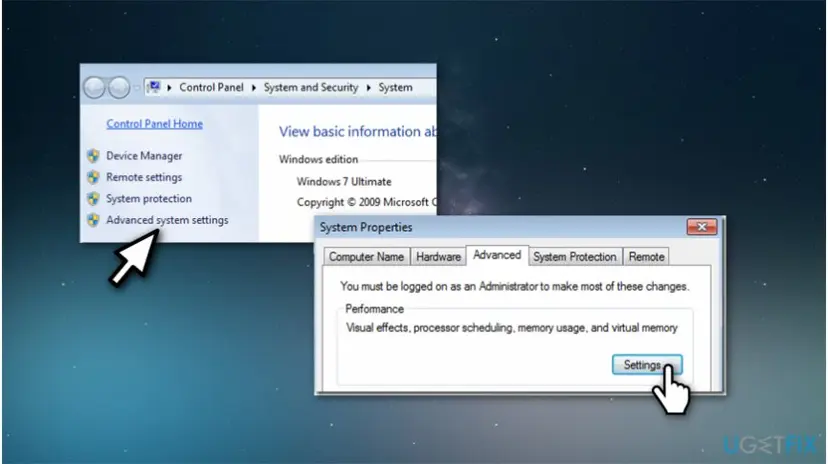
Advanced system settings - Look for Performance section and select Settings.
- Choose Data Execution Protection tab (DEP) and hit the Turn on DEP for all programs and services except those I select.
- Click Add, and then find C:\\Windows\\System32\\dllhost.exe.
- Select Open, then OK, and finally Apply and OK.
If none of the provided methods helped you to resolve “COM Surrogate has stopped running” error, run automatic system optimization software to get rid of the issue.
Did this fix work?
One click, no account. It tells the next reader which guides are worth their time.
Questions and experiences: Fix "COM Surrogate Has Stopped Working" error on Windows
Still broken, or found a fix we did not cover? Ask here: members and our editors answer. Reading is open; writing needs a free account.
…