
How to use the Steam Notes feature: open, pin and manage notes

Prefer to fix it yourself? The manual steps follow.
- 5methods
- 5 minutes
- Easy
Applies to Steam on Windows, Mac and Linux, and the Steam Deck in games that support the overlay
5 methods in this guide
Hello. I heard about the new Steam Notes feature but I am not sure how I can use it. Any tips would be appreciated.
Steam Notes is a notepad built into the Steam overlay. Press Shift + Tab in a game, open Notes, and write; the note is saved for that game, synced to your other PCs and also available on the game's page in the Steam client.
Start a game, press Shift + Tab to open the Steam overlay, and select the Notes icon on the toolbar. Type your note, and it is saved for that game. That is Method 1. Use the pin icon to keep a note on screen (Method 3), or open the game's page in Steam to read and edit notes outside the game (Method 2).
| What it is | A notepad in the Steam overlay. Notes are saved per game, and one game can have several notes. |
|---|---|
| Safe to use | Yes. It is a normal Steam feature, free, and it changes nothing in the game's files. |
| What you gain | Quests, recipes, commands and screenshots in front of you while you play, without alt-tabbing to a browser. |
| Side effect | The overlay must be on for in-game use. A pinned note covers part of the screen, and a game that blocks the overlay cannot show it. |
| How to open it | In a game: Shift + Tab, then the Notes icon. Outside a game: the game's page in Steam. |
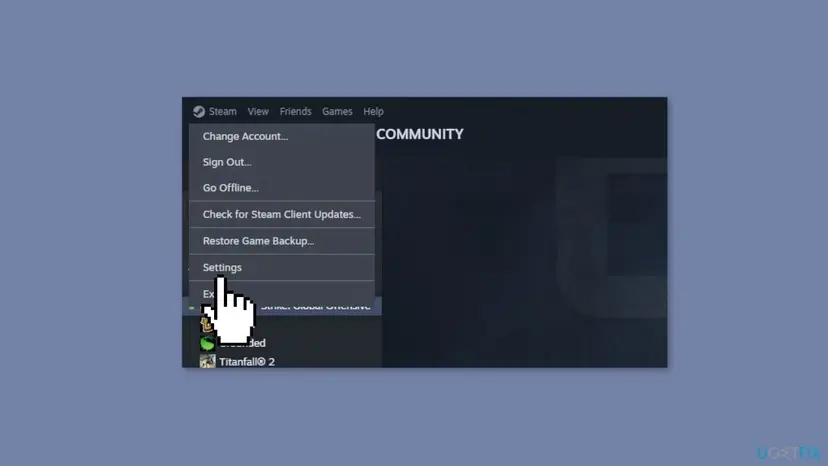
| Shortcut | Shift + Tab by default. You can change it in Steam > Settings > In-game. |
| Saved where | Per game, synced to other PCs you are signed in on, and usable offline, according to Valve. |
| Formatting | Rich text formatting, and images can be pasted into a note. |
Facts checked on 16 October 2026. Steps written for the Steam client on Windows 11 (25H2 and 26H2) and Windows 10 22H2, read against Valve's Steam announcement and Steam Support.
What Steam Notes is and where it lives
Valve added Notes in the redesigned overlay that arrived in the Steam client in 2023. In Valve's own words, the Notes app lets you jot down notes about the game you are playing, with rich text formatting, several notes per game and offline use. The overlay is the in-game window you open with Shift + Tab, so Notes lives on its toolbar next to friends chat, achievements, guides, discussions and the browser.
- Per game: every note belongs to the game you were playing when you wrote it.
- Synced: notes follow you to other PCs where you are signed in to Steam.
- Two places: the in-game overlay, and the game's details page in the Steam client, where you can use it without launching the game.
- Pinnable: a note can float over the game after you close the overlay.
Notes is not a general notebook. It has no folders, and it is tied to one game at a time, so a note about a game you are not playing is easiest to find from that game's page.
What Steam Notes gives you and what it costs
Notes costs nothing to turn on and uses the overlay that most Steam games already support. The table shows what you get and where it stops.
| Part | What you get | Limit |
|---|---|---|
| Per-game notes | Several notes for each game, opened from the overlay or the game's page. | Tied to one game, so there is no shared notebook for all games. |
| Sync | Notes are saved per game and synced to other PCs you are signed in on (Valve). | Needs Steam Cloud and a connection to sync; users report blank notes when it fails. |
| Offline use | Notes can be used in offline mode (Valve). | Changes sync after you are online again. |
| Pinning | A pinned window floats over the game with adjustable opacity; only the content is shown, not the title bar (Valve). | It covers part of the screen, and the overlay must work in that game. |
| Rich text and images | Formatted text, lists and pasted pictures. | The toolbar can differ between Steam client versions. |
| Cost | Free, built into Steam. | No extra download, and no extra setting beyond the overlay. |
If Shift + Tab opens the overlay in any game, Notes will work. If it does not, fix the overlay first with Method 5.
Who should use Steam Notes, and when
Notes is most useful when a game gives you more to remember than you can hold in your head. Typical cases are crafting recipes, quest steps, puzzle codes and the commands or key binds of games that have a console.
- Quest steps, recipes and build lists you check every few minutes.
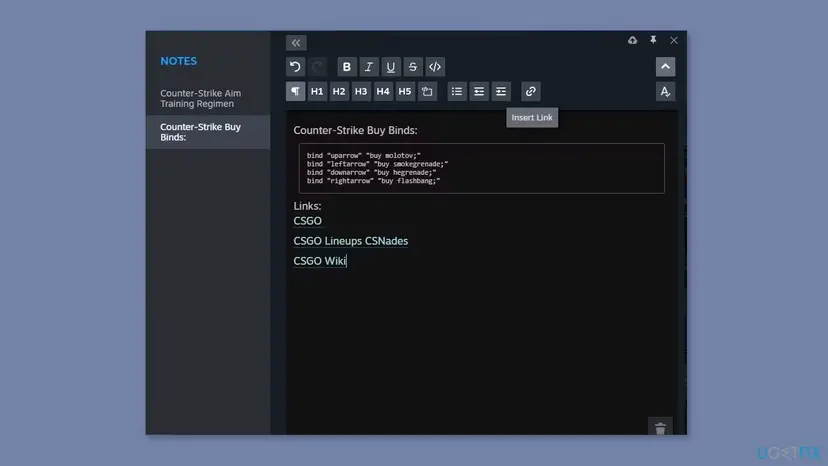
- Console commands and key binds you want to copy into the game, kept in one note per game.
- Screenshots of a location or a puzzle, pasted into the note so you can compare.
- Steam Deck play, where a saved note saves typing on the touchscreen.
- Long articles you plan to publish, because Notes has no export button that we could confirm.
- Passwords or account details, because notes sync through your Steam account and are not a vault.
- A game that blocks or does not support the overlay, where the window will not open.
- Shared team notes, because Notes is private to your account.
How to use Steam Notes, step by step
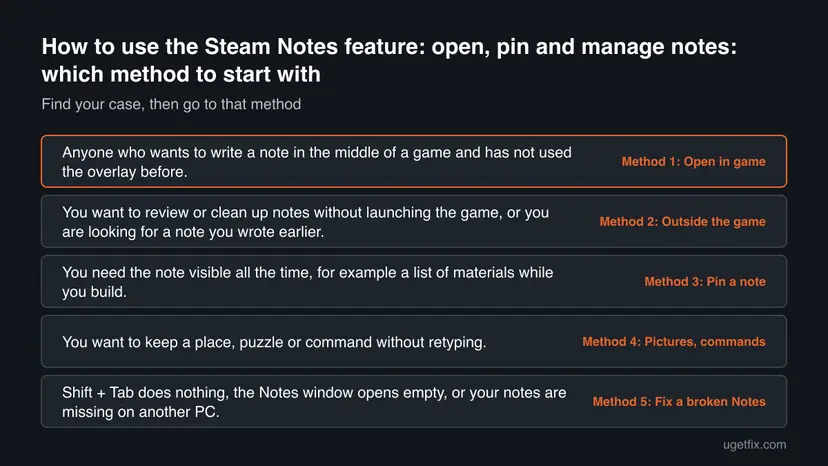
Method 1 opens Notes in a game and is all most readers need. Method 2 shows notes outside the game and how to delete them, Method 3 pins a note on screen, Method 4 covers screenshots and commands, and Method 5 fixes Notes that will not open or show nothing.
Method 1. Open Notes from the overlay while you play
2 minutesNo riskAnyone who wants to write a note in the middle of a game and has not used the overlay before.
Notes is part of the Steam overlay, so it opens the same way as friends chat. Valve's default shortcut is Shift + Tab, and the overlay must be enabled for the game.
- In Steam, select Steam > Settings > In-game and turn on Enable the Steam Overlay while in-game. Valve says the overlay is on unless you turned it off.
- Start the game you want to take notes in.
- Press Shift + Tab to open the overlay.
- Select the Notes icon on the overlay toolbar. On most clients it is drawn as a pencil.
- Select the option to add a note, type your text, and close the overlay with Shift + Tab again. The note is saved for this game.
It worked if: The Notes window opens over the game, and your text is still there the next time you open the overlay in that game.
If not: If Shift + Tab does nothing, check the overlay switch for this game in its Properties, then follow Method 5.
Method 2. Read, edit and delete notes outside the game
3 minutesLow riskYou want to review or clean up notes without launching the game, or you are looking for a note you wrote earlier.
Valve states that notes are also accessible outside the in-game overlay, on the game details page. That page needs only the Steam client, not a running game.
- Open Steam and select Library.
- Select the game from the list on the left to open its details page.
- Scroll down the page to the Notes section. Users report that it can sit below the fold on a smaller window or a 1080p screen.
- Select a note to open it, edit the text, or use the delete option to remove it.
- If you have more than five notes for the game, users report a View All Notes link that lists them all.
Deleting a note removes it from your account, and it will disappear on your other PCs after the next sync. Copy the text somewhere else first if you might need it. Users also report that deleting a note from View All Notes closed that window, so check the note you selected before you confirm.
It worked if: The game's page lists your notes, and a deleted note no longer shows in the list or in the overlay.
If not: If the Notes section is missing, scroll further, make the Steam window larger, update Steam, and then try Method 5.
Method 3. Pin a note so it stays on screen
2 minutesNo riskYou need the note visible all the time, for example a list of materials while you build.
Valve added pinning for overlay windows, so a window can appear on top of the game after you close the overlay. Only the window content is pinned, and its opacity can be set.
- Press Shift + Tab and open the note you want.
- Select the pin icon in the top right corner of the Notes window.
- Adjust the opacity of the window if it hides too much of the game.
- Move and resize the window to a corner of the screen that you do not need.
- Press Shift + Tab to close the overlay. The pinned note stays visible.
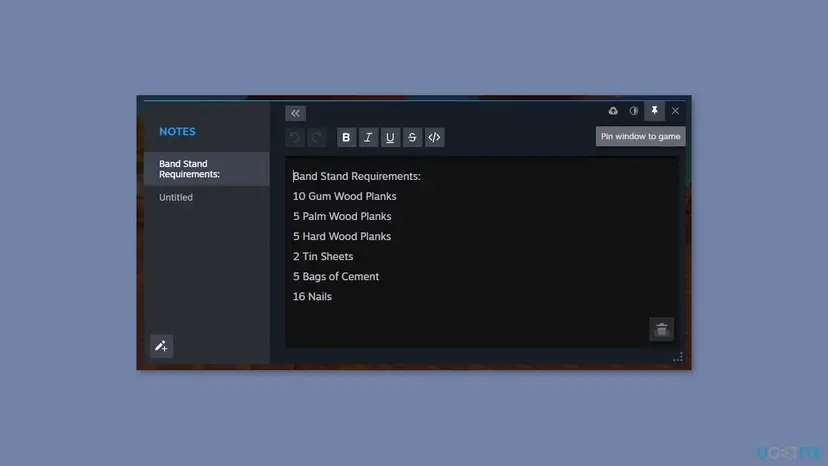
It worked if: The note stays on the screen after you close the overlay, and you can still see the game around it.
If not: If the note disappears with the overlay, it was not pinned; open the overlay and select the pin icon again. Unpin it the same way.
Method 4. Add screenshots and commands to a note
5 minutesNo riskYou want to keep a place, puzzle or command without retyping.
Valve describes Notes as a rich text editor with pasted images. A screenshot or a copied command in the note is quicker to use than a description when you are in the middle of a game.
- In the game, press F12, Steam's default screenshot key, to take a screenshot. Valve says screenshots need the overlay.
- Open the overlay with Shift + Tab, then open the screenshot from the screenshot window or your Steam screenshot folder and copy it.
- Open your note and paste with Ctrl + V. The picture appears in the note.
- For a command or key bind, type it on its own line and use the editor's code or monospace button if your client shows one, so you can copy it back cleanly.
- Add a short label above each picture or command, so you can find it quickly later.
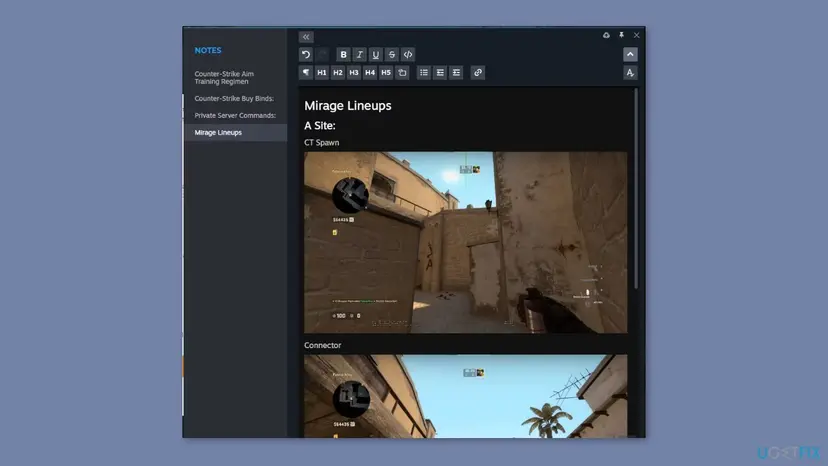
It worked if: The screenshot appears inside the note, and a saved command can be selected and copied.
If not: If paste does nothing, copy the image again, or open the note from the game's page in Steam and paste there.
Method 5. Fix Notes that will not open or look blank
10 minutesLow riskShift + Tab does nothing, the Notes window opens empty, or your notes are missing on another PC.
Notes depends on the overlay, on a current Steam client and on Steam Cloud sync. Steam Support lists the overlay switch, the shortcut and a heavy system load as the usual reasons the overlay fails.
- Check Steam > Settings > In-game: Enable the Steam Overlay while in-game must be on, and the shortcut should still be Shift + Tab.
- For the one game, open Library, right-click it, select Properties and tick Enable the Steam Overlay while in-game under General.
- Restart Steam and the PC. Steam Support names a restart as the first step when the overlay fails.
- If Steam is slow or stuck, close it with Close a frozen app (Task Manager, Force Quit) and open it again.
- Close recording tools, cleaners and other overlays that run in the background. See Stop apps from opening at startup to keep them from starting with Windows.
- In the game's Properties, select Installed Files and Verify integrity of game files.
Users report that blank Notes windows were fixed by updating Steam, making sure Steam Cloud sync is on, and clearing the overlay cache. We could not confirm the cache step in Steam Support, so treat it as a user report and try it last.
It worked if: Shift + Tab opens the overlay, and the Notes window shows your saved text.
If not: If the overlay still fails in every game, reinstall the Steam client over the existing folder. Valve says this keeps installed games, but uninstalling Steam removes game content.
How to stop using Steam Notes or remove your notes
Notes does not need to be removed, because it only runs when you open it. You can stop using it, delete single notes or turn the overlay off. Turning the overlay off also stops in-game purchases, friend invites and the Steam screenshot key in that game, according to Steam Support.
- Delete one note: open it from the overlay or the game's page and use the delete option (Method 2).
- Unpin a note: open the overlay and select the pin icon again.
- Turn the overlay off for one game: Library, right-click the game, Properties, then clear Enable the Steam Overlay while in-game.
- Turn the overlay off for all games: Steam > Settings > In-game, then clear the same option.
There is no recycle bin that we could confirm. Copy the text into another file before you delete a note you may need.
Myths about Steam Notes
A few ideas about Notes come from the early days of the feature or from other games' overlays.
| Belief | What is true |
|---|---|
| Notes only work inside a game. | False. Valve says notes are also reachable on the game's details page. |
| Notes are lost when you change PC. | Notes are saved per game and synced to other PCs you are signed in on. Sync can fail, so a blank note is a sync problem, not a deleted one. |
| The overlay can be off and Notes still opens in the game. | False. In-game Notes use the overlay, so Shift + Tab must work. The game page still opens Notes without it. |
| You can only keep one note per game. | False. Valve says you can have several notes per game. |
| Notes are a place for secrets. | Do not store passwords there. They are part of your Steam account data. |
Frequently asked questions
How do you open Steam Notes?
Start a game, press Shift + Tab to open the Steam overlay, and select the Notes icon on the toolbar at the bottom. If the shortcut does nothing, open Steam > Settings > In-game and make sure Enable the Steam Overlay while in-game is on. You can also open notes without a game: select the game in your Library and look for the Notes section on its page. Users report that this section can be below the fold on a smaller window.
What is the Steam Notes shortcut?
The default shortcut is Shift + Tab, and it opens the whole overlay, not only Notes. Steam Support says you can change it in Steam > Settings > In-game. If you changed it and forgot, look at that page. After the overlay opens, select the Notes icon on the toolbar or click inside an open Notes window to type. Another program using the same keys can block the shortcut, so close it if nothing happens.
Can you use Steam Notes outside of a game?
Yes. Valve says notes are accessible outside the in-game overlay, on the game details page. Open Steam, select Library, choose the game and scroll to the Notes section. You can read, edit and delete notes there without starting the game. Users report that the section can be hard to see on a small window, so enlarge the Steam window or scroll down the page if you cannot find it.
Do Steam Notes save automatically?
Valve says notes are saved per game and synced to other PCs where you are signed in, and they can be used in offline mode. You do not press a save button in the way you would in a document. Sync needs Steam Cloud and a connection, and users report blank Notes windows when sync or the overlay fails. Update Steam and try Method 5 if your notes look empty.
How do you delete Steam Notes?
Open the note from the overlay or from the game's page in the Steam client and use the delete option. Users of the beta reported a View All Notes link that appears when a game has more than five notes, with a delete button for the current note. Deleting removes it from your account and your other PCs after sync, so copy the text first if you might need it again.
How do you pin a Steam note on screen?
Open the note in the overlay and select the pin icon in the top right corner of its window. Valve says pinned windows appear on top of the game while you play, that their opacity can be adjusted and that only the content is pinned, without the title bar. Close the overlay with Shift + Tab and the note stays visible. Select the pin again to unpin it.
Can you use Steam Notes on the Steam Deck?
Users report that on the Steam Deck notes can only be opened through the Steam button while a game is running, and that the Steam mobile app does not edit them. Valve's announcement describes Notes as part of the overlay and the game's page in the desktop client, so check your own device. Pasting a screenshot into a note can save typing on a touchscreen, but we could not confirm any Deck-specific Notes settings.
Why are my Steam Notes blank or not opening?
Notes need the overlay, a current Steam client and working sync. Check that the overlay is on in Steam Settings and in the game's Properties, restart Steam and the PC, and verify the game files. Steam Support also lists background programs, antivirus and heavy system load as reasons the overlay closes. Users report that updating Steam, enabling Steam Cloud and clearing the overlay cache also helped. Try them in that order.
Can Steam Notes hold images and formatted text?
Valve describes Notes as having rich text formatting, and its announcement mentions pasting images. Use lists and bold text for structure, and paste a screenshot taken with F12 for places or puzzles. Which formatting buttons you see can differ between Steam client versions. Users also reported indent and outdent for lists only, not for ordinary paragraphs, so test a short note before you write a long one.
Sources
- Valve: Steam news, the new overlay and the Notes app (store.steampowered.com)
- Steam Support: Steam Community Overlay (help.steampowered.com)
- Steam Client Beta: New Overlay and Notes, general feedback (users report) (steamcommunity.com)
Did this fix work?
One click, no account. It tells the next reader which guides are worth their time.
Questions and experiences: use the Steam Notes feature: open, pin and manage notes
Still broken, or found a fix we did not cover? Ask here: members and our editors answer. Reading is open; writing needs a free account.
…