
How to adjust bass and treble in Windows 11 with the Equalizer

Prefer to fix it yourself? The manual steps follow.
- 4methods
- 5 minutes
- Easy
Applies to Windows 11 and Windows 10 with speakers or headphones that use a PC audio driver
4 methods in this guide
Hello. Where can I find sound settings to adjust Bass and Treble in Windows 11? Any tips would be appreciated.
Windows 11 can adjust bass and treble, but only through the Equalizer your audio driver provides. Open the Properties of your speakers or headphones and look for the Enhancements tab, or use the audio app your PC maker installed. This guide shows both ways, how to lower bass, and what to do when the Equalizer is missing.
They are in the Equalizer of your audio device, not in a single Windows slider. Right-click the sound icon, select Sound settings, then More sound settings, open the Properties of your speakers or headphones, and tick Equalizer on the Enhancements tab. Use Method 1 first. If no tab or Equalizer appears, your maker's app (Method 3) or the audio driver (Method 4) holds it.
| What it is | The Equalizer is an audio effect that raises or lowers parts of the sound, so low tones (bass) and high tones (treble) can be set to your taste. Microsoft describes it as working "similar to a treble or bass setting". |
|---|---|
| Safe to | Change, yes. Nothing is installed or deleted when you tick Equalizer, and you can switch every change off again from the same tab. |
| What you gain | Fuller or lighter sound for music, clearer voices on calls, or less booming bass on small speakers and headphones. |
| Side effect | The setting belongs to one playback device. Switching from speakers to headphones or a Bluetooth headset means setting it again. A big boost can also distort the sound. |
| Where it is | Sound settings > More sound settings > Playback > Properties > Enhancements > Equalizer, or the audio app from your PC maker. |
| When it is missing | The audio driver decides whether an Equalizer exists. A newer driver package, or the maker's app, may hold it instead of the Enhancements tab. |
| Needs | A normal user account for Methods 1 to 3. Method 4 installs a driver and needs an administrator account. |
| Undo | Untick Equalizer, choose the Flat or default setting, or tick Disable all sound effects. See the Undo section. |
Facts checked on 16 October 2026. Steps written for Windows 11 25H2 and 26H2 with a Realtek based audio driver; Windows 10 22H2 steps are the same where noted.
What bass and treble control is in Windows 11, and why it can be missing
Bass is the low part of a sound, such as a drum or a deep voice. Treble is the high part, such as a cymbal or the hiss in speech. A bass and treble control, or windows 11 bass treble control as people search for it, is an equalizer: it makes some tones louder and others quieter before the sound reaches your ears.
Windows does not put one fixed slider for this in Settings. It lets the audio driver add sound effects, which Microsoft calls audio processing objects. Microsoft's driver documentation lists a graphic equalizer as an example and describes the Equalizer effect as one that boosts parts of the signal "similar to a treble or bass setting".
| Where you may find it | How it looks | Which method |
|---|---|---|
| Sound Properties, Enhancements tab | A tick box named Equalizer, a preset list and a button with three dots next to it. | Method 1 |
| Realtek Audio Console from Microsoft Store | An app with a Sound Effects page and an equalizer with sliders. | Method 3 |
| Your maker's audio app (HP Audio Control, Surface Audio, Nahimic) | Presets for music, movies or games, sometimes with sliders and sometimes without. | Method 3 |
| Nowhere you can see | The Enhancements tab is missing and no audio app is installed. | Method 4 |
The same documentation says computer makers may keep all of the effects Windows installs or replace some or all of them with their own. That is why two Windows 11 PCs can look different: one shows an Enhancements tab with an Equalizer, another shows only a maker's app, and a third offers presets such as movie dialog or game explosions instead of sliders.
What you gain from changing bass and treble, and what it costs
An equalizer changes the tone of the sound and nothing else. It does not make a PC faster or slower, and no Microsoft page claims a speed gain. The real gain is a sound that suits your ears, your speakers and what you listen to.
| What happens | Why | |
|---|---|---|
| Music | You can lift bass for dance music or lift treble for classical or acoustic music. | Different recordings sit in different tone ranges, so one setting rarely suits all of them. |
| Voices and calls | Raising treble a little can make speech easier to follow in calls and videos. | Speech detail sits in the higher tones. |
| Booming bass | Lowering the low sliders calms a small laptop speaker or a bass heavy headset. | Small speakers and many headsets exaggerate low tones. |
| Hearing difficulty | A tone boost can help someone who hears one range less well. | It is a comfort setting. It does not replace a hearing check. |
| One device only | The setting applies to the speakers or headphones you opened, not to every device. | Each playback device has its own Properties window. |
| Distortion | Raising a band too far makes sound crackle at high volume. | More boost means a louder signal, so lower the volume before you raise a slider. |
| Speed or FPS | No change. | Nothing in Microsoft's documentation links the Equalizer to performance. |
Play the same song, change one band, and listen. Small steps are easier to undo than a preset you do not understand.
Who should change bass and treble, and who should leave it alone
- Change it if your speakers sound thin or boomy, if a headset buries voices, or if you move between music and calls often.
- Change it if you have trouble hearing a range of sounds and want an easy tone lift. Increase treble for high tones and bass for low tones, then ask a hearing professional if the trouble continues.
- Leave it alone if the sound is fine. The maker tuned most laptop speakers, and effects on top of that tuning are easy to overdo.
- Leave it alone when you edit audio or compare mixes. An equalizer colours everything you hear, so you cannot judge the file itself.
- Use the app instead if you own a gaming headset or a PC with Dolby, DTS or Nahimic. Their own app often replaces the Windows tab, so Windows shows nothing to change.
How to adjust bass and treble in Windows 11
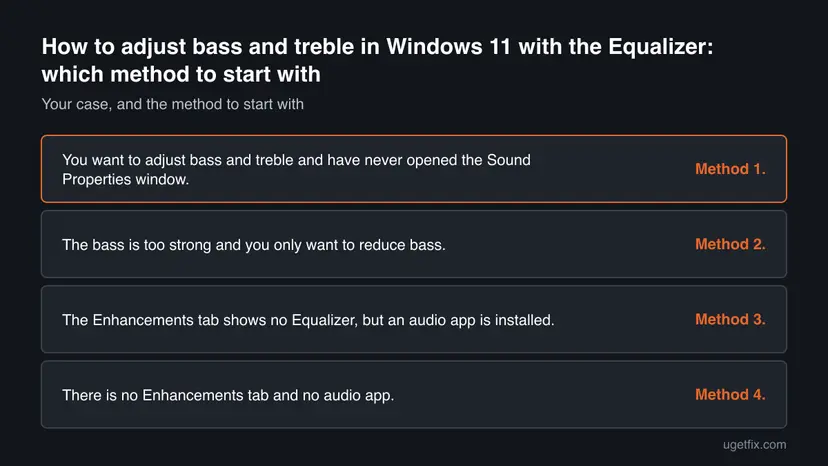
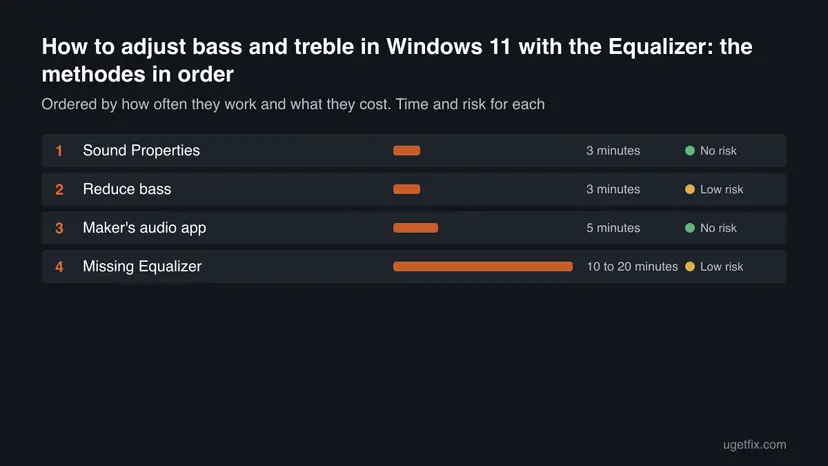
The methods go from the built-in tab to the maker's own app and then to the driver. Method 1 is enough when the Enhancements tab shows an Equalizer. Method 2 lowers bass, Method 3 covers PCs where the maker's app holds the controls, and Method 4 is for a missing Equalizer. Windows 10 22H2 uses the same tab, although Windows 10 left support on 14 October 2025.
| Your case | Start with |
|---|---|
| You want to adjust bass and treble and have never opened the Sound Properties window. | Method 1. |
| The bass is too strong and you only want to reduce bass. | Method 2. |
| The Enhancements tab shows no Equalizer, but an audio app is installed. | Method 3. |
| There is no Enhancements tab and no audio app. | Method 4. |
Method 1. Turn on the Equalizer in the Properties of your speakers or headphones
3 minutesNo riskYour driver gives the Properties window an Enhancements tab and you want to adjust treble and bass on windows 11.
The Equalizer is a sound effect of the playback device, and Windows lists driver effects on the Enhancements tab. Ticking it applies the effect to everything that device plays, so no app needs its own setting.
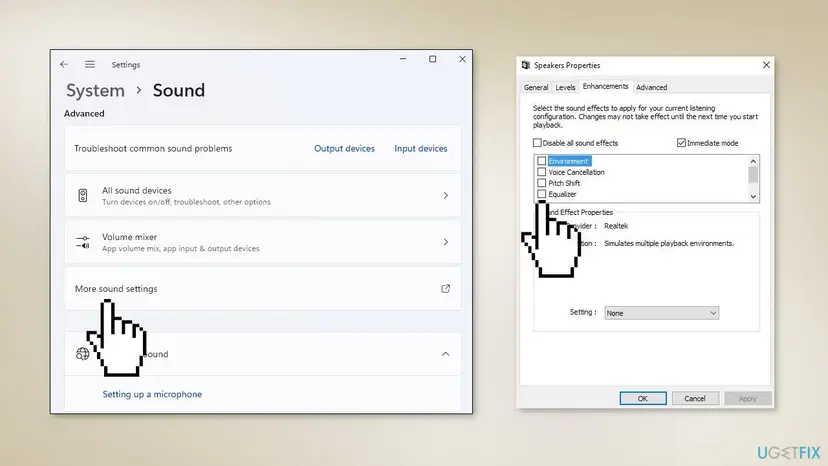
- Right-click the Sound icon on the taskbar and select Sound settings.
- Scroll down and select More sound settings. If you cannot find it, press Win + R, type
mmsys.cpland press Enter to open the same Sound window. - On the Playback tab, right-click the Speakers or Headphones you use now and select Properties.
- Select the Enhancements tab.
- Make sure Disable all sound effects is not ticked. Some drivers call it Disable all enhancements.
- Tick Equalizer.
- Pick a preset from the list, for example Rock, Live, Pop, Classical, Bass or Treble. The names depend on your driver.
- For your own setting, select the button with three dots next to the preset and move the sliders in the Graphic EQ window. Sliders on the left control bass, sliders on the right control treble.
- Select OK.
Microsoft's support page says the sound effects switch sits on the Enhancements tab or, with some makers, on the Advanced tab as Enable audio enhancements. If you cannot see the Equalizer on either tab, go to Method 3.
Windows 10 22H2 uses the same Sound window and the same tab, so the steps above work there too.
It worked if: The Equalizer box is ticked, the preset or your sliders are shown, and the next song you play sounds different at once.
If not: If the tab is missing or Equalizer is not listed, your driver does not provide one in this window, so use Method 3 or Method 4.
Method 2. Lower the bass or switch off the effects that boost it
3 minutesLow riskThe sound is too heavy, you want to reduce bass in Windows 11, or you never turned an effect on and the bass still seems boosted.
Bass that is too strong comes from either a bass preset or a maker's effect that raises low tones. Lowering the low sliders or switching all effects off removes the boost at the source, instead of turning the volume down for everything.
- Open the Properties of your device as in Method 1, steps 1 to 4.
- If Equalizer is ticked, select the preset list and choose a flat or neutral preset such as Pop or Classical, or open the three dots button and drag the sliders on the left side down.
- To lower bass on windows 11 without an equalizer, tick Disable all sound effects (or Disable all enhancements) and select OK.
- Play the same song again and compare.
Microsoft's driver documentation names speaker protection and speaker compensation as effects that makers put on the speaker itself. Turning all effects off can remove that tuning, so keep the volume low at first and raise it slowly.
Microsoft's support page for audio enhancements, written for microphones, describes the same switch and adds that if you have more than one audio device you repeat the steps for each. The same applies to output devices: a change on the speakers does not reach your headset.
It worked if: Low tones are quieter and the sound is less boomy. Untick the box again if the sound now feels thin.
If not: If the bass stays strong, the effect lives in your maker's app, so open it as in Method 3 and look for a bass or sound mode setting.
Method 3. Use your PC maker's audio app: Realtek Audio Console, HP Audio Control, Surface Audio or Nahimic
5 minutesNo riskThe Enhancements tab shows no Equalizer, or your PC has Dolby, DTS or Nahimic audio and you want to adjust bass and treble in windows 11 from that app.
Makers can replace Windows' own audio effects with their own, as Microsoft's driver documentation says. When they do, the real controls move into their app, and the Windows tab stays empty or shows only a switch.
- Press the Windows key and type the name of the app: Realtek Audio Console, HP Audio Control, Surface Audio or Nahimic. Use the one that matches your computer.
- Open the app and select the device you use, such as speakers or headphones.
- Look for a page named Sound Effects, Equalizer or Audio. Choose a preset, or move the sliders if the app has them.
- Close the app. Most of them keep the setting.
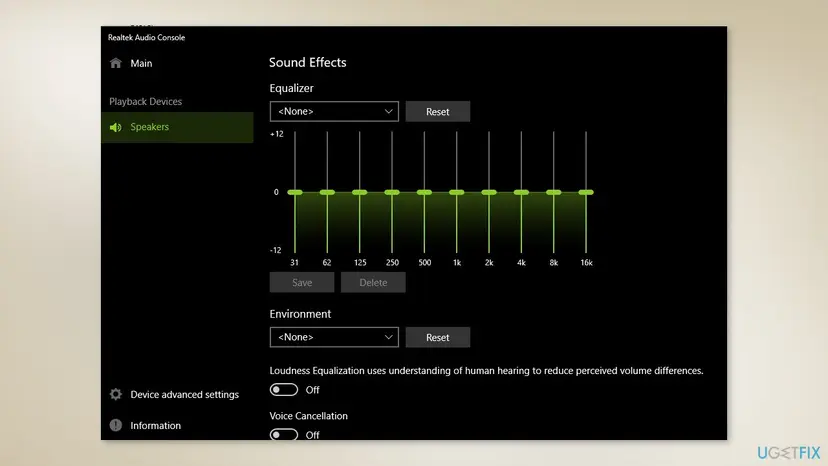
HP laptops often ship with HP Audio Control, Microsoft Surface devices with Surface Audio, and MSI laptops with Nahimic. Windows 11 compatible computers normally use DCH drivers, where the audio settings are in an app from Microsoft Store.
If your app has no equalizer at all, the PC may carry a premium audio package such as Dolby, DTS or Nahimic, and the equalizer is in that app instead. Some of those apps give only presets, not a 10 band equalizer, because the maker chose to give ready made modes that adjust sound for a purpose such as movie dialog or game effects.
A Store audio app that opens blank or crashes can be repaired from Settings. See How to repair or reset an app in Windows.
It worked if: The app shows an equalizer or a list of sound modes, and changing one changes the sound at once.
If not: If you cannot find any audio app, the driver may be a bare Windows driver, so install the maker's package in Method 4.
Method 4. Install or update the audio driver when the Equalizer or Enhancements tab is missing
10 to 20 minutesLow riskNo Enhancements tab, no Equalizer and no audio app exist, so Windows is likely using a basic audio driver.
The effects and the maker's app are delivered with the audio driver package. Windows can play sound with a basic driver but without those effects, so installing the package for your model brings the controls back.
Take the driver from Windows Update or from the support page of your PC or laptop maker for your exact model. A maker's package also contains the maker's own effects, which Microsoft says makers may add or swap in.
- Open Device Manager. Right-click Start and select Device Manager.

Device Manager lists devices by category; a yellow warning sign marks a device with a problem. Screenshot: Windows 11 26H2. - Open the device's Driver tab. Expand the category (for example Display adapters), right-click the device, select Properties and open the Driver tab. Driver Date and Driver Version show what is installed now.
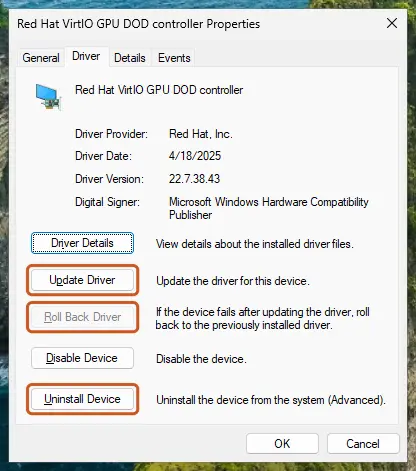
The Driver tab holds all three actions: update, roll back, uninstall. Screenshot: Windows 11 26H2. - Update the driver. Select Update Driver and let Windows search automatically. To use a driver you downloaded from the device maker, select Browse my computer for drivers instead and point to the unpacked folder.
- Or roll back the driver. If the problem started after a driver update, select Roll Back Driver, choose a reason and select Yes. The button is greyed out when Windows has no earlier driver to return to.
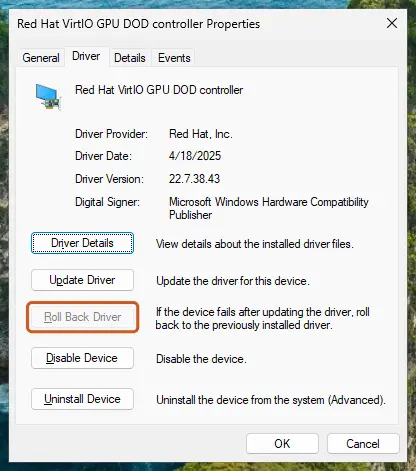
Roll Back Driver is greyed out here because there is no earlier driver. Screenshot: Windows 11 26H2. - Or reinstall the driver. Select Uninstall Device. Tick Attempt to remove the driver for this device only if you want Windows to delete the driver package too, then select Uninstall.
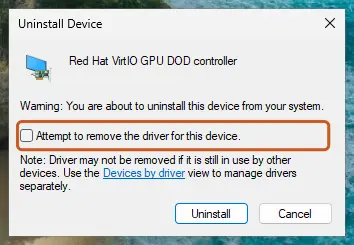
Tick the checkbox only to delete the driver package as well. Screenshot: Windows 11 26H2. - Restart. Restart the PC. Windows detects the device again and installs a driver for it.
- Check optional driver updates. Open Settings > Windows Update > Advanced options > Optional updates. If driver updates are listed, tick the ones you need and select Download & install.
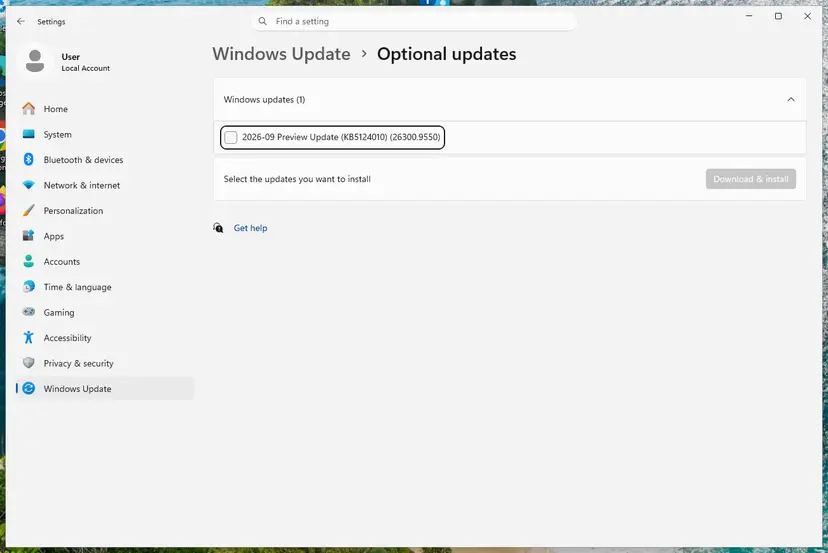
Optional updates on our test PC; driver updates appear here when Windows Update has any for your hardware. Screenshot: Windows 11 26H2.
These steps were written for Windows 11 24H2 and later. The full page with the other versions and what each result means: Update, roll back or reinstall a driver
Old guides tell you to go to Realtek and install the Realtek High Definition Audio Codecs Software driver. That is the chip maker's generic package. Use it only if your PC maker offers nothing for your model, and note the current driver first so you can go back.
- Install the driver and Restart the computer.
- Open the Properties of your speakers again as in Method 1 and look for the Enhancements tab.
- Open the Start menu and check whether Realtek Audio Console or your maker's audio app has appeared.
It worked if: After the restart, the Enhancements tab shows an Equalizer or the maker's audio app appears in the Start menu.
If not: If it is still missing, your model may not offer an equalizer at all. Use an equalizer app, or roll the driver back with the same Device Manager page.
How to undo bass and treble changes in Windows 11
Everything here is a setting, so each change is reversible and nothing needs a restore point. Use the row that matches what you changed.
| What you changed | How to undo it |
|---|---|
| Equalizer ticked in Properties | Open Properties > Enhancements again and untick Equalizer. |
| Custom sliders | Open the three dots button and set the sliders level, or choose a flat preset from the list. |
| Disable all sound effects | Untick Disable all sound effects and select OK. Your earlier effects return. |
| Setting in a maker's app | Choose the default or normal mode in that app, or use its reset button if it has one. |
| New audio driver | Open the device in Device Manager and use Roll Back Driver, as in Update, roll back or reinstall a driver. |
If sound stops after a driver change, restart the PC once before you roll back.
Myths about adjusting bass and treble in Windows 11
Many pages copy the same claims. Here is what Microsoft's own pages support.
- "Windows 11 has a bass slider in Settings." Microsoft's driver documentation describes the Equalizer as an effect that the driver supplies. Where the driver does not supply it, Windows shows none.
- "Loudness Equalization is the bass control." Microsoft describes it as an effect that levels loud and quiet sounds closer to an average level. It is not a bass or treble control.
- "Turning on Bass or Treble presets harms the speakers." A preset is only a saved tone curve. Distortion at high volume is the risk, so keep the volume moderate when you try one.
- "A third party equalizer is always needed." Only if your driver gives no Equalizer. Try Methods 1 to 4 before you install anything.
- "Sound effects do nothing useful." Makers use them for speaker protection and compensation, so switching all of them off can change how your speakers sound.
Frequently asked questions
Where is the bass and treble setting in Windows 11?
It is not one Windows slider. It is the Equalizer effect of your audio device. Right-click the sound icon, select Sound settings, then More sound settings, open the Properties of your speakers or headphones and tick Equalizer on the Enhancements tab. If you see no such tab, your maker's audio app or driver holds the controls instead. Microsoft's driver documentation says makers may keep, add or replace the effects Windows installs, so the place differs from PC to PC.
How do I adjust bass on Windows 11 without an Equalizer tab?
Open the audio app from your PC maker, such as Realtek Audio Console, HP Audio Control, Surface Audio or Nahimic, and look for a Sound Effects, Equalizer or sound mode page. Many of them give presets instead of sliders. If no app is installed, get the audio driver for your exact model from the maker's support page or from Windows Update, restart, and check the Enhancements tab again. Method 3 and Method 4 explain each step.
How do I reduce bass in Windows 11?
Open the Properties of your speakers or headphones, select the Enhancements tab and, if Equalizer is ticked, choose a flat preset or drag the left sliders down. If there is no Equalizer, tick Disable all sound effects to remove a boost the driver adds, then select OK. If the bass is still strong, look for a bass or sound mode option in the maker's audio app. Each device has its own setting.
Why did my bass and treble setting disappear when I changed headphones?
The Equalizer is a setting of one playback device. Speakers, wired headphones, and a Bluetooth headset each have their own Properties window, so a change you made on one does not apply to another. Open the Properties of the device you use now and set it again, or open your maker's audio app and select the new device there. Some headsets bring their own app and ignore the Windows tab.
What does Disable all sound effects do?
It turns off every audio effect on that device, including the Equalizer and anything the maker added. Microsoft's support page says the switch is on the Enhancements tab, named Disable all enhancements or Disable all sound effects depending on the driver, or on the Advanced tab as Enable audio enhancements. Microsoft also names speaker protection and compensation as effects, so turning all of them off may change how small speakers sound.
Is the Equalizer in Windows 11 the same as Loudness Equalization?
No. The Equalizer changes the strength of low and high tones, like a bass and treble control. Loudness Equalization is a separate effect that Microsoft describes as levelling the output so that louder and quieter sounds sit closer to an average level. It helps with sudden volume jumps, such as an advert that is louder than a film, and it does not raise bass or treble.
Can I adjust bass and treble for one app only?
Not with the Windows Equalizer. It applies to everything that plays through the chosen device. Some maker apps may offer profiles for movies, music or games, and these switch the whole device between modes. If an app has its own equalizer in its settings, such as a media player, use that, since it affects only that app. Check the app's settings before you change the device.
Should I install a Realtek driver from the web to get an Equalizer?
Try your PC or laptop maker's driver for your exact model first, because it contains the effects and the app the maker chose. The Realtek package is the chip maker's generic driver and may differ from what your maker ships. If you use it, note the current driver version first so you can roll it back from Device Manager, and restart after the install.
Will changing bass and treble make my sound worse or damage my speakers?
A preset or slider is only a saved tone curve, so trying one does not harm the speakers. The risk is distortion when you boost a band and then raise the volume. Lower the volume before a large boost, change one slider at a time, and undo the change if the sound crackles. Tick Disable all sound effects to return the device to its plain output.
Sources
- Microsoft Learn: Audio Processing Object Architecture (learn.microsoft.com)
- Microsoft Learn: Audio Signal Processing Modes (Equalizer and Loudness Equalizer effects) (learn.microsoft.com)
- Microsoft Support: Disable Audio Enhancements (support.microsoft.com)
Did this fix work?
One click, no account. It tells the next reader which guides are worth their time.
Questions and experiences: adjust bass and treble in Windows 11 with the Equalizer
Still broken, or found a fix we did not cover? Ask here: members and our editors answer. Reading is open; writing needs a free account.
…