
How to find Wifi password on Windows 10 and 11, even for saved networks

Prefer to fix it yourself? The manual steps follow.
- 4methods
- 2 to 10 minutes
- Easy
Applies to Windows 11 and Windows 10 PCs that have connected to the Wi-Fi network at least once
4 methods in this guide
I have previously connected to the Wi-fi but forgot the password of it. Is there any way to check the Wi-fi password of the current Internet connection or already established ones on Windows 10? Thanks in advance!
Windows keeps the password of every Wi-Fi network you have joined, and it will show it to you. On Windows 11 it is one button in Settings, on Windows 10 it is a check box in the network properties, and a command shows networks you are not connected to now.
Yes, if this PC has joined the network before. On Windows 11 open Settings > Network & internet, select Properties and press Show next to Wi-Fi network password. On Windows 10 use Network and Sharing Center > Wireless Properties > Security > Show characters. For a saved network you are not connected to, use Method 3. If no PC has ever joined it, read it from the router (Method 4).
| What it is | The Wi-Fi password, which Windows calls the Network security key. Windows saves it in the profile of each network you joined. |
|---|---|
| Safe to view | Yes. Showing the password changes nothing on the PC or the router. Changing it on the router is a different step (Method 4). |
| What you gain | The password itself, so you can join a phone, a laptop or a guest to the same network. |
| Side effect | None for viewing. The password is shown in plain text on screen, so nobody should be looking over your shoulder. |
| Where in Windows 11 | Settings > Network & internet > Properties, then Show next to Wi-Fi network password (Microsoft Support). |
| Where in Windows 10 | Settings > Network & Internet > Status > Network and Sharing Center, then your network name, Wireless Properties, Security tab (Microsoft Support). |
| Saved networks | Windows 11 lists them under Manage known networks. On Windows 10 use netsh wlan show profile name="NAME" key=clear in an administrator Command Prompt. |
| Needs | A Windows PC that has joined the network. No download and no third-party tool. |
Facts checked on 16 October 2026. Steps written for Windows 11 25H2 and 26H2 and Windows 10 22H2, steps read against Microsoft Support and Microsoft Learn.
What the Wi-Fi password is and where Windows keeps it
The Wi-Fi password is the passphrase your router asks for when a device joins. Windows calls it the Network security key. When you join a network, Windows stores the name and the key in a profile on the PC, which is why it can join again later without asking. The same profile is what the methods below read.
Microsoft's own advice for a forgotten password is to look on a Windows PC that has already joined the network, and then use it on the other device, by typing it or by scanning the QR code that Windows 11 offers. A PC that never joined the network has nothing to show.
| Password | What it opens | Does this page show it? |
|---|---|---|
| Wi-Fi password (network security key) | Joins a device to the wireless network. | Yes, this is what the methods below show. |
| Router admin password | The router's settings page in a browser (Method 4). | No. It is on the router label or in its manual unless someone changed it. |
| Windows sign-in password or PIN | Signs you in to the PC. | No. It has nothing to do with Wi-Fi. |
| Microsoft account password | Your account online. | No. |
| Guest network password | A separate network some routers offer for visitors. | Only if this PC joined that guest network. |
Many routers print a default Wi-Fi password and admin login on a label. If anyone has changed the Wi-Fi password since, the label is out of date, and the PC that joined after the change is the better source.
What each way gives you and what it costs
There is no speed or space to win here: nothing on the PC gets faster or smaller. The only question is which way reaches the password with the least risk. Viewing the password on Windows is read only, and only the router way can also change it.
| Way | What you get | What it costs |
|---|---|---|
| Method 1: Settings on Windows 11 | The password of the connected network and of saved networks, plus a QR code. | Windows 11 only. Nothing changes. |
| Method 2: Network and Sharing Center | The password of the network you are connected to now. | Only the current network. Nothing changes. |
| Method 3: netsh in Command Prompt | The password of any network saved on the PC, connected or not. | An administrator Command Prompt, and typing the exact profile name. |
| Method 4: router page | The password for a network no PC has saved, and the ability to change it. | The router login. A factory reset, if you must use it, erases the router's own settings. |
Who should look up the password and who should not
- It is your own network, or the owner has told you to read it from the PC.
- You need to join a new phone or laptop and no one remembers the password.
- You want to check which password the PC is using before you change it on the router.
- You are about to replace the router and want to keep the same network name and password.
- The PC belongs to a company or school. Its Wi-Fi may use a personal sign-in instead of one shared password, and reading it may break the rules.
- The network is someone else's and you were not given access. These tools only read what is saved on this PC.
- You plan to post a screenshot. The password is shown in plain text, so cover it first.
- You want to change the password. Viewing does not change it, so go to the router (Method 4).
If you are not the owner of the router, you may be able to read the password from a PC that has joined, but you usually cannot change it. Only whoever has the router login can do that.
How to find the Wi-Fi password on Windows
The methods go from the lightest to the heaviest. Methods 1 and 2 read the network you are connected to, Method 3 reads any saved network, and Method 4 goes to the router. Windows 10 left support on 14 October 2025, but its steps are given because many PCs still run it.
| Your case | Start with |
|---|---|
| You use Windows 11 and want the password of the current or a saved network. | Method 1. |
| You use Windows 10 and are connected to the network now. | Method 2. |
| You use Windows 10 and want a network you are not connected to. | Method 3. |
| No PC has saved the password, or you want to change it. | Method 4. |
Method 1. Show the password in Settings on Windows 11
2 minutesNo riskYou use Windows 11 and want the password of the connected or a saved network.
Windows 11 has a Show button for the saved key, so no command and no Control Panel are needed. Microsoft lists this as the way to find a forgotten Wi-Fi password.
- Press Win + I to open Settings.
- Select Network & internet.
- Select Properties for your connected Wi-Fi network.
- Next to Wi-Fi network password, select Show.
- Read the password, or scan the QR code on another device if it supports it.

For a network you are not connected to, open Network & internet > Wi-Fi > Manage known networks, choose the network and select Show next to Wi-Fi network password. Microsoft describes this on the same page. We could not test every Windows 11 build, so if Show is missing, use Method 3.
It worked if: The dots are replaced by the password in plain text, and the QR code appears where your Windows 11 build offers it.
If not: If there is no Show button, you may be on Ethernet or the network is not saved on this PC. Go to Method 3 or Method 4.
Method 2. Read the password in Network and Sharing Center on Windows 10
3 minutesNo riskYou use Windows 10 and the PC is connected to the network right now.
Windows 10 Settings has no Show button, but the old network properties window keeps the Show characters box for the key. Microsoft documents this path for Windows 10.
- Select Start, then Settings.
- Select Network & Internet, then Status in the left pane.
- Select Network and Sharing Center.
- Next to Connections, select the name of your Wi-Fi network.
- In Wi-Fi Status, select Wireless Properties.
- Open the Security tab and tick Show characters.
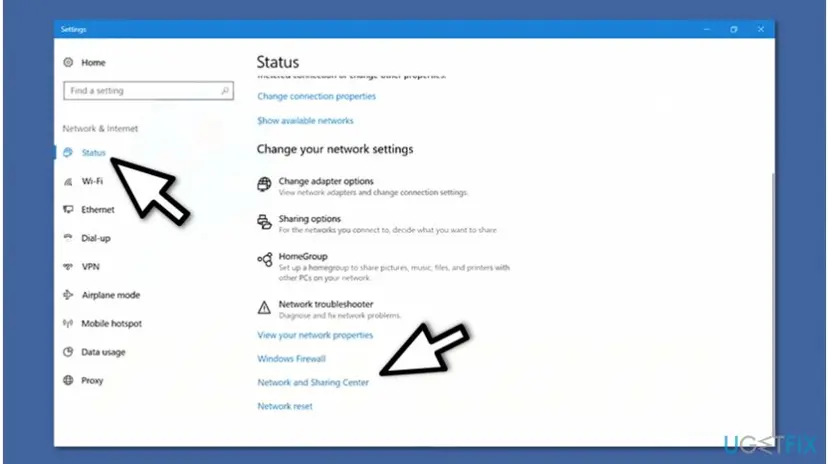
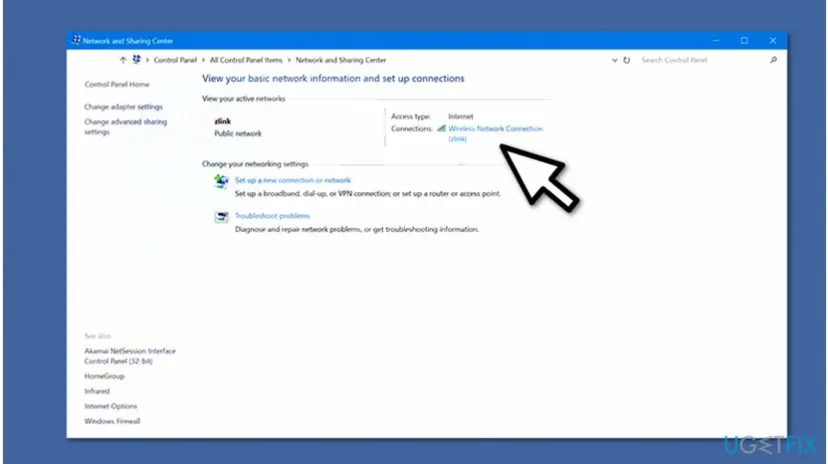
The password appears in the Network security key box. This works only for the network the PC is connected to now. The old guide called the last link Wireless Properties, and that is still the label Microsoft uses.
It worked if: The Network security key box shows the password instead of dots.
If not: If the network name is not under Connections, the PC is not connected to it. Join it first, or use Method 3 for a saved network.
Method 3. Show the password of any saved network with netsh
5 minutesLow riskYou want a network the PC has saved but is not connected to, or Settings gives no Show button.
Every saved network is a profile that netsh wlan can list and display. The key=clear option asks Windows to print the key in plain text, which only an administrator is allowed to read.
- Type cmd in the Start search box, right-click Command Prompt and select Run as administrator. On Windows 11 the same works in Terminal.
- Type
netsh wlan show profilesand press Enter. - Under User profiles, copy the exact name of the network you want.
- Type the command below, with your name inside the quotes, and press Enter.
- In the Security settings block, read the Key Content line. That is the password.
Replace NetworkName with the profile name
netsh wlan show profile name="NetworkName" key=clear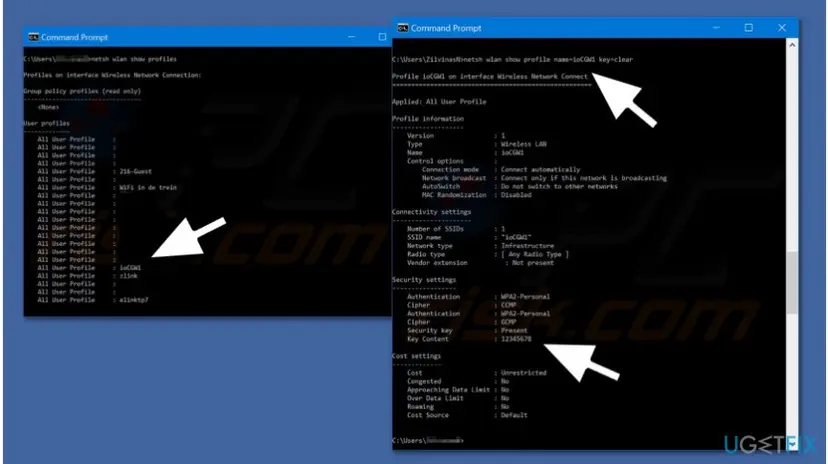
Step by step for the administrator window: How to run a program as administrator or in compatibility mode. Put the name in quotes even when it has no spaces, so the command never splits it.
Microsoft's netsh wlan reference lists show profiles, and it documents key=clear for the export command: the key is written in plain text only when the caller is a local administrator, and is otherwise encrypted. We could not find the same sentence for the show command, so run it as administrator to be safe.
It worked if: The profile details appear and Key Content shows the password in plain text.
If not: If Key Content is missing, the window is not running as administrator, or the network has no shared password. If no profile is listed, the PC never saved it: use Method 4. A missing Wi-Fi adapter is a different problem, see WiFi icon is not showing on the taskbar.
Method 4. Read or change the password on the router
10 minutesRead the warningNo PC has the password saved, or you want to change it.
The password is stored in the router itself, so its settings page can show it and replace it whatever the PC knows. You need the router login, not the Wi-Fi password.
- Connect a PC to the router by Wi-Fi or by cable, and open Command Prompt.
- Type
ipconfigand press Enter. - Under your active adapter, copy the address next to Default Gateway.
- Paste the address into the address bar of a browser and press Enter.
- Sign in with the router's admin name and password, then open its Wi-Fi or wireless security page to read or change the password.
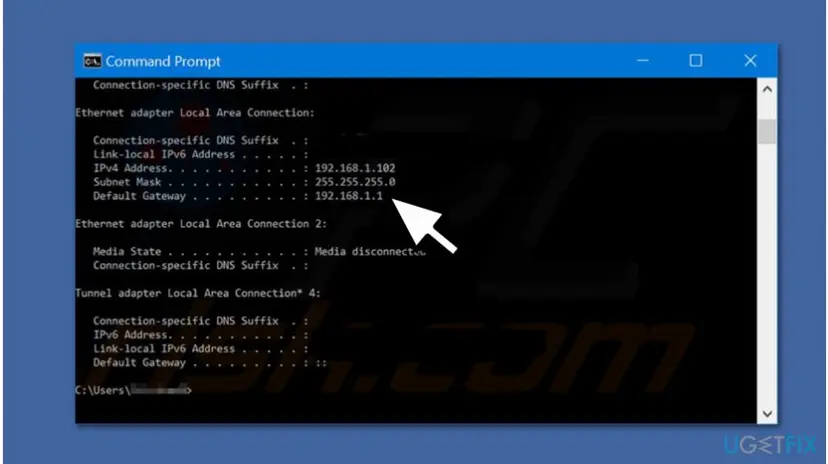
The admin login is often on the router label or in its documentation. If the page does not open at all, check the connection first: How to check your internet connection in Windows.
If the admin login was changed and nobody knows it, a router can be reset, usually by holding the reset button for about 10 seconds. The default login in its documentation then works again. The reset also erases the router's own settings, including your Wi-Fi name and password, so note down what you need first and check the manual.
It worked if: The router's wireless page lists the network name and its password, and a changed password takes effect for new connections.
If not: If you changed the password, every device must join again with the new one. If the page will not open, try another browser or the address printed on the router label.
How to undo it and put everything back
Reading the password changes nothing, so there is nothing to undo for Methods 1 to 3 except what is left on the screen. Untick Show characters or close the window, and close Command Prompt, because the Key Content line stays in its scrollback until you do.
- Export file. If you used
netsh wlan export profilewithkey=clear, the XML file holds the password in plain text. Delete it when you are done. - Router change. If you changed the password, the old one stops working for new connections, and each device must join again with the new one.
- Router reset. A reset restores factory settings. Put back your network name, password and any provider login that you noted before.
Myths about finding a Wi-Fi password on Windows
- It needs a password recovery tool. No. Windows shows it with built-in screens and one command. Extra tools only repeat what Windows already holds.
- It works for any network nearby. No. It shows only networks this PC has saved, and netsh reads the same saved profiles. A network never joined has no profile.
- Forgetting a network keeps its password. No. Forgetting a network removes its profile, and the delete profile command in Microsoft's reference does the same. After that Method 3 finds nothing.
- Viruses stop Windows saving the password. Nothing on this page needs that idea. If a saved network no longer joins, the cause is usually a changed router password.
Frequently asked questions
Can I find the Wi-Fi password on Windows if I am not connected to that network now?
Yes, if the PC has saved the network before. Windows 11 lists saved networks under Wi-Fi > Manage known networks, and each one has a Show button for the password. On Windows 10 the Settings screens cover only the current network, so use Method 3: list the profiles with netsh wlan show profiles and then show the one you need with key=clear. A network the PC never joined has no saved password anywhere on it.
Why does Key Content not show in the netsh output?
The most common reason is that Command Prompt is not running as administrator. Microsoft documents that a plain text key is only given to a local administrator, and otherwise it stays encrypted. The other reasons are that the network is open and has no password at all, or that it is a work network that signs you in with an account, not one shared key. Open a new Command Prompt with Run as administrator and try again.
Is it safe to show the Wi-Fi password on my PC?
Yes for the PC and the network: showing the password does not change the saved profile, the router or your connection. The risk is only who can see the screen. Cover it when someone is nearby, do not paste it into a shared chat by accident, and delete any exported XML file afterwards. The password is not hidden from a local administrator in any case, so a PC with several people on it should use separate accounts.
How do I find the Wi-Fi password on Windows 11 and share it?
Open Settings > Network & internet, select Properties for your Wi-Fi network and select Show next to Wi-Fi network password. Microsoft says Windows 11 can also show a QR code. On another device that supports it, scan the code to join without typing. If the other device cannot scan, read the password aloud and type it. For a saved network you are not connected to, open Manage known networks instead.
Is the Wi-Fi password the same as the router admin password?
No. The Wi-Fi password lets devices join the wireless network. The router admin password opens the router's settings page in a browser. They are often different, and many routers print both on a label as defaults. If you changed one, the other stays as it was. This is why Method 4 starts with the Default Gateway address and the router login, not with the Wi-Fi password you are trying to find.
What if no PC has ever joined the network?
Then Windows cannot help, because the password lives only in the saved profile and in the router. Look at the label on the router for a default password, in case it was never changed. Otherwise open the router's settings page from a device that is connected (Method 4) and read it there. As a last resort a router can be reset, but that erases its settings, so treat it as the final step.
Does 'Show characters' change my password or disconnect me?
No. The check box only switches the display between dots and text. It does not edit the saved key, and it does not disconnect the PC. Untick it, or close the window, and the password is hidden again. Nothing is written to the router. If your connection drops while you look, that is a separate fault in the Wi-Fi itself.
Does this work on Windows 7 or Windows 8?
The old version of this guide covered Windows 7 too. We did not check Windows 7 or 8, because Microsoft's current pages describe Windows 10 and Windows 11 only, and both older systems are long out of support. The netsh wlan command exists in Microsoft's reference for Windows 10 and Windows 11. If you are on an older PC, the router page (Method 4) works from any computer.
How do I find the Wi-Fi password on a phone, a Mac or any other device?
This page covers Windows. A phone or a Mac has its own screens, and we have not checked them here. The device-independent way is the router: its label shows a default password, and its settings page shows the current one (Method 4). If you have a Windows PC that joined the same network, Method 1 or Method 3 reads it from there.
Sources
- Microsoft Support: Connect to a Wi-Fi network in Windows (Find your Wi-Fi network password in Windows) (support.microsoft.com)
- Microsoft Learn: netsh wlan (command reference) (learn.microsoft.com)
Did this fix work?
One click, no account. It tells the next reader which guides are worth their time.
Questions and experiences: find Wifi password on Windows 10 and 11, even for saved networks
Still broken, or found a fix we did not cover? Ask here: members and our editors answer. Reading is open; writing needs a free account.
…