
How to put accents on letters in Windows?

Prefer to fix it yourself? The manual steps follow.
- 4methods
- 5 minutes
- Easy
Applies to Windows 11 and Windows 10 22H2; the Ctrl shortcuts apply to Word and Outlook only
4 methods in this guide
Hello. Is there a way to type characters with accents on Windows? Any tips would be appreciated.
Windows has no single accent key, but it has four built-in ways to type letters like é, ñ and ü. For one letter now and then, copy it from Character Map. If you type accents daily, add a second keyboard layout in Settings and switch to it with Win + Space.
Open Character Map (Win + R, type charmap), pick the letter, select Copy and paste it with Ctrl + V (Method 1). If your keyboard has a numeric keypad, hold Alt and type a four digit code such as 0233 for é (Method 2). In Word and Outlook only, Ctrl + ' then e also gives é (Method 3). For daily use, add a keyboard layout (Method 4).
| What it is | Typing letters with a grave, acute, circumflex, tilde or umlaut mark (à, é, â, ñ, ü) on a keyboard that has no key for them. |
|---|---|
| Safe to change | Yes. Methods 1 to 3 change nothing in Windows. Method 4 adds a keyboard layout that you can remove again in Settings. |
| What you gain | Correct spelling in names, emails and documents in French, Spanish, Portuguese, German and other languages, without a special keyboard. |
| Side effect | A second keyboard layout can change what some keys type until you switch back. Alt codes do nothing without a numeric keypad. |
| Fastest for one letter | Character Map: Win + R, charmap, then copy and paste. |
| Fastest for many letters | A keyboard layout that has the letters on its keys, switched with Win + Space. |
| Ctrl shortcuts work in | Word and Outlook, as Microsoft documents them. We found no Microsoft page that lists them for other apps. |
| Comes back | Yes. A keyboard layout you add stays after restarts until you remove it. |
Facts checked on 16 October 2026. Steps written for Windows 11 25H2 and 26H2 Settings > Time & language > Language & region, with the Windows 10 22H2 path named where it differs.
How Windows lets you type accented letters, and why there is no single answer
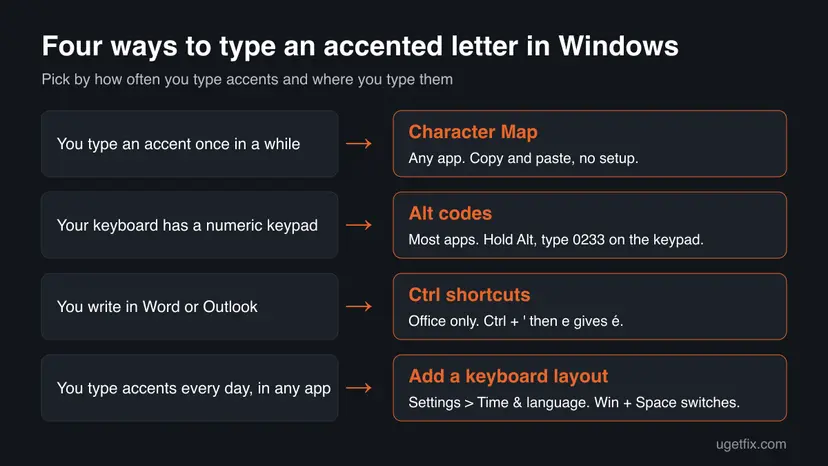
A standard English keyboard has no keys for letters like é or ñ, yet Windows can type them in several ways. Each way solves a different case: one letter now and then, a code you can type from memory, a shortcut inside an Office app, or a keyboard that has the letters built in.
| Way | Where it works | What you need | Best for |
|---|---|---|---|
| Character Map (Method 1) | Any app that accepts pasted text | Nothing, it ships with Windows | One letter now and then |
| Alt codes (Method 2) | Most apps; Microsoft documents them for Office | A numeric keypad with Num Lock on | A few letters you memorise |
| Ctrl shortcuts (Method 3) | Word and Outlook | The Office app | Writing documents and email |
| Keyboard layout (Method 4) | Every app | Adding a layout in Settings | Daily typing in another language |
A "grave" is the ` mark (à), "acute" is the ´ mark (é), "circumflex" is the ^ mark (ê), "tilde" is the ~ mark (ñ) and "umlaut" or "diaeresis" is the two dots (ü). Microsoft uses these same names in its shortcut tables.
What each way gives you and what it costs
None of these ways speeds up Windows or changes anything outside typing. The question is only how many keystrokes an accented letter costs you and what you must set up first.
| Way | What you gain | What it costs |
|---|---|---|
| Character Map | Works at once on any PC, any letter or symbol in the font. | About six clicks per letter; slow if you need many. |
| Alt codes | No window to open; four digits and the letter appears. | A numeric keypad and the codes in your head. Wrong codes give other symbols. |
| Ctrl shortcuts | Two keys per letter, no setup. | Office apps only, as far as Microsoft documents. |
| Keyboard layout | The letters are on your keys in every app. | A setup step, and some keys type something else until you switch back. |
Microsoft says a full language pack does not always need to be installed to get a keyboard layout, so adding one is usually a small change.
Who should use which way to type accents
- Character Map: you need an accent a few times a month, or a rare letter you cannot find a code for.
- Alt codes: your keyboard has a numeric keypad and you type the same few letters.
- Ctrl shortcuts: you write in Word or Outlook and want two key presses per letter.
- Keyboard layout: you write in French, Spanish, German or another language every day.
- Alt codes: you are on a laptop without a numeric keypad. Microsoft points such users to the Symbol command in Word instead.
- Ctrl shortcuts: you type in a browser, Notepad or chat. We found no Microsoft source saying they work there.
- Keyboard layout: you share the PC and others would be confused by changed keys.
- Character Map: you need dozens of accented letters in one sitting.
How to type accents in Windows
The methods go from the one that needs no setup to the one you set up once. Method 1 works everywhere. Methods 2 and 3 are shortcuts with limits. Method 4 is the permanent answer. Windows 10 left support on 14 October 2025; its path is named where it differs.
| Your case | Start with |
|---|---|
| You need one accented letter now. | Method 1. |
| Your keyboard has a numeric keypad and you know the letters you need. | Method 2. |
| You are writing in Word or Outlook. | Method 3. |
| You type accents every day, or you have a laptop without a keypad. | Method 4. |
Method 1. Copy the letter from Character Map
1 minuteNo riskYou need an accented letter once in a while, or a letter you cannot find a shortcut for.
Character Map lists every character in a font, so any accented letter is one copy away, and it also shows the Alt code of each letter for Method 2.
- Press Win + R, type
charmapand press Enter. - Tick Advanced view if you want the Search for box, and type the letter's name, for example
e acute. - Select the accented letter in the grid. It is shown larger when you click it.
- Select Select. The letter appears in the Characters to copy box.
- Select Copy.
- Click where you are typing and press Ctrl + V.
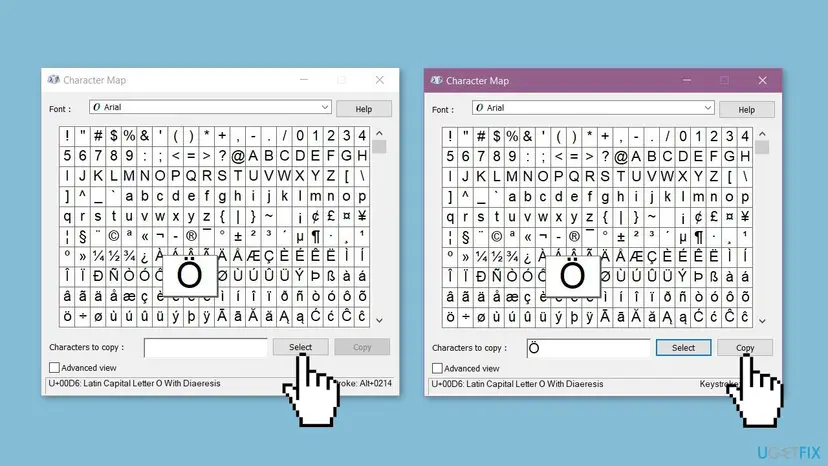
With a letter selected, the bottom right corner of the window shows its Alt code, for example Alt+0233 for é. That is the code for Method 2.
It worked if: The accented letter appears in your document at the cursor.
If not: If nothing pastes, the app may block pasting; type the letter by Method 2 or 4 instead. If charmap does not open at all, a system file may be damaged: Run DISM and SFC to repair Windows system files
Method 2. Type the letter with an Alt code
1 minuteNo riskYour keyboard has a numeric keypad and you type the same few letters often.
Microsoft documents Alt codes as the ANSI character for a decimal code typed on the numeric keypad, so one four digit number gives one accented letter without opening anything.
- Click where you want the letter.
- Make sure Num Lock is on.
- Hold down Alt.
- Type the four digit code on the numeric keypad, not on the number row above the letters.
- Release Alt. The letter appears.
| Letter | Code | Letter | Code |
|---|---|---|---|
| à | 0224 | À | 0192 |
| è | 0232 | È | 0200 |
| é | 0233 | É | 0201 |
| ì | 0236 | Ì | 0204 |
| ò | 0242 | Ò | 0210 |
| ù | 0249 | Ù | 0217 |
| ô | 0244 | Ô | 0212 |
| ñ | 0241 | Ñ | 0209 |
| ã | 0227 | Ã | 0195 |
| ü | 0252 | Ü | 0220 |
| ö | 0246 | Ö | 0214 |
| ç | 0231 | Ç | 0199 |
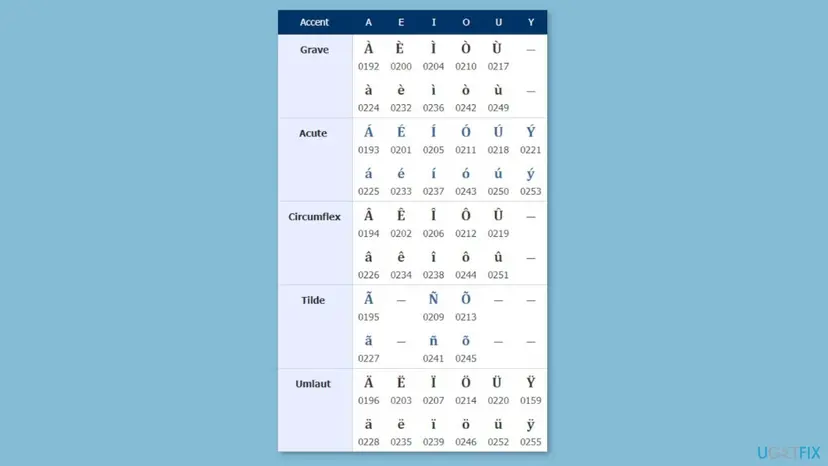
Microsoft says to use the number pad with Num Lock on. The number row above the letters is not the number pad. For laptops without one, Microsoft suggests the Insert > Symbol > More Symbols command in Word. Microsoft's Outlook table also prints 0224 for á, the same as for à, which looks like a typo, so read the code for á in Character Map.
It worked if: The accented letter appears when you release Alt.
If not: If a different symbol appears, you typed a wrong code or used the number row; check the code in Character Map. With no keypad, use Method 1 or 4.
Method 3. Use the Ctrl shortcuts in Word and Outlook
1 minuteNo riskYou write in Word or Outlook and want two key presses per letter.
Word and Outlook have their own accent shortcuts that Windows itself does not. Microsoft publishes them for these two apps, so this is not a system wide feature.
- Hold Ctrl and press the accent key from the table below.
- Release both keys.
- Type the letter. For a capital, hold Shift while you type the letter.
| To get | Press | Example |
|---|---|---|
| Grave: à è ì ò ù | Ctrl + ` then the letter | è: Ctrl + `, then e |
| Acute: á é í ó ú ý | Ctrl + ' then the letter | é: Ctrl + ', then e |
| Circumflex: â ê î ô û | Ctrl + Shift + ^ then the letter | ô: Ctrl + Shift + ^, then o |
| Tilde: ã ñ õ | Ctrl + Shift + ~ then the letter | ñ: Ctrl + Shift + ~, then n |
| Umlaut: ä ë ï ö ü ÿ | Ctrl + Shift + : then the letter | ü: Ctrl + Shift + :, then u |
| ç Ç | Ctrl + , then c or C | ç: Ctrl + , then c |
Microsoft says to release the accent keys before you type the letter. Holding them down while typing the letter does not work.
It worked if: The accented letter appears in the document.
If not: If the shortcut does nothing, you are probably outside Word or Outlook. Use Method 1, 2 or 4.
Method 4. Add a keyboard layout that has the accents
3 minutesLow riskYou type accents every day, or you have no numeric keypad.
A keyboard layout is the only way here that works in every app. Microsoft describes alternate layouts as the way to enter characters directly that are not on the layout of the current display language.
- Press Win + I and select Time & language, then Language & region.
- Select the three dots next to your current Windows display language and select Language options.
- Under Keyboards, check the layout is not already there, then select Add a keyboard.
- Select the layout you want from the list, for example one from the language you write in.
- To switch, select the input language icon in the taskbar, or hold the Windows logo key and press Spacebar until the layout you want shows.
Open Settings > Time & language > Language, select your display language under Preferred languages, select Options, and under Keyboards select Add a keyboard.
Users report that the layout named United States-International keeps the English keys and adds accents by typing a mark key such as ' then the letter. We could not confirm its key behaviour on a Microsoft page, so open the layout once in a text box and try it. The layout of the language you write in is the other choice.
It worked if: The input language icon in the taskbar shows the new layout, and its accent keys type letters like é.
If not: If the layout is not listed, Microsoft says to start again with the language that matches it, installing that language first if needed. If Win + Space does nothing, only one layout is installed. If the keys of the new layout type nothing, check the keyboard driver: Update, roll back or reinstall a driver
How to undo a keyboard layout and go back to the old keys
Methods 1 to 3 change no setting, so there is nothing to undo. A keyboard layout from Method 4 can be removed at any time.
- Open Settings > Time & language > Language & region (Windows 10: Language), open Language options for the language and select the layout you added.
- Select Remove. Microsoft documents this under the heading Remove a keyboard layout.
- To go back without removing it, press Win + Space until your original layout shows, or pick it from the input language icon.
Myths about typing accents in Windows
- "Alt codes work with the number row." Microsoft says to type them on the numeric keypad with Num Lock on. The number row types digits, not codes.
- "Ctrl and an accent key works in every program." Microsoft documents these shortcuts for Word and Outlook. In other apps they may do something else, so treat them as Office only.
- "You must install a full language pack to get accents." Microsoft says a full language pack does not always need to be installed to get a keyboard layout.
- "Adding a keyboard changes the Windows language." An added layout is an alternate layout for the current display language. The menus stay in the same language.
- "Windows needs a special font for accents." Common fonts include these letters, and Character Map shows what a font contains.
Frequently asked questions
How do I type accents on a Windows keyboard?
Four ways work. Copy the letter from Character Map (Win + R, charmap). Hold Alt and type a four digit code on the numeric keypad, such as 0233 for é. In Word and Outlook, use Ctrl and the accent key, then the letter. Or add a keyboard layout in Settings > Time & language > Language & region and switch with Win + Space. Pick by how often you type accents: Character Map for rare use, a layout for daily use.
How do I put accents on letters without a numeric keypad?
Alt codes need the numeric keypad with Num Lock on, so they do not work on the number row. On a laptop without a keypad, use Character Map to copy the letter, add a keyboard layout in Settings, or in Word use Insert > Symbol > More Symbols, which Microsoft suggests for this case. A keyboard layout is the best choice if you type accents often.
How do I get é on a Windows keyboard?
Hold Alt and type 0233 on the numeric keypad, then release Alt. In Word or Outlook you can press Ctrl and the apostrophe key, release both and type e. In any app you can copy é from Character Map. For an uppercase É the Alt code is 0201, and in Word or Outlook you hold Shift while you type the letter.
How do I type ñ in Windows?
Hold Alt and type 0241 on the numeric keypad for ñ, or 0209 for Ñ. In Word or Outlook press Ctrl + Shift + ~, release the keys and type n. If you write Spanish often, add a Spanish keyboard layout in Settings so that ñ has its own key.
Why does Ctrl and an accent key not work in my program?
Microsoft documents these shortcuts for Word and Outlook, not for Windows as a whole. In a browser, Notepad or a chat app the same keys may do nothing or something else. Outside Office, use an Alt code, Character Map or a keyboard layout. Also release the Ctrl and accent keys before you type the letter, as Microsoft says.
Why does an Alt code type the wrong character?
Usually the code was typed on the number row, Num Lock was off, or one digit was wrong. Use the numeric keypad with Num Lock on and four digits including the leading zero. Check the code for the letter in Character Map, which shows it at the bottom right of the window. Microsoft's Outlook table prints 0224 for á as well as à, which looks like a typo, so verify á there.
How do I switch between keyboard layouts in Windows?
Select the input language icon in the taskbar and pick a layout, or hold the Windows logo key and press Spacebar to cycle through the installed layouts. Microsoft notes that if the Spacebar does nothing, only one layout is installed. Add another in Settings > Time & language > Language & region > Language options > Add a keyboard.
Does adding a keyboard layout change my Windows language?
No. Microsoft describes an added layout as an alternate keyboard layout for the current Windows display language. Menus and apps keep their language. Only the characters your keys type change while that layout is selected, and you can remove it later in the same Language options page. If your keys type the wrong characters after you switch, press Win + Space again to return to the first layout.
How do I type accents on Windows 10?
The same four ways work. Character Map and Alt codes are identical. The keyboard layout path is Settings > Time & language > Language, then your language under Preferred languages, Options, Add a keyboard. Windows 10 left support on 14 October 2025, so Windows 11 is the version to plan for.
Is there an easier way if I type many accented letters?
Yes: add the keyboard layout of the language you write in, or an international layout that keeps the English keys, and switch with Win + Space. That is the only method here that works in every app and needs no code or copy step. Users report that the United States-International layout is a common choice, but we could not confirm its key behaviour on a Microsoft page, so test it first.
Sources
- Microsoft Support: Keyboard shortcuts to add language accent marks in Word and Outlook (support.microsoft.com)
- Microsoft Support: Keyboard shortcuts for international characters (Outlook, Alt codes table) (support.microsoft.com)
- Microsoft Support: Manage the language and keyboard/input layout settings in Windows (support.microsoft.com)
Did this fix work?
One click, no account. It tells the next reader which guides are worth their time.
Questions and experiences: put accents on letters in Windows
Still broken, or found a fix we did not cover? Ask here: members and our editors answer. Reading is open; writing needs a free account.
…