
How to fix WiFi icon is not showing on taskbar in Windows?

Prefer to fix it yourself? The manual steps follow.
- 8methods
- 2 to 20 minutes
- Easy
Applies to Windows 11 and Windows 10 laptops and desktops with a Wi-Fi adapter
8 methods in this guide
I am using Windows 11 Home edition, and it has been several weeks now that the WiFi icon is not showing in the taskbar and notification area. Is any help available with this?
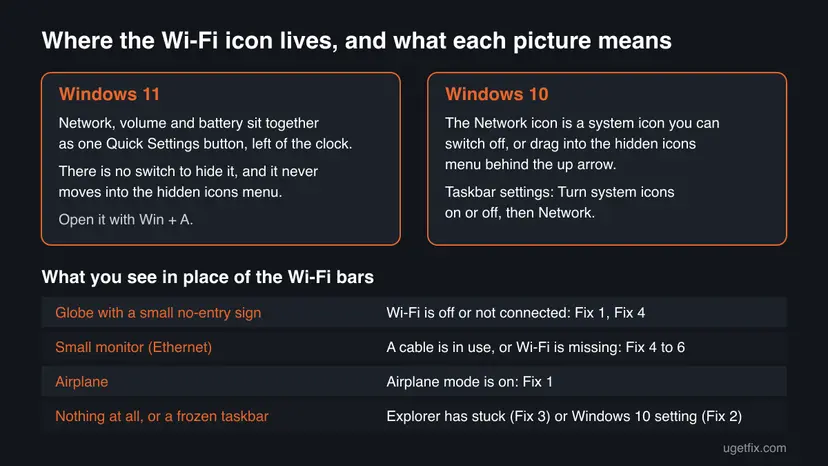
In Windows 11 the Wi-Fi icon is part of the Quick Settings button next to the clock, and Microsoft gives no switch to hide it. When it is gone or shows a globe, Wi-Fi itself is off, stopped or undetected. In Windows 10 the Network icon can be switched off or hidden, so check that first.
Press Win + A to open Quick Settings. In Windows 11 the Wi-Fi icon cannot be hidden, so if the Wi-Fi tile is missing or Airplane mode is on, fix that there (Fix 1). In Windows 10, click the up arrow next to the clock or turn on Network under Turn system icons on or off (Fix 2). If the taskbar looks frozen, restart Windows Explorer (Fix 3). After a network reset, start the WLAN AutoConfig service (Fix 4).
| Error | No error message. The Wi-Fi bars are missing from the right end of the taskbar, or a globe or a small monitor shows in their place. |
|---|---|
| Where it appears | Windows 11: the Quick Settings button (network, volume, battery) left of the clock. Windows 10: the notification area, or the hidden icons menu behind the up arrow. |
| Main cause | Windows 11: Wi-Fi is off, in Airplane mode, or the adapter or its service is not running. Windows 10: the Network system icon is switched off or hidden. |
| Fastest fix | Press Win + A and check the Wi-Fi tile and Airplane mode (Fix 1). On Windows 10, turn the Network system icon on (Fix 2). |
| Also written as | Wi-Fi icon missing, network icon not showing, internet icon gone, Wi-Fi option disappeared, Wi-Fi symbol not showing. |
| Affects | Windows 11 and Windows 10, laptops more often than desktops, because desktops often use a cable and show the Ethernet icon. |
| Microsoft's status | Not a known bug. Microsoft says Quick Settings cannot be removed from the Windows 11 taskbar. Intel documents the icon vanishing after a network reset on Windows 10. |
| Time to fix | Under 2 minutes for Fixes 1 to 3. Up to 20 minutes when a driver has to be reinstalled. |
| Where the cause shows | Device Manager, Network adapters: a missing adapter, a down arrow (disabled) or a device status code in Properties. |
Facts checked on 15 October 2026. Steps written for Windows 11 (25H2 and 26H2) and Windows 10 22H2.
What it means when the Wi-Fi icon is not showing on the taskbar
The answer depends on your Windows version, because Microsoft changed where the icon lives. In Windows 11 the network, volume and battery icons form one button called Quick Settings. Microsoft's taskbar help says plainly that you can't remove Quick Settings from the taskbar. So in Windows 11 the network icon is never really hidden; it changes shape.
In Windows 10 the Network icon is an ordinary system icon in the notification area. You can switch it off under Turn system icons on or off, or drag it into the hidden icons menu behind the small up arrow. Both happen by accident, which is why Windows 10 users often lose it after cleaning up the taskbar.
| What you see | What it means | Start with |
|---|---|---|
| Wi-Fi bars (a fan of curves) | Connected to Wi-Fi. Nothing is missing. | Nothing to fix |
| A globe with a small no-entry sign | The wifi not connected icon: Wi-Fi is off, or there is no internet. | Fix 1, then Fix 4 |
| A small monitor | The PC uses a cable (Ethernet), or Windows sees no Wi-Fi adapter. | Fix 4 to Fix 6 |
| An airplane | Airplane mode is on and Wi-Fi is turned off with it. | Fix 1 |
| No network icon at all | Explorer has stuck, or on Windows 10 the icon is switched off. | Fix 3 or Fix 2 |
Why the Wi-Fi icon is not showing in the taskbar
Most often nothing is broken: the icon is hidden (Windows 10) or Wi-Fi is turned off, so the icon shows a globe or airplane instead of bars (Windows 11). Less often Windows Explorer, which draws the taskbar, has hung. Rarely the Wi-Fi adapter itself has stopped: its service is not running, the device is disabled or its driver failed.
| Cause | How often | How to tell | Fix |
|---|---|---|---|
| Wi-Fi turned off, Airplane mode on, or the icon sits in the hidden icons menu. | Most often | Win + A shows the Wi-Fi tile switched off, or the airplane tile is blue. | Fix 1 |
| Windows 10: the Network system icon is switched off. | Often (Windows 10 only) | No network icon at all, and Quick actions still show Wi-Fi. | Fix 2 |
| Windows Explorer has hung, so the taskbar is not redrawn. | Sometimes | Other tray icons or the clock look frozen too. | Fix 3 |
| The WLAN AutoConfig service is stopped, often after a network reset. | Sometimes | The Wi-Fi tile is gone from Quick Settings and Wi-Fi is missing in Settings. | Fix 4 |
| The Wi-Fi adapter is disabled by a key, a switch or in Device Manager. | Sometimes | Device Manager shows the adapter with a down arrow. | Fix 5 |
| The Wi-Fi driver failed or the adapter is not detected. | Rarely | A yellow mark on the adapter, or no Wi-Fi adapter under Network adapters. | Fix 6 |
| Damaged network settings. | Rarely | Fixes 1 to 6 changed nothing. | Fix 7, Fix 8 |
On 2-in-1 devices Windows 11 uses a tablet-optimized taskbar when the keyboard is folded back. Microsoft says its collapsed state shows only critical status icons such as the time or battery. Swipe up from the bottom edge to see the full taskbar before you change anything.
How to show the Wi-Fi icon on the taskbar again
Fixes 1 to 3 bring the icon back on most PCs in a minute or two and change nothing. Fixes 4 to 6 restart the parts of Windows that run the Wi-Fi adapter. Fixes 7 and 8 are general network repairs for the cases that remain.
| What you see or have | Start with |
|---|---|
| Windows 11, a globe or an airplane where the Wi-Fi bars were. | Fix 1 |
| Windows 10, no network icon at all next to the clock. | Fix 1, then Fix 2 |
| The clock or other tray icons look frozen or blank. | Fix 3 |
| The icon vanished right after a network reset, or the Wi-Fi tile is missing in Quick Settings. | Fix 4 |
| A laptop with a Wi-Fi key or switch, or the adapter shows a down arrow in Device Manager. | Fix 5 |
| No Wi-Fi adapter in Device Manager, or it shows a yellow mark. | Fix 6 |
Fix 1. Check Quick Settings, Airplane mode and the hidden icons menu
1 minuteNo riskEveryone. On Windows 11 this is the main fix; on Windows 10 it finds an icon that was only moved.
In Windows 11 the network icon is fixed inside Quick Settings, so a missing Wi-Fi symbol nearly always means Wi-Fi is off or Airplane mode is on. In Windows 10 the icon may just sit in the overflow area.
- Press Win + A, or select the network, volume and battery button left of the clock.
- If the Airplane mode tile is on, select it to turn it off.
- If the Wi-Fi tile is off, select it to turn it on. Select the arrow on the tile to pick your network.
- Windows 10: select the up arrow (Show hidden icons) next to the clock.
- Windows 10: if the network icon is in that menu, drag it onto the taskbar next to the clock.
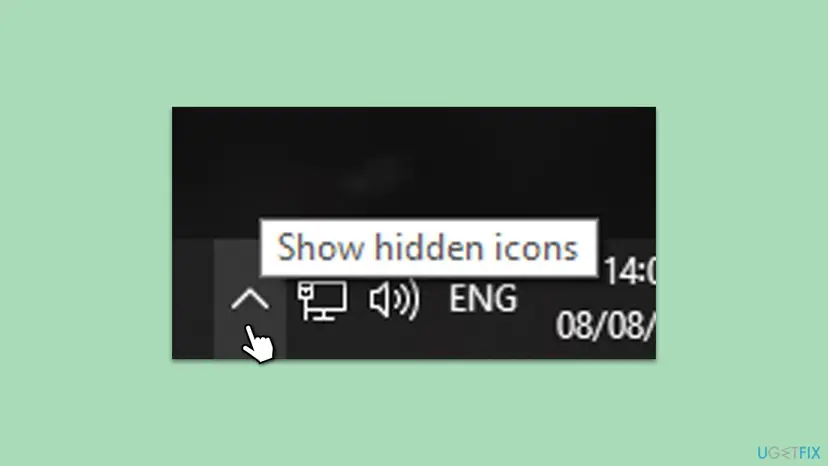
Microsoft's Wi-Fi help gives the same first check: open the network icon and make sure Wi-Fi is turned on. It also lists Settings > Network & internet > Airplane mode as the place to confirm that Airplane mode is off.
It worked if: The Wi-Fi bars are back next to the clock and your network shows Connected.
If not: On Windows 10 go to Fix 2. On Windows 11, if there is no Wi-Fi tile at all, go to Fix 4.
Fix 2. Turn the Network system icon back on in Windows 10
2 minutesNo riskWindows 10 22H2 users who see no network icon at all, not even in the hidden icons menu.
Windows 10 treats the network icon as a system icon with its own on and off switch. When the switch is off, the icon is gone from both the taskbar and the hidden icons menu, while Wi-Fi keeps working.
- Right-click an empty part of the taskbar and select Taskbar settings.
- Scroll to Notification area and select Turn system icons on or off.
- Set Network to On, then go back one page.
- Select Select which icons appear on the taskbar.
- Set Network to On here too, so it does not drop into the hidden icons menu.
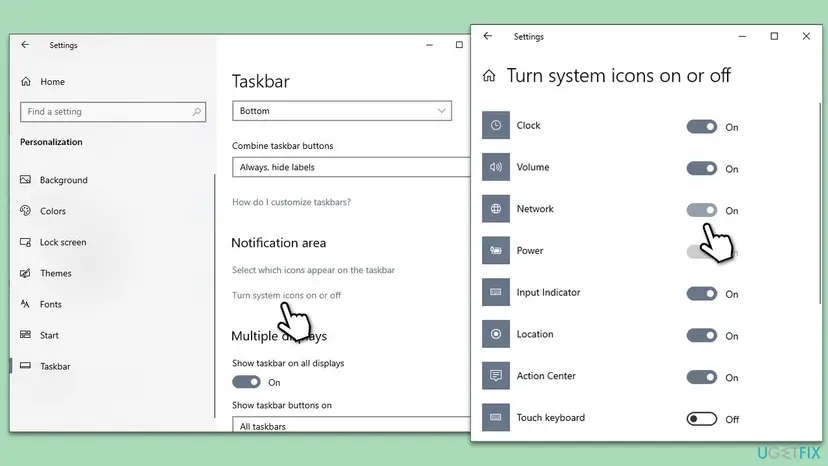
Windows 11 has no Turn system icons on or off page and no Network switch. Its taskbar settings list only Pen Menu, Touch keyboard, Virtual Touchpad and Other system tray icons, which covers app icons, not the network icon. Windows 10 left support on 14 October 2025.
It worked if: The network icon appears next to the clock as soon as the switch is on.
If not: If the switch is already on or greyed out, restart Windows Explorer in Fix 3.
Fix 3. Restart Windows Explorer to redraw the taskbar
1 minuteNo riskThe icon is missing and the clock, other tray icons or the Start button also look stuck or blank.
Windows Explorer draws the whole taskbar, including Quick Settings. If it hangs, Windows keeps the old picture or leaves gaps. Restarting it rebuilds the taskbar without a full reboot.
- Press Ctrl + Shift + Esc to open Task Manager.
- Find Windows Explorer in the list of processes and select it.
- Select Restart task at the top (or right-click it and select Restart).
- Wait a few seconds while the taskbar disappears and comes back.
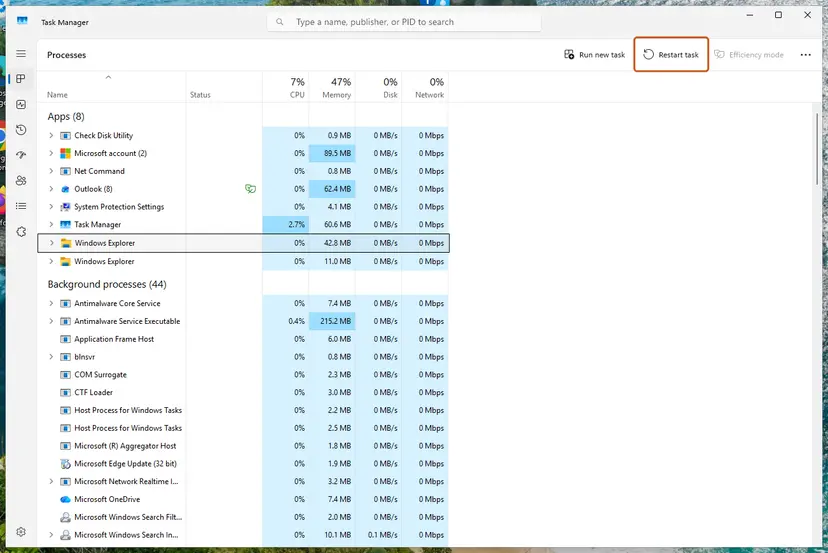
Step by step with both Windows versions: Restart File Explorer. A full restart of the PC does the same and also restarts the network services.
It worked if: The taskbar redraws and the Wi-Fi bars appear in the Quick Settings button or the notification area.
If not: Restart the PC once. If the icon is still missing or the Wi-Fi tile is gone, go to Fix 4.
Fix 4. Start the WLAN AutoConfig service and set it to Automatic
3 minutesLow riskThe icon disappeared after a network reset, or Wi-Fi is missing from Quick Settings and from Settings.
WLAN AutoConfig is the Windows service that finds and connects to Wi-Fi networks. Intel's support article for this exact symptom tells you to set it to Automatic and start it, and Microsoft's Wi-Fi help says to restart it when the Wi-Fi option is missing.
- Press Win + R, type
services.mscand press Enter. - Find WLAN AutoConfig in the list and double-click it.
- Set Startup type to Automatic.
- If Service status says Stopped, select Start. If it says Running, close the window, right-click the service and select Restart.
- Select OK and look at the taskbar.
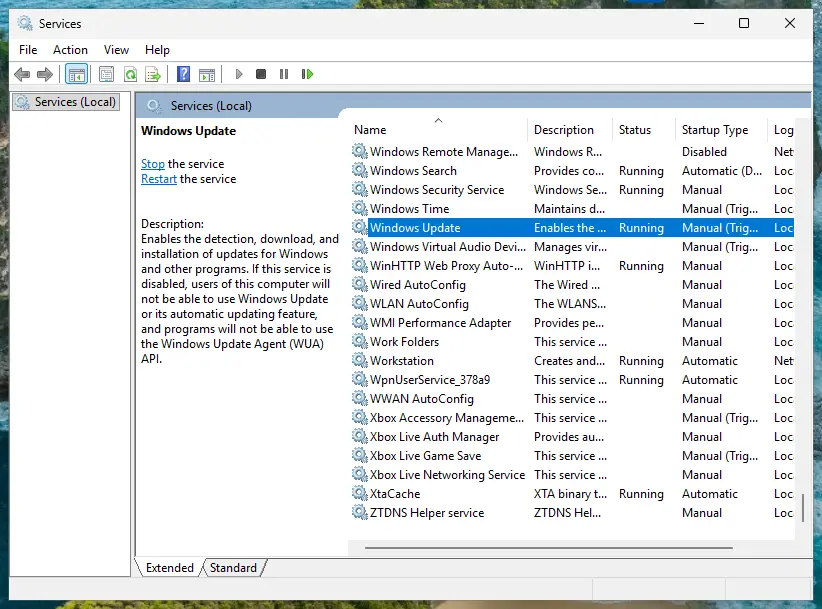
More on the Services window: Check and restart Windows services. Change only this one service. The long list of services in many guides (Telephony, Remote Access, Remote Procedure Call) has no source tied to this problem.
It worked if: Within a few seconds the Wi-Fi tile returns to Quick Settings and the network list fills up.
If not: If the service starts and stops again, or Wi-Fi is still absent, check the adapter in Fix 5.
Fix 5. Turn the Wi-Fi adapter back on with its key, switch or Device Manager
3 minutesNo riskLaptops with a Wi-Fi key or switch, and any PC where the adapter shows a down arrow in Device Manager.
A disabled adapter disappears from Windows' list of networks, so Quick Settings has no Wi-Fi to show. Microsoft names the physical switch and the Enable device command as the first two checks when the Wi-Fi option is missing.
- If your laptop has a Wi-Fi switch on its side or front, slide it to on. If a key shows an antenna or airplane symbol, press it, sometimes together with Fn.
- Right-click Start and select Device Manager.
- Expand Network adapters and find the adapter with Wireless, Wi-Fi or WLAN in its name.
- If its icon has a small down arrow, right-click it and select Enable device.
- Optional check: press Win + R, type
ncpa.cpland press Enter. Right-click Wi-Fi and select Enable if it is greyed out.
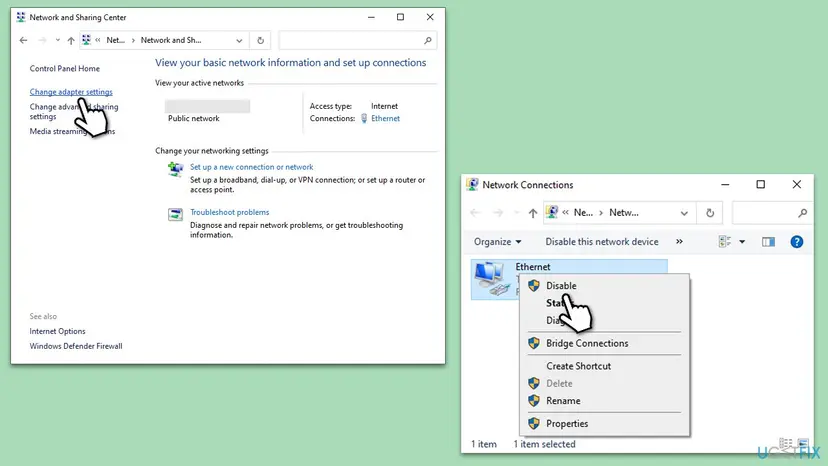
If no Wi-Fi adapter is listed at all, Microsoft says Windows does not detect it. Go to Fix 6 for the driver.
It worked if: The adapter icon loses its down arrow and the Wi-Fi tile and bars return.
If not: If the adapter is missing or has a yellow mark, reinstall its driver in Fix 6.
Fix 6. Update, roll back or reinstall the Wi-Fi driver
15 minutesLow riskThe adapter shows a yellow mark, is missing, or the icon vanished after a Windows or driver update.
Without a working driver Windows cannot use the adapter, so it shows no Wi-Fi at all. Microsoft suggests uninstalling the driver and restarting, especially when Wi-Fi stopped working after a recent update.
Download the newest Wi-Fi driver for your exact model from the PC or adapter maker's website before you uninstall anything. Without Wi-Fi you may need another PC and a USB stick to bring it over.
- Right-click Start and select Device Manager, then expand Network adapters.
- Right-click the Wi-Fi adapter and select Properties, then open the Driver tab.
- If the problem started after an update and Roll Back Driver is available, select it and confirm.
- Otherwise select Update Driver and let Windows search, or point it to the driver you downloaded.
- If that fails, select Uninstall Device, tick Attempt to remove the driver for this device and select Uninstall.
- Restart the PC. Windows installs a driver again; if it does not, run the driver you downloaded.
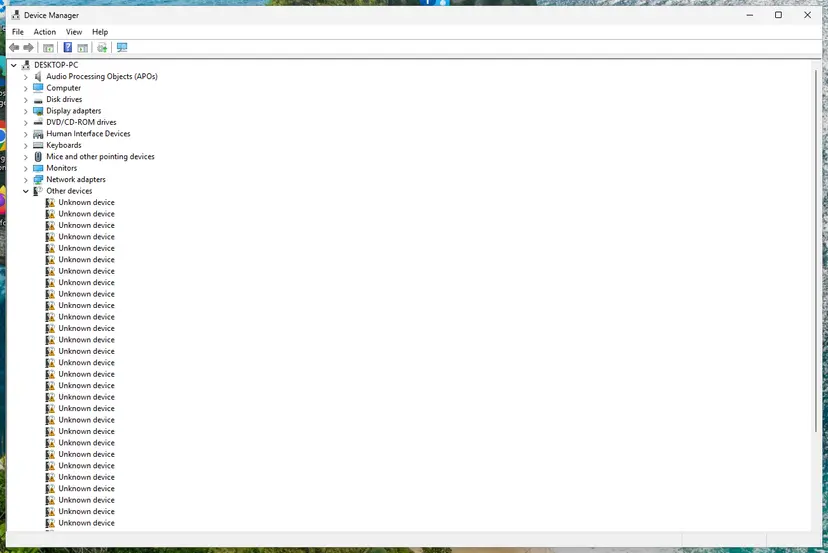
Full steps with pictures: Update, roll back or reinstall a driver.
It worked if: The adapter is listed without a mark and the Wi-Fi bars come back after the restart.
If not: Run the network troubleshooter in Fix 7, then the network reset in Fix 8.
Fix 7. Run the Windows network troubleshooter
5 minutesNo riskFixes 1 to 6 did not help and you want Windows to check the adapter and settings for you.
The troubleshooter checks the adapter, its services and the connection in one pass and applies the repairs it can. It does not target the icon, but it fixes the stopped parts that make the icon disappear.
- Windows 11: open the Get Help app from Start and search for Network and Internet troubleshooter.
- Windows 11: answer its questions and let it run the checks.
- Windows 10: open Settings > Network & Internet > Status.
- Windows 10: scroll down, select Network troubleshooter and follow the window titled Troubleshoot Problems.
If Wi-Fi now works but pages do not load, see How to check your internet connection in Windows.
It worked if: The troubleshooter reports a problem as fixed and the Wi-Fi bars return.
If not: Go to Fix 8 and reset the network settings.
Fix 8. Reset the network settings as the last step
10 minutesRead the warningNothing above helped, or the problem began after an upgrade from Windows 10 to Windows 11.
Network reset removes and reinstalls every network adapter with default settings. Microsoft calls it the last step and says it helps after an upgrade from Windows 10 to Windows 11.
Saved Wi-Fi networks and their passwords, VPN software settings and virtual switches are removed. Write down your Wi-Fi password first. Known networks may come back set to Public.
- Windows 11: open Settings > Network & internet > Advanced network settings > Network reset.
- Windows 10: open Settings > Network & Internet > Status > Network reset.
- Select Reset now, then Yes.
- Let the PC restart, then connect to your Wi-Fi again with its password.
- If the Wi-Fi icon is gone after the reset, start WLAN AutoConfig as in Fix 4.
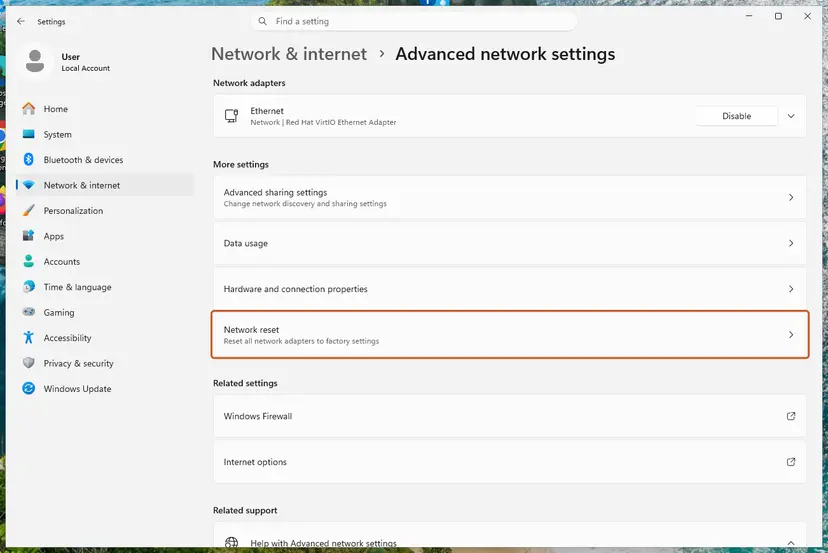
The command-line resets that come before it are in Reset the network and flush DNS.
It worked if: After the restart the Wi-Fi tile is back and your network asks for its password.
If not: Read the adapter status in the section below; the adapter may have failed.
If the Wi-Fi icon is still not showing: read the adapter status
Device Manager tells you whether Windows can see the adapter and why it does not use it. That answer decides whether you keep trying software fixes or call the PC maker.
- Open Device Manager and expand Network adapters.
- Right-click the Wi-Fi adapter, select Properties and read Device status on the General tab.
- Note the error code, if there is one, and the Driver Date and Driver Version on the Driver tab.
- Compare the version with the newest driver on the maker's website for your model.
- No Wi-Fi adapter listed at all, even after a restart: Windows does not detect the hardware. Microsoft says you may have to install the driver by hand from the maker. If the maker's driver installer also finds no device, the card may be faulty or switched off in the firmware settings; ask the PC maker.
- An error code in Device status: search Microsoft's list of Device Manager error codes for that number. The wireless network report from Microsoft also shows it as a Problem number.
- Works on a cable, Wi-Fi never appears, laptop under warranty: send the maker the adapter name, the Device status text and the steps you tried.
How to keep the Wi-Fi icon on the taskbar
- Windows 10: do not drag the network icon into the hidden icons menu when you tidy the taskbar. Keep Network on in both Turn system icons on or off and Select which icons appear on the taskbar.
- Learn the icons: a globe means not connected, an airplane means Airplane mode, a monitor means a cable. None of them means the icon is gone.
- After a network reset, check that WLAN AutoConfig is set to Automatic.
- Before a big driver or Windows update on a laptop, keep the maker's Wi-Fi driver on a USB stick.
- If Wi-Fi drops after sleep, Microsoft suggests clearing Allow the computer to turn off this device to save power on the adapter's Power Management tab.
Windows 10 stopped getting security updates on 14 October 2025. If you still use it, plan the move to Windows 11, where the network icon can no longer be switched off by accident.
Frequently asked questions
How do I show the Wi-Fi icon on the taskbar in Windows 11?
You do not need to switch it on, because Windows 11 always shows the network icon inside the Quick Settings button next to the clock. Microsoft says this button cannot be removed from the taskbar. If you see a globe, an airplane or a monitor instead of Wi-Fi bars, press Win + A, turn off Airplane mode and turn on the Wi-Fi tile. If there is no Wi-Fi tile, start the WLAN AutoConfig service and check the adapter in Device Manager, as Fixes 4 and 5 show.
How do I add the Wi-Fi icon to the taskbar in Windows 10?
Right-click the taskbar, select Taskbar settings, then Turn system icons on or off under Notification area, and set Network to On. Go back and open Select which icons appear on the taskbar, and set Network to On there too. The first switch shows the icon at all; the second keeps it out of the hidden icons menu. If the icon only sits in that menu, you can also drag it from the up arrow onto the taskbar.
Why is the network icon not showing in the taskbar in Windows 11?
In Windows 11 it is almost always there but looks different. The network, volume and battery icons share one Quick Settings button, so the Wi-Fi symbol can look missing when it is replaced by a globe, an airplane or a monitor. A truly empty corner usually means Windows Explorer has hung; restarting it in Task Manager redraws the taskbar. If the Wi-Fi tile is missing from Quick Settings, the adapter or its WLAN AutoConfig service is not running.
What does the globe icon instead of the Wi-Fi icon mean?
The globe is the wifi not connected icon in Windows 11. It means the PC has no internet connection: Wi-Fi is turned off, no network is chosen, or the network has no internet. Microsoft's Wi-Fi help calls it the No Internet icon. Select it, turn Wi-Fi on and pick your network. If it says Connected but No internet, the problem is the router or the connection, not the icon.
Why did the Wi-Fi option suddenly disappear in Windows 11?
When the Wi-Fi tile and the network list vanish together, Windows has lost the adapter. The common reasons are a stopped WLAN AutoConfig service, an adapter disabled by a key or in Device Manager, and a driver that failed after an update. Intel describes the icon disappearing right after a network reset and fixes it by setting WLAN AutoConfig to Automatic and starting it. Work through Fixes 4, 5 and 6 in that order.
Which F key turns on Wi-Fi?
There is no single key. Laptop makers put the wireless toggle on different keys, usually one in the top row with an antenna or airplane symbol, and some need Fn pressed with it. Some older laptops use a slide switch on the side instead. Look for the symbol on your keys or check your laptop's manual. In Windows itself, Win + A opens Quick Settings, where the Wi-Fi and Airplane mode tiles do the same job on every PC.
The internet icon is not showing on the taskbar, but the internet works. Is something wrong?
Usually not. On Windows 10 the Network system icon is switched off or hidden in the overflow menu, and Wi-Fi works as before; Fix 2 brings it back. On Windows 11 a working connection always shows in Quick Settings, so a blank spot points to a hung Windows Explorer. Restart Explorer from Task Manager. Nothing about your connection or security changes while the icon is missing.
Can a network reset remove the Wi-Fi icon?
Yes, Intel documents exactly that on Windows 10: after a network reset the Wi-Fi icon disappeared from the system tray. Its fix is to open the Services window, set WLAN AutoConfig to Automatic and start it. A network reset also removes saved Wi-Fi networks and passwords, so you have to connect again after the restart. That is why this guide uses the reset only as the last fix.
Will I lose my saved Wi-Fi passwords while fixing this?
Only with the network reset in Fix 8. Microsoft says the reset removes every network adapter and its settings, so your saved networks and passwords go and VPN software may need to be set up again. Fixes 1 to 7 change no saved networks. Restarting Explorer, starting a service or enabling the adapter keeps everything. Reinstalling the driver usually keeps saved networks too, but write your password down first to be safe.
Sources
- Microsoft Support: Customize the Taskbar in Windows (support.microsoft.com)
- Microsoft Support: Fix Wi-Fi connection issues in Windows (support.microsoft.com)
- Intel Support: How to Fix My Wi-Fi Icon Not Showing on the Windows System Tray (article 000059905) (intel.com)
Did this fix work?
One click, no account. It tells the next reader which guides are worth their time.
Questions and experiences: fix WiFi icon is not showing on taskbar in Windows
Still broken, or found a fix we did not cover? Ask here: members and our editors answer. Reading is open; writing needs a free account.
…