How to fix
This device can perform faster message
on Windows
Resolve the "This device can perform faster" message on Windows 10/11 with easy tweaks for optimal performance. Expert-tested solutions await!

Why does How to fix This device can perform faster message on Windows occur?
- USB 3.0-capable device running at 2.0 speed
- Outdated USB drivers
- Missing USB drivers
- Incorrect driver settings
- Disabled USB 3.0 Host Controller Driver
Repairs Windows system files, removes malware, and restores a clean OS state — without reinstalling.
Hi, every time I put a USB stick into the USB slot, I receive a popup message "This device can perform faster" message at the bottom right corner of my screen. I have no clue why is it showing up - am I doing something wrong? Would be nice to get some solutions for this.
This device can perform faster message usually shows up on Windows when an external storage unit, such as an external hard drive, camera, phone, or any other device that can be connected via the USB slot, is inserted. In essence, this is not an error message but rather an indication that things can be drastically improved for the consumer.
Unlike errors like USB Device not recognized, This device can perform faster is not a critical error and will not impact your Windows 10 capabilities in any negative ways. In other words, it will not impair your operating system. Nevertheless, many users are unaware of why this message shows up or how to fix it in the first place.
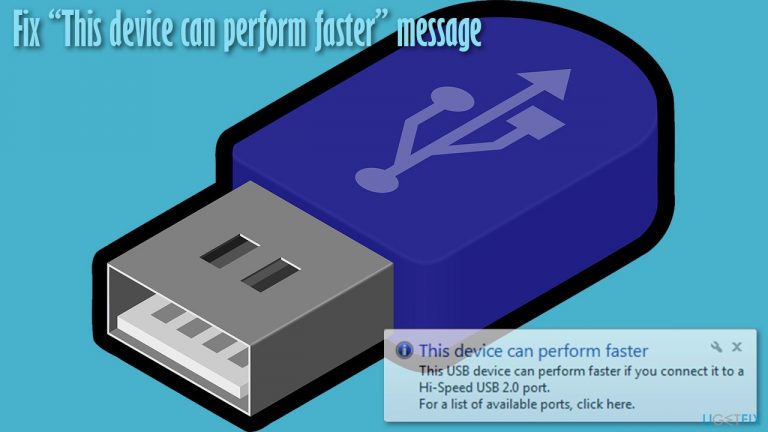
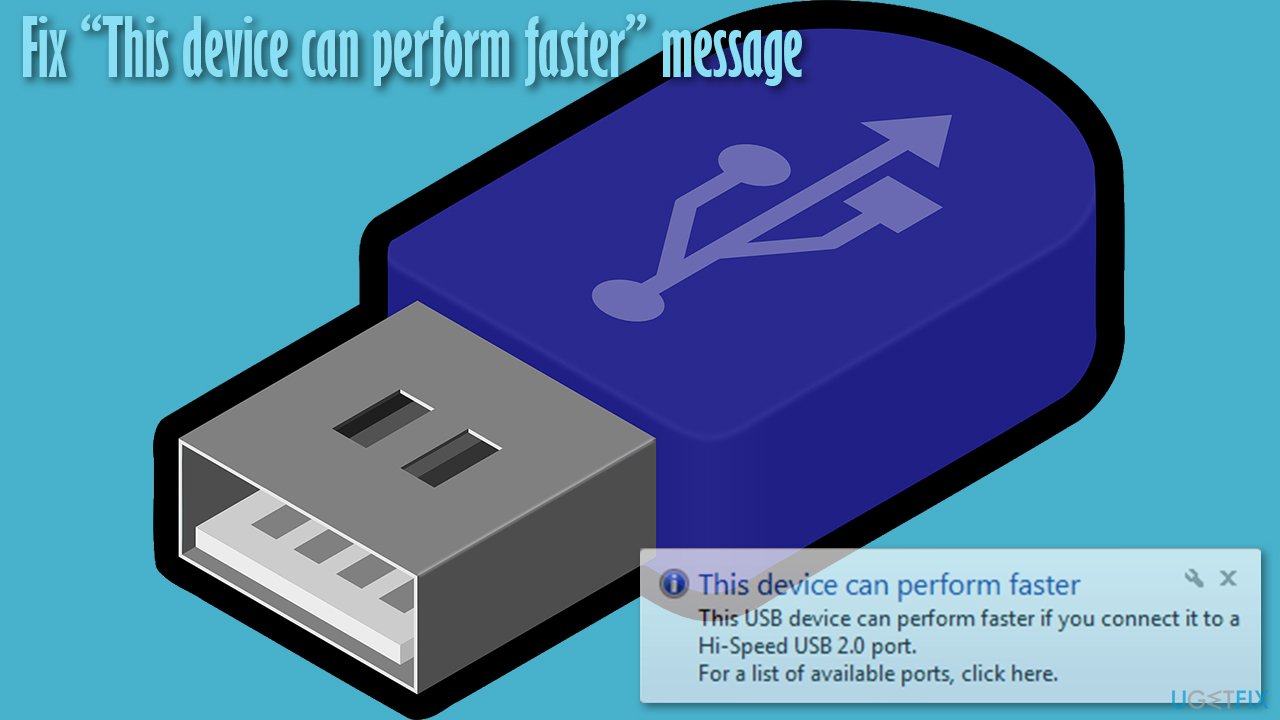
As soon as they connect the camera or another external device via the USB slot, they are presented with the following message:
This device can perform faster
This USB device can perform faster if you connect it to a Hi-Speed USB 2.0 port.
For list of available ports, click here.
The discrepancies that causes the This device can perform faster popup to show up can be many. One of the main reasons is that USB 3.0-capable device is running at 2.0 speed only. This can also be caused by outdated or missing USB drivers, as well as incorrect driver settings.
Regardless of the reason, you should check the list of solutions below to fix This device can perform faster error for good. Before you start, we highly advise you running a scan with [d1] repair software, which could diagnose and repair various underlying Windows issues (missing DLLs, registry issues, BSODs,[ref en-3] etc.) for your you automatically.
Solution 1. Enable USB 3.0 eXtensible Host Controller Driver
In some cases, the USB 3.0 Host controller driver might be disabled. Here's how to enable it:
- Right-click on Start and pick Device Manager
- Here, expand the Universal Serial Bus controllers section
- Right-click on USB 3.0 eXtensible Host Controller and select Enable (note that this option will only work if the driver was disabled in the first place).
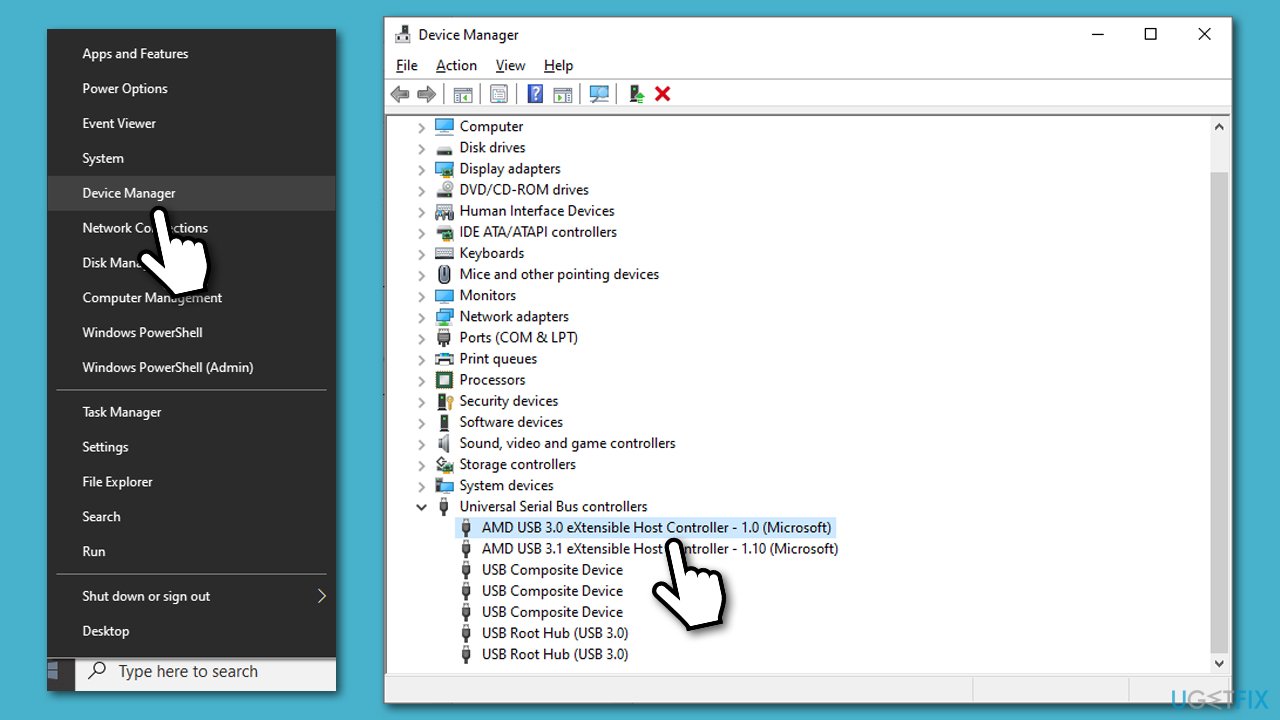
How to fix this device can perform faster message on windows enable host controller
Solution 2. Update your USB drivers
- Open Device Manager as explained above
- Expand the Universal Serial Bus controllers section once again
- Right-click on each of the drivers available there and select Update driver
- Select Search automatically for drivers and wait
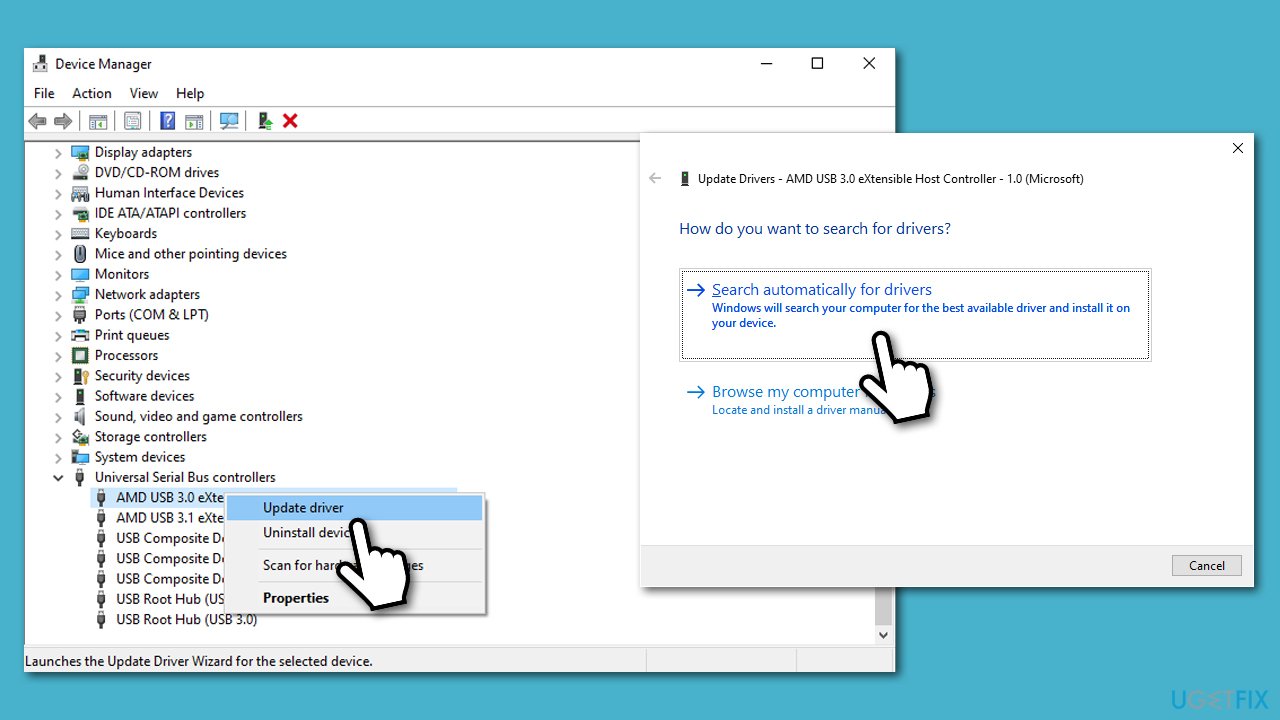
How to fix this device can perform faster message on windows update usb drivers - Reboot when done.
If no drivers are available via using this method, it does not mean that they do not exist. Device Manager is known for not being able to identify the missing drivers or locating the newest versions available. Therefore, you should either download the latest drivers from manufacturer's website (which can take a long time, as you also need to determine the precise driver version and your device type) or use automatic driver updater such as [rev id="DriverFix"], which would do the job for you automatically within just a few minutes.
Solution 3. Connect your laptop to a power socket
In some cases, This device can perform faster error might show up due to power settings on laptops. Therefore, if the machine you are getting the message on is a laptop that is running on battery power, you should plug it into the electric socket to ensure that the USB port is running at its full capacity.

Solution 4. Use different connection ports
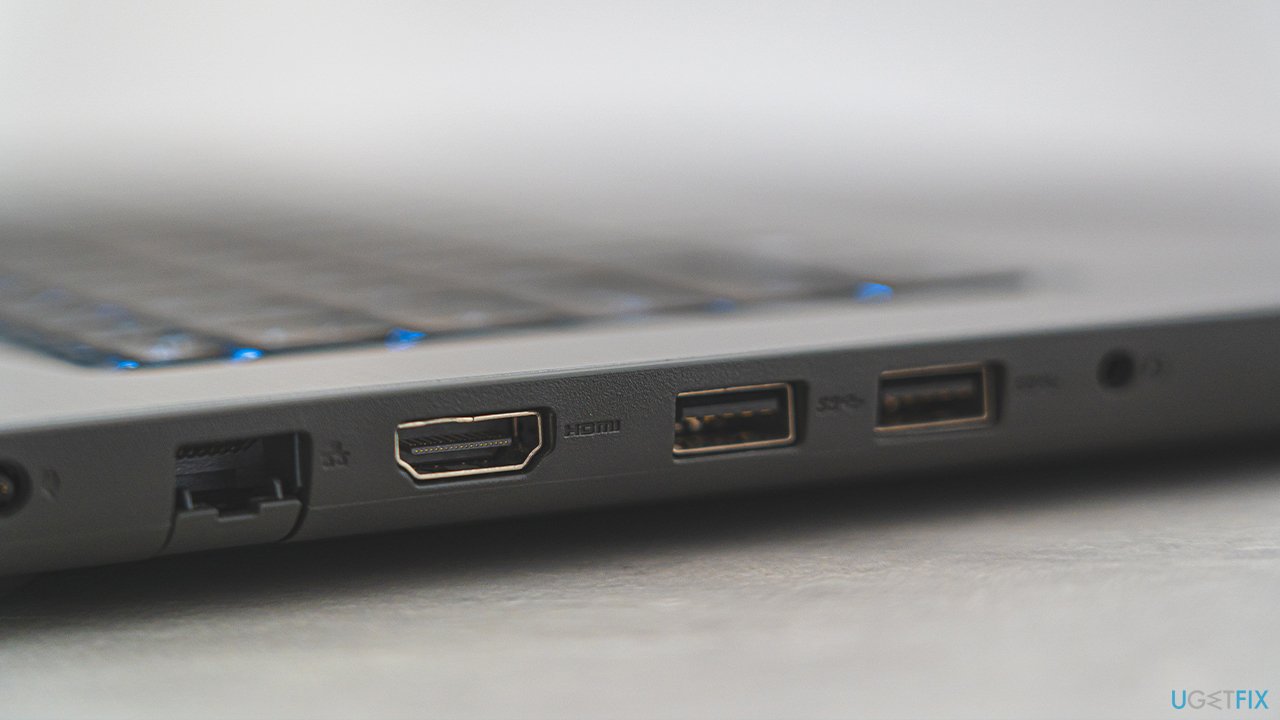
USB 2.0 is an older version of a connection type used to transfer data. If you look at your computer, you might see several different USB ports available - some are at the front while others are at the back. USB 3.0 is a faster connection type which is marked with a blue Standard-A receptacle.
Thus, if the transmission speeds suffer, you might be using a 2.0 USB version instead of 3.0, so go ahead and try different connection ports.
Solution 5. Disable USB Root power saving mode via Device Manager
- Open Device Manager and go to USB section once again
- Right-click on USB Root Hub and select Properties
- Go to Power Management tab
- Here, untick the Allow the computer to turn off this device to save power.
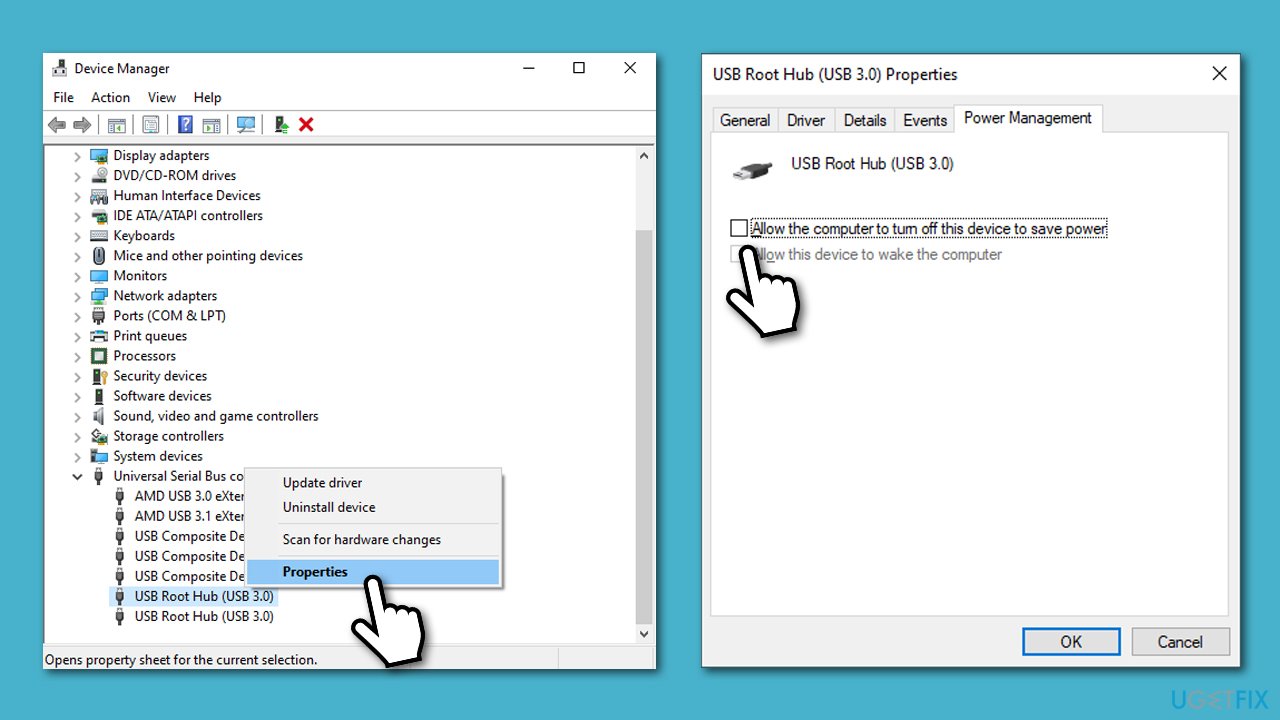
How to fix this device can perform faster message on windows disable usb root power saving mode
Solution 6. Enable xHCI controller in BIOS
xHCI[ref en-1] is an option in BIOS[ref en-2] that allows the USB 3.0 functionality, hence it must be enabled.
- To access BIOS, reboot your machine and continually press F2, F8, F10, Del, or another button on your keyboard (refer your motherboard or laptop manufacturer for details)
- In BIOS, you need to look for the xHCI option, which can be located in Advanced, Devices, Peripherals, or similar sections
- Once found, enable the feature and reboot your PC into normal mode.
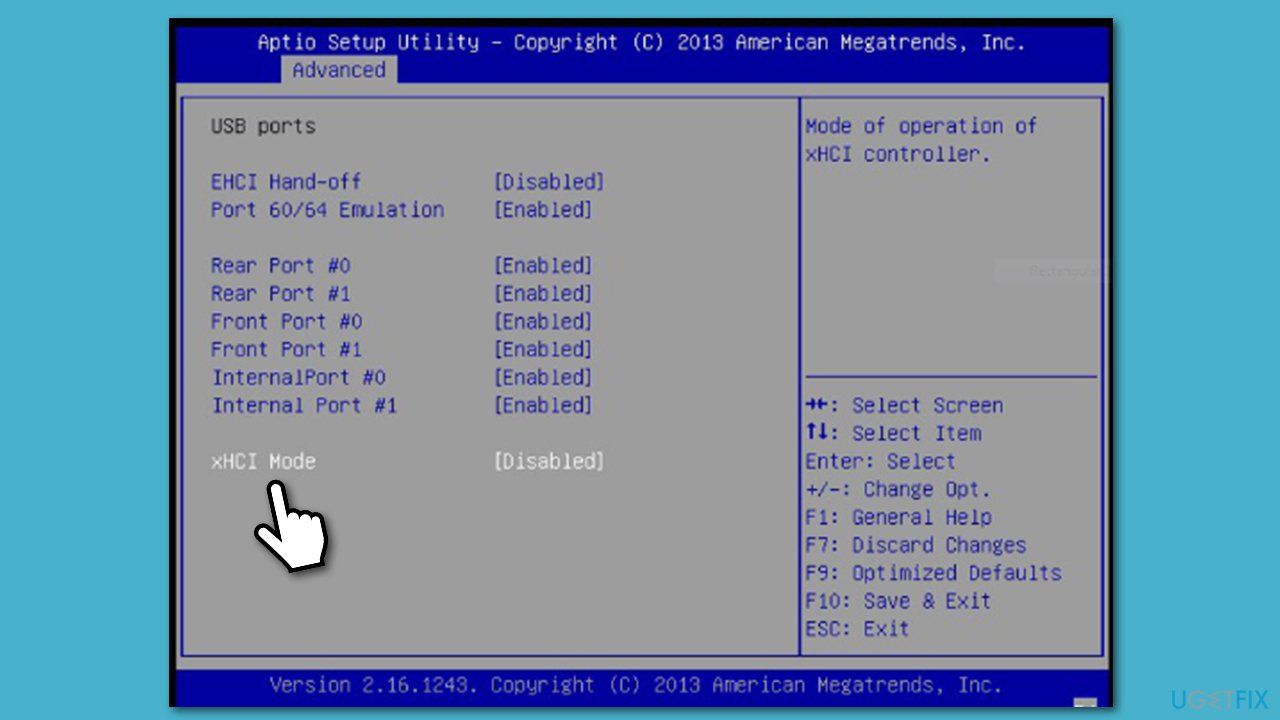
How to fix this device can perform faster message on windows enable xhci mode in bios
Bottom line
The message "This device can perform faster" indicates that your USB device is not utilizing its full potential due to various reasons. To resolve this, you can enable the USB 3.0 Host Controller Driver, update or reinstall USB drivers, and check your device's connection to a Hi-Speed USB port. If none of these solutions work, consider running a scan with repair software to diagnose and fix underlying Windows issues.
Frequently asked questions
This message indicates that your USB device is connected to a slower port than it is capable of, potentially limiting its performance. Switching the device to a USB 3.0 port can resolve this issue.
You can check this by opening Device Manager, expanding the 'Universal Serial Bus controllers' section, and looking for entries that indicate 'USB 3.0' or 'SuperSpeed'.
To optimize USB performance, ensure you are using the latest drivers for your USB controllers and devices, and consider disabling USB selective suspend in the power settings.




Report an issue
What's wrong with this guide? We review every report and update or remove content.
Report received — thank you. We'll review and fix it.
You need a free account to submit a report.
Be the first to comment