How to fix
Install Epic Online Services
on Windows
Easily install Epic Online Services on Windows 10 or 11. Optimize your gaming experience with our expert-tested guide and smooth setup tips. Fixed in mi…


Why does How to install Epic Online Services occur?
- Black screen preventing access to the Settings menu
- EOS-ERR-1603 error during installation
- Inability to install due to Launcher not being on the main drive
- Need to run the app as an administrator
- Requirement to install Epic Online Services locally
Repairs Windows system files, removes malware, and restores a clean OS state — without reinstalling.
Hi, I need help with Epic Games Launcher. I heard that I need to install Epic Online Services in order to continue using the platform properly. I have no idea where to download it from and how to update it. Please advise.
Epic Online Services were first introduced back in May 2020[ref en-2], primarily for game developers to have an easier to manage their games. With its cross-platform functionality, the Software Development Kit[ref en-1] was a great addition to game creators. With the release of the 13.0.0 update,[ref en-3] the game developer announced that Epic Online Services is now required to be installed locally for the Launcher to operate properly.
With this iteration, players will need to install the EOS component as a prerequisite on Windows systems, which later would prompt them to install the full installation of the service.
Upon opening the Launcher, users would receive the following message (although some people did not receive any notifications):
Epic Online Services installation is required - you will not receive any Launcher updates until Epic Online Services is installed. Please see the settings menu
From here, users can then click the "Click here for more information" button to access the Settings menu and install the needed component. This way, the Launcher will be capable of receiving further updates without problems.
However, some users reported that they couldn't install Epic Online Services because they were stuck in the black screen, which prevented them from accessing the Settings menu altogether. For this reason, they are unable to use the Launcher at all.

Note that people have already had issues with Epic Online Services since its release - some developers reported that they were unable to install the component due to the EOS-ERR-1603 error. This could usually be solved by reinstalling the Launcher on the main drive or by running the app as an administrator.
In this case, however, the fix lies within gaming the access to the settings menu - it is easily achievable by using a simple trick below. Before you proceed with the instructions below, we would like to recommend a PC repair and optimization tool [d1] - it could help you fix any underlying issues and improve performance for gaming.
1. Install the Epic Online Services
Typically, users set Epic Games Launcher to be launched automatically as soon as they boot their system. Alternatively, users commonly use a shortcut to launch the app. There is another way to access it when encountering Epic Online Services black screen - here's how:
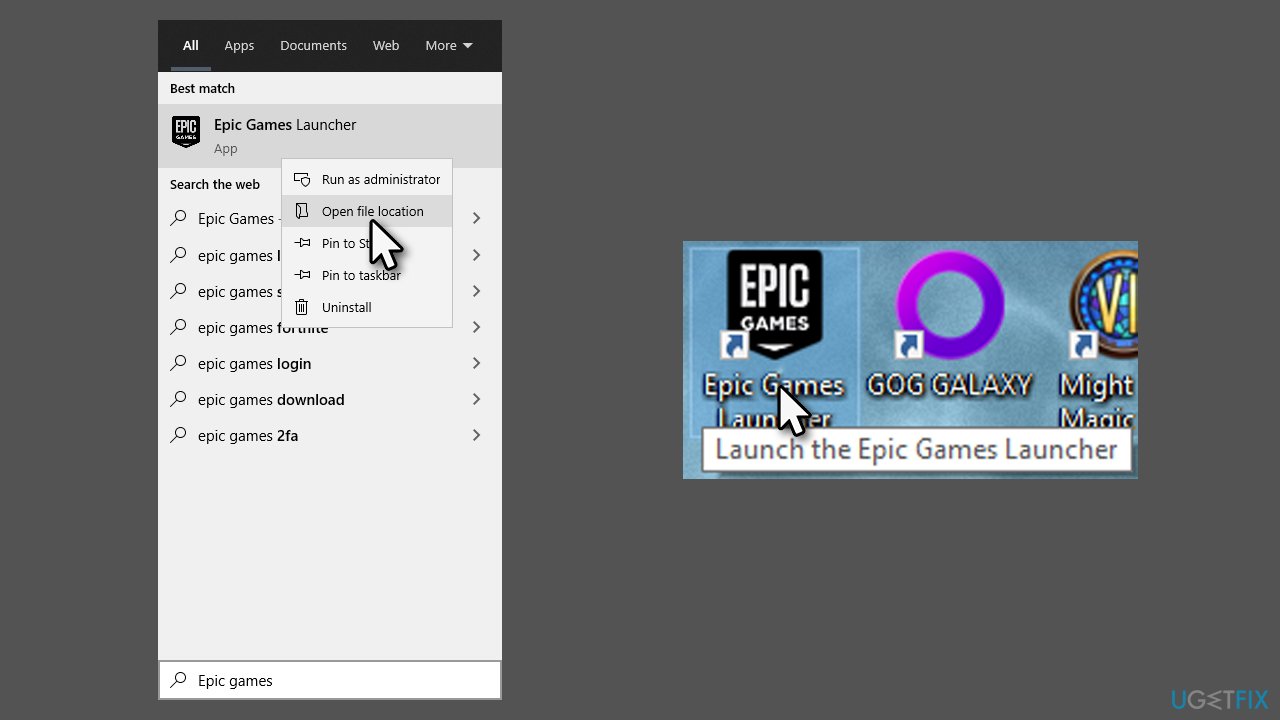
- Open Epic Games Launcher by using a desktop shortcut or the main EXE file (type Epic Games Launcher in Windows search > right-click the result > select Open file location to see the main executable)
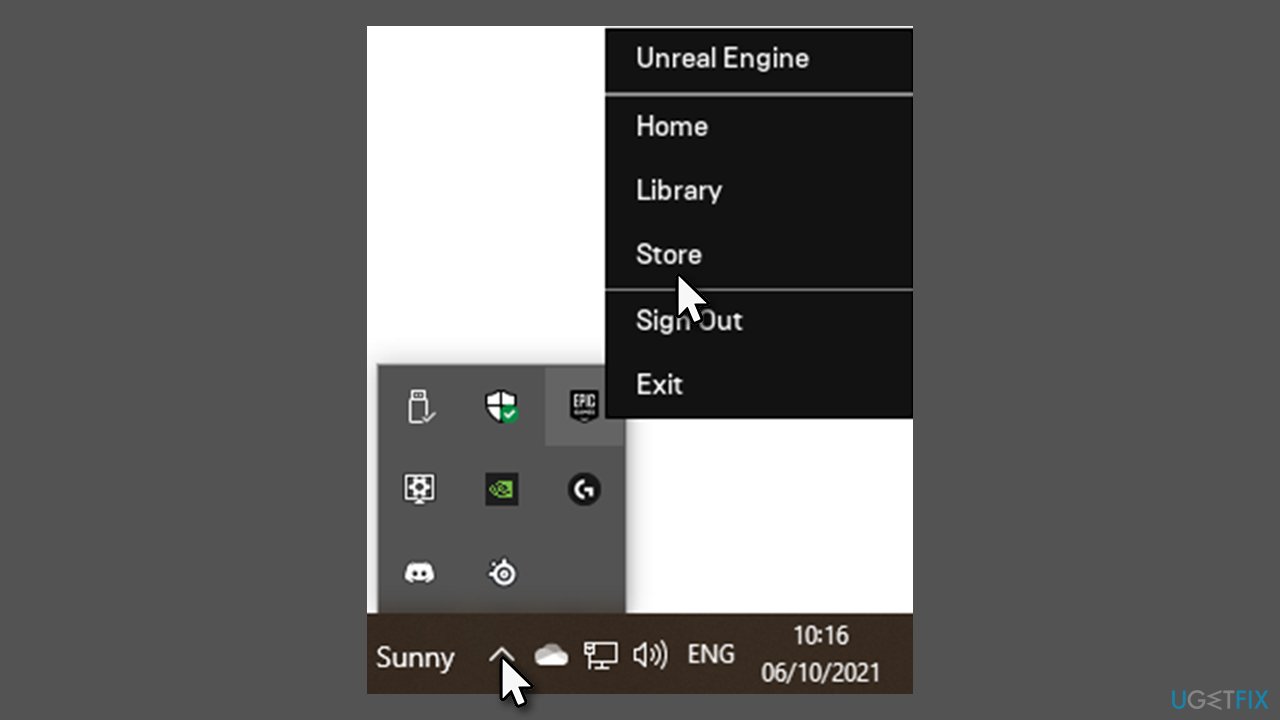
How to install epic online services start launcher - In the taskbar, click the Show hidden icons arrow to open the system tray
- Right-click the Epic Games Launcher icon and select Store
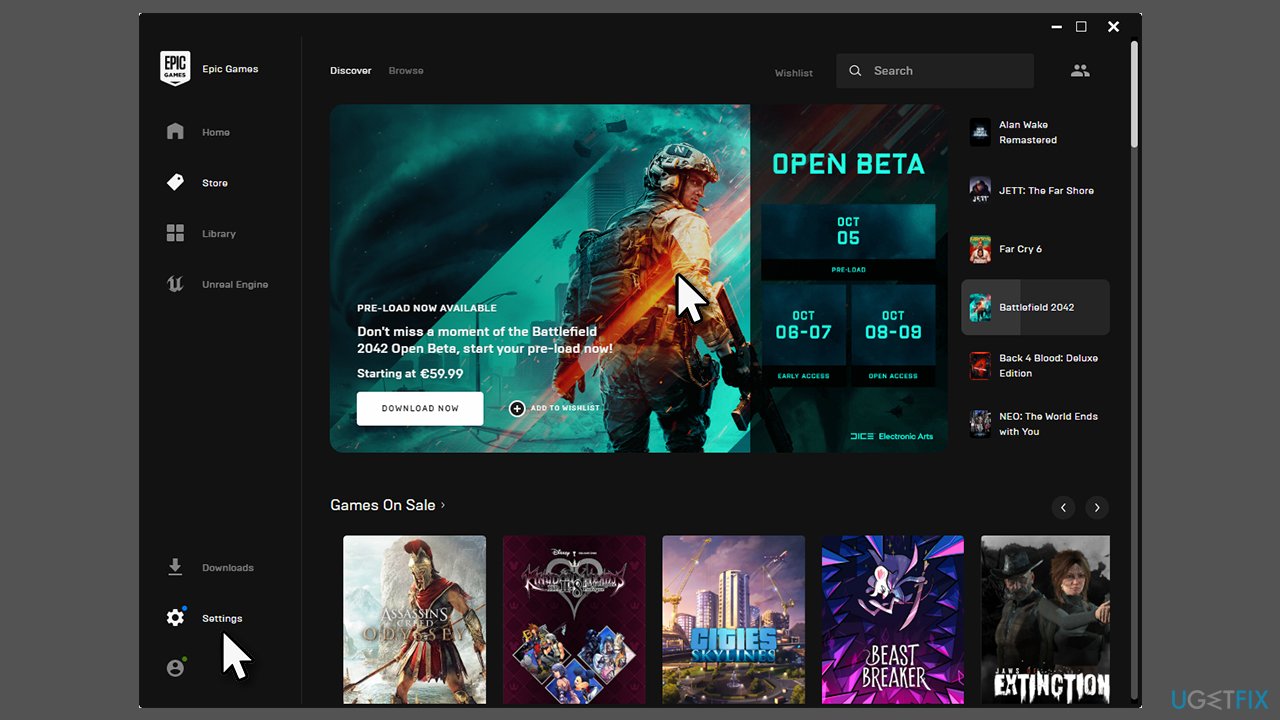
How to install epic online services right click in system tray - Select Settings
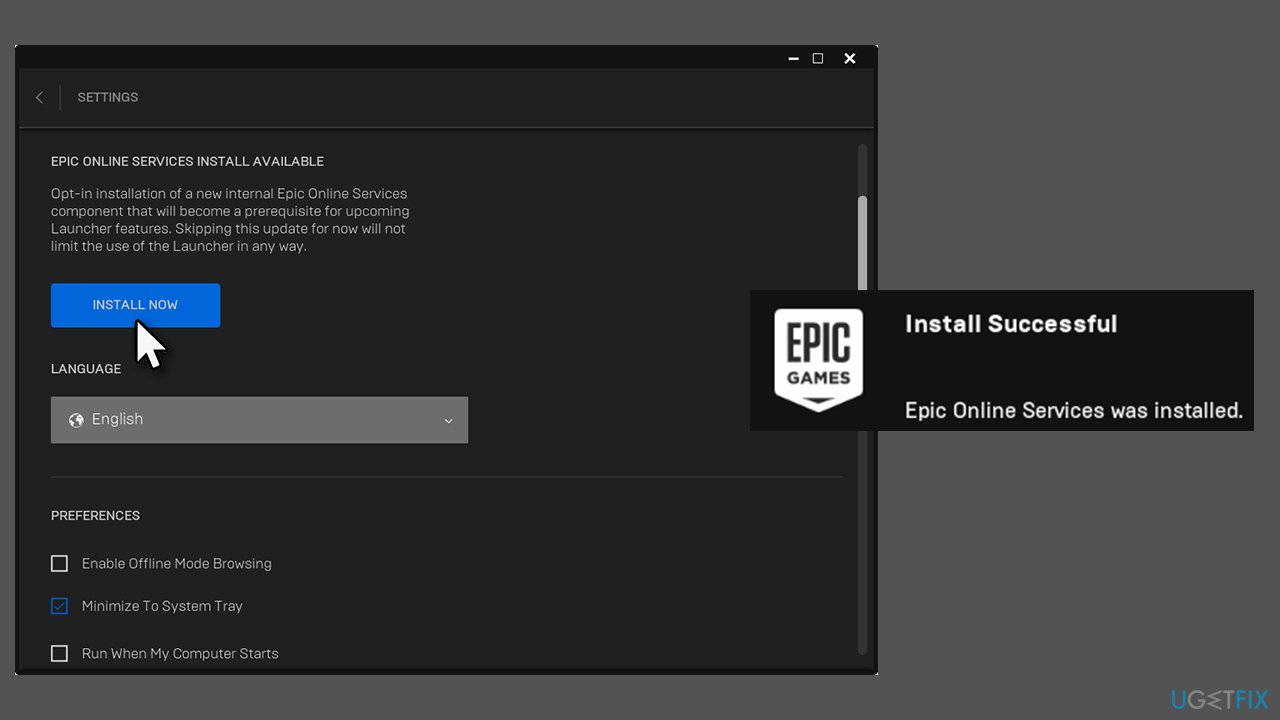
How to install epic online services go to settings - In here, you should see the EPIC ONLINE SERVICES INSTALL AVAILABLE message
- Click Install now
How to install epic online services click install now - When User Account Control shows up, click Yes
- The whole process should last a mere few seconds
- You should get a small notification in the bottom-right corner of the screen about the Install being successful.
2. Reinstall the Launcher
If the above method still can't install Epic Online Services - whether due to inaccessible Settings menu or other issues - you can reinstall the application altogether. Many users said that this helped them to fix the issue quickly.
- Press Ctrl + Shift + Esc to open the Task Manager
- Select Epic Games Launcher and click End Task
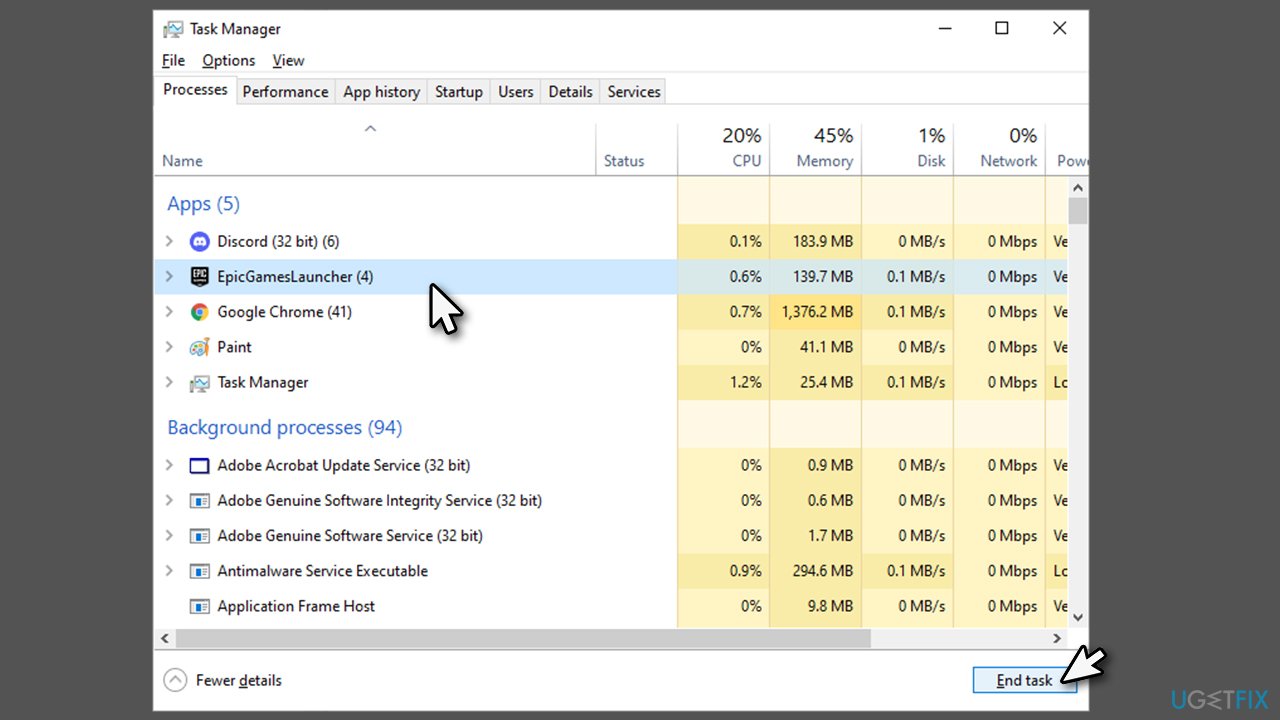
How to install epic online services shut down process - Right-click on Start and select Apps and Features
- Find Epic Games Launcher from the list
- Click Uninstall > Uninstall
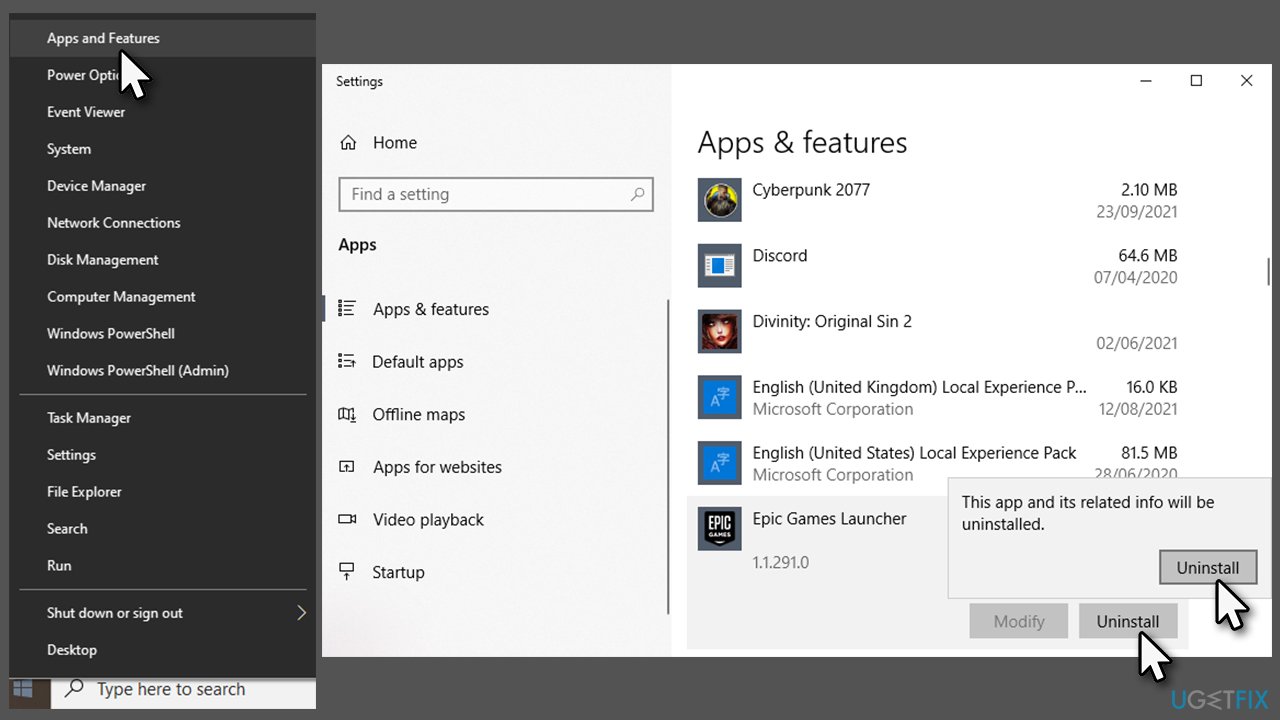
How to install epic online services reinstall launcher - Follow on-screen instructions to remove the app
- Now visit the official website and download the app installer
- Follow on-screen instructions and install the Epic Online Services as required.

How to install epic online services reinstall launcher2
Bottom line
To resolve the issues with installing Epic Online Services, users can try reinstalling the Launcher on the main drive or running the app as an administrator. If these solutions do not work, accessing the Settings menu using a simple trick may help. If none of these fixes work, consider seeking further technical support.
Frequently asked questions
To install Epic Online Services, ensure your Windows 10 or Windows 11 system meets the minimum requirements, including a compatible CPU, at least 4GB of RAM, and sufficient storage space.
If you encounter installation issues on Windows 10, try running the installer as an administrator and disabling any antivirus software temporarily.
Yes, it's recommended to update your Windows 10 or Windows 11 system to the latest version to ensure compatibility and smooth installation of Epic Online Services.




Report an issue
What's wrong with this guide? We review every report and update or remove content.
Report received — thank you. We'll review and fix it.
You need a free account to submit a report.
Be the first to comment