How to fix
Password protect a file or folder
on Windows
Easily secure your files and folders in Windows 10 with our expert-tested guide. Protect your data quickly and efficiently – zero traces left!


Why does How to password protect a file or folder in Windows 10 occur?
- Sharing a computer with others can lead to unauthorized access to personal files.
- Windows 10 does not provide a built-in feature to password protect files or folders easily.
- Third-party software may introduce risks such as data loss or system instability.
- Reputable third-party encryption tools are often not free and may not be accessible to all users.
- Users may not be aware of alternative methods to secure their files without third-party tools.
Repairs Windows system files, removes malware, and restores a clean OS state — without reinstalling.
Hi, I have a Windows 10 computer I share with my brother. I generally don't mind it, but I want my school work and pictures not to be snooped on, and I know that he can do that behind my back. Is there any way to prevent him from accessing files in those folders? Help would be much appreciated.
We use our computer devices for various purposes - acceding the internet, working on a school project, performing accounting, creating drawings, paying for our online purchases, and much more. Over time, there is a variety of data that accumulates of the years and, while we usually have the anonymity when using portable devices such as mobile phones, desktop computers can be accessed by others much easier.
As evident, there can be many files that you would not want others to access for various reasons. Many users start using third-party software that would lock particular files or folders on their devices, although Microsoft itself does not recommended to password protect a file or folder in such a way. This is because Microsoft cannot validate the integrity of the software and how well it will perform on any device.
In other words, using third-party tools to password protect a file or folder in Windows 10 might result in serious problems, for example, data loss. Here's third-party software disclaimer:[ref en-1]
Using Third Party Software, including hardware drivers can cause serious problems that may prevent your computer from booting properly. Microsoft cannot guarantee that any problems resulting from the use of Third Party Software can be solved. Using Third Party Software is at your own risk.
Thus, if third-party software is a no-go, how else can you password protect a file or folder in Windows 10? There are no straightforward answers, as Microsoft does not provide an easy-to-use function for such purpose. Even if reputable third-party encryption[ref en-2] tools can be used, these are usually not free.
However, there are several workarounds that could be used in order to prevent others from viewing your files without purchasing third-party encryption solutions. Keep in mind these ways to protect your files are for home user consumer purposes, and will not adequately protect critical data.
Option 1. Use the "Hidden" option via Properties
This is the least powerful method to prevent others from accessing your files and folders. However, it could be useful against people who are unaware of this very basic feature. Here's how to do it:
- Press Win + E to open File Explorer
- Navigate to where the file or folder you want to protect is located
- Right-click on the file or folder and select Properties
- In the General tab, under Attributes, tick the Hidden option
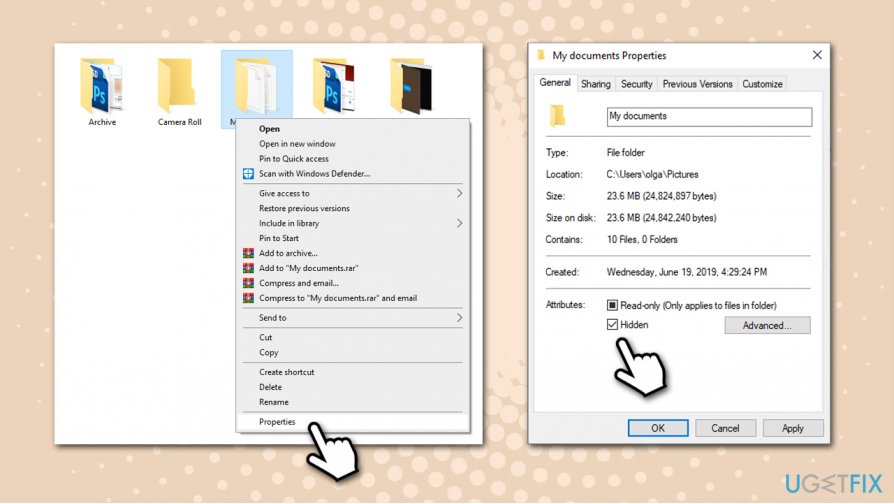
How to password protect a file or folder on windows apply hidden status - Click Apply and OK
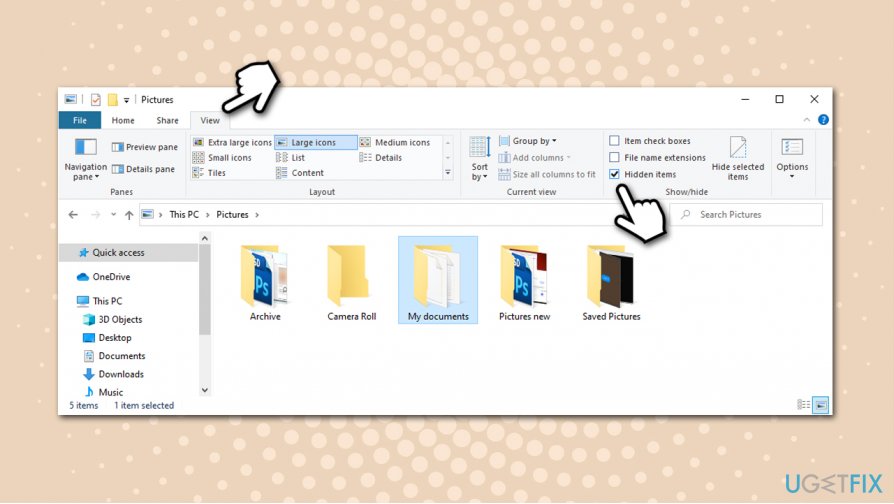
To reveal all the items you have hidden, all you have to do is open File Explorer, select the View tab, and tick the Hidden Items box, which would reveal all the hidden items on your machine.
Option 2. Hide files and folders via Command Prompt
This is an alternative to the hidden files option we provided at the start. However, it provides a little more obscurity, as it makes folders invisible even if "Show hidden files and folders" option is ticked. To perform these steps, you will have to access Command Prompt:
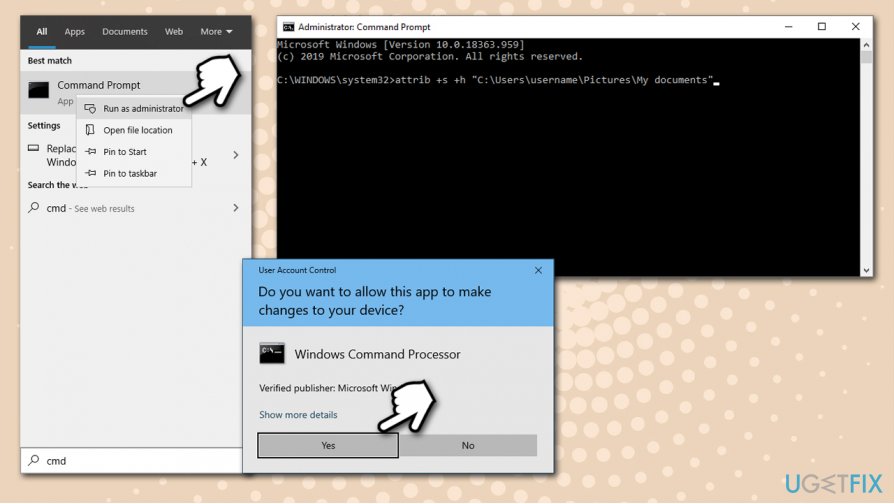
- Type in cmd into Windows search bar
- Right-click on Command Prompt result and select Run as administrator
- If User account control prompt shows up, click Yes
- Type in the following command and hit Enter, replacing the text in quotes with the exact location of the folder you want to hide:
attrib +s +h “C:\\Users\\username\\Pictures\\My documents”
How to password protect a file or folder on windows use command prompt - If you want to make the hidden files/folder visible again, go to Command Prompt and type in the following command, and then press Enter:
attrib -s -h “C:\\Users\\username\\Pictures\\My documents”
Option 3. Use the built-in encryption service
While BitLocker is far from user friendly, it is one of the options that could help your password protect your files and folders easily.
- Open the location of file/folder you want to encrypt via File Explorer as explained above
- Right-click and select Properties
- In the Attributes section, select Advanced
- At the bottom, tick the Encrypt contents to secure data box
- Press OK to close this window, then pick Apply in the Properties window
- After this, you will be asked to confirm Attribute changes - select the option that suits you best

How to password protect a file or folder on windows encrypt files via bitlocker - Next, you will be asked to backup your encryption key if you never performed this process before
- Click on the popup and follow the on-screen instructions
The locked folder will now be shown with a small padlock, which indicates that it is encrypted. You can easily undo the process by going back to Properties and unticking the Encrypt contents to secure data box. Encrypted files will not be accessible to anybody using another Windows account, or in case your computer is stolen.
Note: if you were a victim of a ransomware[ref en-3] attack, BitLocker encryption would not save your files, as they will get encrypted on top. In such a case, we recommend scanning the machine with powerful anti-malware to remove the infection and then fix virus damage with tools such as [d1]. File recovery options highly depend on a type and version of ransomware you were infected with.
Bottom line
To protect your files in Windows 10, consider using built-in permissions settings or creating a hidden folder. If these methods do not meet your needs, explore reputable third-party encryption tools with caution.
Frequently asked questions
Yes, you can use the built-in encryption feature in Windows 10 to password protect files or folders by using BitLocker or by compressing the folder and adding a password.
Right-click the folder, select Properties, click on the Advanced button, and check the 'Encrypt contents to secure data' option, then apply the changes.
Yes, Windows 11 also allows you to encrypt files and folders using similar methods as in Windows 10, including BitLocker for drives.




Report an issue
What's wrong with this guide? We review every report and update or remove content.
Report received — thank you. We'll review and fix it.
You need a free account to submit a report.
Be the first to comment