How to fix
Remove filename character length restrictions
on Windows
5 minutes Hello. Is there a way to remove filename character length restrictions on Windows? Any suggestions would be appreciated. Within the realm of digital file management, nested folders have long been the go-to technique for maintaining data and files in an orderly fashion. It offers a distinct hierarchy, which is very helpful for managing…

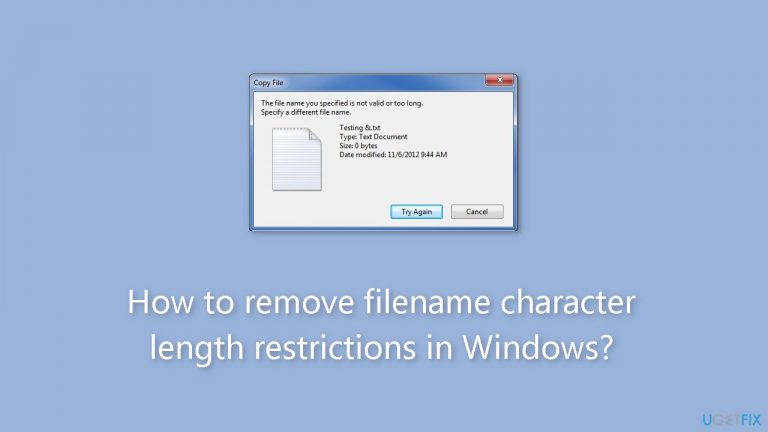
Why does How to remove filename character length restrictions in Windows occur?
- File path and filename character length limited to about 260 in Windows
- Problems with copying, moving, or deleting files due to excessive file path lengths
- Potential data loss or corruption when exceeding character limits
- Compatibility issues when sharing data with systems not subject to the same restrictions
- Inefficiencies in file organization due to reliance on intricate folder structures
Repairs Windows system files, removes malware, and restores a clean OS state — without reinstalling.
Hello. Is there a way to remove filename character length restrictions on Windows? Any suggestions would be appreciated.
Within the realm of digital file management, nested folders have long been the go-to technique for maintaining data and files in an orderly fashion. It offers a distinct hierarchy, which is very helpful for managing a large number of files and documents. However, file path and filename character length constraints have always presented users with a considerable challenge when it comes to Windows operating systems.
The overall character count for file paths, including folder and file names, is limited to about 260 in Windows due to an inherent constraint. This constraint has been there for a while and can be problematic for customers who work with long and descriptive file names or who depend on highly nested folder structures. Overlying this limit in total character count can result in a number of problems and challenges.
The possibility of data loss or corruption is one of the main issues raised by this character length constraint. Excessive file path lengths can cause problems when copying, moving, or deleting files, among other file operations. The user may lose access to their data if Windows just refuses to carry out the process. Additionally, it may cause problems with compatibility when sharing data with individuals or systems that are not subject to the same restrictions.
Character length constraints also frequently cause problems since they can interfere with effective organization. It may be difficult for users to develop a logical and user-friendly filing system if they rely too heavily on intricate folder structures and file names. This might result in inefficiencies and make it difficult to find and manage files efficiently, particularly in settings where a lot of data is handled often.
Thankfully, there could be ways to resolve this problem. By adjusting some group policy settings or making changes within the Windows Registry, users can look for ways to get around the character length limit. There are two approaches in this post that should help you get over Windows' limitations on filename character length. The detailed instructions can be found below.
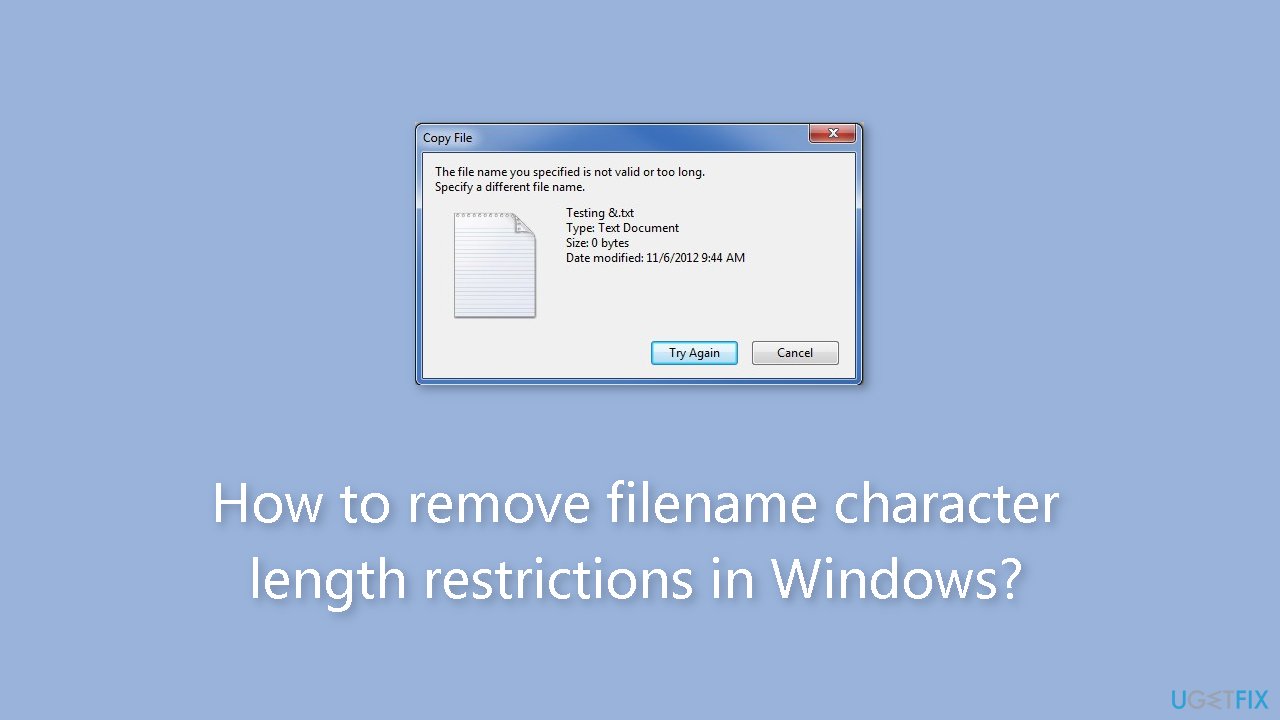
Method 1. Local Group Policy
The Local Group Policy is a powerful tool in the Windows operating system that allows users to configure various settings and policies on their individual computers or workstations. It is commonly used in Windows environments to manage system security, user privileges, and other aspects of the system's behavior.
- Press the Windows key + R to bring up the Run dialogue.
- Type in gpedit.msc and hit Enter. This will open the Local Group Policy Editor.
- Navigate to the following location:
Computer Configuration > Administrative Templates > System > File System
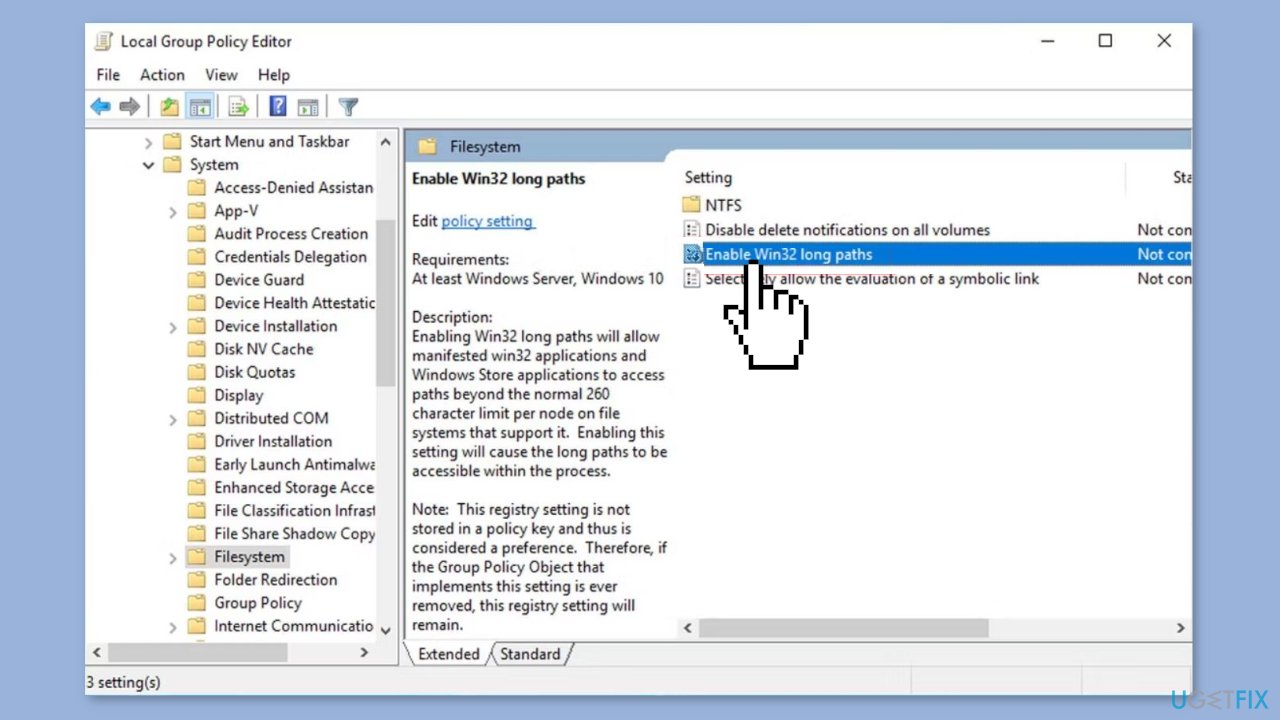
- In the right pane, you should find the setting Enable Win32 long paths.
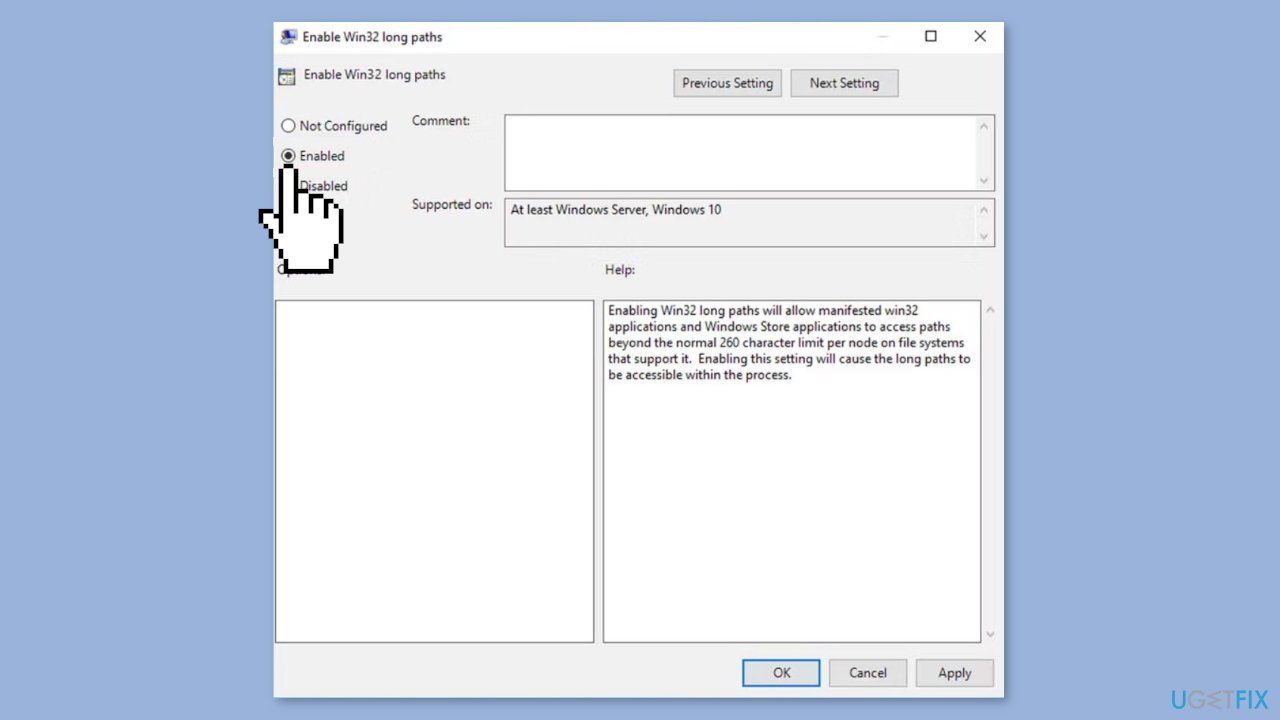
- Double-click this setting and change it to Enabled.
- Restart File Explorer or your computer for your system to allow long file names.
Method 2. Registry Editor
Making changes to the Windows Registry can have serious consequences for the stability and functionality of your operating system. Therefore, it is crucial to exercise caution and take necessary precautions. Before you embark on any Registry editing, it is strongly recommended that you create a backup of the Windows Registry.
- Open the Registry Editor.
- Navigate to the following address:
HKEY_LOCAL_MACHINE\SYSTEM\CurrentControlSet\Control\FileSystem
- In the right pane, look for the DWORD entry named LongPathsEnabled. If you can't find this, create it by right-clicking in the open space in the right pane and selecting New > DWORD 32-bit Value.
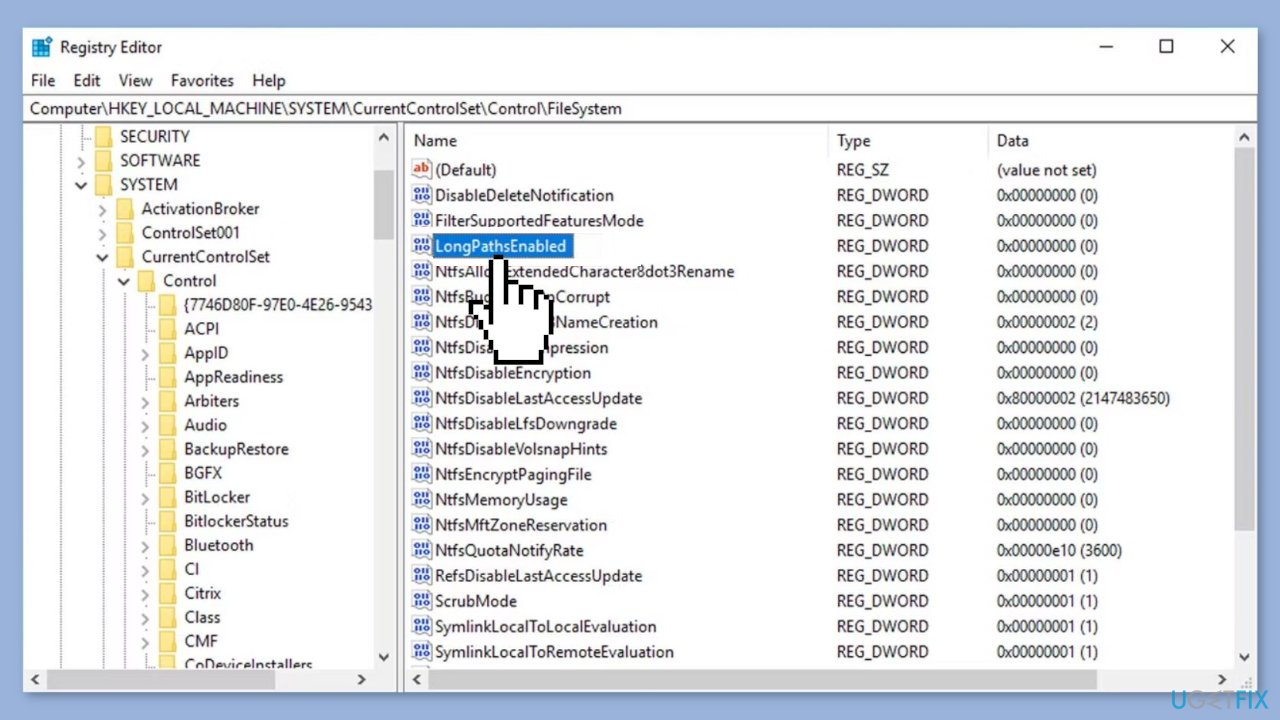
- Name this LongPathsEnabled.
- Double-click this entry to open it.
- Change the Value data from 0 to 1 to enable long file paths in Windows.
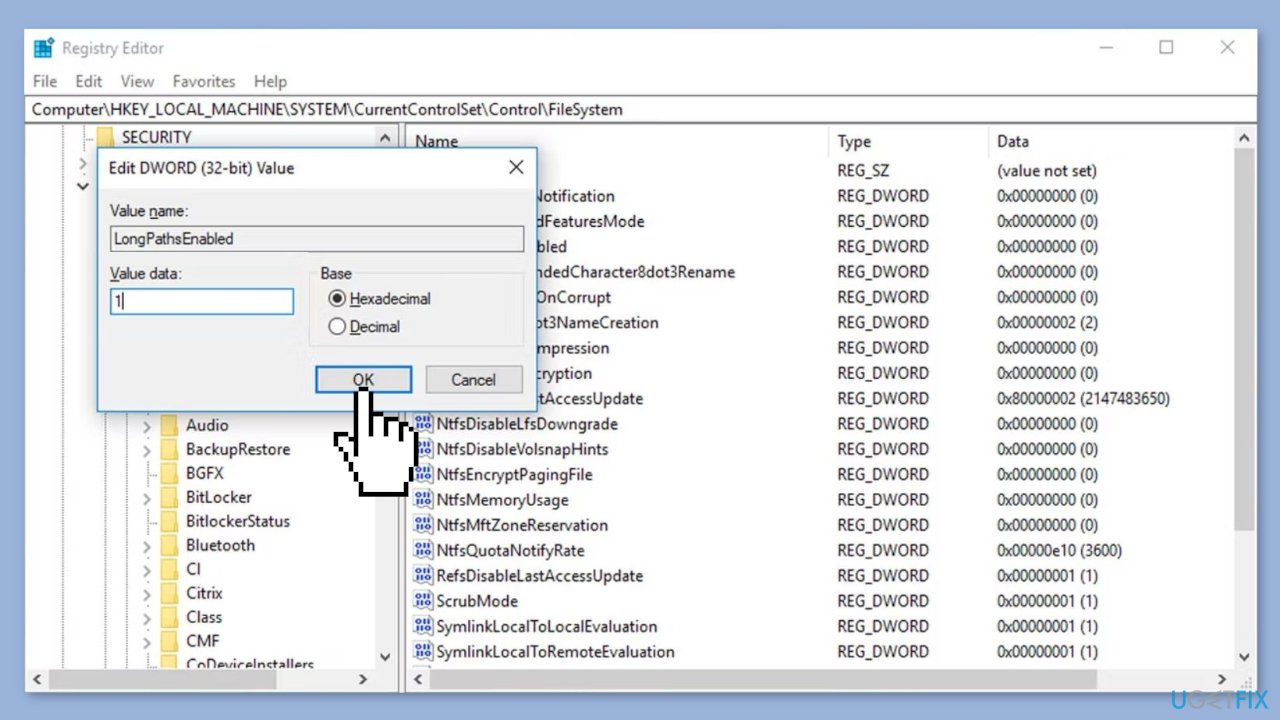
- This will remove the 260-character length restriction on filenames in Windows.
- You might need to restart your PC for the changes to take effect.
Bottom line
To resolve the filename character length restrictions in Windows, users can adjust group policy settings or make changes within the Windows Registry. If these solutions do not work, consider seeking further assistance or exploring third-party tools.
Frequently asked questions
The maximum filename character length in Windows 10 and Windows 11 is typically 260 characters, including the full path. However, this limit can be removed by modifying certain system settings.
To remove filename character length restrictions in Windows 10, you can enable the 'Long Path' support via the Group Policy Editor or by modifying the Registry. This allows you to use filenames longer than 260 characters.
Removing filename character restrictions in Windows 11 may not be supported by all applications, especially older ones that still adhere to the 260-character limit. It's recommended to test compatibility with your frequently used programs after making the change.




Report an issue
What's wrong with this guide? We review every report and update or remove content.
Report received — thank you. We'll review and fix it.
You need a free account to submit a report.
Be the first to comment