How to fix
Remove Recycle Bin from desktop
on Windows
Easily remove the Recycle Bin from your Windows 10 or Windows 11 desktop with our expert-tested guide. Customized settings made simple, updated 2025.


Why does How to remove Recycle Bin from desktop in Windows occur?
- Visual Distraction
- Preference for File Explorer
- Desire for a Neater Workspace
- Reliance on Keyboard Shortcuts
- Basic Desktop Arrangement
Repairs Windows system files, removes malware, and restores a clean OS state — without reinstalling.
Hello everyone. How can I remove the Recycle Bin icon from my desktop in Windows? If I right-click on it, there is no option to delete it - just rename it.
Recycle Bin is a fundamental component of the Windows operating system, serving as a safety net for files and folders that have been deleted by the user. When you delete a file, it isn't immediately removed from your hard drive. Instead, it's moved to the Recycle Bin, where it stays until you decide to permanently delete it or restore it to its original location.
This feature provides a second chance to recover files or folders that may have been accidentally deleted, ensuring that important data isn't lost irretrievably due to a momentary mistake.
Despite the Recycle Bin's obvious utility, there are a few reasons why someone might choose to remove its desktop icon. Some people just care about appearances; a neater, more organized workspace can improve concentration and lessen visual distractions.
Some people might prefer not to use the desktop icon and instead use the File Explorer or a keyboard shortcut to reach the Recycle Bin. Additionally, removing the Recycle Bin icon might help users have a more organized and effective workspace, especially those who primarily rely on keyboard shortcuts or who keep their desktop arrangement basic.
There are several methods to remove the Recycle Bin icon from the desktop in Windows, catering to different versions of the operating system and user preferences. Whether you prefer to navigate Windows Settings, use the Registry Editor, or use Group Policy Editor (available in some versions of Windows), there is a solution for you. Each method takes a different approach to attaining the same outcome, so if one solution doesn't work for you, you have other possibilities to consider.
Finally, improving your system and resolving problems might help you have a more efficient computing experience. Consider using a trustworthy repair program, such as [d1], to optimize your system and fix errors.
Continue reading for thorough instructions on how to remove the Recycle Bin icon from your desktop, allowing you to tailor your workspace to your specific preferences and needs.
Option 1. Remove Recycle Bin via Settings
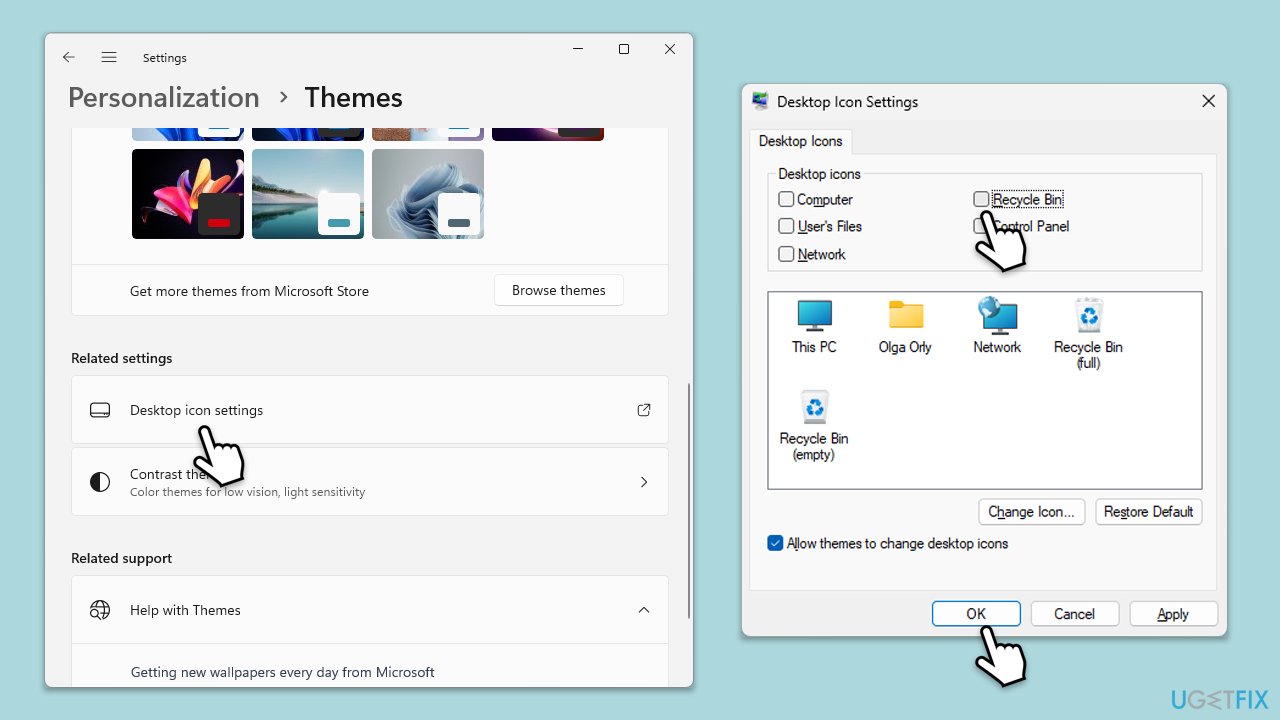
Removing the Recycle Bin from your desktop via Settings is one of the simplest methods, ideal for users who prefer not to delve into more technical solutions like the Registry Editor or Group Policy. This method works by accessing the personalization settings in Windows, where you can choose which icons appear on your desktop.
- Right-click on an empty area of your desktop and select Personalize.
- In the Settings window, click on Themes from the left-hand menu/bottom menu.
- Scroll down to Desktop icon settings under Related Settings.
- In the Desktop Icon Settings window, uncheck the box next to Recycle Bin.
- Click Apply, then OK to save your changes.
Option 2. Remove Recycle Bin via Registry Editor
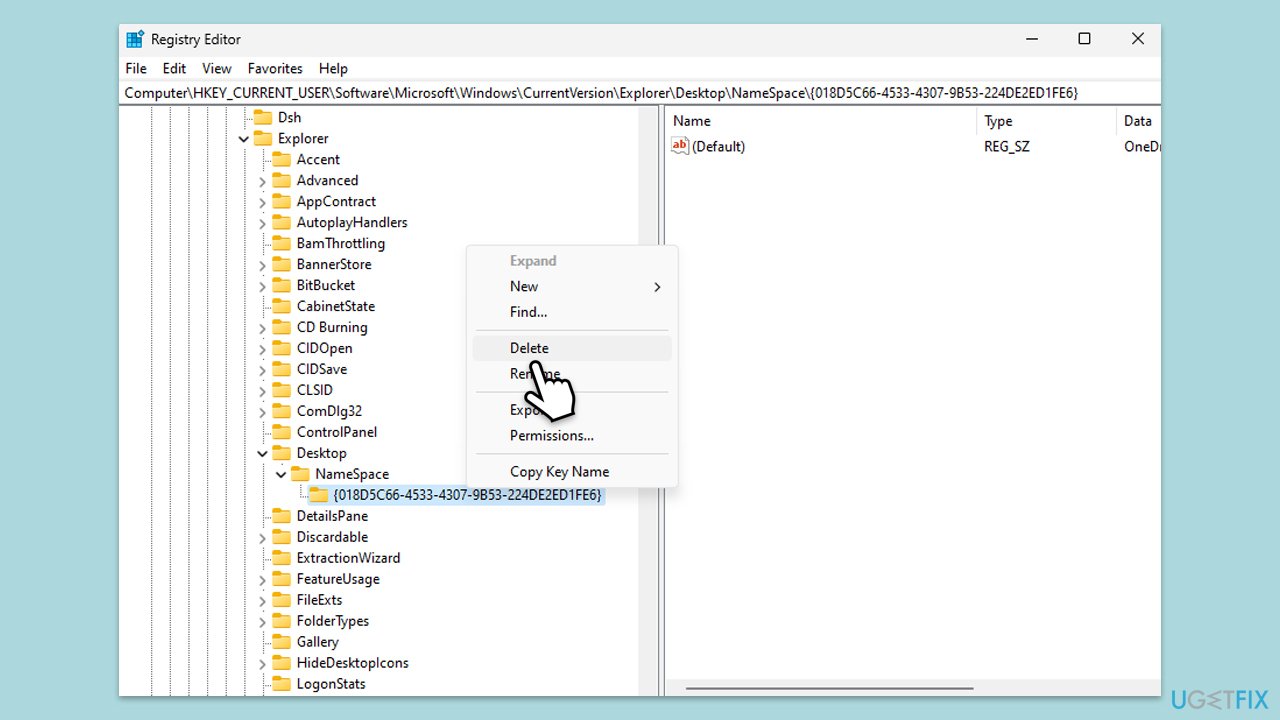
Using the Registry Editor to remove the Recycle Bin icon from your desktop is a more advanced method. It involves modifying the Windows Registry, a powerful tool where Windows stores many of its configuration settings. Because changes to the Registry can have significant effects on your system, it's a good idea to make a backup of the Registry before proceeding.
- Press the Win+ R to open the Run dialog, type in regedit, and press Enter to open the Registry Editor.
- Navigate to the following key:
Comuter\HKEY_LOCAL_MACHINE\SOFTWARE\Microsoft\Windows\CurrentVersion\Explorer\Desktop\NameSpace - Locate 645FF040-5081-101B-9F08-00AA002F954E.
- Right-click on it and select Delete, then confirm the prompt.
- Close the Registry Editor and restart your computer for the changes to take effect.
Option 3. Remove Recycle Bin via Group Policy
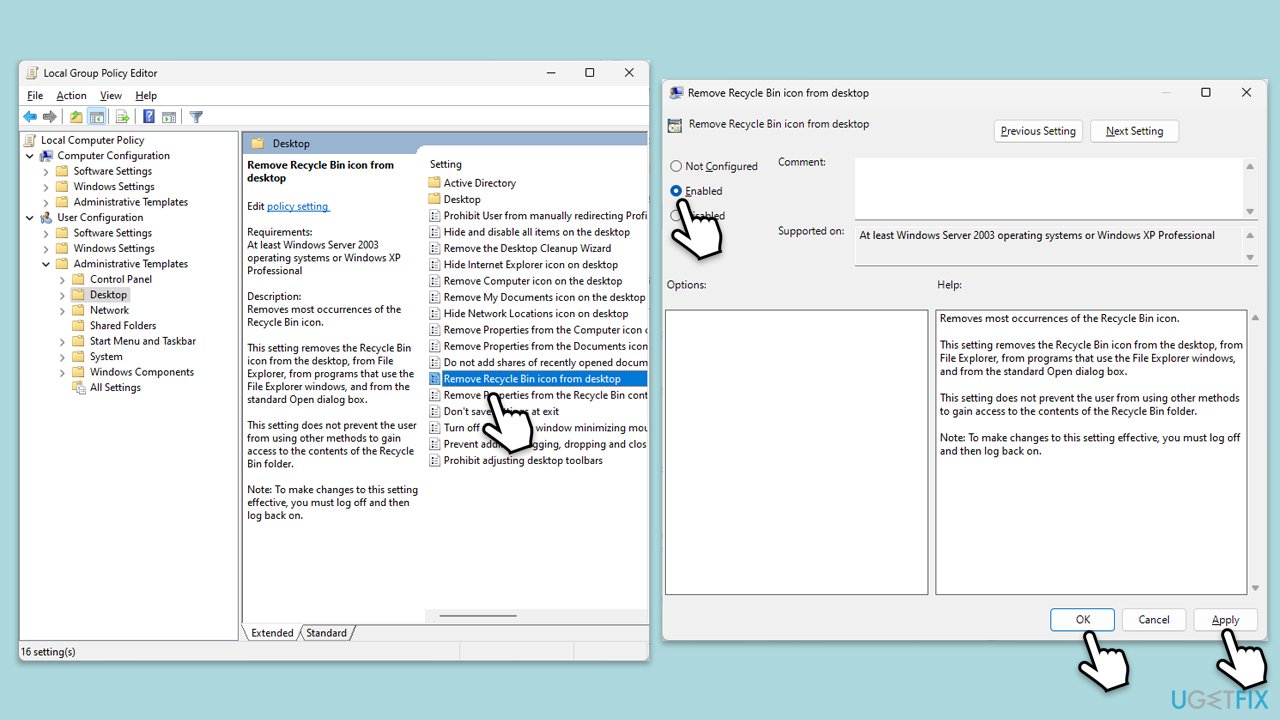
This method involves using the Group Policy Editor, a powerful tool available in some Windows versions, such as Windows 10/11 Pro, Enterprise, or Education. It's not available in Windows 10/11 Home by default. The Group Policy Editor allows you to manage system and user settings, offering a way to remove the Recycle Bin icon from the desktop by configuring a specific policy.
- Press the Win + R to open the Run dialog, type in gpedit.msc, and press Enter to open the Group Policy Editor.
- Navigate to User Configuration > Administrative Templates > Desktop.
- Find and double-click on the policy named Remove Recycle Bin icon from desktop.
- Select Enabled to activate the policy.
- Click Apply, then OK to save your changes and exit.
- Restart your computer or log off and back on for the changes to take effect.
These options provide a range of methods to remove the Recycle Bin from your desktop. Check out related articles:
Bottom line
There are several methods to remove the Recycle Bin icon from the desktop in Windows, including navigating through Windows Settings, using the Registry Editor, or utilizing the Group Policy Editor. If one solution doesn’t work for you, consider trying another method for a tailored approach to your desktop organization.
Frequently asked questions
Right-click on the desktop, select 'Personalize,' then go to 'Themes' and click on 'Desktop icon settings.' Uncheck 'Recycle Bin' and click 'OK' to remove it from your desktop.
Yes, you can restore it by following the same steps: right-click on the desktop, choose 'Personalize,' go to 'Themes,' and then 'Desktop icon settings' to check 'Recycle Bin' again.
No, removing the Recycle Bin icon from the desktop does not delete its contents; it only hides the icon from view.




Report an issue
What's wrong with this guide? We review every report and update or remove content.
Report received — thank you. We'll review and fix it.
You need a free account to submit a report.
Be the first to comment