How to fix
Remove the Search bar from the Taskbar
on Windows
Easily remove the Search bar from your Windows 11 Taskbar to streamline your workspace. Expert-tested tips for a cleaner desktop, fixed in minutes.

Why does How to remove the Search bar from the Taskbar in Windows 11 occur?
- To clear out and declutter the Taskbar
- The user considers the search bar to be unnecessary
- To reduce distractions
- To customize the Taskbar appearance
Repairs Windows system files, removes malware, and restores a clean OS state — without reinstalling.
Hello. I was wondering if there is a way to hide the search bar from the taskbar on my Windows 11 PC. Thanks in advance for your answer.
The search bar is a feature in Windows 11 that allows users to quickly access search functionality. Users can find files, documents, apps, and other content on their computers by typing in a keyword or phrase. The Taskbar search bar is a useful tool for users who frequently need to search for items on their computers.
However, for a variety of reasons, some people may wish to remove the search bar from the Taskbar. One reason could be to clear out and declutter the Taskbar. Another possibility is that the user considers the search bar to be unnecessary and wishes to remove it in order to reduce distractions.
There are several solutions available for removing the search bar from the Taskbar in Windows 11. One solution could be to hide the taskbar using Windows Settings, and another one to modify the Windows Registry, which is a database that stores information about the configuration of Windows. Another solution could be to use third-party software or apps that allow users to customize their Taskbar.
In this guide, you will find 2 steps that should help you remove the Search bar from the Taskbar in Windows 11. If you are looking for a tool that can optimize your PC, you can try out [d1]. It can fix most system errors, BSODs,[ref en-1] corrupted files, registry[ref en-2] issues, or clear cookies and cache.[ref en-3] Otherwise, follow the step-by-step instructions below.
Method 1. Use the Settings app
- Press the Windows key + I to open the Settings app
- From the left panel, select Personalization
- On the right pane, choose Taskbar
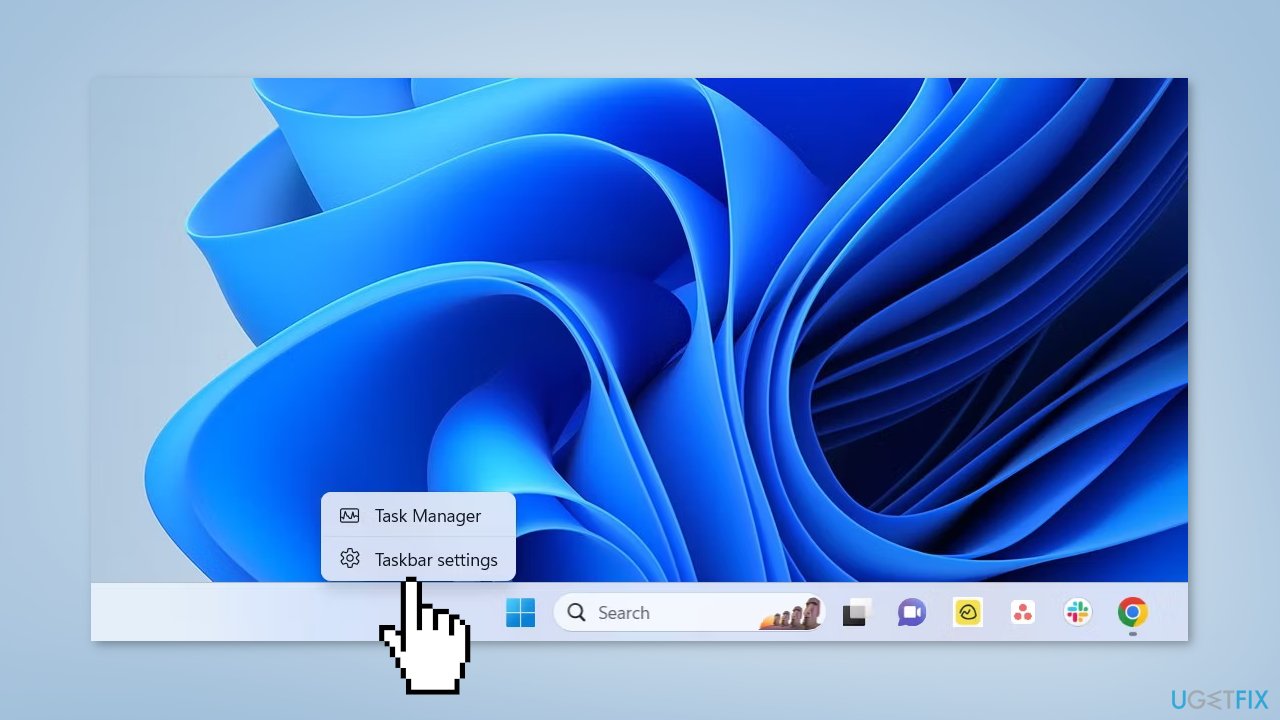
- Alternatively, right-click on the Taskbar and select Taskbar settings from the context menu
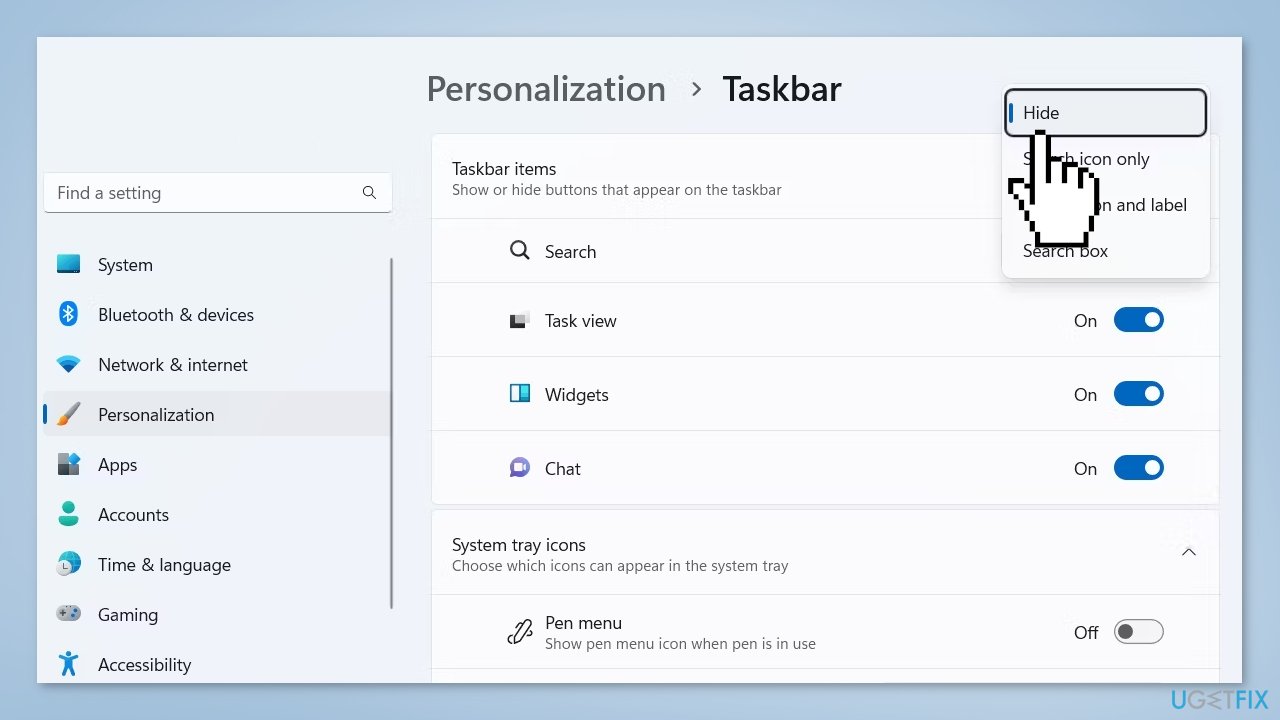
- Under Taskbar items section, click the drop-down icon next to Search
- From the menu, select Hide
Note: You might need to restart your computer for the changes to take effect.
Method 2. Use the Registry Editor
Users should be cautious when modifying the registry, as making incorrect changes can cause serious problems with the operating system or other software. In some cases, changes to the registry can cause programs to stop working or the operating system to fail to start. For this reason, it is important to back up the registry before making any changes to it, so that the original settings can be restored in case of a problem.
If you are considering modifying the registry, it is highly recommended to read the How to back up and restore the Windows registry? guide that provides detailed instructions on how to back up and restore the registry. This will ensure that you are aware of the risks involved and know how to restore the registry in case something goes wrong.
- Open the Windows Search by pressing the Windows key + S
- In the search bar, type Registry Editor and choose Open from the right pane
- Navigate to the following location in the Registry Editor:
Computer\HKEY_CURRENT_USER\Software\Microsoft\Windows\CurrentVersion\Search
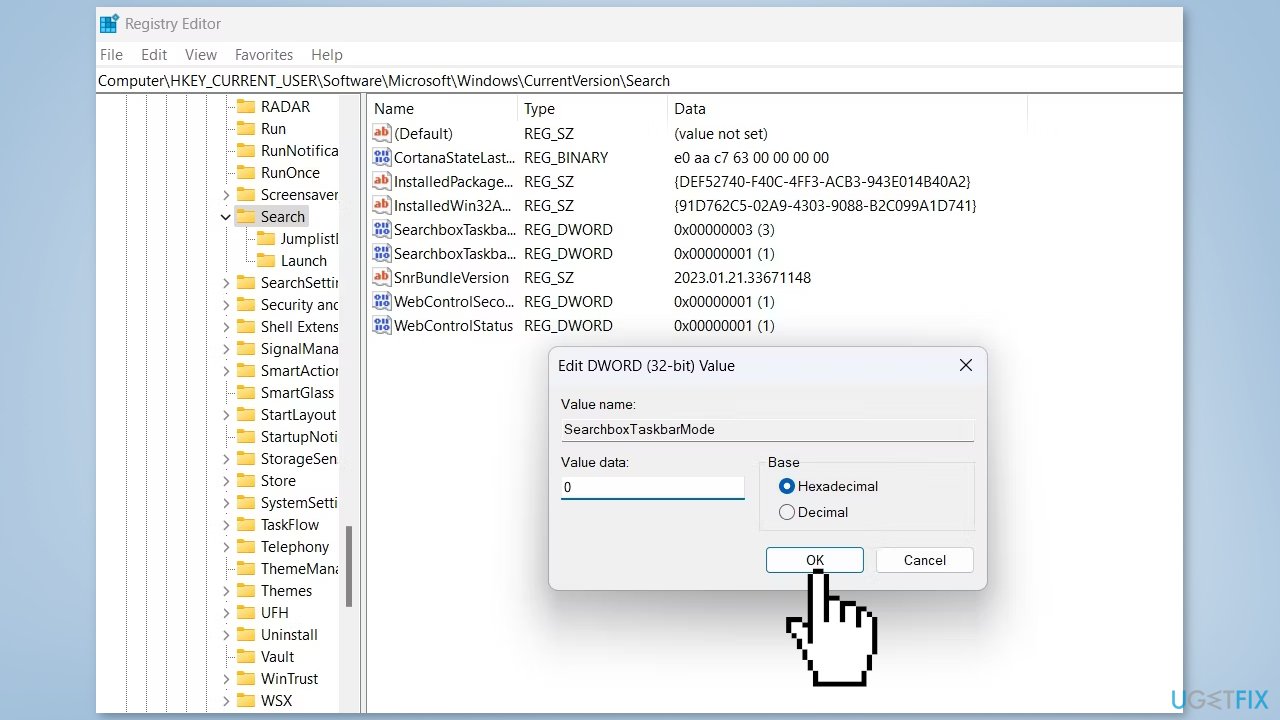
- Double-click on the SearchboxTaskbarMode entry in the right pane
- Type 0 in the Value data and click OK to disable the search bar from the Taskbar
- To enable the search bar in the future, type 1 in the Value data box and click OK
Bottom line
This guide provides methods to remove the search bar from the Taskbar in Windows 11, including using the Settings app and modifying the Windows Registry. If these solutions do not work, consider using third-party software for further customization.
Frequently asked questions
Right-click on the Taskbar, select 'Taskbar settings,' and toggle the 'Search' option to 'Off' to remove the Search bar.
No, you can still access search functionality by pressing the Windows key and typing directly, even with the Search bar hidden.
Yes, you can further customize the Taskbar by pinning apps or adjusting the Taskbar alignment in the Taskbar settings.




Report an issue
What's wrong with this guide? We review every report and update or remove content.
Report received — thank you. We'll review and fix it.
You need a free account to submit a report.
Be the first to comment