How to fix
Roll back Nvidia drivers
on Windows
Easily roll back Nvidia drivers in Windows 10 or 11 for optimal performance. Follow our expert-tested guide and enjoy smoother gaming experiences!

Why does How to roll back Nvidia drivers in Windows occur?
- Driver installation issues
- Incompatibility with hardware or operating system
- Performance issues such as reduced frame rates
- System instability or crashes
- Bugs in the latest driver version
Repairs Windows system files, removes malware, and restores a clean OS state — without reinstalling.
Hi, I recently had a problem with the Nvidia driver - it keeps delivering errors, and some programs won't start. I was wondering how to resolve this situation in the best way. The problems only started when I installed the newest driver, version 527.37. Could and should I roll back to the previous version of the driver instead? Thanks for your assistance.
Nvidia is a technology company that designs and manufactures graphics processing units (GPUs) for the gaming and professional markets, as well as system-on-a-chip units (SoCs) for the mobile computing and automotive market. The company's products are used in a variety of applications, including gaming, professional visualization, data centers, and automotive.
As a part of its service, the tech giant provides its users with the latest driver updates regularly. Drivers are essential components of any operating system that allows software and hardware communication to be conducted smoothly. GPUs, or Graphical Processing Units, rely heavily on this software, as new updates bring a lot of improvements and optimization for particular games, fix bugs, improve FPS, and much more.
It is not uncommon for people to have problems with their Nvidia drivers, as with any piece of software. These problems can range from minor annoyances, such as the drivers not installing properly, to more serious issues, such as system instability or even data loss.
In some cases, the drivers may not be compatible with the user's hardware or operating system, which can cause conflicts and lead to problems. Additionally, even when the drivers do install properly, they can sometimes cause performance issues, such as reduced frame rates or poor image quality.
Some users said that, while the original version of the driver worked fine, the new one caused various mentioned issues. In such a case, one of the best options would be to roll back Nvidia drivers to the previous version, and it is relatively easy to do as long as the previous version is still stored on the device.
Below we provide a few effective methods on how to roll back Nvidia drivers to resolve issues such as crashes, errors, BSODs, and others. Note that if you still receive these problems after tackling driver problems, there might be underlying issues with an operating system which we advise addressing with [d1] automatic repair tool.
Option 1. Use the device manager
This is the standard method most commonly used by users to roll back drivers and can be used for any other device as well.
- Right-click on Start and pick Device Manager
- Expand Display adapters
- Right-click on your graphics card, for example, NVIDIA GeForce RTX 3060, and select Properties
- Go to the Driver tab
- Click Roll Back driver
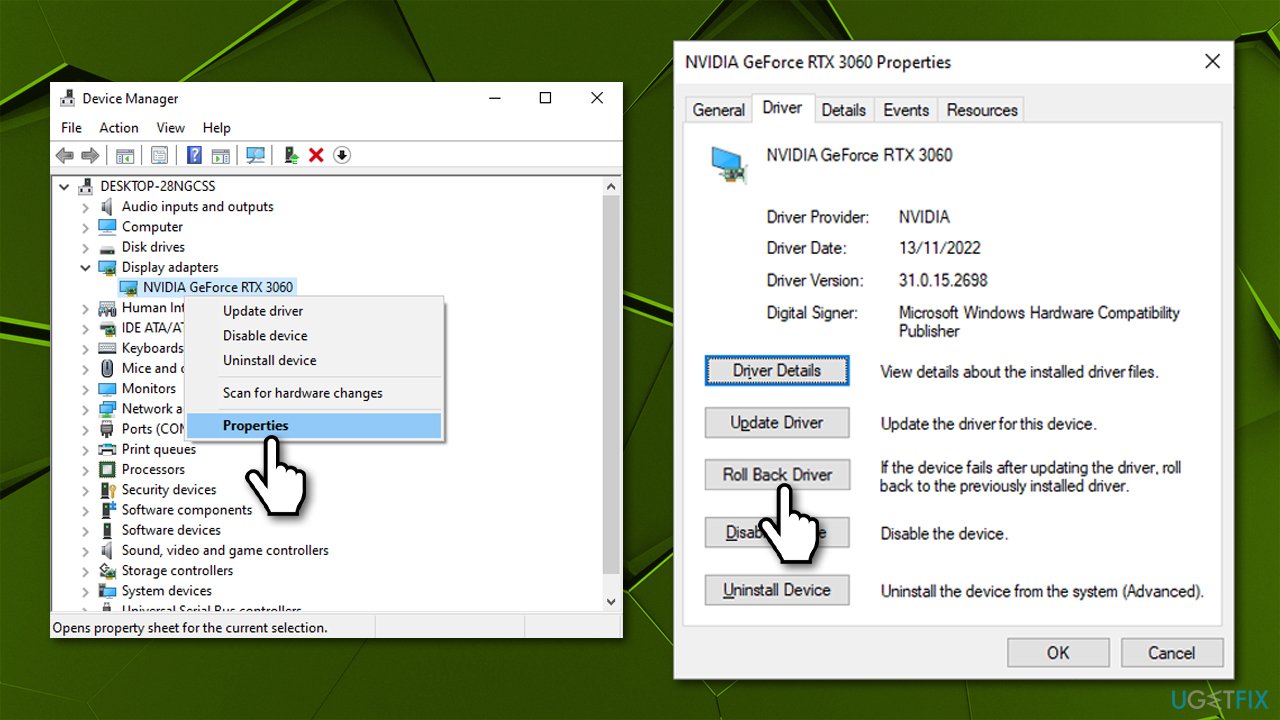
- Select one of the reasons why you're rolling back and click Yes
- Restart your system.
Note that the option Roll back driver option might be grayed out for you. This means that there was no previous version installed on your system, or the installation files are no longer present on your device. In this case, follow the other option we describe below.
Option 2. Download from the official Nvidia website
To use this method, you first need to know the version of your current driver - here's how:
- Open Device Manager and expand the Display adapters section once again
- Right-click your GPU and select Properties
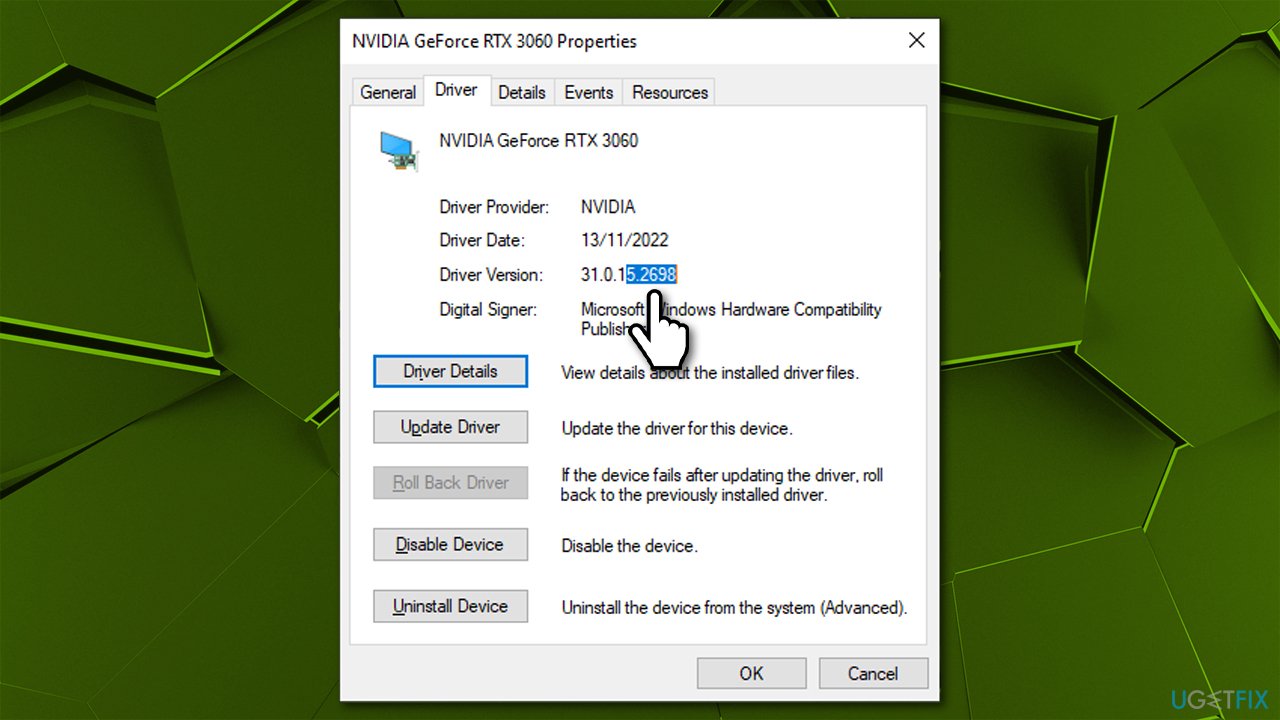
- Go to the Driver tab
- Look at the Driver version section - your goal is to check the last 5 numbers of it, as it indicates the driver version you have currently installed in your system. In the example below, the installed driver version is 526.98
- Note down this version and uninstall the Nvidia driver from your system and make sure you restart your PC.
Your next goal is to find the previous version of the driver on the Nvidia website:
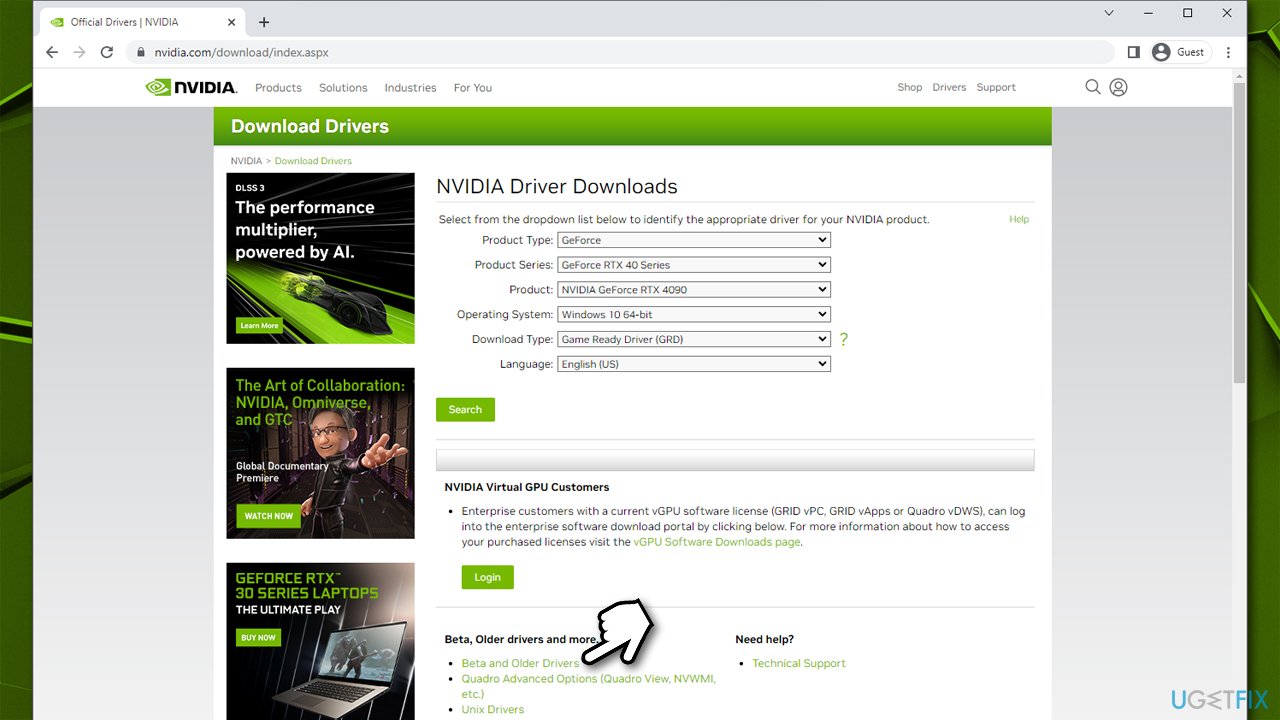
- Go to the official Nvidia driver download page
- Here, click on Beta and Older Drivers
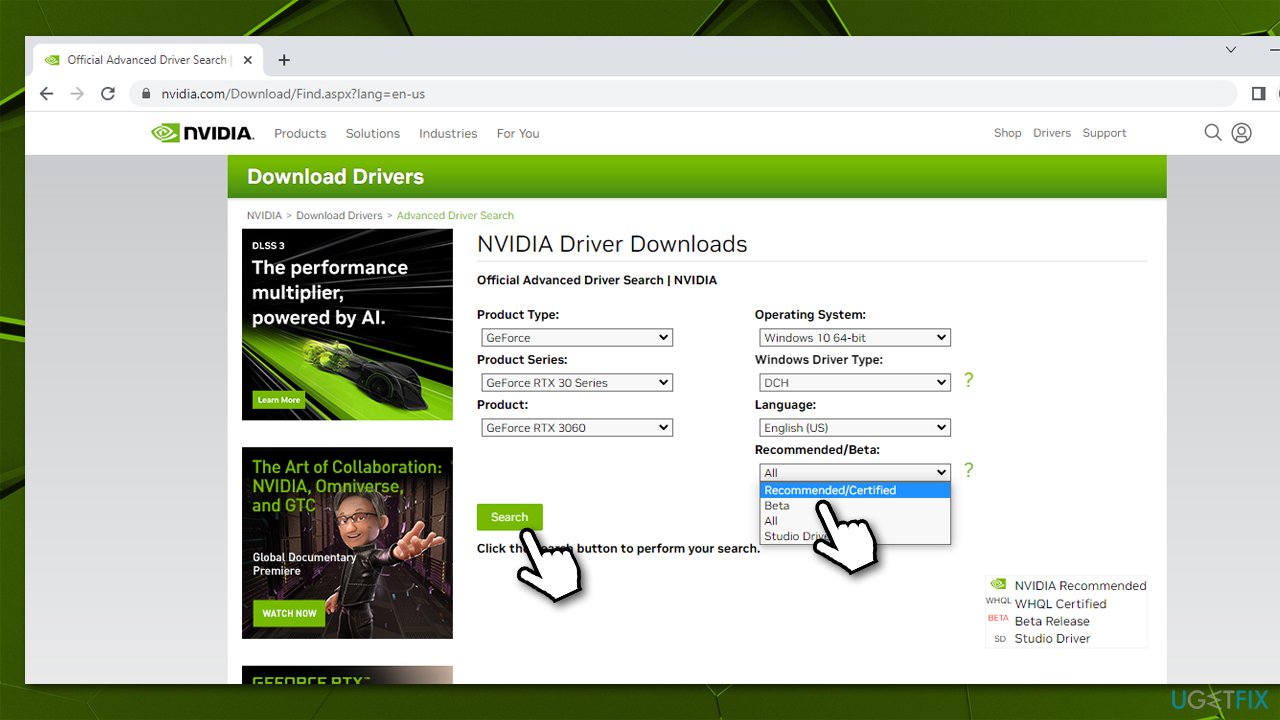
- Select your GPU, Windows version, and other parameters (you should also pick Recommended/Certified drivers only), and click Search
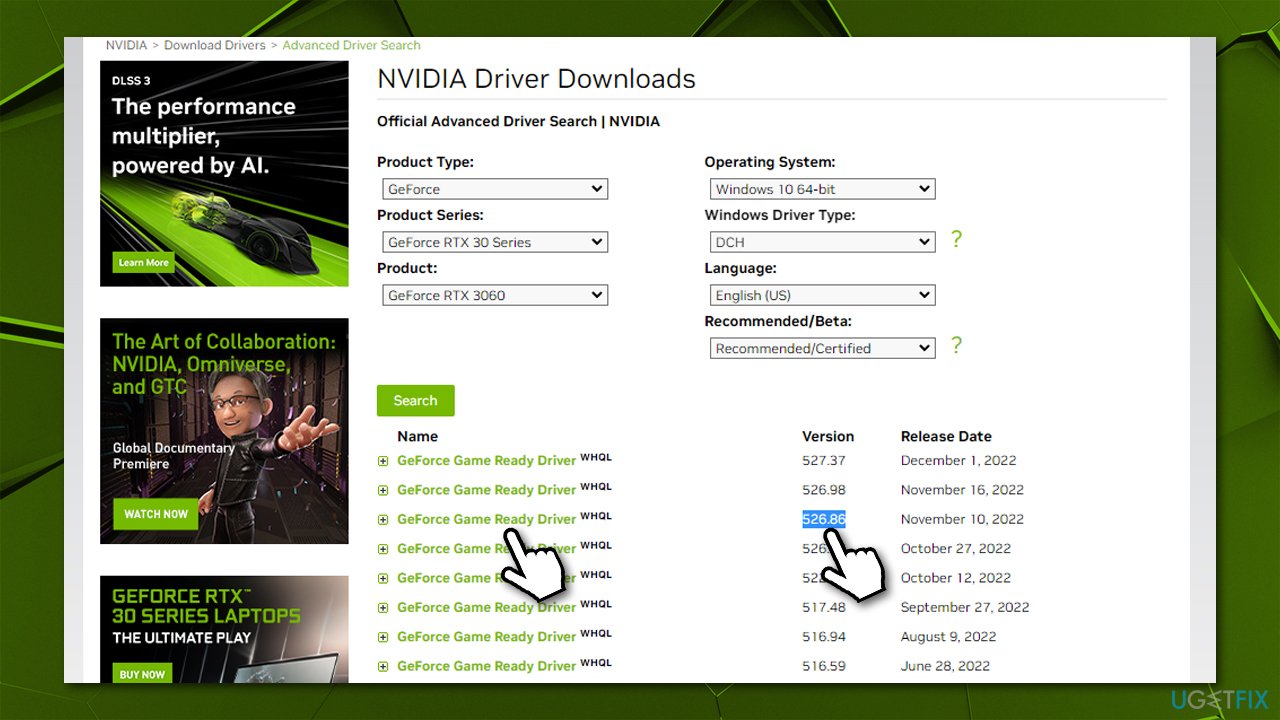
- You will be presented with the list of all released drivers, and your goal is to find one that was released before the one currently installed on your system
- In this case, it would be driver version 526.86, released on November 10, 2022
- Click on the version you need and click the Download button, then Download again
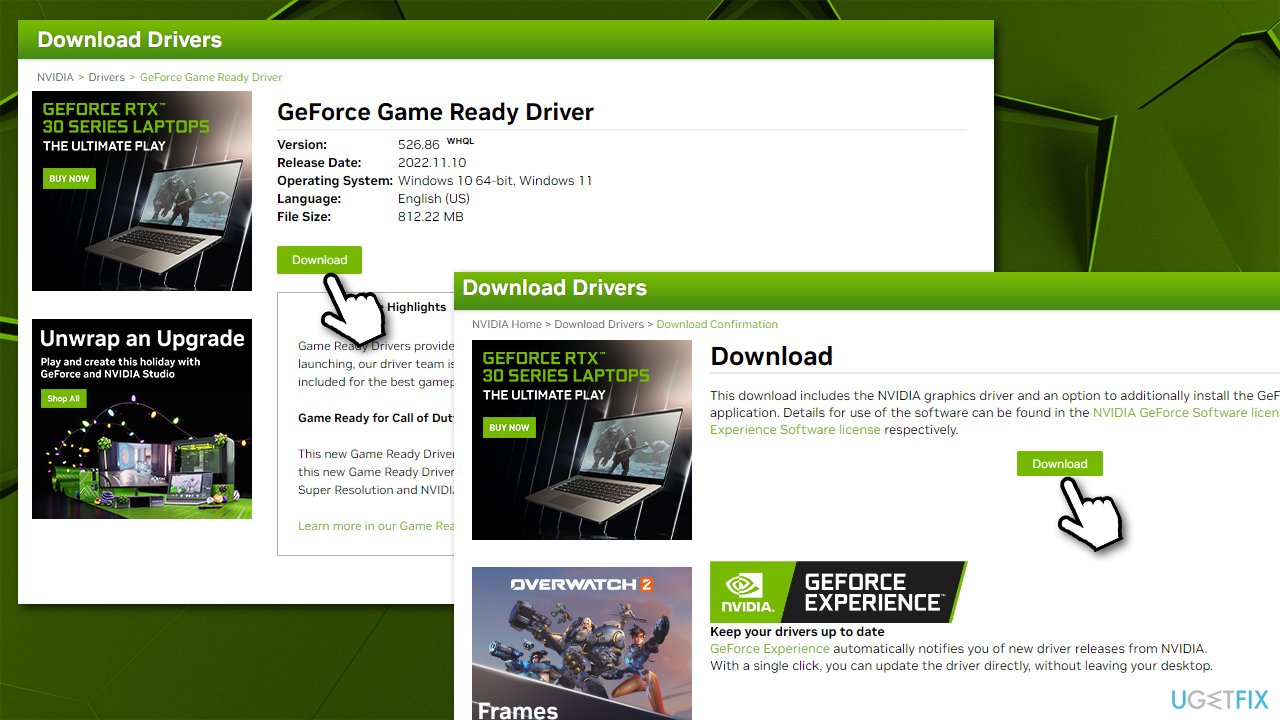
- Wait till the file downloads, launch the installer, and follow the on-screen instructions to install the older driver version
- Don't forget to restart your computer once finished.
Option 3. Use automatic driver software
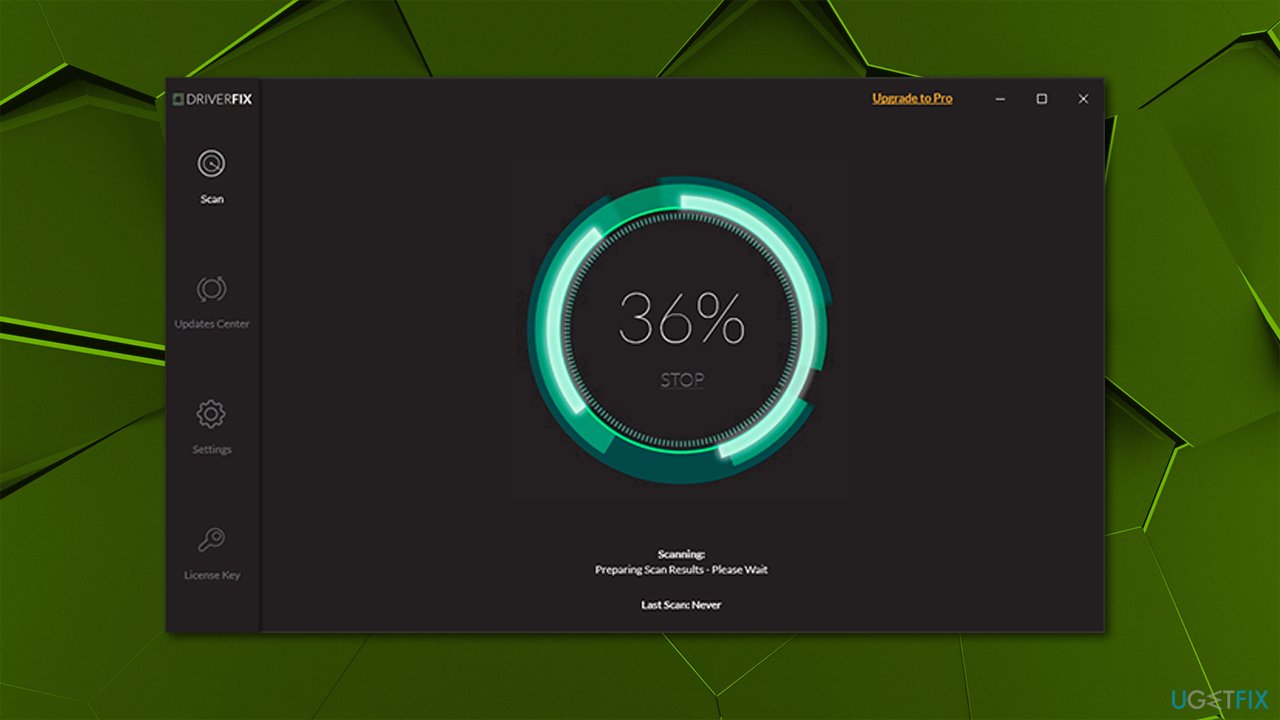
The easiest way to deal with drivers and their versions is by employing dedicated software such as [rev id="DriverFix"]. It allows you to make backups of all your drivers at any time, making the rollback process so much easier. Besides, the app can help you keep your drivers up-to-date with just one click of a button.
Bottom line
To roll back Nvidia drivers in Windows, you can use the Device Manager or the Nvidia Control Panel to revert to the previous version. If these methods do not resolve the issues, consider uninstalling the driver completely and reinstalling a stable version.
Frequently asked questions
To roll back Nvidia drivers in Windows 10, right-click on the Start button, select Device Manager, expand the Display adapters section, right-click on your Nvidia graphics card, and choose Properties. Then, go to the Driver tab and click on the Roll Back Driver button if it's available.
If the Roll Back Driver option is grayed out in Windows 11, it means that there is no previous driver version installed. You can try uninstalling the current driver and then reinstalling an older version from the Nvidia website.
Rolling back Nvidia drivers may improve gaming performance if the latest drivers are causing issues, but it could also lead to compatibility problems with newer games. Always ensure that your graphics drivers are compatible with your installed games on Windows 10 or Windows 11.




Report an issue
What's wrong with this guide? We review every report and update or remove content.
Report received — thank you. We'll review and fix it.
You need a free account to submit a report.
Be the first to comment