How to fix
Speed Up a Slow iPhone
on Windows
Discover effective tips to optimize and speed up your Windows 10 or 11 device for smoother performance. Expert-tested solutions await!


Why does How to Speed Up a Slow iPhone occur?
- Old device
- Insufficient memory
- Cache buildup
- Junk files
- Useless apps
Repairs Windows system files, removes malware, and restores a clean OS state — without reinstalling.
My iPhone has got really slow. I use all apps installed on it. No games or other lots of memory-taking programs are running on it. Could you please tell me what can I do to speed up my iPhone at least a little bit?
It’s a fact that people already got used to fast and smooth performance of the iOS. There are many reasons why people often select to use Mac devices running OS or iOS on them even if they cost twice as much as a device running Windows,[ref en-1] but will not expediate on this topic on this article.
The truth is that the performance of any device depends on how its owner maintains[ref en-2] it. Regular updates, removal of cache, complete uninstall of unnecessary files, regular optimization, and similar measures can help the device to stay fast.
Since we have already posted an article on how to speed up a slow PC and Mac, in this post we will provide a couple of useful tips on how to speed up a slow iPhone.[ref en-3]

If you have noticed that your iPhone got really sluggish, you should consider why. If the device is old, that may be a problem and you may need to change the device itself. Nevertheless, more often the culprit of slowdown is related to insufficient memory, cache,[ref en-4] junk, or useless apps.
To boost your Apple device’s performance, we would recommend you to delete useless app data, free up the memory, clear up Safari cache, download a reliable optimization utility, check if the iOS is up-to-date, and several other tips.
Free up some memory
Too many apps lead to low memory, which is one of the main reasons of the iPhone’s slowdown. First of all, you should check, which apps are taking the most space. For this purpose, you should:
- Open Settings -> General -> Storage & iCloud Usage.
- Find Storage section and tap the Manage Storage button.
- Check the list of installed apps and see how much space each of them takes. If you see some apps taking lots of memory, but you are not using them, tap on the app name and select Delete App.
TIP: each time you notice that the device is slower than it used to be, let’s say a couple of hours ago, check how many applications are currently opened and close all of them. For this purpose, double-click on the Home button and swipe upwards to close them.
Restart the device
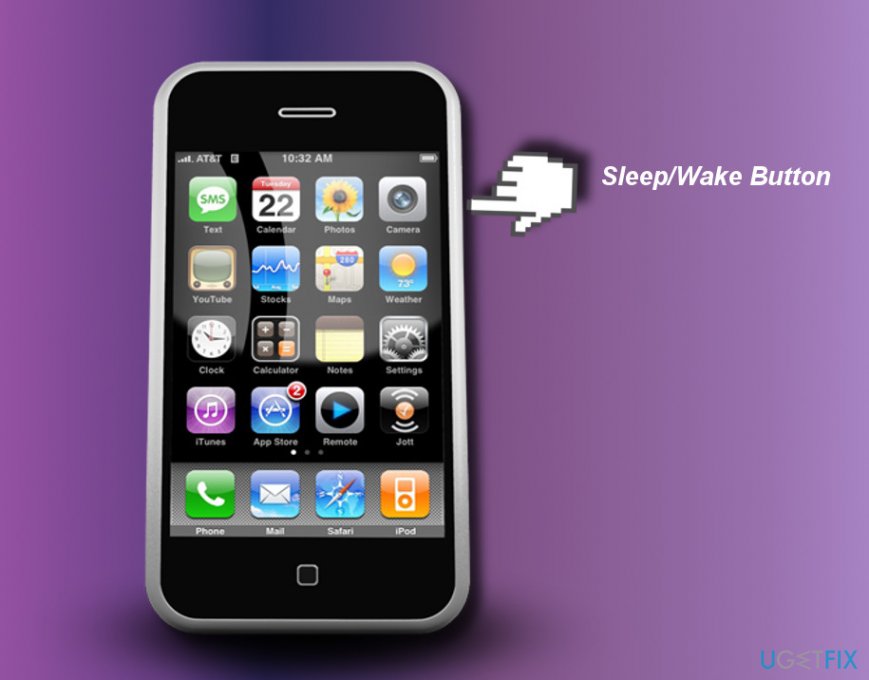
Restarting iPhone on a regular basis is crucial to keep the memory clean. Therefore, we would recommend doing so regularly:
- Press and hold the Sleep button option emerges, swipe it.
- When the device fully powers down, press and hold Sleep button to turn it on.
Stop automatic background processes
This option is useful not only for the speed of your iPhone, but also the lifetime of the battery.
- Tap Settings and select iTunes & App Store.
- Now turn off Automatic Downloads and Background App Refresh processes.
- Then open Settings -> General -> Background App Refresh.
- Turn off the Background App Refresh process.
These three processes use comparatively lots of iPhone’s memory, while, in fact, they are not necessary. Thus, stopping these processes will not negatively influence system’s performance.
Reduce the graphics
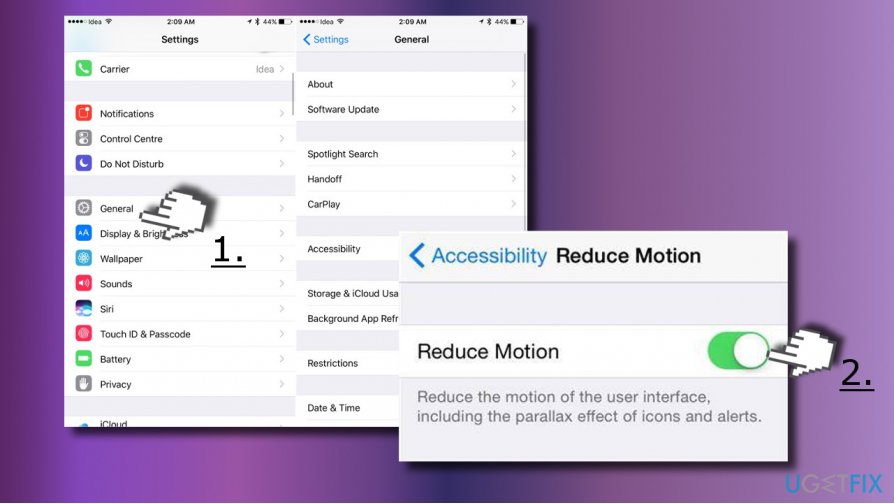
Since iOS 7, the system offers a variety of new visual effects. If your iPhone is running fast, you don’t have to turn down the graphics. Otherwise, it may help:
- Tap Settings and open General.
- Select Accessibility and open Reduce Motion section.
- Set the Reduce Motion to ON.
Remove cache from Safari
Before clearing the cache, make sure that you remember the login information for all websites that you’ve signed into. Otherwise, you may have difficulties in signing into them after the clearing.
- Open Settings and scroll down to find the group of apps that contains Mail app at the top.
- Tap on Safari and scroll down to find Clear History and Website Data option.
- Tap Clear History and Data.
Reset your iPhone
If the tips on how to speed up a slow iPhone listed above did not improve the speed of your device, we would recommend you to reset it. Before that, you’ll have to transfer all personal information into another device or external SD card because resetting will wipe data and customized settings.
- Press and hold the Home and Sleep buttons simultaneously.
- Hold the buttons until Apple logo appears.
- When the logo shows up, release the buttons and let the system to restart.
Finally, we would strongly recommend you to install an optimization utility that supports iPhone and iPad. DO NOT trust third-party tools offered for free on shady download sources because you may accidentally install a rogue, scam or even virus.
Update iOS
If you are using an older iPhone version, installing the latest iOS version may work in contrast to the expected.
Currently, the latest iOS version is 11, which has been released on September, 2017. To check if your device is running it, you should:
- Go to Settings -> General -> Software update.
Bottom line
To speed up your iPhone, consider deleting unnecessary app data, freeing up memory, clearing Safari cache, and ensuring that iOS is up-to-date. If these measures do not improve performance, you may need to consider upgrading your device.
Frequently asked questions
Yes, you can optimize your Windows 10 or Windows 11 system by adjusting settings, disabling unnecessary startup programs, and cleaning up disk space.
To enhance performance on Windows 11, consider turning off visual effects, updating drivers, and managing background apps.
Upgrading hardware components, such as adding more RAM or switching to an SSD, can significantly improve the speed and responsiveness of Windows 10.




Report an issue
What's wrong with this guide? We review every report and update or remove content.
Report received — thank you. We'll review and fix it.
You need a free account to submit a report.
Be the first to comment