How to fix
Stop Microsoft Edge from running in the background
on Windows
Stop Microsoft Edge from running in the background on Windows 10 and 11 effortlessly. Follow our expert-tested guide for a streamlined experience.

Why does How to stop Microsoft Edge from running in the background occur?
- Recent Microsoft Edge updates changed pre-set settings
- Installed extensions are set to run in the background
- Newer version of Edge operates differently than the older version
- Users did not intend to use the browser and are unhappy with its behavior
Repairs Windows system files, removes malware, and restores a clean OS state — without reinstalling.
After the most recent Windows updates, I've noticed that Microsoft Edge is running in the background, even if I close it down completely. It uses tons of CPU when I don't need it to be used. Please help me resolve this, thanks.
Microsoft Edge was initially released in 2015 as a replacement for the widely-panned Internet Explorer. While Edge represented marked improvements over its predecessor - being faster and ostensibly more secure - it nevertheless failed to stack up against other modern browsers in terms of quality. Consequently, the latest Microsoft browser has remained largely irrelevant.
Because of this, Microsoft revealed in 2018 that it would be developing Chromium-based Edge, which was finally released to the public in 2020. Actually, this version of the web browser did quite well with reception, as people appreciated its privacy features more than Chrome but were still able to log in and use extensions with their Google accounts.
Unfortunately, not everything went positively with the browser release. Users were first unsatisfied with Microsoft's decision to replace the older version of Edge with the new one. Besides, much backlash came from users who never intended to use the browser in the first place.
With the recent Microsoft Edge updates, several pre-set settings were changed, so the way it operates also did. People started noticing that Edge runs in the background even when they press the X button to close it, and it is no longer present in the system tray.
This issue is generally related to how Microsoft handles the functions of the browser with the newer version of it. To be more precise, it is a part of how installed extensions and other services are set to continue to run in the background. The very unfortunate side effect of this is that the browser then takes a lot of CPU usage, and users aren't happy about it.
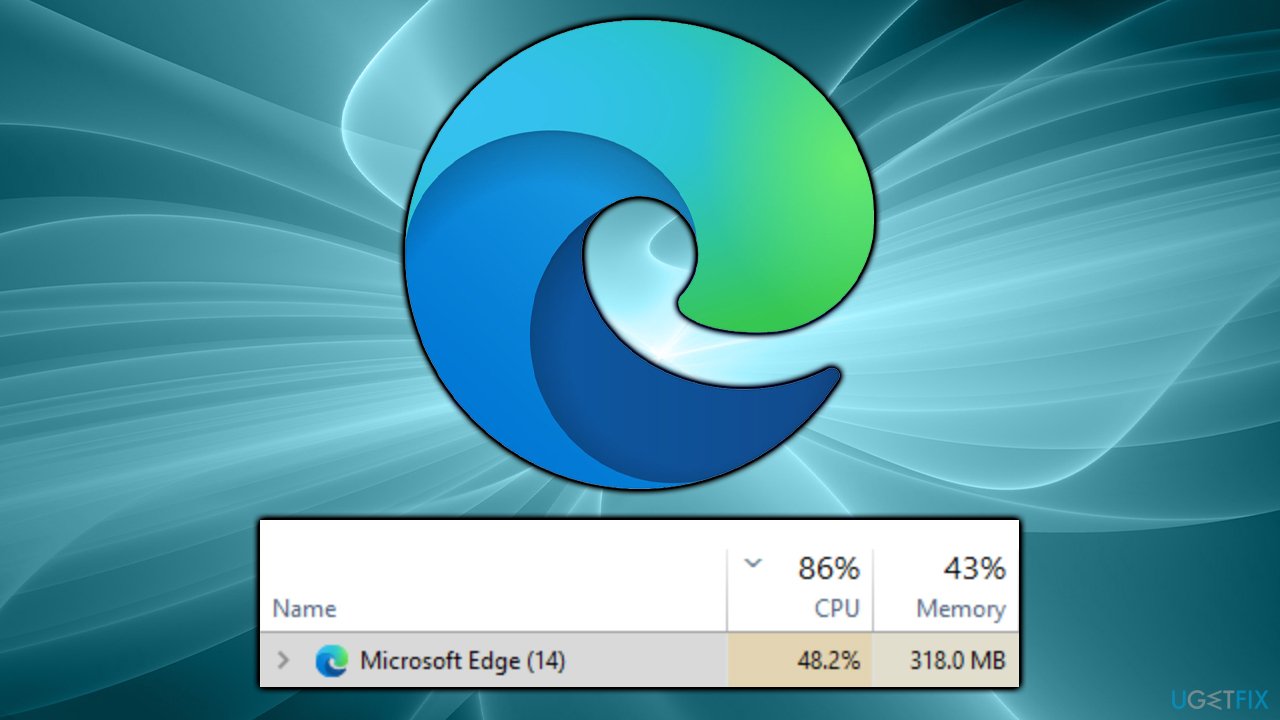
It is understandable that users would want to stop Microsoft Edge from running in the background, as the increased resource usage can seriously compromise the experience of Windows. If you are fed up with this functionality, you can easily change the browser's behavior and improve the performance of your device.
Before proceeding, we recommend running a scan with a PC repair tool [d1], which can check all the underlying components within the system and ensure that the CPU or other resources are not being overused due to various other reasons. The app is also capable of removing already installed malware and resolving various common Windows issues, including BSODs, errors, crashes, and similar.
Solution 1. Update the browser
In some cases, all you have to do to solve the problem is to update the browser - some users reported that the problem went away as soon as they did that.
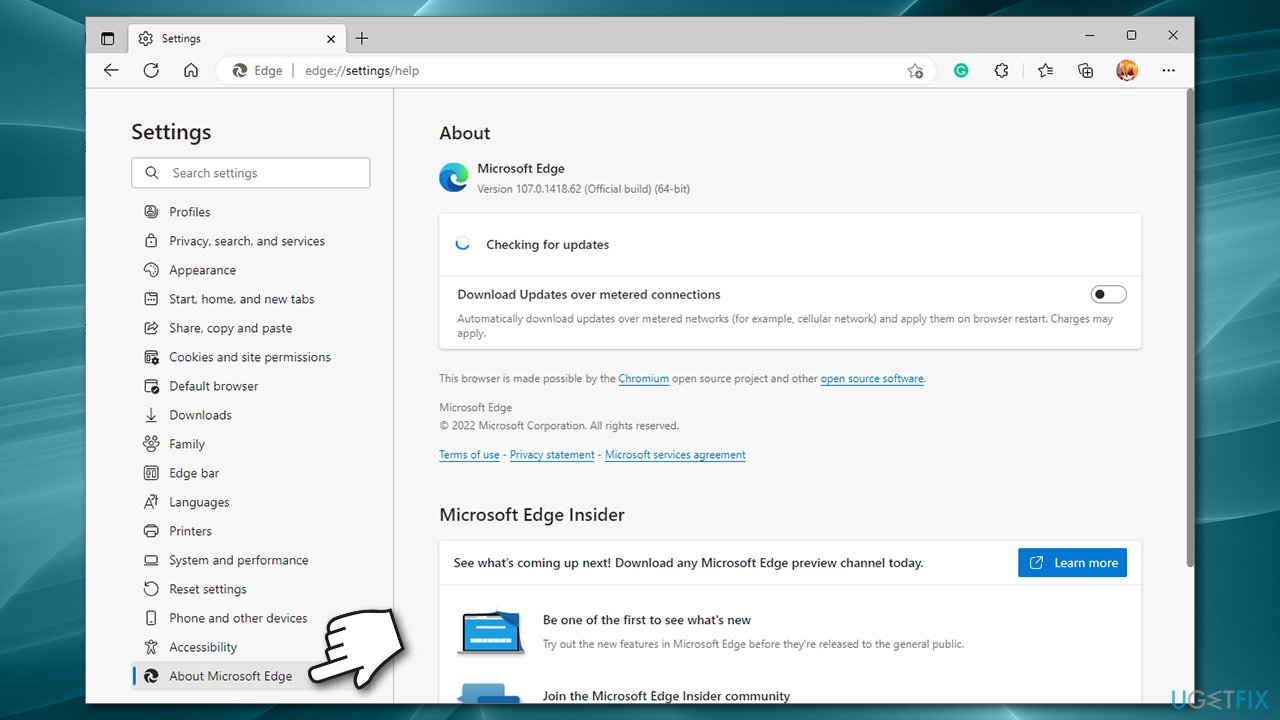
- Open Microsoft Edge
- Click on three horizontal dots (Settings and more) at the top-right corner of the browser
- Select Settings
- Click on About Microsoft Edge on the left
- The browser should now automatically be updated to the latest version.
Solution 2. Stop background apps from running on Edge and disable Startup boost
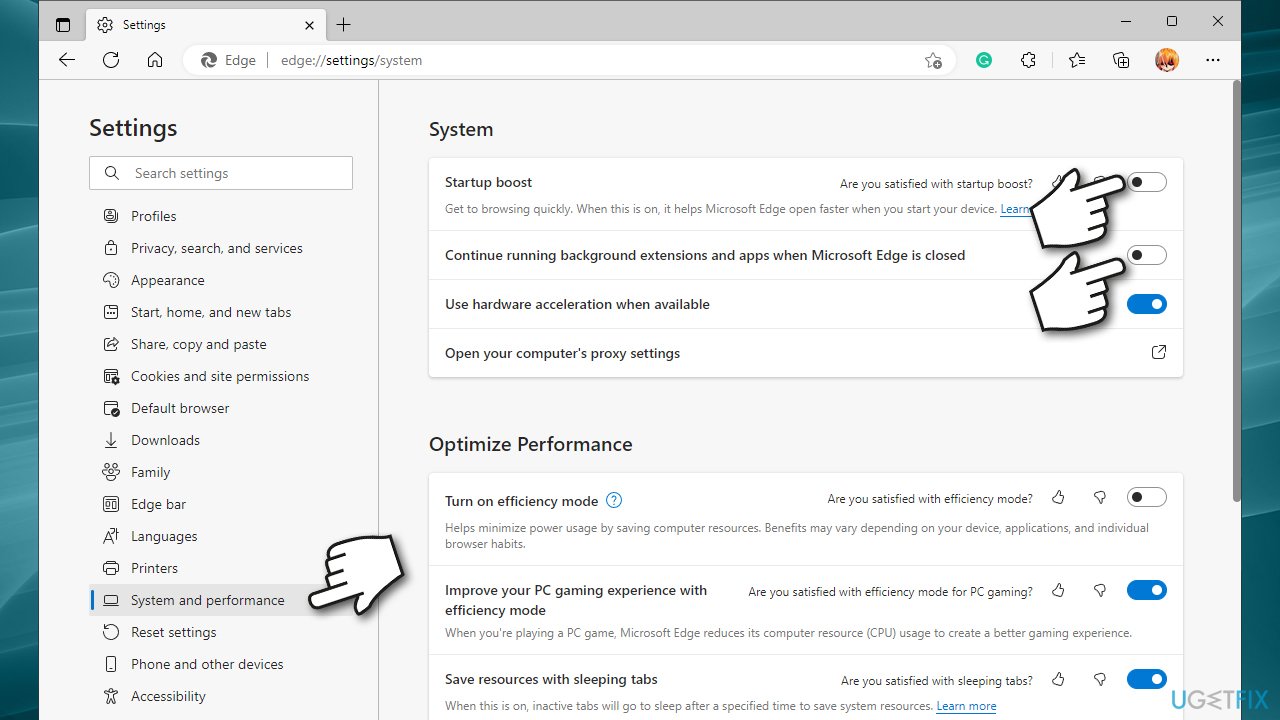
- Open Microsoft Edge and go to Settings and more and pick Settings
- On the left side, select System and performance
- Under the System section on the right, you should find the Continue running background apps when Microsoft Edge is closed option - turn it off by clicking the switch.
- You should also turn off the Startup boost because it would make Edge run automatically as soon as you log into Windows.
Solution 3. Check Windows Settings
You can check Windows settings to ensure that Edge stops running in the background:
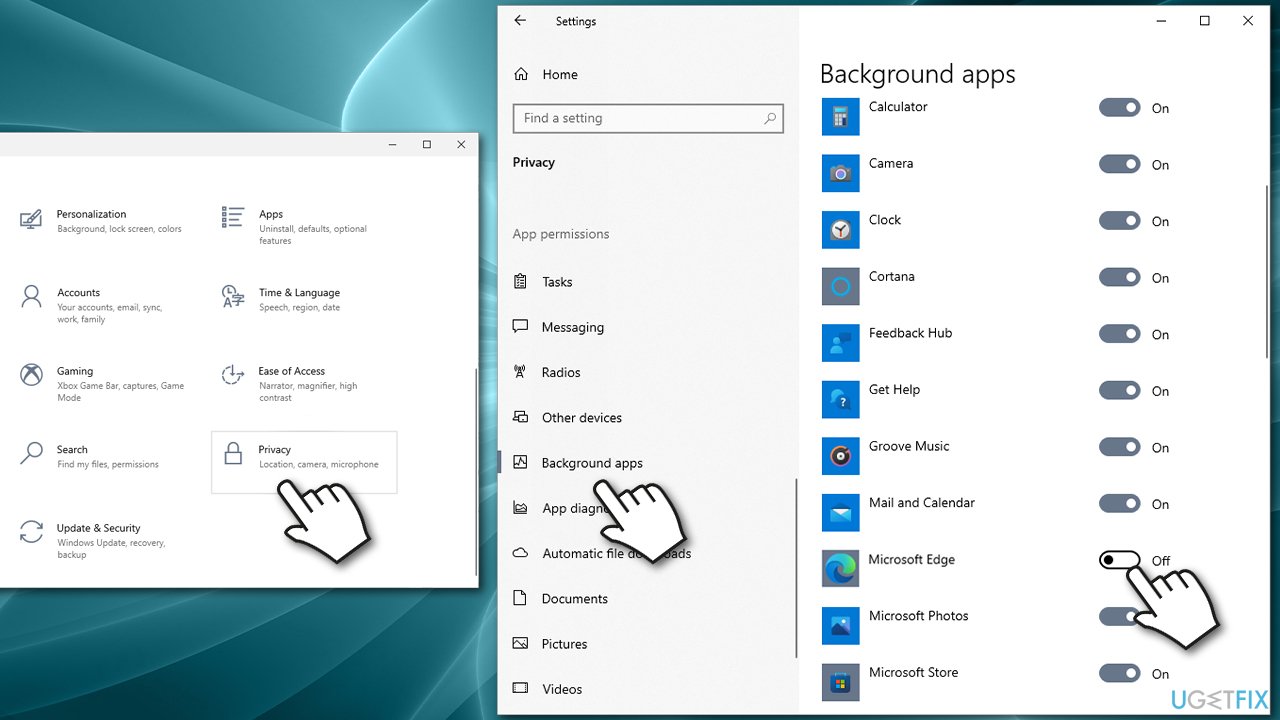
- Right-click on Start and pick Settings
- Select Privacy and pick Background apps on the left side
- If Microsoft Edge is on the list, disable it by clicking on the switch once.
Solution 4. Disable Scheduled Tasks
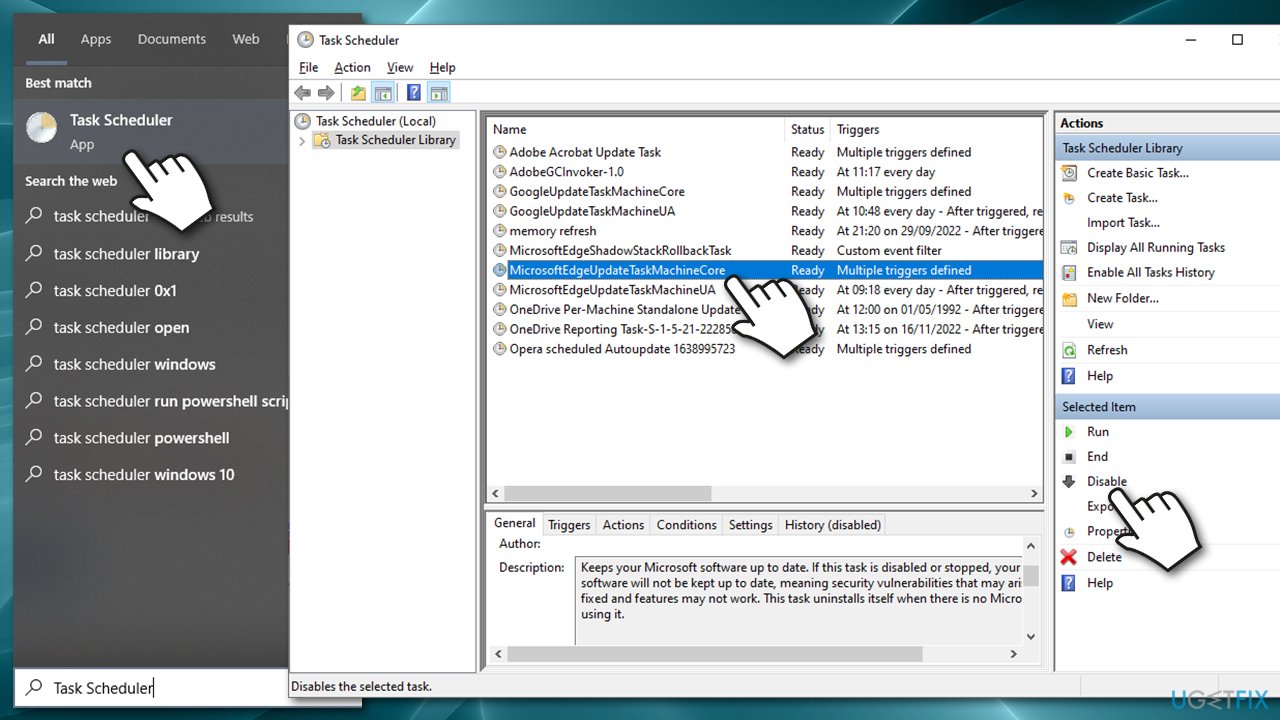
Another solution that may work when trying to stop MS Edge from running in the background is to disable its scheduled tasks. Note that this will stop all updates to the browser, so you have to re-enable these tasks or update it manually to avoid security vulnerabilities.
- Type Task Scheduler in Windows search and press Enter
- Under Task Scheduler Library, take a look at the main middle pane
- Select MicrosoftEdgeUpdateTaskMachineCore and click Disable, located in the right-most pane
- Disable the MicrosoftEdgeUpdateTaskMachineUA task as well, and close the Task Scheduler
- You can later re-enable these scheduled tasks in the same way.
If you never use this browser and are not planning to, you can also uninstall Edge completely from your device.
Bottom line
To stop Microsoft Edge from running in the background, users can adjust settings related to background activity and disable specific extensions. If these fixes do not resolve the issue, consider checking for additional updates or uninstalling the browser.
Frequently asked questions
To stop Microsoft Edge from running in the background on Windows 10, go to Settings > Privacy > Background apps and toggle off 'Let apps run in the background' for Edge.
In Windows 11, navigate to Settings > Apps > Apps & features, find Microsoft Edge, click on it, select Advanced options, and turn off 'Let this app run in the background'.
Yes, disabling background activity may lead to slower startup times for Edge, but it will help conserve system resources and improve overall performance.




Report an issue
What's wrong with this guide? We review every report and update or remove content.
Report received — thank you. We'll review and fix it.
You need a free account to submit a report.
Be the first to comment