
How to stop MS Edge from opening a New Tab every time a link is clicked?
Prefer to fix it yourself? The manual steps follow.
On this page
- How to stop MS Edge from opening a New Tab every time a link is clicked
- Change New Tab layout on Microsoft Edge
- Setting Custom layout on Edge browser
- Perform a clean boot to stop MS Edge from opening a New Tab every time a link is clicked
- Run a troubleshooter
- Reset settings to default to stop Edge from opening a New Tab every time a link is clicked
Hello. I cannot solve the issue with my Edge browser. The functionality with links changed. Now it opens a new tab once I click on the link. Before, it was that once I click on a link the page opens up on the same tab. It is annoying because I end up with too many new tabs on the browser when I search on the web and need to close each one separately. Can you offer any fixes?
MS Edge opening a New Tab every time a link is clicked or not doing so becomes an issue with the web browser commonly. People complain about enlarged browser windows, Edge opening new tabs and opening links straight to the page you are already on. Users want to change such settings, and it appears difficult.
It is frustrating when users cannot use the web browser due to experiencing this issue with new tabs and online searches. This is why many users want to stop MS Edge from opening a New Tab every time a link is clicked. It is unknown why all those settings keep changing or are difficult to reset. Still, the methods below show various solutions for the setting alterations and other options improving the overall performance of the machine.
Windows devices, especially Windows 10 machines, often have issues that people report in online forums. These problems differ from errors, application malfunctions, or failure. Sometimes rushing the OS update can trigger the problem when a certain bug is not patched before installing the update. Rolling back the update or upgrading to the later version might help, but it is not the case with browsers in most incidents.
You can customize the settings to your browser or the machine to solve the MS Edge opening a New Tab every time a link is clicked issue. If you are not happy with current configurations, you can customize preferences and other settings, so the experience is the best fitting for your needs. You might want to change various settings, so the issue of ever-changing preferences would not occur again.
How to stop MS Edge from opening a New Tab every time a link is clicked
If any system issues also occur when you experience these MS Edge opening a New Tab every time a link is clicked issues or different problems with the computer or the web browser, you need to take the problem seriously. Sometimes performance problems might be triggered by altered or damaged pieces in the system.
Besides the automatic system repair and fixes that some of the programs offer, you have a few other options for the issue with the need to stop MS Edge from opening a New Tab every time a link is clicked. You can find methods for optimization and performance improvements below. Try those solutions to clear possible root causes for the problem with your web browser.
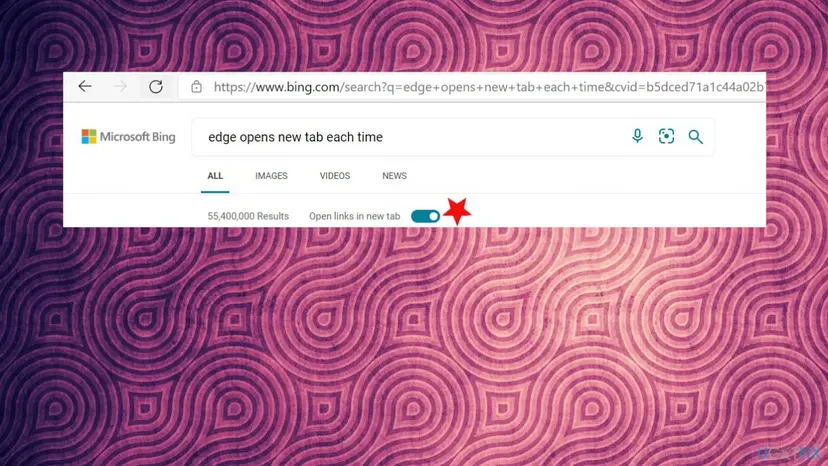
You can switch through such a setting of opening the new tab with links or not when you search the web directly. There is a toggle button that you can click and turn off or turn on the function with every online search on your Microsoft Edge browser.
Change New Tab layout on Microsoft Edge
- Open the browser.
- Go to the menu by clicking those three dots on the right.
- Choose Settings.
- Click the New tab page.
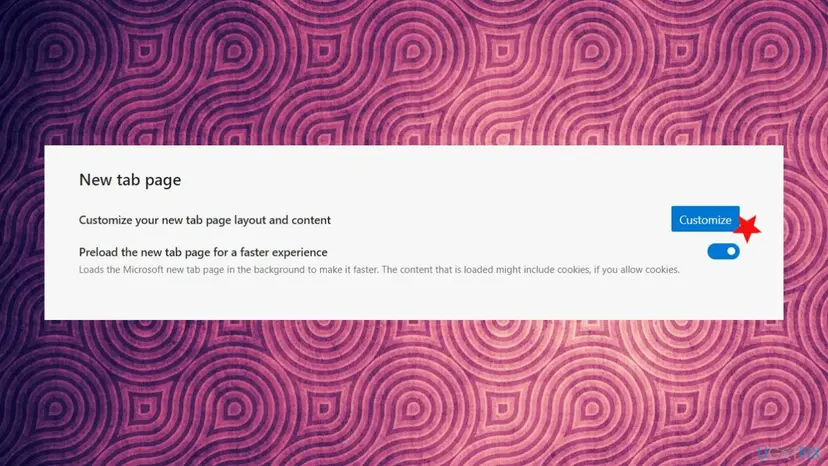
Edge opens up new tab once link is clicked customize - Click Customize.
- Choose the new page layout
Focused - design without the background, search box, links to common sites.
Inspirational - similar layout to focused, background image included too that changes daily.
Informational - includes a search box, quick links, and background. It focuses on content around the web.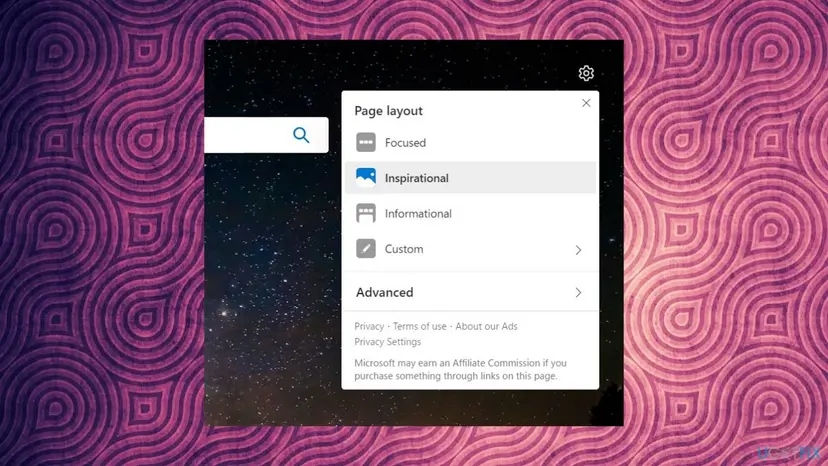
Edge opens up new tab once link is clicked settings options - Click Advanced.
- Use Language & content drop-down.
- Select the region and language of the content you will see on the new tab.
Setting Custom layout on Edge browser
- Open Edge and got to those new tab page settings.
- Hit Customize button.
- Choose Custom option and turn on or off Show quick links switch.
- Choose the option for Image of the day.
- Use the Content drop-down menu and change how news should appear.
Perform a clean boot to stop MS Edge from opening a New Tab every time a link is clicked
- Open the Run box.
- Then type MSConfig in the bar.
- Click OK.
- Once the window opens go to the General tab.
- Click selective startup and make sure to check Load system service and Load startup items.
- Go to Services.
- Check Hide All Microsoft Services.
- Click Disable all.
- Go to the Startup tab and select Open Task Manager.
- Disable all applications you are not using.
- Hit OK to apply changes.
Run a troubleshooter
- Go to Settings.
- Pick Update & Security.
- Pick Troubleshoot from the options on the left.
- If not all the troubleshooter options are present, click Additional Troubleshooters.
- Select Windows Store Apps.
- Click Run troubleshooter.
Reset settings to default to stop Edge from opening a New Tab every time a link is clicked
- Launch Edge.
- Click the gear icon to customize.
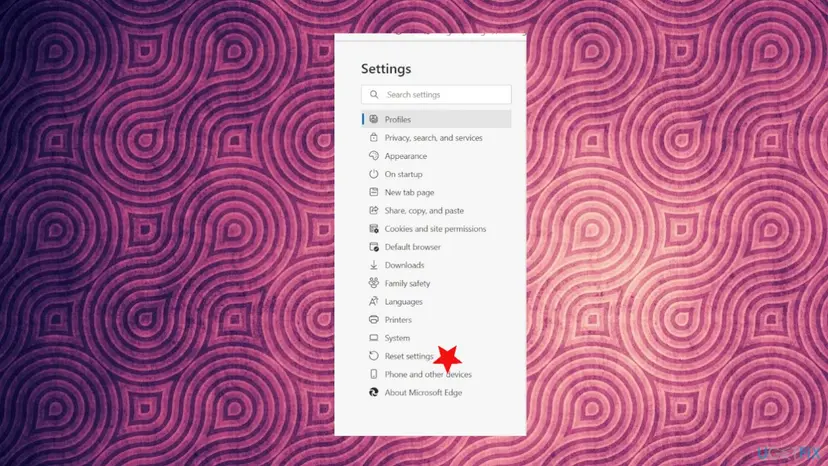
Edge opens up new tab once link is clicked settings - Find Reset settings on the Settings tab.
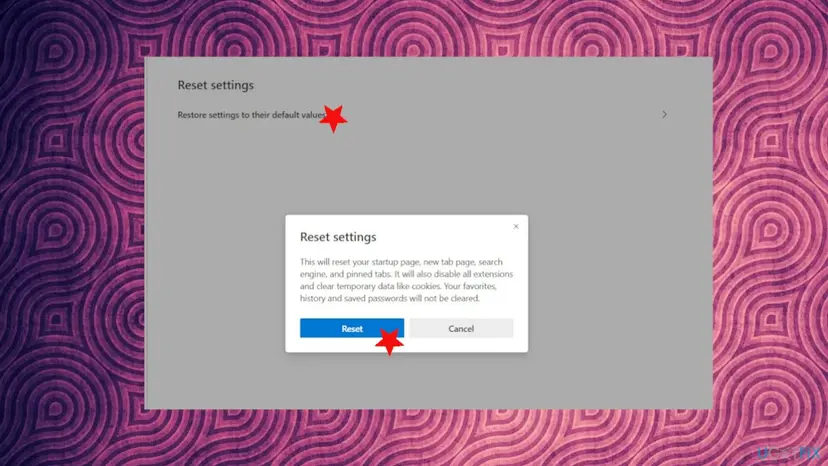
Edge opens up new tab once link is clicked fix resetting - Select Reset to default settings.
- Confirm by hitting Reset.
Did this fix work?
One click, no account. It tells the next reader which guides are worth their time.
Questions and experiences: stop MS Edge from opening a New Tab every time a link is clicked
Still broken, or found a fix we did not cover? Ask here: members and our editors answer. Reading is open; writing needs a free account.
…