How to fix
Turn off automatic Windows 10 updates
on Windows
Easily disable automatic updates in Windows 10 for a smoother experience. Take control of your system with expert-tested methods. Fixed in minutes!

Why does How to turn off automatic Windows 10 updates occur?
- Automatic updates can restart the computer unexpectedly
- Updates may cause performance issues or system instability
- Users may experience problems like endless reboot loops or missing start menu
- Disabling automatic updates can leave the system vulnerable to cyberattacks
- Users may want control over when updates are installed
Repairs Windows system files, removes malware, and restores a clean OS state — without reinstalling.
Hi, is there any way to prevent Windows 10 from downloading and installing updates automatically? It sometimes is an issue to me, as I leave the computer overnight and I find it restarted due to the auto updates. I’m using Windows 10 Pro.
Windows updates are crucial for every device, as it improves not only the quality of the operating system by packing it with new features and improvements, but also prevents malware attacks by patching security vulnerabilities.[ref en-1] That is why Microsoft always advises users to not turn off automatic Windows 10 updates feature.
Unfortunately, even the stability, performance, and other improvements can be implemented only after a computer restart, which is applied automatically. If users are away from the keyboard, this might result in an unexpected loss of data or other disruptions.
Additionally, the patches are known to be causing numerous problems to users, sometimes even rendering their PCs useless - the endless reboot loop,[ref en-2] start menu missing, and other issues are encountered by many. These difficulties often prompt users to find ways to turn off automatic Windows 10 updates, and let themselves to decide when to install them.

Although IT specialists highly recommend keeping automatic Windows Update service enabled, it’s up to you whether to keep it or not. However, if you disable automatic Windows updates, make sure that you update your machine manually as soon as new patches are out. Otherwise, you will render your computer vulnerable to cyberattacks, such as the devastating ransomware.
To protect your computer from malware, we recommend always having an anti-virus enabled. If you are infected currently or/and are experiencing any other computer problems, we advise you download and install [d1] - a one of a kind application that can remove malware and its damage done to the machine, as well as fix various system-related issues.
Solution 1. Pause Windows updates via the Settings menu
Instead of turning off Windows updates, you can simply pause them via the Settings menu for up to 35 days.
- Right-click on the Start button and pick Settings
- Select Update & Security
- On the right side of the Settings window, click on Advanced options
- Locate Pause updates section and toggle the switch to the right
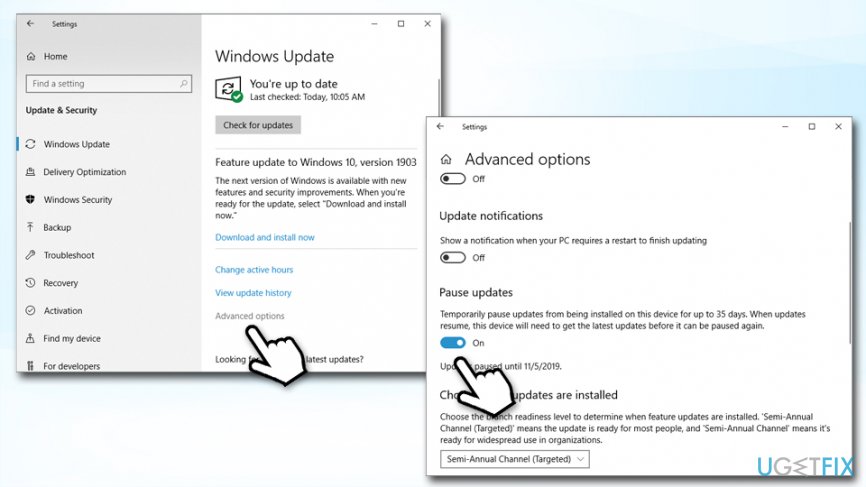
How to turn off automatic windows 10 updates postpone updates up to 35 days - To undo the setting, click on the switch once again, Windows will automatically check for updates
Once you pause automatic Windows 10 updates in such a way, you will be prompted to allow them to be installed on the date specified.
Solution 2. Postpone Security and Quality updates
In this section, you can postpone quality updates up to a year (365 days) and security updates up to a month (30 days).
- Go back to Settings > Update & Security > Windows Update > Advanced options section
- Under Choose when updates are installed area, you will see two drop-down menus
- Choose for how long you want to defer both, security and/or quality updates

How to turn off automatic windows 10 updates postpone security and quality updates
Solution 3. Modify Windows Update settings using the Local Group Policy Editor
Instead of turning off automatic Windows updates completely, we highly recommend using Local Group Policy Editor to set up preferred options so that Windows would not restart automatically (if that is the reason you want to turn off automatic Windows updates);
- Press Windows key + R, type gpedit.msc, and hit Enter
- Navigate to the Computer Configuration > Administrative Templates > Windows Components > Windows Update
- Locate the Configure Automatic Updates policy in the right pane and double-click it
- Select Enabled and then find the following Options:
- 2 - "Notify for download and notify for install"
- 3 - "Auto download and notify for install"
- 4 - "Auto download and schedule the install"
- 5 - "Allow local admin to choose setting"
- Select the option that you prefer and click Apply
- Alternatively, you can select Disabled option to turn off automatic Windows 10 updates completely
- Press OK to save the changes
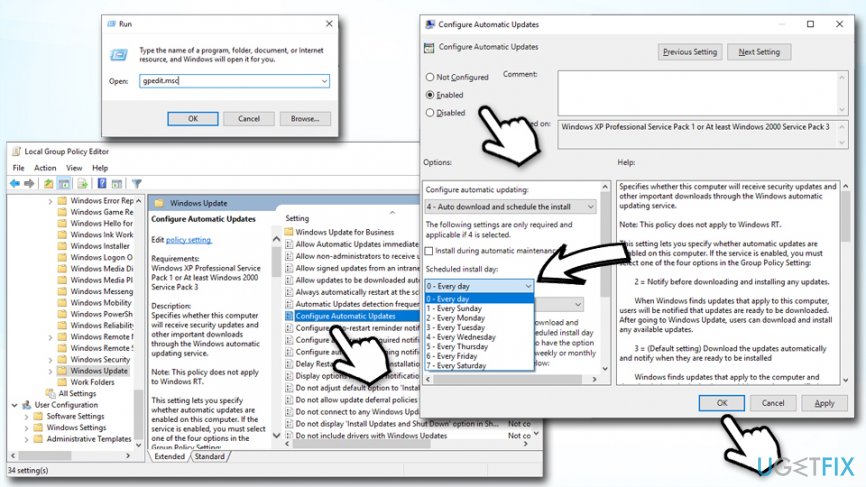
How to turn off automatic windows 10 updates edit local group policy
If you choose option 4, you can pick the time and frequency of when the updates will be installed. This option is particularly useful if you are away from the computer at the time and know that no work-in-progress will be lost.
In case you would decide to re-enable automatic Windows Updates, follow the instructions above and Disable Configure Automatic Updates policy.
Solution 4. Modify Windows registry to turn off automatic Windows updates
If you are not using Windows Professional, Enterprise, or Education, you will not be allowed to disable automatic Windows Update service. However, if the main problem you want to restrain updates from installing is forced shutdowns that frequently cause data loss and similar inconveniences, at least you can disable forced reboot using the Registry Editor. Note: modifying Windows registry incorrectly[ref en-3] might corrupt your operating system or certain functions of the installed programs, so perform the following steps at your own risk:
- Click Win key + R, type regedit, and hit Enter
- Navigate to the HKEY_LOCAL_MACHINE\\SOFTWARE\\Policies\\Microsoft\\Windows\\WindowsUpdate\\AU directory
- The part WindowsUpdate\\AU has to be created manually. For this purpose, click Windows key, go to New > Key.
- Type WindowsUpdate and press Enter
- Then right-click on the WindowsUpdate key, navigate your mouse on New > Key
- Type AU in the opened window and press Enter

How to turn off automatic windows 10 updates create new keys - Then, select AU Key from the left pane, right-click on the right pane, navigate to New, and select DWORD (32-bit).
- Type NoAutoRebootWithLoggedOnUsers and press Enter afterward.
- Change the value of the new key to 1.
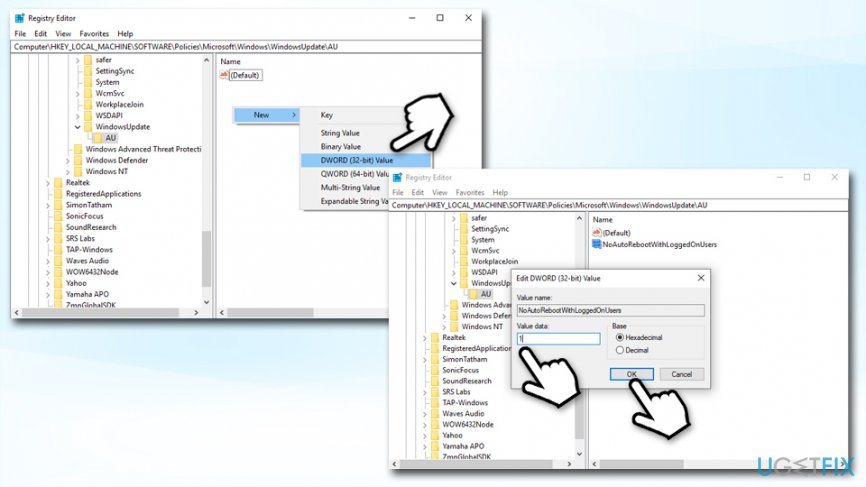
How to turn off automatic windows 10 updates registry editor set au value to - Finally, click OK and reboot your PC.
Bottom line
To manage Windows 10 updates, users can pause updates via the Settings menu for up to 35 days. If issues persist after attempting these fixes, consider updating manually or seeking further assistance.
Frequently asked questions
To disable automatic updates, go to Settings > Update & Security > Windows Update, then click on 'Advanced options' and select 'Pause updates' to pause updates for a certain period.
Yes, you can set your network connection as a metered connection in Settings > Network & Internet > Wi-Fi, which will prevent Windows 10 from downloading updates automatically.
Yes, by going to Settings > Update & Security > Windows Update, you can choose to schedule a specific time for updates to be installed under 'Change active hours'.




Report an issue
What's wrong with this guide? We review every report and update or remove content.
Report received — thank you. We'll review and fix it.
You need a free account to submit a report.
Be the first to comment