
How to turn off Google Trending Searches on Search app?

Prefer to fix it yourself? The manual steps follow.
On this page
Hello, I got a new Android phone for my birthday and started to use it fully recently. I get extremely annoyed by the Google search predictions/ Trending searches function. A list of those trending topics appear anytime I try to select Google search bar on the home screen or go to the Google application directly. I tried to disable it, but it is still there. What can I do to turn off Google Trending Searches on Search app?
This is the feature that Google has, to autocomplete system needs to get disabled to fic the issues with unwanted lists. This seems to be a common issue and popular for years, so changing one setting may not work properly. This option appeared back in 2016, and trending searches in the autocomplete search box within the Google Search App started to bother everyone.
It is not always the relevant information, and many searches are based on things all over the world, so you do not always want to see them. Many people complained about the function right away when it appeared, but even when Google released the opt-out function it was not working and people still state that toggling the autocomplete function is not letting to turn off Google Trending Searches on Search app.
First of all, we should note that you need to turn off Google Trending Searches on Search app, this is not a virus or different scam, malware issue. These search predictions are there to possibly offer you terms that you are looking for and show what people have already searched for. There are many factors that Google uses to make them.
You should be able to turn off Google Trending Searches on Search app easily by changing the preferences or some settings, but there are issues regarding this because people claim that there are additional things you need to do to change the function once and for all.
How to turn off Google Trending Searches on Search app
You can turn off Google Trending Searches on Search app by gout to a particular setting on the Google Search App or Google in general. It depends on some operating system versions, but you can check the option off on Android and on iOS. Clearing cache and cookies on your browser can also help. A factory reset is not needed, but you can most definitely run the optimizer software, or general cleaner application if you think that there are some PUPs or malware programs in the background.
Turn off Google Trending Searches on Search app
- Open the Google app and tap the menu.
- Go to Settings.
- Choose General.
- Turn off the switch next to Autocomplete with Trending searches.
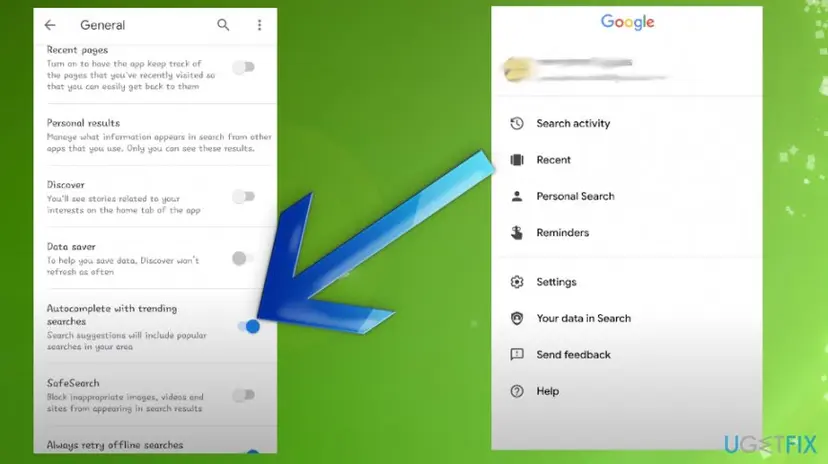
How to turn off google trending searches on search app settings
Enter the incognito mode to avoid Google Trending Searches on Search app
- You need to just choose the menu and turn on incognito.
- This is the way to avoid all the automatic settings and those frustrating options that you don't need.
- Temporarily though.
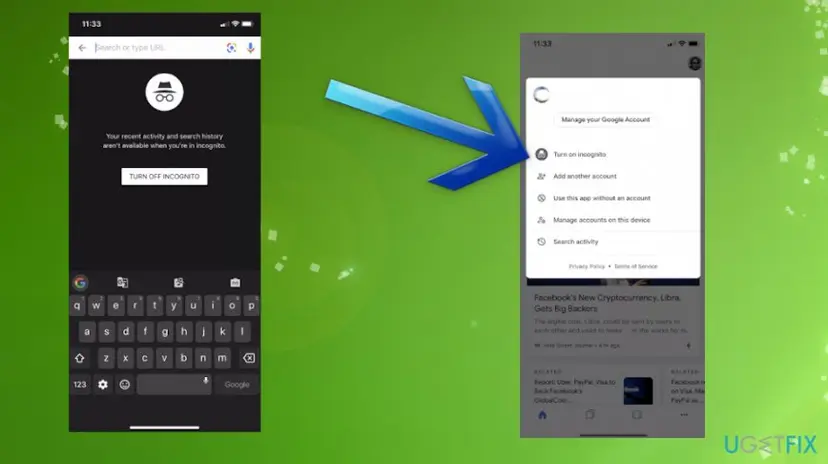
How to turn off google trending searches on search incognito
Turn off Google Trending Searches Cards
- If you see those trending cards that you do not like.

How to turn off google trending searches on search cards - Tap the three dots on the card and then Not interested in.
Did this fix work?
One click, no account. It tells the next reader which guides are worth their time.
Questions and experiences: turn off Google Trending Searches on Search app
Still broken, or found a fix we did not cover? Ask here: members and our editors answer. Reading is open; writing needs a free account.
…