
How to update video drivers in Windows 10?

Prefer to fix it yourself? The manual steps follow.
4 methods in this guide
Hello, I have been recently struggling with my games. Once I launch it, it starts showing weird textures and sometimes the whole screen starts blinking. One of my friends told me I should update video card drivers. However, I have never done this before. Can you explain how to update video drivers easily on Windows? Thanks.
A driver is a fundamental component of any Windows operating system, and without it, none of the hardware would function correctly. Basically, drivers ensure that hardware pieces correlate correctly with software, and allow their control/inputs. There are many different drivers, and each of them affects internal hardware pieces, for example, network adapters, video cards, hard, as well as external components, such as keyboards, mice, printers, etc.
Drivers are important for a number of reasons, and the main reason is that most of the computers use components manufactured by different companies. While this may seem like an inconvenience (for example, Apple makes every component inside of a Mac, so all drivers are shipped with the OS updates), it allows users to customize their system to their liking and buy an expensive video card, for example, while saving on other hardware components that they don't think are necessary.
A video card, otherwise known as GPU (graphics processing unit), is one of the main computer components when it comes to graphic-intensive tasks, although a PC can easily run without it. However, if a dedicated graphics card is set to be used as the main device for processing such tasks, any type of malfunctions might prevent the normal operation of the device.
Each manufacturer provides the necessary driver updates regularly. For example, Nvidia, AMD, and a few other companies are very prevalent when it comes to designing and manufacturing GPUs. Driver updates, while sometimes mandatory, are not something that is critical to each of the systems. However, they often provide better performance and compatibility with other devices. Besides, when something breaks and starts to malfunction, you should definitely start looking at drivers and its updates.
In some cases, you can update video drivers by downloading the latest Windows patches, although there might be many instances where you would have to install them manually. This process is relatively easy, as long as you follow the instructions we provide below - they should be able to help you update video drivers on Windows 10 easily.
Method 1. Download and install video drivers via Windows update feature
Making sure that Windows are running the latest version is absolutely mandatory not only from stability and quality of life improvements, but also security. Cybercriminals can often abuse software vulnerabilities to install malware on systems automatically, which poses great dangers to users' privacy and online safety.
Thus, make sure your Windows is up to date by following these steps:
- Right-click on Start button and select Settings
- Go to Update & Security section
- On the right-side of the window, click on Check for updates
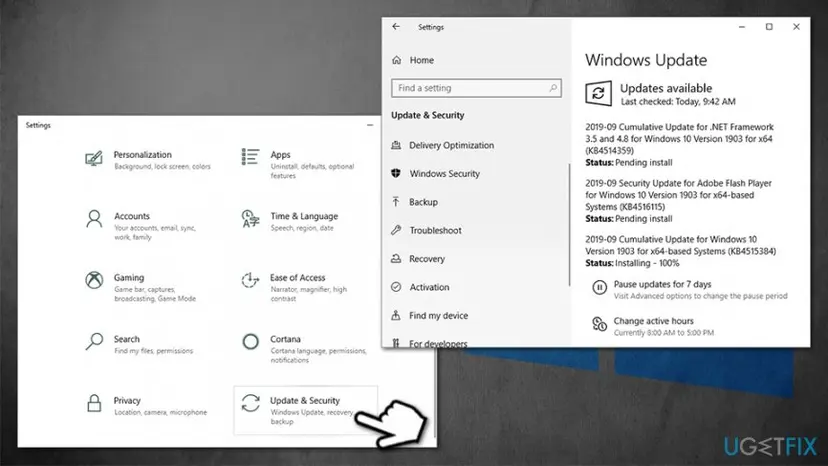
How to update video drivers in windows 10 update operating system - Wait till Windows downloads and installs the latest updates
- Reboot the system
Method 2. Update video drivers by using Device Manager
This is the easiest way to ensure that you are downloading correct drivers. Unfortunately, it might not always work (in that case proceed with the next step):
- Right-click on Start and select Device Manager
- Expand Display adapters section
- Right-click on your graphics card and select Update driver
- Pick Search automatically for updated driver software
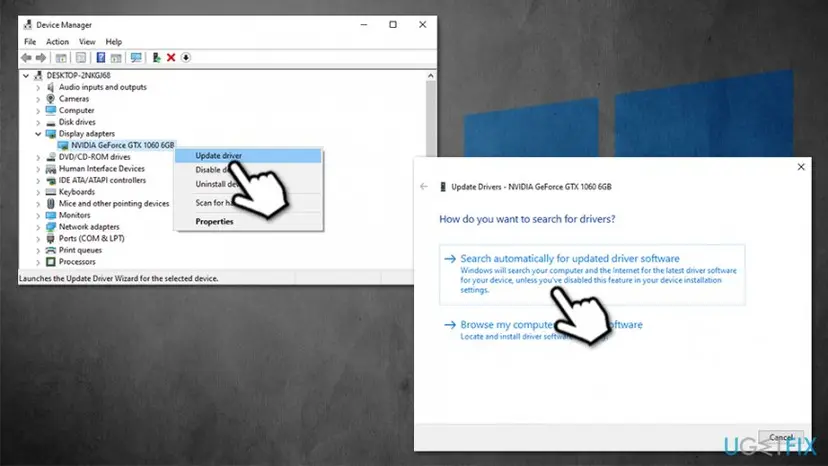
How to update video drivers in windows 10 use device manager - Wait till Windows downloads and installs updates
- Reboot
Method 3. Download drivers manually via the manufacturer's site
As mentioned above, downloading video drivers in Windows 10 might not be possible. Instead, you can go to the manufacturer's website, enter the make of your GPU, and then download the latest driver.
If you do not know how to find out what GPU you use, follow these steps:
- Type in System Information into Windows search and hit Enter
- In the new window, select Components and then pick Display
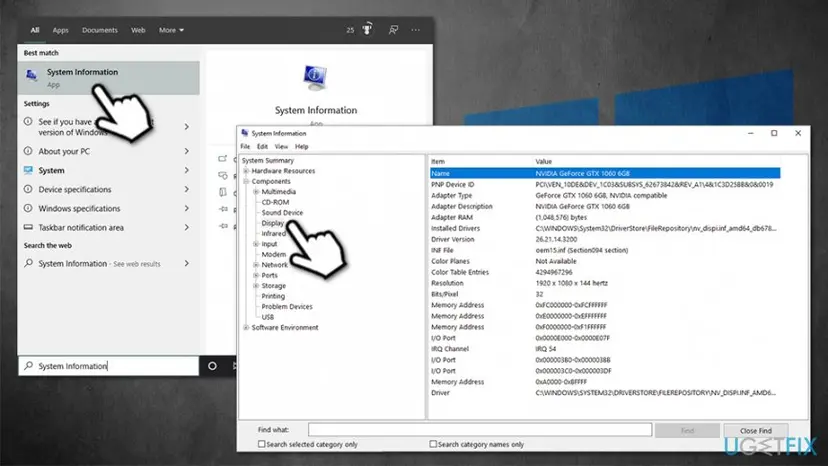
How to update video drivers in windows 10 download from manufacturer website - On the right side, you will be able to see the precise model of your GPU, as well as the currently installed driver for it.
Now go to the following website (based on your device manufacturer) and download video drivers from there:
Method 4. Use third-party software
When talking about third-party driver updates, we highly advise exercising caution, as there are hundreds, if not thousands of poorly crafted tools that will not deliver what they promise (instead flood your system with ads). The best way to update video drivers on Windows 10 is by doing it manually via the Device Manager. However, if you are still keen on using automatic tools, we recommend sticking to official apps provided by your graphics card manufacturer.
These tools include:

Once you download and install one of these apps based on your GPU type, all the video drivers should be download automatically.
Did this fix work?
One click, no account. It tells the next reader which guides are worth their time.
Questions and experiences: update video drivers in Windows 10
Still broken, or found a fix we did not cover? Ask here: members and our editors answer. Reading is open; writing needs a free account.
…