
How to fix 0x80071771 "The specified file could not be decrypted" error?

Prefer to fix it yourself? The manual steps follow.
- 6methods
- 5 minutes to 1 hour
- Intermediate
Applies to Windows 11 and Windows 10 (Pro, Enterprise and Education)
6 methods in this guide
Hello. My hard drive has crashed, but I managed to transfer my files to a new computer. The problem is that a part of the data got encrypted. Each time I attempt to open them or transfer to another location, I get an error 0x80071771 saying "The specified file could not be decrypted." Is there something I could do?
Error 0x80071771 means the file is encrypted with the Encrypting File System (EFS) and the account you use now does not hold the key that unlocks it. Taking ownership or changing permissions will not help. Find the key first: the old account on the old Windows, a .pfx backup, or a recovery agent.
The file is not broken, it is EFS encrypted, and only the key of the account that encrypted it can open it. Run cipher /c "path\to\file" to see which account and certificate it needs. Then sign in with that account on the old Windows, or import that account's .pfx backup with its password, and decrypt. Without the key and without a recovery agent, the file cannot be opened.
| What was lost | Access to files encrypted with the Encrypting File System (EFS), usually after moving a disk to a new PC, reinstalling Windows, upgrading to Windows 11 or resetting the account password. |
|---|---|
| Where the data is | The files are intact on the disk. The key is in the old user profile (AppData\Roaming\Microsoft\SystemCertificates, Crypto\RSA and Protect), in a .pfx backup, or with a recovery agent. |
| Chances | Likely with the old account or a .pfx backup and its password. Possible with the old disk that still boots. Not possible when every copy of the key is gone. |
| First thing to do | Do not reset, reinstall or wipe the old Windows, and do not reset the old account password. Search your drives for .pfx files. |
| Error code | 0x80071771 is Win32 error 6001 (0x1771), ERROR_DECRYPTION_FAILED. Its neighbour 0x80071772 is ERROR_FILE_ENCRYPTED. |
| Works on | Windows 11 and Windows 10 Pro, Enterprise and Education. Microsoft says file encryption is not available in the Home edition. |
| Time | 5 minutes to check the file and import a key. Up to an hour when the old disk has to be booted. |
| Cost | Free. Every tool on this page is part of Windows. |
| Stops working when | The old Windows was reset or reinstalled, no .pfx exists and no recovery agent was set. EFS cannot be bypassed. |
Facts checked on 15 October 2026. Steps written for Windows 11 25H2 and 26H2 Pro and Windows 10 22H2 Pro.
The first minute: protect the key before you try any fix
Your encrypted files stay unchanged until you delete them. What can disappear is the only copy of the key: the old Windows installation, the old user profile and the old password. Keep all three exactly as they are until the files open.
- Keep the old disk or the old PC as it is, even if Windows on it no longer starts.
- Write down the name of the old user account and recall its password.
- Search every drive, USB stick and cloud folder for files ending in
.pfx. - Copy the encrypted files to a safe place as they are, so you have a second copy.
- Run
cipher /con one file to see which key it needs (Method 1).
- Do not reset, reinstall or repair the old Windows.
- Do not format or wipe the old disk, and do not delete its
Usersfolder. - Do not reset the old account password from another administrator account.
- Do not give Everyone full control of the drive. It weakens security and does not decrypt.
- Do not pay anyone who promises to break EFS encryption.
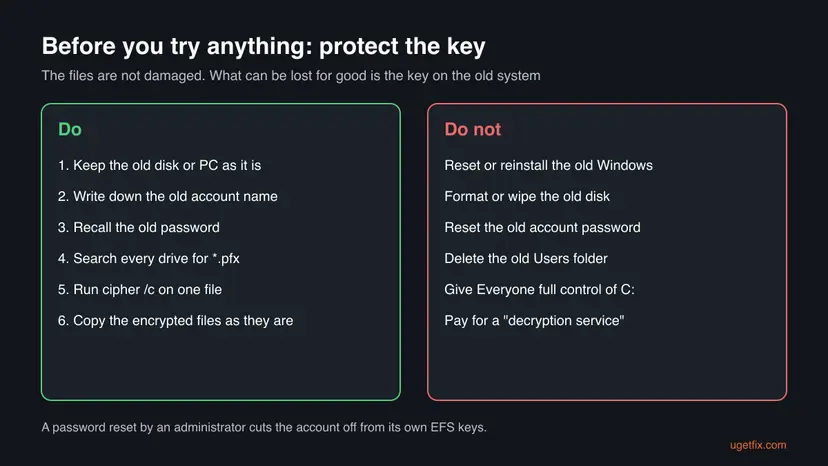
The password matters more than most people expect. When an administrator resets a local account password instead of the user changing it, Windows warns that the account can lose access to its EFS files, personal certificates and stored passwords. That data loss cannot be undone.
What "The specified file could not be decrypted" means
File Explorer shows the error when you open, copy or move a file it cannot decrypt. The copy dialog usually reads:
An unexpected error is keeping you from copying the file.
Error 0x80071771: The specified file could not be decrypted.
In Microsoft's list of Win32 system error codes, 0x1771 is error 6001, ERROR_DECRYPTION_FAILED. The 0x8007 in front only says that a Windows (Win32) error was wrapped into a longer code. The cause is almost always the Encrypting File System, the file encryption built into NTFS in Windows Pro, Enterprise and Education.
- How EFS works. Each file is encrypted with its own random key. That key is then locked with the public key of your EFS certificate and stored inside the file.
- Why another account fails. Only the matching private key can unlock it. It sits in the profile of the account that encrypted the file, protected by that account's password.
- Why a new PC fails. A new Windows, a new account with the same name, or a reinstalled system has a different private key, so the file stays locked.
- Why ownership does not help. NTFS permissions decide who may open the file. Encryption decides who can read it. Taking ownership changes the first and never the second.
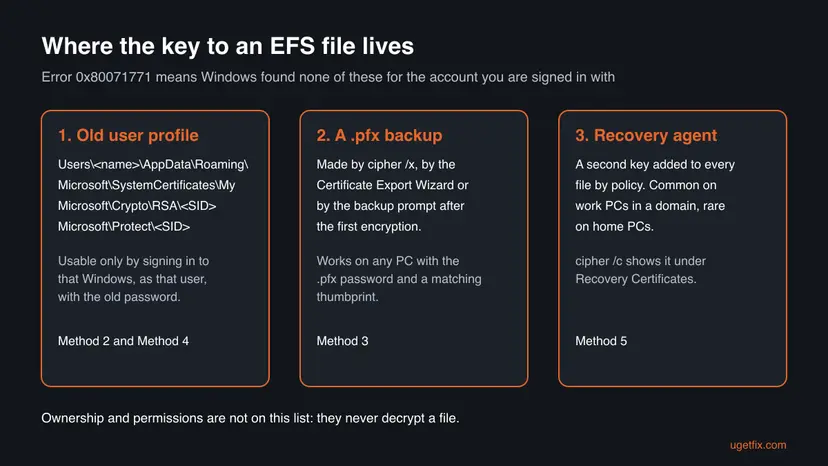
Typical moments when it appears: a disk taken out of a dead laptop and plugged into a new one, Windows reinstalled or upgraded to Windows 11 with a new account, files copied from a work PC, or a password reset. Users on Microsoft's forum report all four.
The chances of opening the encrypted files, by situation
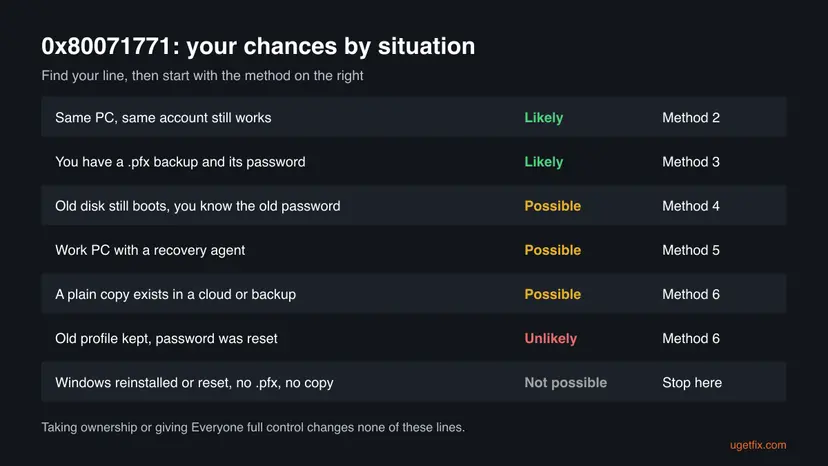
EFS uses strong encryption, and Microsoft's own staff say that without the key it is practically impossible to break. So the chances depend only on whether a copy of the key still exists. No one publishes recovery rates, so the table uses words.
| Your situation | Chances | Start with |
|---|---|---|
| The PC and the account that encrypted the files still work. | Likely. | Method 2. |
| You have a .pfx backup of the EFS key and remember its password. | Likely, if its thumbprint matches the file. | Method 3. |
| The old disk still holds a bootable Windows and you know the old password. | Possible. | Method 4. |
| A work or school PC with an EFS recovery agent. | Possible, through the IT department. | Method 5. |
| A plain copy of the file was saved in OneDrive, mail or a backup. | Possible. | Method 6. |
| The old profile still exists, but the password was reset by an administrator. | Unlikely. | Method 6. |
| Windows was reinstalled or reset, no .pfx exists and no copy was made. | Not possible. | Read the section on files that cannot be opened. |
How to fix error 0x80071771 and open the encrypted files
Start with Method 1: it takes a minute and tells you which key you are looking for. Then use the first method that fits your situation. None of them changes the encrypted files, so you can try them in any order.
Method 1. Find out which account and certificate the file needs
2 minutesNo riskEveryone with error 0x80071771, before any other method.
Every EFS file carries a list of the certificates that can unlock it. Reading that list tells you which old account to sign in with, which .pfx backup to import, and whether a recovery agent exists.
- Right-click one file that shows the error and select Properties.
- On the General tab select Advanced. If Encrypt contents to secure data is ticked, the file uses EFS.
- Select Details. Note the user name under Users who can access this file and its Certificate Thumbprint.
- Look at the lower list of recovery certificates. An entry there means a recovery agent exists (Method 5).
- For the same facts as text, press Win + R, type
cmd, press Enter and run the command below with your own path.
Show the encryption details of one file:
cipher /c "D:\Old files\Report.pdf"One user on Microsoft's forum found that his files had several different thumbprints, because Windows had used more than one EFS certificate over the years. Check a few files from different years and note every thumbprint you see.
It worked if: You know the account name and at least one certificate thumbprint that can decrypt the file.
If not: If the Advanced box is not ticked and there is no Details list, the file is not EFS encrypted. Read the FAQ on other causes, then go to Method 6.
Method 2. Decrypt the files on the account that encrypted them
5 to 15 minutesNo riskThe account named in Method 1 still exists and you can sign in to it.
That account still holds the private key, so Windows decrypts the files for it without any question. Once the encryption is removed, the files open on any PC and any account.
- Sign in to the PC with the account that encrypted the files.
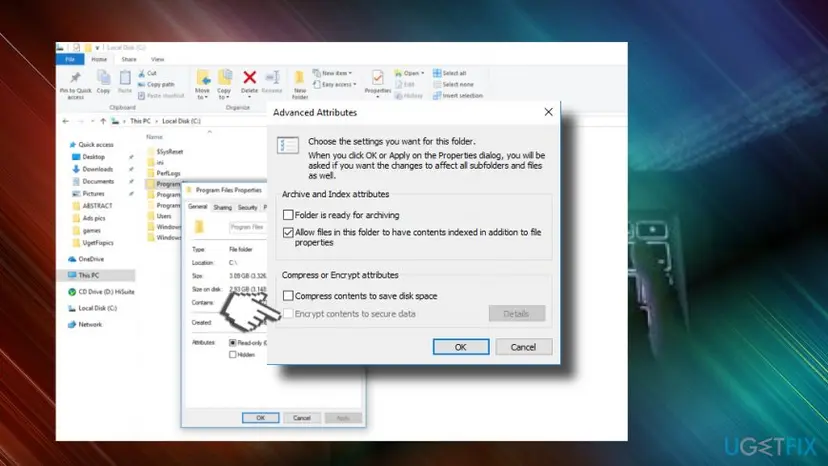
- Right-click the file or folder and select Properties, then Advanced.
- Untick Encrypt contents to secure data and select OK, then Apply.
- For a folder, choose Apply changes to this folder, subfolders and files and select OK.
- Copy the decrypted files to the new PC or to the external drive.
Or decrypt a whole folder and everything in it from Command Prompt:
cipher /d /s:"D:\Old files"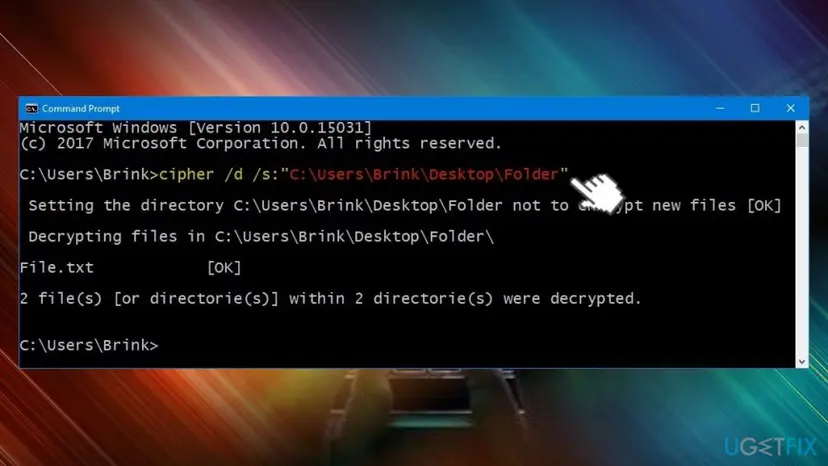
Users report that on the account that encrypted a file, right-clicking it and selecting File ownership > Personal also removed the lock. That menu is not on every PC, and it cannot help on another account.
It worked if: The lock icon is gone from the file names, and the files open on the new PC without the error.
If not: If the account no longer exists or Windows was reinstalled, go to Method 3 if you have a .pfx file, otherwise to Method 4.
Method 3. Import your .pfx backup of the EFS key and decrypt
5 minutesLow riskYou find a .pfx file of the old account and you know the password set when it was exported.
A .pfx file holds the EFS certificate together with its private key. Imported into your current account, it gives that account the same key, and Windows can decrypt the files as if you were the old user.
- Sign in with the account you want to use from now on.
- Double-click the .pfx file. The Certificate Import Wizard opens. Keep Current User and select Next.
- Select Next again, type the .pfx password and select Next.
- Keep Automatically select the certificate store and select Next, then Finish.
- Press Win + R, type
certmgr.mscand open Personal > Certificates. The new certificate lists Encrypting File System under Intended Purposes. - Double-click it, open Details and compare Thumbprint with the one you noted in Method 1.
- If they match, decrypt the files as in Method 2: untick Encrypt contents to secure data, or run
cipher /d /s:"D:\Old files".
If some files still fail, they were encrypted with another certificate. Import every .pfx backup you have, from every year, and check the thumbprints again. A user on Microsoft's forum recovered most of his files this way, but not those whose certificate he had never backed up.
It worked if: Files whose thumbprint matches open normally, and cipher /d lists them with [OK].
If not: If you forgot the .pfx password, Microsoft's staff say the key cannot be used. Go to Method 4 if the old disk still holds Windows, or Method 5 on a work PC.
Method 4. Start the old Windows and export the key from there
30 to 60 minutesRead the warningThere is no .pfx, but the old disk still holds the Windows installation and you know the old account password.
The private key is stored in the old profile folders and is protected by the old password. Copying those folders to a new account does not work. Signing in to the old Windows as that user unlocks the key, so you can decrypt there or export the key.
If the old Windows starts a repair, a reset or a password reset, the key can be destroyed. Do not accept any offer to reset this PC, do not change the account password, and copy the encrypted files elsewhere before you start.
- Put the old disk back into the original PC, or into a PC of the same type, as the only system disk.
- Start the PC and sign in with the old account and its old password, not a PIN you set later.
- Open Command Prompt and run
cipher /x C:\efs-backupto save the current EFS certificate and key. - Enter a new password for the backup when asked, then copy
efs-backup.pfxto a USB stick. - For files encrypted with an older certificate, run
cipher /x:efsfile "path\to\file" C:\efs-oldonce per thumbprint. - Use the .pfx files on the new PC as in Method 3, or simply decrypt the files here as in Method 2.
If the old PC is dead, users on Microsoft's forum report starting the old disk as a virtual machine instead. We could not confirm a Microsoft guide for this, so treat it as a task for someone who has done it before.
It worked if: You have a .pfx file from the old account, or the files are decrypted on the old Windows and copy without the error.
If not: If the old Windows does not start or the old password no longer works, the key is out of reach. Try Method 5 or Method 6.
Method 5. Ask the IT department to decrypt with the recovery agent
Depends on the IT department, often 1 dayLow riskThe files come from a work or school PC, or Method 1 showed a recovery certificate.
Microsoft explains that every EFS file also stores its key locked with the recovery agent's public key. Whoever holds the recovery agent's private key can decrypt the file without your old key.
- Note the recovery certificate name and thumbprint shown in Method 1.
- Give your IT department one encrypted file, or the disk, and that thumbprint.
- The administrator imports the recovery agent .pfx on a PC and decrypts the files with
cipher /d. - Copy the decrypted files back and check that they open.
In a domain, Microsoft notes that the default recovery agent is the built-in Administrator of the first domain controller. If that profile or controller is gone, the recovery key is gone too.
It worked if: The IT department returns the files decrypted, and they open on any account.
If not: If no recovery certificate is listed, a home PC usually has none. Go to Method 6.
Method 6. Look for an unencrypted copy of the same files
15 minutesNo riskNo key can be found, or only some files could be decrypted.
EFS protects one copy on one NTFS disk. A copy uploaded to a cloud service, sent by mail or saved by another program is often a plain file that any PC can open.
- Sign in at onedrive.com and search for the file names, including the Recycle bin. Step by step: Restore deleted or older files in OneDrive.
- Search your mail for attachments with the same names.
- Check phones, cameras and other PCs the photos or documents came from.
- Check external backup drives. Open one restored file to see if it is still encrypted.
A backup made of the encrypted file is usually encrypted too, and needs the same key. A copy is useful only when it was made from an open, unencrypted file.
It worked if: You find a copy that opens on the new PC without the error.
If not: If no copy exists, read the next section before you spend money.
When the encrypted files cannot be opened
It is better to know this early. EFS exists so that nobody without the key can read the files, and it does that job well.
- Windows was reinstalled or reset, and no .pfx was made. The private key was in the old profile, and that profile no longer exists.
- A new account with the same name. It has a new security identifier and a new key, so it cannot read the old files.
- The .pfx password is forgotten. Microsoft's staff say that without that password the backup cannot be used.
- The old password was reset, not changed. The old key was protected by the old password, and a reset cuts the link.
- Ownership and permissions. Taking ownership, adding Everyone or running as administrator changes who may open the file, never whether it can be decrypted.
No program can guess an EFS key. Recovery tools can only work with keys that still exist on an old disk, together with the old password. If a service promises to decrypt without both, do not pay it.
How to never lose access to encrypted files again
If you keep using EFS, a backup of the key is the one thing that matters. Do it now, on the account that encrypts files.
- Open Command Prompt on the account that encrypts files.
- Run
cipher /x D:\efs-key-2026and set a strong password you will remember. - Copy the .pfx file to a USB stick and to a second safe place, not only to the same disk.
- Write the password down and keep it apart from the USB stick.
- Repeat after a new certificate appears.
cipher /yshows the current thumbprint, so you can see when it changed.
- Decrypt before you move. Before a reinstall, an upgrade or a new PC, decrypt the files with
cipher /d /s:or copy them out as plain files. - Back up open files, not encrypted ones. Keep a separate backup of the decrypted files. Full steps: Back up your files (Windows Backup, File History, Time Machine).
- Change your password, do not reset it. Change it from your own account, so Windows can keep the key protected.
- Consider BitLocker instead. It encrypts the whole drive, and its recovery key can be kept in your Microsoft account, apart from the PC.
Windows 10 left support on 14 October 2025. If you plan to move from a Windows 10 PC, decrypt or back up the key first.
Frequently asked questions
What does error 0x80071771 mean?
It means Windows could not decrypt a file. The code is Win32 error 6001, ERROR_DECRYPTION_FAILED, with the text "The specified file could not be decrypted". In practice the file was encrypted with the Encrypting File System by another account, on another Windows installation, or with a certificate your current account does not have. The file itself is not damaged. You need the private key of the account that encrypted it, a .pfx backup of that key, or a recovery agent. Method 1 on this page shows which one the file needs.
How do I fix "The specified file could not be decrypted" on Windows 11?
The fix is the same on Windows 11 and Windows 10. Check which account and certificate the file needs with cipher /c, then get that key onto the PC. Sign in to the account that encrypted the file, or import its .pfx backup through the Certificate Import Wizard. Then untick Encrypt contents to secure data or run cipher /d. Upgrading to Windows 11 with a new account is a common cause, because the new account has a new key. Windows 11 Home cannot encrypt files at all.
What does "The specified file is encrypted and the user does not have the ability to decrypt it" mean?
That is error 0x80071772, Win32 error 6002, ERROR_FILE_ENCRYPTED. It is the close neighbour of 0x80071771 and has the same cause: an EFS encrypted file and an account without the key. It is often seen when installing a Linux distribution for WSL into an encrypted folder. Microsoft's WSL issue tracker suggests decrypting the package folder under %LOCALAPPDATA%\Packages or moving the app to the system drive. For personal files, use the methods on this page.
Why does error 0x80071772 appear with WSL?
WSL stores each Linux distribution inside the app package folder under %LOCALAPPDATA%\Packages. If that folder, or the drive folder new apps are saved to, is EFS encrypted, registration fails with error 0x80071772. The Microsoft WSL issue tracker lists two ways out. Move the app to drive C under Settings > Apps > Installed apps, or set Where new content is saved back to C. Or untick Encrypt contents to secure data on the distribution folder and install again.
Can I decrypt EFS files without the certificate?
No. EFS locks each file's key with the public key of a certificate, and only the matching private key can unlock it. Microsoft's own staff describe breaking it without the key as practically impossible. The only ways in are the original account on the original Windows, a .pfx backup of the key with its password, or a recovery agent. If you still have the old disk with its Windows and you know the old password, Method 4 can get the key back.
Will taking ownership of the files fix error 0x80071771?
No. Ownership and permissions decide who is allowed to open a file. Encryption decides whether its content can be read. Many old guides tell you to take ownership of the whole drive and give Everyone full control, which leaves the files encrypted and weakens the security of the PC. Taking ownership of one folder is needed only when you also see an "Access denied" or permission message. Even then, it never removes EFS encryption.
I created a new account with the same name and password. Why can I still not open the files?
Windows does not identify an account by its name. Each account gets a unique security identifier when it is created, and a new private key when it first uses EFS. A user on Microsoft's forum tried exactly this and the files stayed locked. The new account has a different key from the one stored in the files. Only the original key opens them: import its .pfx backup, or sign in to the original Windows installation with the original account.
How do I know if a file is encrypted with EFS?
Right-click the file, select Properties and then Advanced. If Encrypt contents to secure data is ticked, the file uses EFS, and Details lists the accounts that can open it. File Explorer also shows a small lock on the icon of an encrypted file. In Command Prompt, cipher without parameters lists the current folder and marks encrypted files with E and unencrypted ones with U. If the box is not ticked, look for another cause, such as BitLocker or a third-party encryption app.
My files have a lock and a strange extension. Is that the same error?
No. EFS keeps the original file name and extension, and the lock is a small icon. If every file suddenly has a new extension and a ransom note appeared, the files were encrypted by ransomware, not by Windows. This page is about Windows EFS only. Do not pay the attackers, disconnect the PC from the network, and look for a guide on that ransomware family. Keep the encrypted files, because free decryptors are sometimes released later.
Can I open EFS encrypted files on Windows Home?
Microsoft says file encryption is not available in the Home edition, so Home cannot encrypt files. We could not confirm from Microsoft whether Home can decrypt a file after you import the matching .pfx key. The safe route is to use a PC with Windows Pro, Enterprise or Education, import the key there and decrypt the files with cipher /d. Once decrypted, they open on any edition, including Home.
Sources
- Microsoft Learn: System Error Codes 6000 to 8199 (ERROR_DECRYPTION_FAILED 0x1771, ERROR_FILE_ENCRYPTED 0x1772) (learn.microsoft.com)
- Microsoft Learn: cipher command (/c, /d, /s, /x, /y) (learn.microsoft.com)
- Microsoft Learn: Back up the recovery agent EFS private key (how EFS keys and the Data Recovery Field work) (learn.microsoft.com)
Did this fix work?
One click, no account. It tells the next reader which guides are worth their time.
Questions and experiences: fix 0x80071771 "The specified file could not be decrypted" error
Still broken, or found a fix we did not cover? Ask here: members and our editors answer. Reading is open; writing needs a free account.
…