How to fix
Can’t hear anyone on Discord
on Windows
Resolve Discord audio issues on Windows 10 and 11 effortlessly. Enjoy uninterrupted conversations with our expert-tested solutions. Fixed in minutes!

What causes How to fix can’t hear anyone on Discord?
- Audio settings misconfiguration
- Incorrect input/output device selection
- Discord permissions not granted
- Outdated Discord application
- Conflicting audio drivers
Repairs Windows system files, removes malware, and restores a clean OS state — without reinstalling.
Hey, I need help with the Discord. I often use it for voice communication, and recently I can't hear anyone on Discord voice channels. The audio works fine when I use YouTube or turn listen to music on Spotify. Is there anything that could be done?
Discord is an innovative application that allows Voice over Internet Protocol (VoIP) communication between users and is most commonly used by the video game community. Unlike its previous alternatives like TeamSpeak or Ventrilo, Discord is very easy to set up and use and is compatible with Windows, macOS, Linux, Android, and other platforms. Due to extensive accessibility and its freeware status, app's popularity grew rapidly since its initial release in 2015, accumulating around 250 million users by July 2019.[ref en-1]
Despite being one of the most successful communication apps out there, Discord has its own share of issues. First of all, the platform is often abused by malicious actors who attempt to spread malware (such as NanoCore or AnarchyGrabber)[ref en-3] via direct messages or mislead users into entering their sensitive information via spoofing sites.
Many users praise this VoIP app for its stability, simple UI, and other features. Despite this, people do not avoid technical problems with the app completely. One such issue relates to sound issues - people simply can't hear anyone on Discord. Due to these reasons, the developers often ship new updates to ensure the best user experience, although it does not always fix issues.
In many cases, users claim that sound issues arise seemingly out of nowhere - the green dots of people talking are visible, and the user can be heard by others, although no sound is coming out through the speakers or headphones. One user on Reddit said that the audio is working when using other sources, such as YouTube:[ref en-2]
I can see the green rings of people talking, and they confirm they can hear me but I can't hear them, I hear audio fine on YouTube and with my Windows Media Player, but not on Discord?
Since the sound works on other applications, users are confused why can't they hear anyone on Discord, and they don't know how to fix it. Well, resolving this issue might sometimes be easy - all you have to do is restart your computer or refresh the app itself.
In other cases, the solution might be a little bit more tricky and require a bit of troubleshooting. Luckily, most of the sound issues related to the app can be fixed locally, although there were also known the app's or Windows updates that used to meddle with the sound.
Below you will find solutions that should help you fix sound issues on Discord, and you should be able to use this awesome app for voice communication once again. Before you proceed with manual methods, we advise you to perform a full scan with a PC repair tool [d1], it can sometimes repair Windows systems automatically.
Solution 1. Restart or refresh Discord
Let's start from the simple stuff. If you have already restarted Windows (which is the number one advise any IT person would give you when facing problems like that), you should now do the same with the app. Some people think that the app is closed as soon as they press "X", even though it actually gets minimized and can be found in system tray. Here's how to do it correctly:
- Click on the Show hidden icons arrow within your taskbar
- Right-click on Discord icon and select Quit Discord
- Now simply launch the app once again
- If that did not help, you can try to refresh it by using Ctrl + R combination on your keyboard.
Solution 2. Set your headphones/speakers as a default communication device
One of the most common problems that results in users not hearing anyone is incorrect sound settings. Thus, you need to make sure that your headphones or speakers are set as your default communication device.
- Type in Sound into Windows search bar
- Select Change system sounds option
- Select Playback tab at the top of the window
- Right-click on your output device (headphones or speakers)
- Select Set as Default Device, then repeat the process and click on Set as Default Communication Device
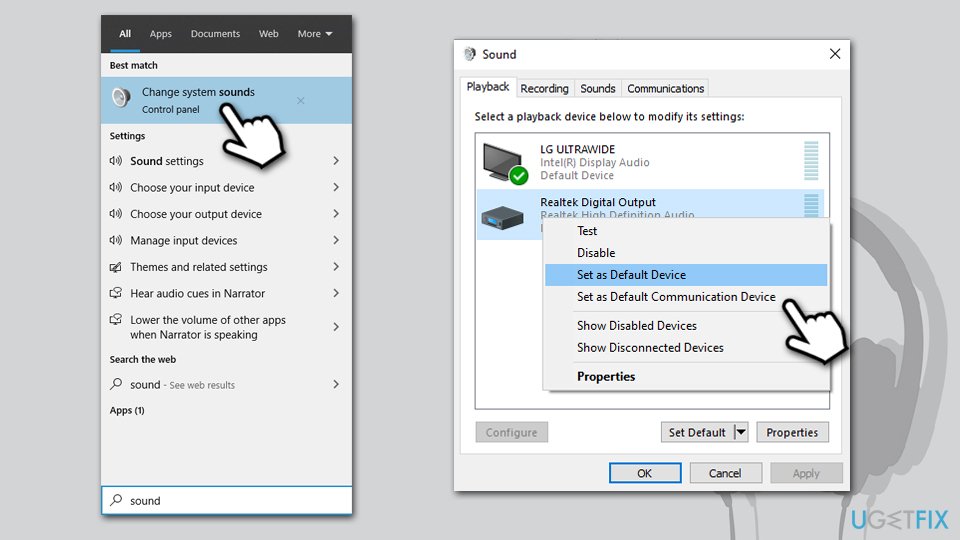
How to fix cant hear anyone on discord set as default device - Click Apply and OK
In case you cannot view your device on the list, you should do the following:
- Go to Playback tab once again
- Right-click anywhere on a blank space within the window
- Select Show Disabled Devices and Show Disconnected Devices
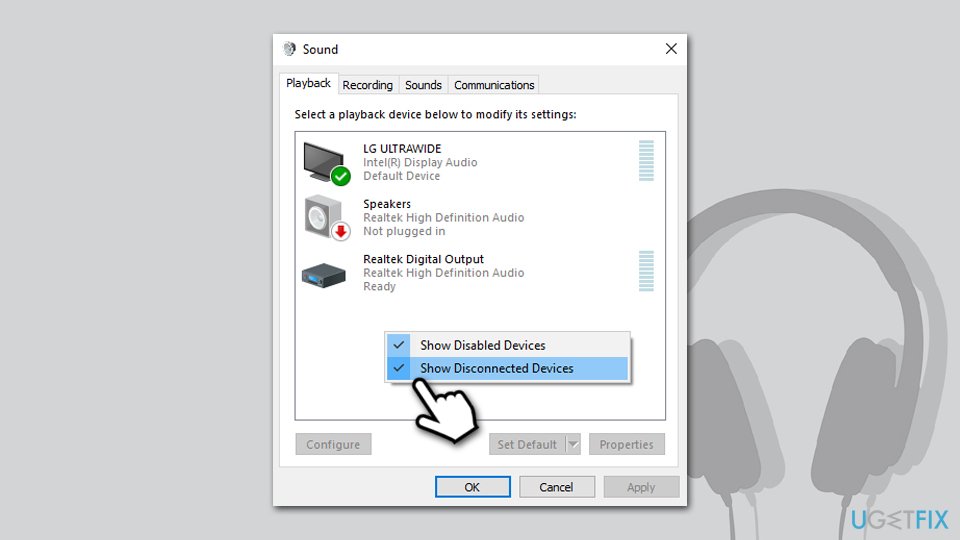
How to fix cant hear anyone on discord show disabled devices
Solution 3. Set correct output device via Discord
- Open Discord app
- Click the User Settings icon
- Go to Voice & Video on the left
- Under Voice Settings, click the drop-down menu and select Default
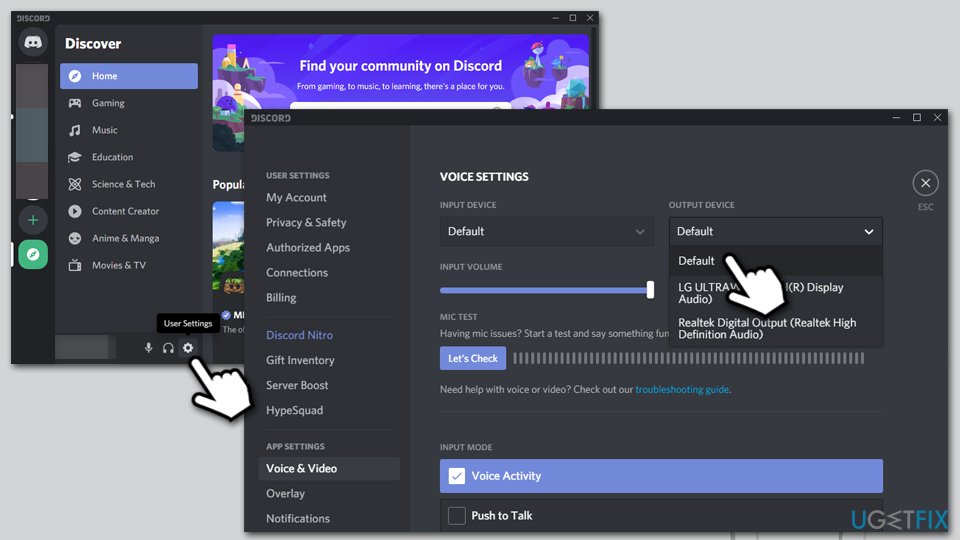
How to fix cant hear anyone on discord set correct output device - Now check the Output volume - make sure it is not set to 0
Solution 4. Turn on Legacy Audio Subsystem
- Open Discord and go to Voice & Video settings once again
- On the right, scroll down till you reach the Audio subsystem section
- If the setting is set to Standard, replace it with Legacy
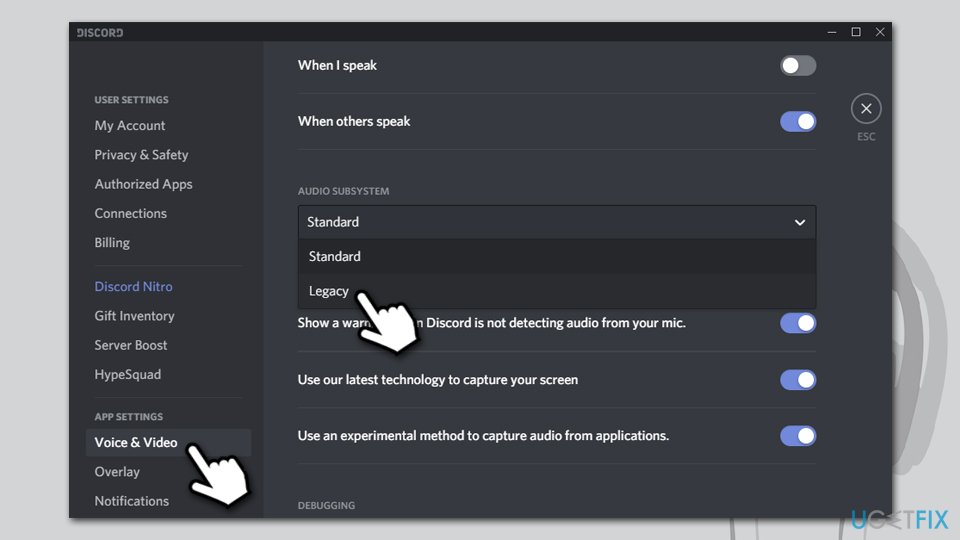
How to fix cant hear anyone on discord pick legacy audio subsystem
Solution 5. Try Discord web version
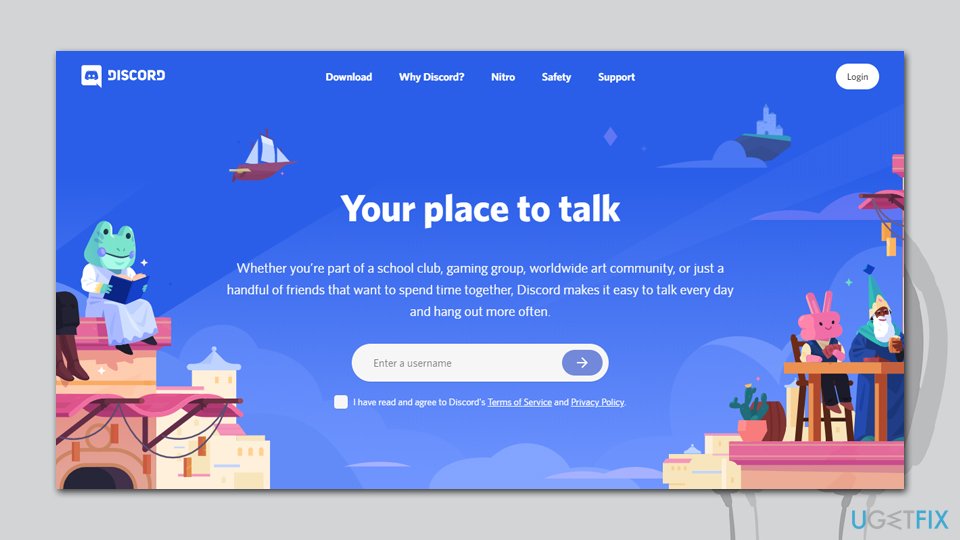
If you still can't hear anything on Discord, you should try web version of the app - simply go to the official Discord website and access your account by entering your login information.
Solution 5. Reinstall Discord
If none of the above steps helped you, you should try reinstalling the app. You won't lose your contacts or app settings, all you have to do afterward is enter your login information.
- Right-click on Start and select Apps and Features
- Scroll down until you find Discord
- Click on it once and select Uninstall > Uninstall
- Follow the on-screen instructions
- Now go to the official website and download the app once again.
If, for some reason you are unable to uninstall it, check out our extensive guide on how to make it work.
Conclusion
We hope that our guide helped you fix the sound problem. If you still have questions or feedback, you are welcome to contact us via our Ask Us section.
If you still can't hear anyone on Discord, you need to determine which components are not working properly - your headset/speakers, Windows, or the software. If you can hear stuff when listening to everything else, your output device is completely fine. If reinstalling the app did not help to solve your issue, the problem lies within Windows.
If your sound went missing after Windows updates, you should update or reinstall audio/sound drivers - using automatic driver updater such as [ref id="DriverFix"] can speed up this process. Running an audio troubleshooter can also do wonders sometimes.
Finally, if none of the troubleshooting worked for you, you might as well reinstall/reset Windows altogether. While it might seem extreme, keep in mind that Microsoft simplified this process by a lot (in comparison to what it was in Windows XP times, for example). It lets you keep your personal files or even apps - depending on what you choose to reset - after the reinstall is complete.
Bottom line
To resolve the issue of not hearing anyone on Discord, check your audio settings, ensure the correct input and output devices are selected, and verify that Discord has the necessary permissions. If the problem persists, consider updating the Discord application and checking for any conflicting audio drivers. If none of these solutions work, further troubleshooting may be required.
Frequently asked questions
This issue may arise due to incorrect audio settings or outdated audio drivers. Check your Discord audio settings and ensure your output device is set correctly.
Navigate to User Settings, then to Voice & Video, and ensure the correct output device is selected and the volume is turned up. You can also test your audio by using the 'Let's Check' feature.
Open Device Manager, locate your audio device, right-click it, and select 'Update driver' to automatically search for updated drivers. Restart your computer afterward to ensure the changes take effect.




Report an issue
What's wrong with this guide? We review every report and update or remove content.
Report received — thank you. We'll review and fix it.
You need a free account to submit a report.
Be the first to comment